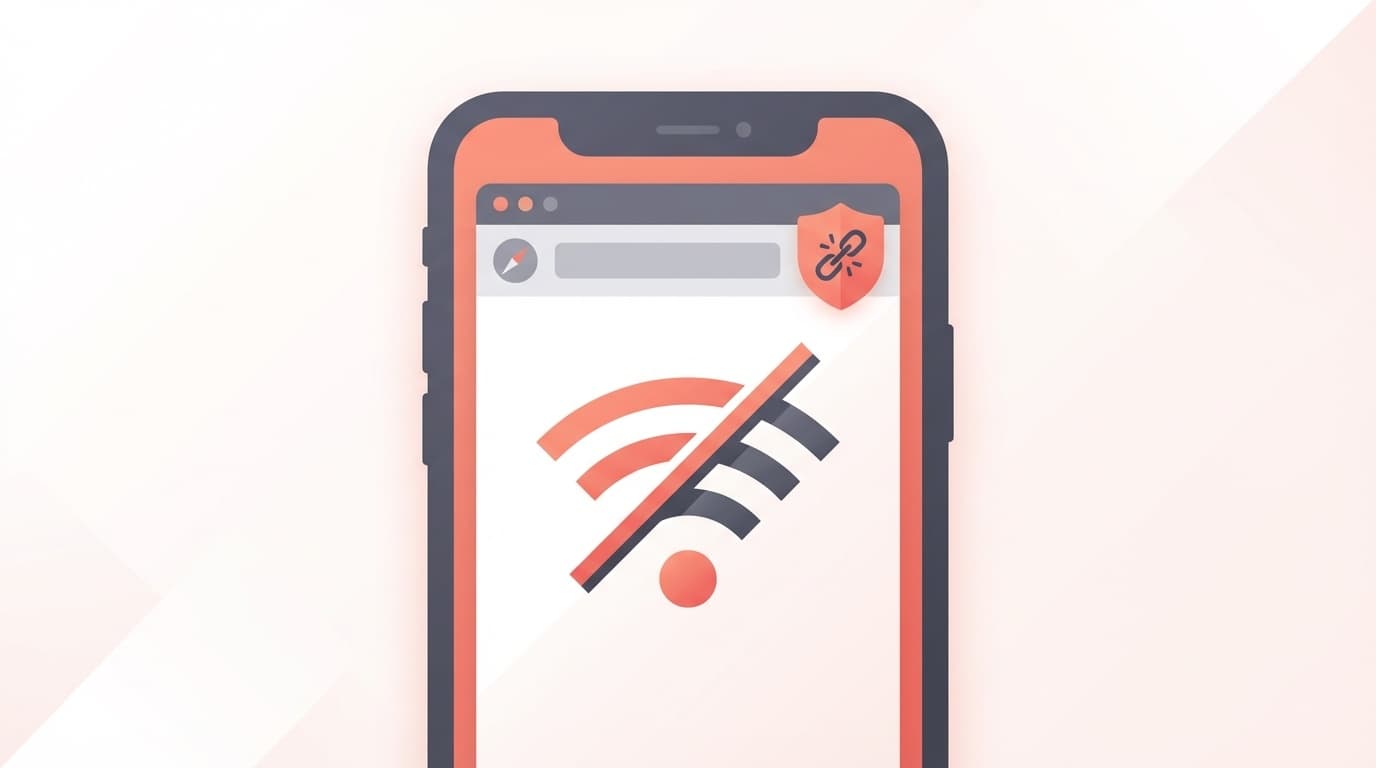
Have you ever tried to browse the internet with Safari and suddenly got an error saying "Safari cannot connect to iCloud Private Relay" and got frustrated?
When this error occurs, pages may not load in Safari or may display extremely slowly. As of February 2026, many iPhone and Mac users are complaining on SNS that the problem suddenly started appearing.
In this article, we will organize the causes of errors into five categories and explain how to deal with each one in an easy-to-understand manner. Most cases can be fixed simply by reviewing the settings, so please try calmly.
What is iCloud Private Relay?
Before taking action, I will first briefly explain what the private relay function is.
iCloud Private Relay is a feature that makes your IP address and browsing history invisible to websites and network operators by encrypting Safari communications and passing them through two relay servers (relays). According to Apple's official support page, it is similar to a VPN, but it is designed so that Apple itself cannot see what you are viewing.
To use it, two conditions are required.
- Be subscribed to iCloud+ (from 130 yen per month)
- iOS 15 or later (for iPhone) or macOS Monterey or later (for Mac)
In other words, people who do not have iCloud+ will not see this feature in the first place. Conversely, if you receive an error, it means you are an iCloud+ user.
Cause 1: Unstable Wi-Fi or mobile line
This is the most common cause. Private relays route communication between two servers, so requires a more stable line than a regular internet connection.
If you are in a place where the signal is weak or the Wi-Fi is not working properly, the connection to the relay server will time out and cause an error.
How to deal with it
- Turn Wi-Fi off and on again (quickly switch from Control Center)
- Turn on airplane mode for 10 seconds and then turn off (effective for refreshing the line)
- Try switching to another Wi-Fi (this tends to happen in cafes and public Wi-Fi)
- If that doesn't work, try switching to mobile data
Cause 2: The network you are connected to is blocking private relay
Actually, this is a fairly common pattern. Wi-Fi networks at companies, schools, hotels, etc. may block the ports and IP addresses used by private relays for security reasons.
According to Apple's official documentation, network administrators can intentionally block private relay communications. Also, with some carriers (mobile companies), private relays may interfere with services such as "count-free" or "no data limit" for data communication.
How to deal with it
- Try switching to your home Wi-Fi (usually not blocked at home)
- Use tethering (personal mobile hotspot)
- If this happens on your work/school Wi-Fi, turn off private relay for that network only:
- "Settings" → "Wi-Fi" → Tap "ⓘ" next to the name of the network you are connected to
- Turn off "iCloud Private Relay"
With this method, you can turn off private relay for a specific Wi-Fi and continue to use it for others.
Cause 3: Conflict with VPN or content blocker
If you are using a VPN app, it may "fight" with your private relay. Both mechanisms change the communication route, so if they operate at the same time, they will conflict.
Similarly, there have been reports of Safari's content blocker (ad blocker) incorrectly blocking private relay communications.
How to deal with it
- Temporarily turn off your VPN and check if Safari works properly
- Using VPN and private relay at the same time is basically not recommended. Choosing one or the other is stable
- If you are using a content blocker, try disabling it before opening Safari (manage it from Settings → Safari → Extensions)
Cause 4: Temporary failure of private relay
The private relay itself may be temporarily buggy. This may be a problem on Apple's server side, or the settings may be reset immediately after an iOS update.
How to deal with it
- Turn off private relay → wait 10 seconds → turn on:
- "Settings" → Tap your name at the top → "iCloud" → "Private Relay"
- Switch off
- Wait about 10 seconds and then turn it back on
- Restart your iPhone (Simple but effective. Press and hold the power button + volume button → slide to power off)
- If that doesn't work, try signing out of your Apple ID and then signing in again (Settings → Your name → Sign out)
It is also recommended that you check if there are any problems with the iCloud private relay on Apple's system status page. If it's an issue with Apple's servers, you'll just have to wait.
Cause 5: IP address location information setting is incorrect
Private Relay has two types of "IP address location information" settings. This setting may cause connection errors.
- "Keep approximate location": An IP address close to your area will be assigned (default)
- Use country and time zone: A wider range of IP addresses is used (more privacy, but may affect local content)
How to deal with it
- "Settings" → Your name → "iCloud" → "Private relay" → "IP address location information"
- Try changing to "Keep approximate location"
- Close Safari completely (swipe up on the app switcher) and reopen it
There are many reports of stable connections after changing this setting, so please give it a try.
Checklist if the problem persists
If the above five solutions do not fix the problem, please also check the following.
- Update iOS to the latest version (Settings → General → Software Update)
- Clear Safari history and website data (Settings → Safari → Clear history and website data)
- Reset network settings ("Settings" → "General" → "Transfer or reset iPhone" → "Reset" → "Reset network settings") *Please note that the Wi-Fi password will be deleted
- Temporarily turn off the private relay and use it (This is not a fundamental solution, but it is an emergency measure when you want to use the internet in a hurry)
FAQ
Is it safe to turn off private relay?
Private relay is just an additional feature for privacy protection. Even if you turn it off, Safari's standard encryption (HTTPS) is still enabled, so it doesn't pose a huge risk in normal use.
Does private relay work for apps other than Safari?
As of February 2026, private relay only protects Safari browsing and DNS queries, as well as unencrypted HTTP communications for some apps. Basically, it does not apply to communication of other apps such as Chrome and LINE.
What happens to Private Relay if I cancel iCloud+?
If you cancel iCloud+, private relay will be automatically disabled. However, it will only stop the error from occurring, and other iCloud functions (such as photo backup) will be affected, so please be careful when deciding to cancel.
What should I do if the same error occurs on Mac (macOS)?
The solution is basically the same for Mac. You can turn it off or on from "System Settings" → "Apple ID" → "iCloud" → "Private Relay". Also, on Mac, you can change the private relay settings for each network by going to System Settings → Network → Wi-Fi in use → Advanced.
References
- About iCloud Private Relay — Apple Support
- Manage iCloud Private Relay for specific websites, networks, and system settings — Apple Support
- Secure your web browsing on iPhone with iCloud Private Relay — Apple Support
- Apple system status — Apple