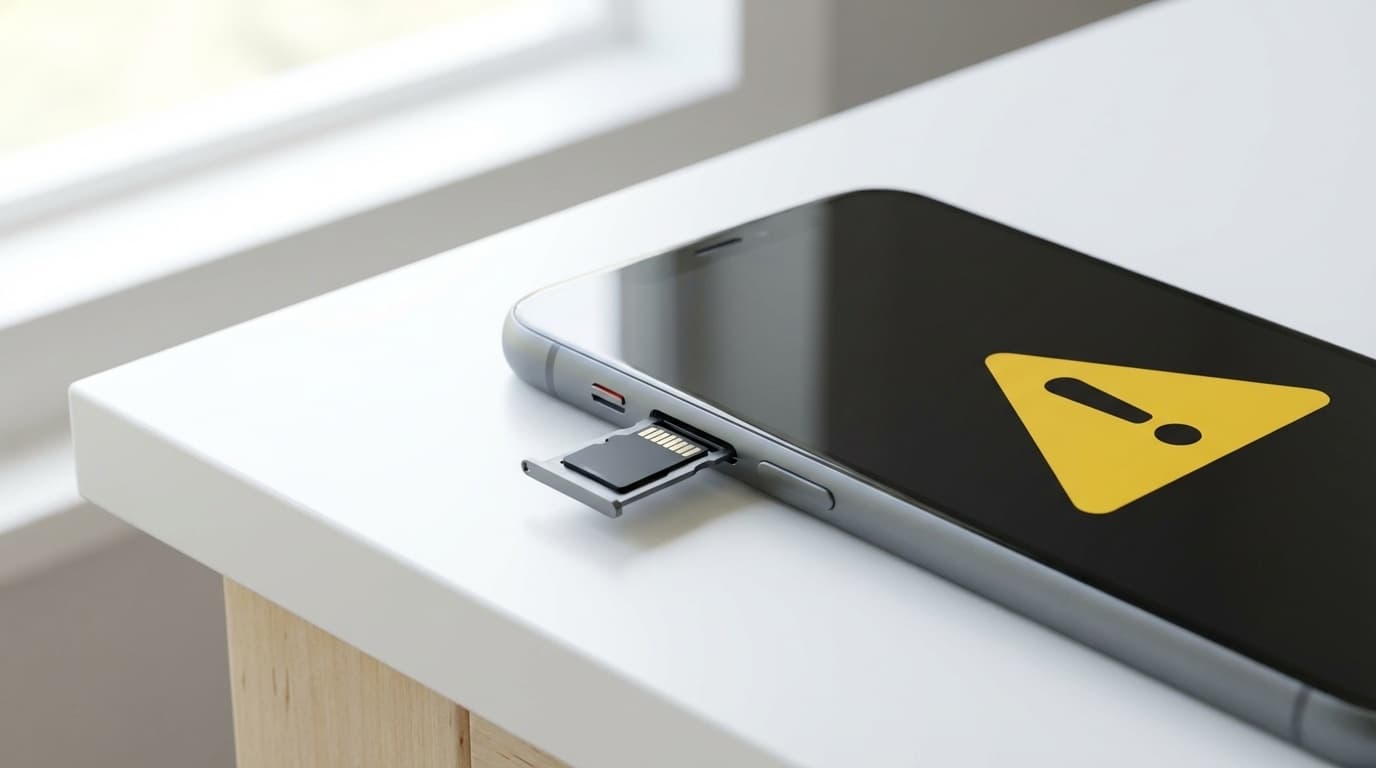
“Wait, why won’t my SD card load...?” When the microSD card in your Android phone suddenly stops being recognized, it’s more common than you might think. If you’ve been saving photos and videos to that card, it can be a heart-stopping moment.
Based on information current as of March 2026, this article explains six common reasons your phone may not recognize or read an SD card, plus the right steps to recover it while protecting your important data. If your phone asks, “Do you want to format this card?” don’t panic and tap OK.
Check This First: What Not to Do When Your SD Card Isn’t Recognized
Before we get into fixes, there’s one thing you need to know upfront. When an SD card stops loading, the worst thing you can do is format it.
When Android can’t read an SD card properly, it may show a dialog asking if you want to format it. If you tap “Format,” all data on the card will be erased. If you want to save your files, cancel that dialog first.
Also, don’t try to write new data to an SD card that isn’t being recognized. If new data overwrites the old data, files that might have been recoverable could be lost for good. Once you notice something’s wrong, stop using the card for now.
6 Reasons Your SD Card Isn’t Being Recognized
The causes generally fall into two categories: physical problems and software-related problems. Let’s check them one by one.
Cause 1: The card isn’t inserted properly
This is surprisingly common. microSD cards are tiny, so even a slight misalignment can keep them from being recognized. The tray can also shift a little when you remove your phone case. First, power off your phone, pull out the SIM tray, and reseat the SD card.
Cause 2: The contacts are dirty or oxidized
If dust or skin oil gets on the gold contacts of the SD card, it can cause a bad connection. Try gently wiping the contacts with a dry cotton swab or soft cloth. Lightly rubbing them with a plain white eraser may also remove oxidation. Just don’t use water or detergent.
Cause 3: A temporary phone system error
A temporary Android OS glitch can sometimes stop the phone from recognizing the SD card. In this case, a simple restart often fixes it. Hold down the power button and choose “Restart.”
Cause 4: The SD card type or capacity isn’t supported by your phone
microSD cards come in standards such as SDHC, up to 32GB, and SDXC, up to 2TB. Older phones may not support SDXC, so a card that’s 64GB or larger might not be recognized. Check your phone’s manual or the manufacturer’s website for the maximum supported capacity and card standard.
Cause 5: File system corruption, also called logical damage
If the SD card’s file system, basically the table of contents for your data, gets damaged, your phone may no longer be able to read what’s inside. Common causes include removing the card while data is being written, the phone shutting down because the battery died, or wear from long-term use. In this case, the card itself may still be alive, so data recovery may be possible.
Cause 6: The SD card itself has physically failed
microSD cards don’t last forever. Standard cards have a limited number of write cycles, and with daily use, deterioration may start after about 2 to 3 years, according to Buffalo official support. If the card is physically damaged, DIY recovery is difficult, and you’ll likely need to contact a professional recovery service.
5 Steps You Can Try Yourself
Once you have a rough idea of the cause, try the steps below in order. To protect your data, destructive actions like formatting should be the last resort.
Step 1: Restart, then reseat the card
Start with the easiest fix. Turn off your phone, remove the SD card, wipe the contacts, insert it firmly again, and power the phone back on. This alone fixes more cases than you might expect, so it’s worth trying first.
Step 2: Check whether another device can read it
Remove the SD card from your phone and try it in a computer card reader or another phone. If another device can read it, the problem is likely on the phone side. If no device can read it, the SD card itself is probably the issue.
Step 3: Run an error check on a computer
On a Windows PC, connect the card through a card reader, right-click the SD card in File Explorer, then choose “Properties” → “Tools” tab → “Error checking.” If the file system has minor damage, this may repair it automatically.
On a Mac, open Disk Utility, select the SD card, and run “First Aid.”
Step 4: Try recovering files with data recovery software
If error checking doesn’t fix it, try data recovery software. Connect the SD card to a computer and scan it with a recovery tool. In some cases, it can detect deleted files or data that’s no longer readable normally.
As of March 2026, these are some well-known free options:
- DiskDigger — Can also scan directly on an Android device
- Recuva for Windows — The free version can handle basic recovery
- PhotoRec for Windows/Mac/Linux — Open source and completely free
However, software can’t recover data from physical damage. If the software can’t detect anything, move on to the next step.
Step 5: Contact a professional data recovery service
For physical damage or severe logical damage, specialized work in a clean room may be required. Some professional services, such as Camera no Kitamura and Data Recovery.com, offer free initial diagnostics. Costs often range from a few thousand yen to several tens of thousands of yen, but if the card contains important photos or videos, it may be worth considering.
3 Habits That Help Prevent SD Card Trouble
Recovering your data is a relief, but to avoid the same problem again, make these habits part of your routine.
Habit 1: Back up regularly
Regularly copy your SD card data to Google Photos or a computer. With Google Photos, you can turn on “Back up SD card” in settings to back it up automatically.
Habit 2: Don’t remove the card while data is being written
Removing an SD card while photos are saving or apps are being installed can corrupt the file system. Before removing the card, always go to “Settings” → “Storage” → “Unmount SD card” first.
Habit 3: Replace the card every 2 to 3 years
microSD cards are consumables. If you’re writing a lot of data, especially video, it’s safer to replace the card every 2 to 3 years. When buying a new one, choose a product from a reliable brand such as SanDisk, Samsung, or Kioxia.
FAQ
What should I do first if my SD card stops being recognized?
First, restart your phone and try removing and reinserting the SD card. If you see “Do you want to format this card?” don’t format it. The safer move is to check whether a computer card reader can read it.
Can I get my data back if I already formatted the card?
If you just formatted it, data recovery software such as Recuva or PhotoRec may still be able to restore your files. But if you keep using the card after formatting, new data can overwrite the old data and lower your recovery chances. Stop using it immediately and start the recovery process.
Are cheap SD cards more likely to fail than expensive ones?
Yes, there can be a difference. Extremely cheap no-name cards may have weaker quality control and tend to have shorter lifespans. Major-brand cards from companies like SanDisk and Samsung go through durability testing and usually come with longer warranties, often 5 to 10 years, which makes them a safer choice.
Should I format an SD card as internal storage on Android?
The “Format as internal storage” feature available on Android 6.0 and later lets you store apps on the card, but it also encrypts the card for that phone only, so other devices won’t be able to read it at all. It also makes data recovery harder if the card fails. Unless you have a specific reason, it’s usually better to keep it as external storage.
References
- Troubleshooting: SD card isn’t detected — Google Files by Google Help
- Can’t find photos saved on an SD card? How to recover them — Buffalo Official Support
- How to recover data from a microSD card, including precautions when it isn’t recognized — Data Recovery.com
- Causes and fixes when an SD card isn’t recognized or won’t load — A1 Data