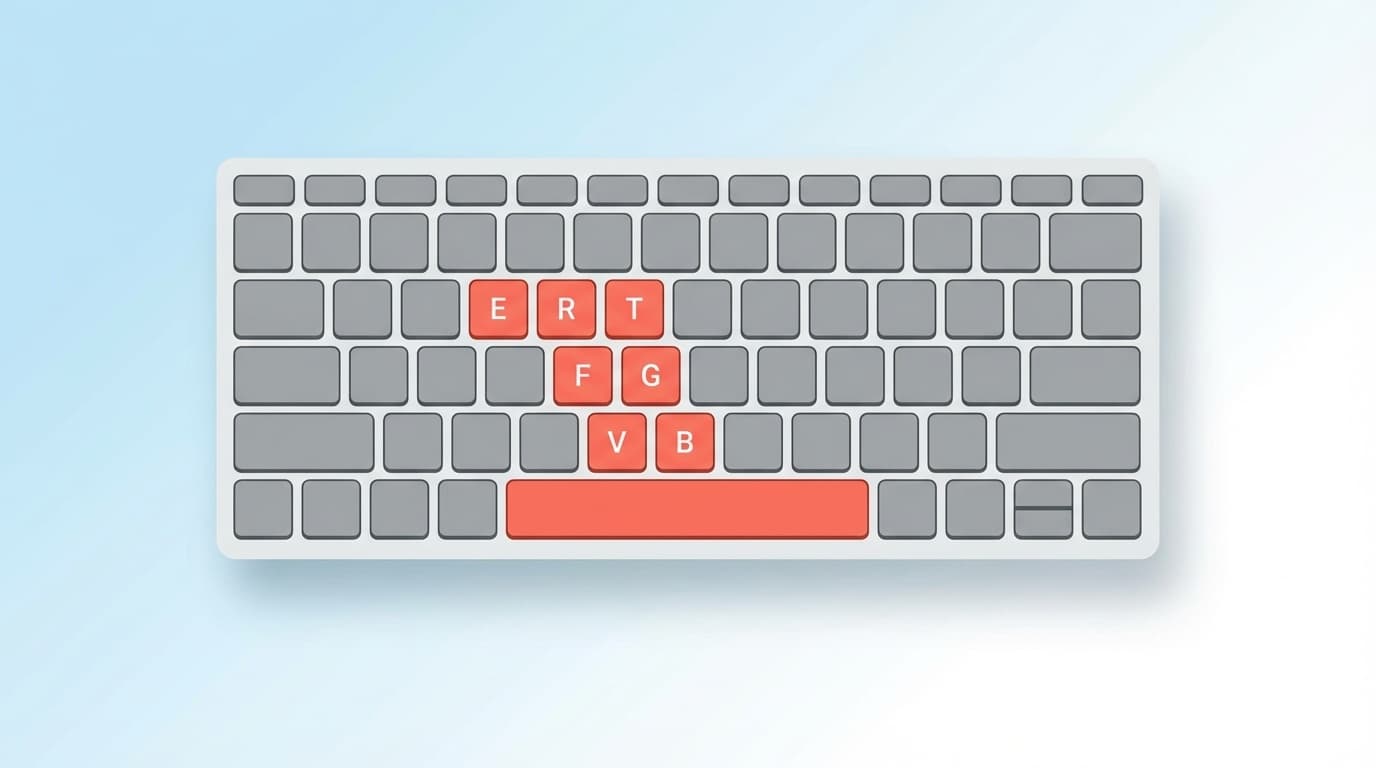
"Hmm, the Shift key doesn't work..." "I can't type certain characters..." There are quite a few problems with laptop keyboards where some keys become unresponsive.
If you can't use all the keys, it's easy to judge that it's broken, but only specific keys is troublesome. Causes can range from software misconfigurations to physical hardware issues.
In this article, we will explain in an easy-to-understand manner the five causes of "some keys not responding" in the Windows 11 environment as of March 2026, as well as solutions that you can try on your own. We will introduce a method that you can try without an external keyboard, so let's calm down and check it in order from the top.
First thing to try: restart and on-screen keyboard
Before you suddenly change the settings, first try restarting your PC. There are surprisingly many cases where the keyboard is not recognized properly due to a temporary problem in Windows, and it can be fixed simply by restarting the computer.
If restarting does not fix the problem, use the on-screen keyboard. You can launch it by typing "on-screen keyboard" in the search box on the taskbar or by pressing Windows Key + Ctrl + O. With this, you can rest assured that you can continue operating even if you cannot use the physical keyboard.
If you have an external keyboard (USB or Bluetooth), try connecting it. If you can input normally with the external keyboard, the problem can be isolated to the built-in keyboard.
Cause 1: Filter keys/fixed keys are enabled
Windows 11 has accessibility features called "Filter Keys" and "Stick Keys". If this is enabled without your knowledge, the keyboard will behave strangely.
If filter keys are enabled, keys may not respond unless you press them for a long time, or repeated presses may be ignored. It can be activated by holding down the right Shift key for 8 seconds, so you may accidentally turn it on while gaming or typing.
Stick keys are activated by pressing the Shift key five times. If this is on, Shift or Ctrl will be held down, resulting in unintended behavior.
Confirmation/cancellation procedure:
- Windows Key + I to open Settings
- Select "Accessibility" from the left menu
- Click "Keyboard" in the "Actions" section
- Turn off Sticky Keys
- Turn off "Filter key function"
- Expand each item and also turn off "Launch 〇〇 with keyboard shortcuts" (to prevent it from being enabled accidentally)
Microsoft's official filter keys explanation page has a detailed explanation.
Cause 2: Dirt/dust is stuck in the gap between keys
Due to the structure of laptop keyboards, dirt and dust can easily get into the gaps between the keys. In particular, if the device becomes clogged with food particles, hair, or pet hair, certain keys may become unresponsive.
If you feel like ``Recently, I feel like I'm not pressing the button properly'' or ``When I press it, it doesn't feel the same as usual,'' it's most likely due to physical dirt.
Workaround:
- Turn off your PC (be sure to shut it down first)
- Tilt the PC upside down and tap to remove any debris
- Use an air duster (spray can) to blow air into the gap between the keys. The trick is to blow from an angle
- Carefully clean the area around the unresponsive keys with a cotton swab or brush
Air duster can be purchased at electronics stores or Amazon for around 500 to 1,000 yen. Regular cleaning is recommended 2 to 3 times a year.
Caution:It is not acceptable to forcefully remove the keycap (the part on the surface of the key). Unlike desktop keyboards, laptop keyboards use precision parts such as pantograph structures, so there is a risk of damage if you remove them by force.
Cause 3: Keyboard driver problem
If parts of your keyboard become unresponsive after a Windows Update, a defective driver may be the cause. Microsoft Q&A forum has also received many reports of keyboard problems after Windows Update.
Driver reinstallation steps:
- Open Device Manager with Windows Key + X
- Expand "Keyboard"
- Right-click on the displayed keyboard device (e.g. "HID Keyboard Device", "Standard PS/2 Keyboard")
- Select "Uninstall device"
- Click "Uninstall" on the confirmation screen
- Restart your PC (drivers will be automatically reinstalled when restarting)
If this does not fix the problem, try downloading the latest keyboard driver from the PC manufacturer's support page and installing it manually. Lenovo official keyboard troubleshooting page and dynabook's official keyboard handling page.
Cause 4: NumLock or Fn key lock status
If you experience symptoms such as ``The numeric keypad does not respond'' or ``Numbers appear when you press a letter key,'' you should suspect a NumLock condition.
Many notebook PCs do not have a numeric keypad, so some keys on the keyboard (U, I, O, J, K, L, etc.) are assigned numeric keypad functions. When NumLock is on, numbers are entered instead of letters.
NumLock on/off:
- Find and press the keys labeled "NumLk" and "NumLock" on the keyboard
- Some models require you to press the Fn key at the same time (e.g. Fn + NumLk)
Also, Fn key lock is also a blind spot. If the Fn key is locked, function keys such as volume adjustment and screen brightness change will take priority when pressing the F1 to F12 keys, resulting in symptoms such as "Unable to reload with F5" and "Unable to change name with F2."
How to unlock Fn lock varies by manufacturer, but in most cases you can use Fn + Esc or Fn + Fn lock key (the key with a padlock icon).
Cause 5: Physical failure of the keyboard
If the problem still persists even after trying all the above solutions, there is a high possibility that the keyboard itself is physically damaged.
It may be a hardware problem, especially if you have the following symptoms:
- You can input correctly with an external keyboard
- When you press certain keys, there is no click/it stays depressed
- Symptoms appear after spilling water or drink
- The area around the keys is discolored or swollen (a sign of battery expansion)
What to do in this case:
- If it is within the manufacturer's warranty period, request repair from manufacturer support (usually within one year from purchase)
- If it is outside the warranty period, get a quote from the PC manufacturer or a computer repair shop. The repair cost for keyboard replacement depends on the model, but the average price is around 10,000 to 20,000 yen
- Until it is sent for repair, use an external keyboard instead. You can purchase a compact keyboard with USB connection for around 2,000 to 3,000 yen
Be careful:If there is a bulge around the key, it is a sign ofbattery expansion. Due to the risk of fire, please stop using it immediately and contact manufacturer support.
FAQ
Is it certain that a specific key is malfunctioning if only a specific key does not respond?
No. There are surprisingly many software-related causes, such as filter key settings, NumLock status, and driver problems. First, try checking your settings and reinstalling the driver.
If I don't have air duster, what can I use instead?
You can clean the gaps between the keys with a soft brush (makeup brush or paintbrush). Avoid using a vacuum cleaner directly, as the suction power is too strong and may suck the keycaps.
Can I disable the built-in keyboard while using an external keyboard?
You can temporarily disable the built-in keyboard by disabling the keyboard device from Device Manager. However, depending on the model, everything including the external keyboard may be disabled, so please check the operation of the external keyboard before setting it up.
Can I use only the on-screen keyboard while the keyboard is being repaired?
It is possible for a short period of time. Windows 11's on-screen keyboard (Windows key + Ctrl + O) allows you to enter characters by clicking or touching the mouse on the screen. However, it is not suitable for typing long texts, so if the repair period is likely to be long, we recommend purchasing an external keyboard.
References
- Causes and solutions for laptop keyboard not responding — dynabook (Dynabook Official)
- Causes and solutions for notebook keyboard not responding — Lenovo Japan
- What to do if you cannot input anything from the keyboard in Windows 11 — NEC LAVIE Official FAQ
- Windows filter keys function — Microsoft official
- Does Microsoft have a fix for the common issue with laptop keyboards not working after Windows 11 Updates — Microsoft Q&A