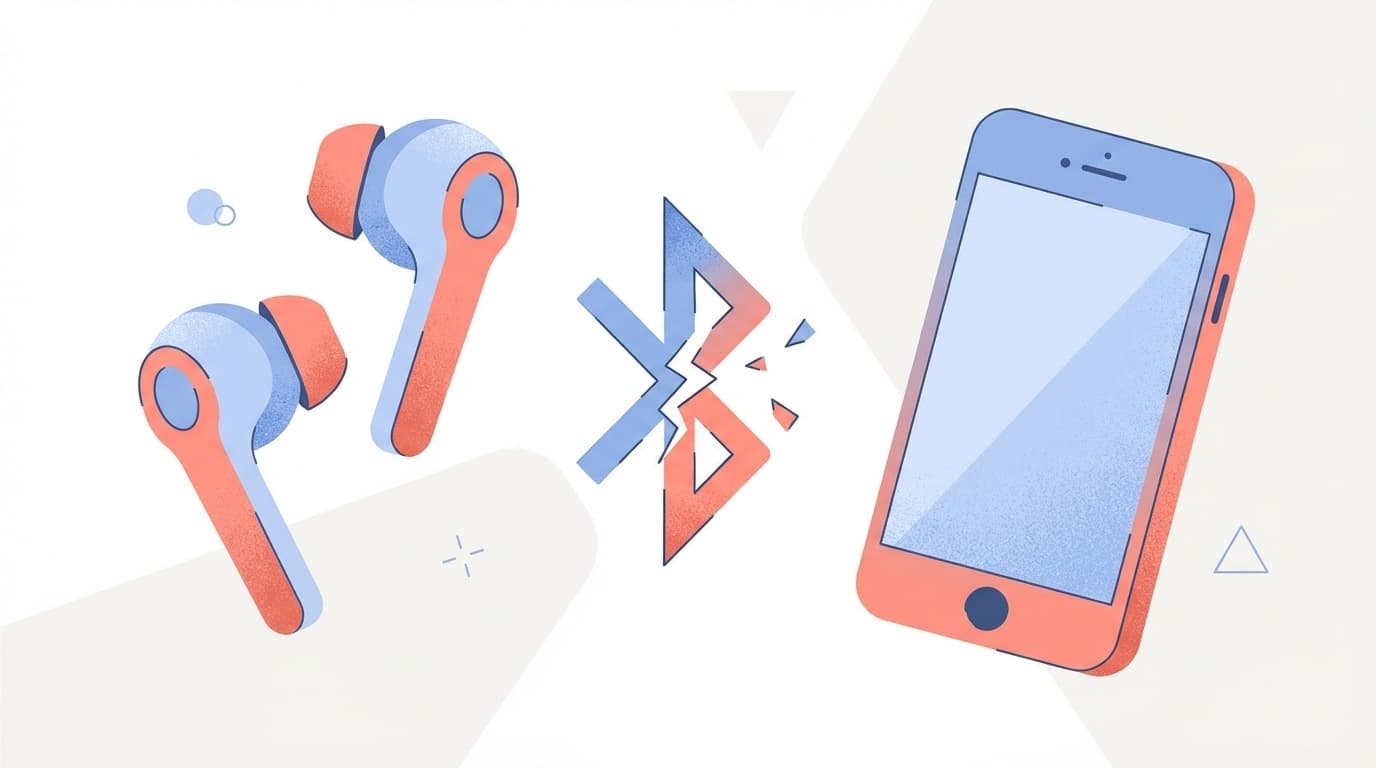
``I was able to listen normally until just now, but the sound suddenly cuts out.'' ``I can't connect even though I've paired it.'' Trouble with Bluetooth earphones can be extremely stressful, isn't it?
It's frustrating when music cuts out while you're commuting or working, and it annoys the other person when the call cuts out while you're on the phone. But don't worry. Most Bluetooth connection problems canbe fixed by yourself.
In this article, based on information as of March 2026, we will explain in an easy-to-understand manner the seven reasons why Bluetooth earphones are disconnected or unable to connect, and how to deal with them for iPhone and Android.
7 reasons why Bluetooth earphones are disconnected or not connected
First of all, let's know why it breaks. Once you know the cause, you can easily find a solution.
Cause 1: Radio wave interference (competition with Wi-Fi and microwave oven)
Bluetooth uses radio waves in the 2.4GHz band. This is actually the same frequency band as Wi-Fi and microwave ovens.
In places where there are many people, such as stations and commercial facilities, a large amount of Wi-Fi radio waves are flying around, causing "traffic jams" with Bluetooth signals. This radio interference is the reason why the sound cuts out while using your microwave oven at home.
Cause 2: Distance between smartphone and earphones/obstacles
The approximate communication distance of Bluetooth is approximately 10 meters for standard earphones (Class 2). However, this is a story in an ideal environment with no obstacles.
Even if you just walk with your smartphone in your pocket, your body will become an obstacle and the signal will be weakened. Distance and obstacles can also cause an unstable connection with a smartphone placed in a different room across a wall.
Cause 3: Low battery level
When the earbuds' battery is low, they may enter power saving mode and the Bluetooth signal may become weak. If you've ever experienced the sound starting to cut out, but then the power turned off a few minutes later, this is exactly the pattern.
There are surprisingly many cases where even if you intended to put the device back into the charging case, the terminals were misaligned and the device was not charging.
Cause 4: Inconsistent pairing information
If the pairing information between your smartphone and earphones becomes misaligned, you will not be able to connect. This often happens when you connect your earbuds to multiple devices.
For example, if you pair your earphones to both your work PC and your smartphone, the earphones will automatically connect to the PC when the PC is nearby, and you will not be able to connect from your smartphone.
Cause 5: Old OS or firmware
iPhone and Android OS updates often include Bluetooth bug fixes. Around September 2025, we received many reports of unstable Bluetooth connections immediately after updating to iOS 26, but this has been fixed in iOS 26.0.1.
The same goes for the firmware (internal software) on the earphone side, and the manufacturer may release bug fixes, so check for updates from the dedicated app.
Cause 6: Android battery optimization is the cause
An Android-specific problem is that the battery optimization function may disconnect the Bluetooth connection. For those who stop playing music as soon as they lock their smartphone screen, this is most likely the cause.
Google Pixel Community There are also many reports of Bluetooth disconnecting when the screen is locked. Android actively stops background apps to save power, which can sometimes even stop music apps and Bluetooth-related services.
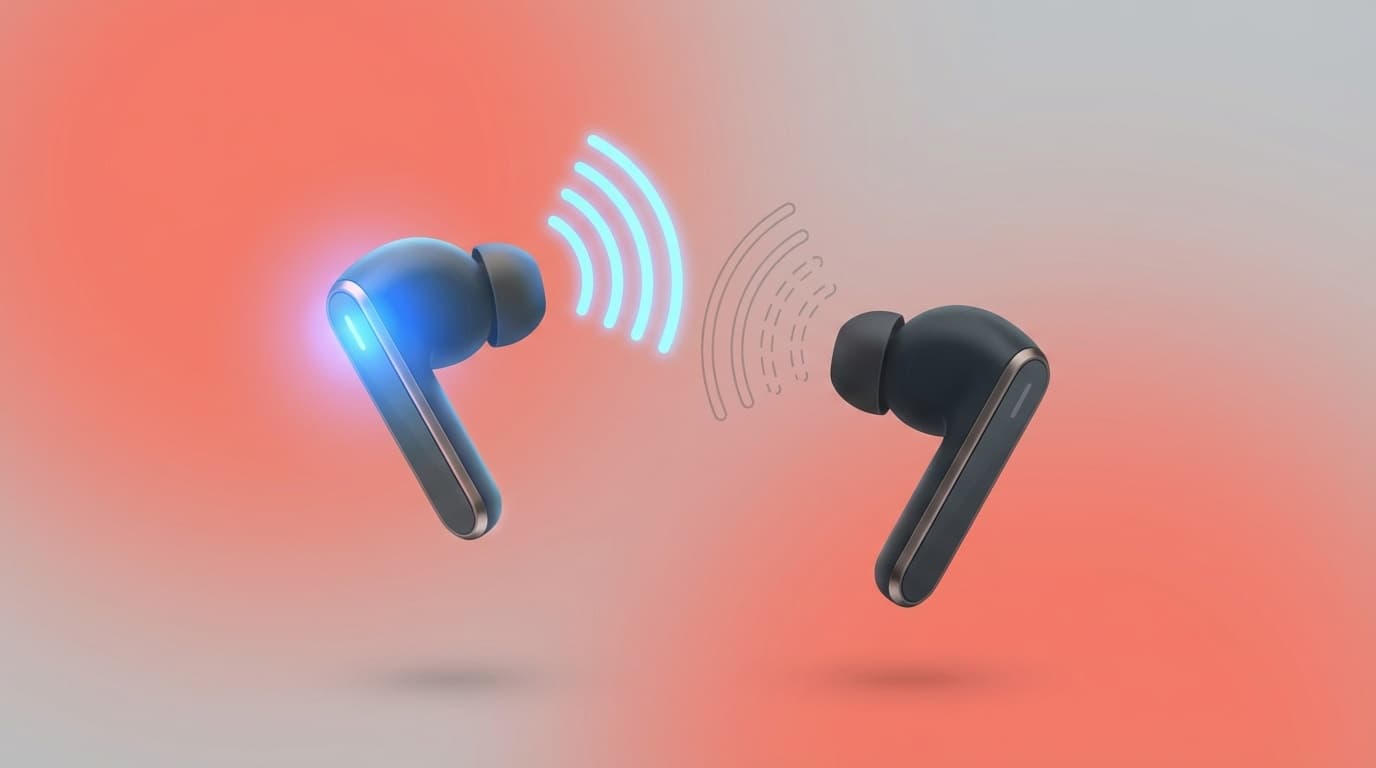
Cause 7: Completely wireless earphone left/right synchronization error
One of the unique problems with completely wireless earphones (separate left and right earphones) is that you cannot hear in one ear.
Since the left and right earphones also communicate with each other via Bluetooth, if the synchronization breaks down, only one will stop producing sound. There is also a common pattern where dirt accumulates on the terminals of the charging case and only one side is not charging.
Countermeasures you can try now [Basic version]
Let's start with Basic solutions that can be done in 30 seconds. This alone often fixes the problem.
Solution 1: Turn Bluetooth off → on
This is the easiest and most effective method. Turn off Bluetooth from your smartphone's settings screen, wait about 5 seconds, then turn it back on.
iPhone: "Settings" → "Bluetooth" → Switch off → Wait 5 seconds → On
Android: "Settings" → "Connected devices" (or "Bluetooth") → Switch off → Wait 5 seconds → On
Please note that tapping Bluetooth in your iPhone's Control Center (swipe down from the top right) will not turn it off completely. It will automatically turn back on the next day, so be sure to operate it from the "Settings" app.
Solution 2: Re-pair the earphones
If switching Bluetooth does not fix the problem, try pairing again.
iPhone: "Settings" → "Bluetooth" → Tap ⓘ on the right side of the earphone → "Forget this device" → Put the earphone in pairing mode and reconnect
Android: "Settings" → "Connected devices" → Gear icon of the earphone → "Delete" or "Unpair" → Put the earphone in pairing mode and reconnect
How to enter pairing mode on your earphones varies depending on the model, but in most cases, they will automatically enter pairing mode just by taking them out of the case. If it doesn't, try pressing and holding the earphone button (for 5 to 10 seconds).
Solution 3: Restart your smartphone
It's simple but effective. Temporary software glitches on your phone can be reset by restarting your phone.
Especially if you haven't restarted your smartphone for several days, it may be worth a try as it may also improve non-Bluetooth operations.
What to do if the problem still persists [Advanced]
If the basic three methods do not fix the problem, try the following methods.
Solution 4: Reset network settings
This is a method to reset Bluetooth, Wi-Fi, and mobile data settings all at once. Saved Wi-Fi passwords will also be deleted, so please write down your Wi-Fi password before proceeding.
iPhone: Settings → General → Transfer or Reset iPhone → Reset → Reset Network Settings
Android: "Settings" → "System" → "Reset options" → "Reset Wi-Fi, mobile, Bluetooth"
* The menu name differs depending on the Android model. You can easily find it by searching for "reset" in the settings.
Solution 5: Disable Android battery optimization
Android users whose music stops when the screen is locked, please check this setting.
"Settings" → "Apps" → "Special app access" → "Battery optimization" → Switch the display to "All apps" → Select a music app (Spotify, Apple Music, etc.) → Change to "Do not optimize"
For Galaxy (Samsung), the procedure is slightly different. Go to "Settings" → "Battery and device care" → "Battery" → "Background usage restrictions" and check whether the music app is included in "Sleeping apps". If it is there, please delete it.
Solution 6: Delete the registration of unused Bluetooth devices
If a large number of Bluetooth devices are registered on your smartphone, the connection may become unstable. Delete any speakers or headsets you no longer use.
In particular, the problem of earphones automatically connecting to another device can be prevented by canceling the pairing on the device you are not using.
Solution 7: Update the earphone firmware
You can update the firmware of earphones from major manufacturers such as AirPods, Sony, JBL, and Anker using a dedicated app.
- AirPods: Automatically updates when connected to iPhone and placed in charging case. You can check the version in "Settings" → "Bluetooth" → ⓘ of AirPods
- Sony: Updated from Sony | Headphones Connect app
- Anker (Soundcore): Updated from Soundcore app
Do not take the earphones out of the charging case while updating the firmware. Interrupting the update may cause a malfunction.
What to do if you can't hear in one ear
If there is no sound on only one side of the completely wireless earphones, there is a high possibility that the left and right earbuds are out of sync.
Step 1: Return to charging case and wait
Put both earbuds back into the charging case and wait at least 10 seconds before taking them out. For many earbuds, the left and right sync will be reset when you put them back in the case.
Step 2: Clean the charging terminal
If dust or sebum accumulates on the case's charging terminals (metal contacts), only one side may not be able to charge. Try gently wiping the terminals with a dry cotton swab.
Step 3: Factory reset the earbuds
If the above does not fix the problem, try resetting the earphone itself. The reset method varies depending on the model, but the general steps are as follows.
- Put both earbuds into the charging case
- Press and hold the button on the case for at least 15 seconds (until the LED flashes)
- Cancel pairing on the smartphone and then pair again
* For AirPods, you can reset the case by holding down the button on the back of the case for 15 seconds. If you don't know how to reset, check the manufacturer's official website or instruction manual.
Step 4: Check the volume balance settings
Check the settings on your smartphone to see if the left and right volume balance is biased to one side.
iPhone: "Settings" → "Accessibility" → "Audio & Visual" → Check if the "Balance" slider is in the center
Android: Check "Settings" → "Accessibility" → "Adjust audio" → "Left and right volume balance"
If it still doesn't work, maybe it's a malfunction? Points to check
If the problem persists even after trying all of the above solutions, there may be a hardware failure.
- Within one year from purchase → Free repair or replacement is often available under the manufacturer's warranty. Prepare proof of purchase (receipt or Amazon order history) and contact manufacturer support
- 1 year or more after purchase → In many cases, repairs will be charged. If the repair cost is more than half of the purchase price of the earphones, consider replacing them
- If you are concerned about submergence or falling → The internal circuit board may be damaged. Even if the earphones are waterproof, charging them when the charging terminal is wet may cause them to malfunction
FAQ
Why is there no sound even though the Bluetooth earphones are connected?
The volume on your smartphone may be set to zero, or the audio may be output to the smartphone's speakers instead of the earphones. Please increase the volume and check the output destination in the Bluetooth settings.
Can I fix the problem that Bluetooth earphones often cut out on the train?
Many passengers' smartphones and Wi-Fi routers emit radio waves on the train, making it an environment where radio interference is likely to occur. Although it is difficult to completely prevent this problem, it may be improved by placing the smartphone in a position close to the earphones (such as in a breast pocket).
Can't connect if the Bluetooth version is different?
Since Bluetooth is basically backward compatible, connection is possible even if the versions are different. However, if you use old Bluetooth 4.0 earphones with the latest smartphones, the connection may become unstable. As of March 2026, earphones compatible with Bluetooth 5.3 to 5.4 are mainstream.
What should I do if only one ear of AirPods is not recognized?
Return your AirPods to the charging case and press and hold the button on the back of the case for 15 seconds to reset. After that, go to "Settings" → "Bluetooth" on your iPhone, unpair the AirPods, and then pair them again. If the issue still persists, we recommend contacting Apple Support.
References
- If the sound from your wireless headphones cuts out or is distorted — Apple Support
- Explaining 5 reasons why Bluetooth cannot connect and how to deal with it — Rakuten Mobile
- Causes of sound skipping with Bluetooth earphones and countermeasures — radius
- Bluetooth earbuds keep disconnecting? These simple fixes could help — Android Police
- Optimization — Samsung Japan official