When working from home (telework), have you ever felt that for some reason you can't concentrate as much as you can at the office? According to a survey by NTT East, 97.7% of people who have experienced telework answered that they had experienced a decline in their ability to concentrate. The top cause is "looking at your smartphone or TV" (60%), but in fact, you can significantly improve your ability to concentrate by simply reviewing your PC's notification settings.
In this article, we will introduce how to use "Do Not Disturb Mode" and "Focus Session" in Windows 11 as of March 2026, as well as how to intelligently control notifications from work apps such as Slack and Teams. Rather than focusing on "creating a physical environment," we will focus on the settings that can be made on a single PC starting today, so please try it out right away.
3 "PC side" causes of poor concentration when working from home
``Self-management'' is not the only reason why people can't concentrate when working from home. What is surprisingly often overlooked is the pattern of PC settings interfering with concentration.
1. Notifications keep coming in
Slack, Teams, email, calendar, notifications from Windows itself... Desktop notifications appear dozens of times an hour, interrupting your consciousness each time. According to a study by the University of California, Irvine (Gloria Mark, 2008), it takes an average of 23 minutes and 15 seconds to regain concentration once it has been interrupted. In other words, a single "glance" on a notification results in more loss than expected.
2. Browser tab stays open
YouTube, SNS, news sites... Tabs that you don't open at the office because people are watching you tend to leave them open at home. Just having a tab creates the temptation to take a look.
3. No boundaries between work and private use
It's fine if you have a company-issued PC, but if you're working on a personal PC, you'll receive game notifications and SNS notifications even while you're at work. This ``lack of boundaries'' is a major cause of inability to concentrate.
Cut notifications all at once with Windows 11's "Do Not Disturb Mode"
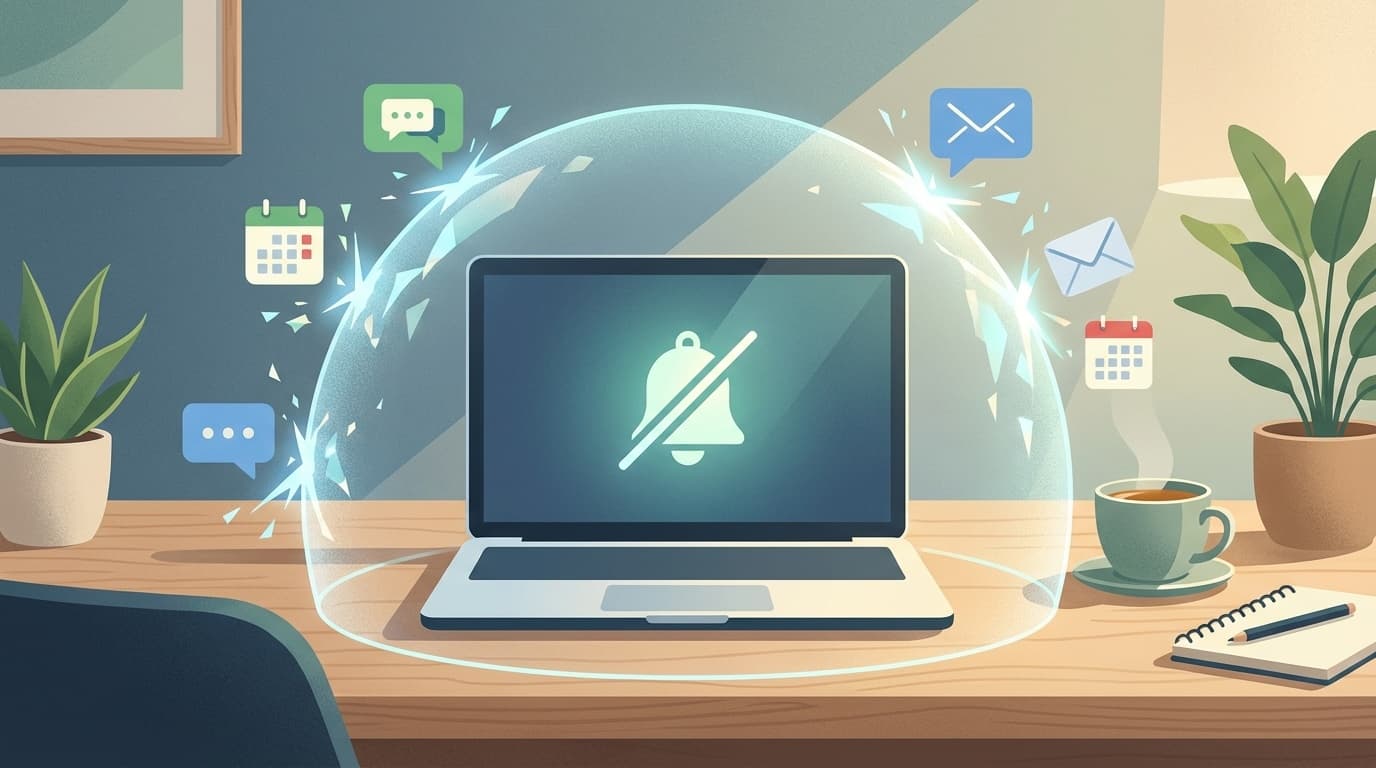
Windows 11 (22H2 or later) is equipped with ``Do Not Disturb'', which is an evolution of the previous ``Do Not Disturb Mode''. If you turn this on, all desktop notifications will be hidden and only accumulated in the Notification Center.
How to set up Do Not Disturb mode
- SettingsOpen app (Windows key + I)
- Select "System" → "Notifications" from the left menu
- Turn on the Do Not Disturb toggle at the top
With this alone, all app notifications will no longer be displayed on the desktop. Of course, the notifications themselves are saved in the notification center (click on the clock at the bottom right of the screen), so you don't have to worry about missing them.
How to turn on the automatic schedule automatically
If you find it troublesome to turn it on manually every time, try setting an automatic rule.
- Scroll down "Settings" → "System" → "Notifications" screen
- Click Turn Do Not Disturb Automatically
- You can set the following conditions:
- Time zone: For example, if you set it to "9:00-12:00" and "13:00-17:00", notifications will be automatically turned off during working hours
- When duplicating displays: Prevents notification accidents during presentations
- When playing a game: Automatically on while using a full screen app
If you are working from home, it is recommended that you set your working hours to ``Do Not Disturb Automatic On Time''. You'll only receive notifications during your lunch break, so it's easy to stay organized.
Allow notifications only for specific apps (priority notifications)
If you want to receive Teams calls from your boss even if you are unavailable, use Priority Notification Settings.
- Settings → System → Notifications → Set priority notifications
- Select the app you want to allow notifications for, such as Teams or Slack, from "Add app"
Now you can receive only important communications while blocking other notifications.
Focus sessions like Pomodoro
In addition to ``Do Not Disturb Mode,'' Windows 11 also has a timer-based concentration feature called ``Focus Session''. Roughly speaking, it is a function that incorporates the Pomodoro technique (25 minutes of concentration → 5 minutes of break) into Windows.
How to start a focus session
- SettingsOpen app (Windows key + I)
- Select "System" → "Focus"
- Set the time you want to concentrate (you can choose from 15 minutes to 240 minutes)
- Click Start Focus Session
During a focus session, the following actions occur automatically:
- Do not disturb mode turned on (notifications hidden)
- Taskbar apps no longer flash (no more distracting alerts)
- Badge notification (red circle with unread count) will be hidden
- A timer will appear on the screen to show you how much time is left
When the session ends, the notifications will be restored, so you can naturally create a rhythm of ``checking all at once during breaks.''
Play BGM in conjunction with Spotify
Focus sessions can be linked to your Spotify account. If you select "Link to Spotify" on the settings screen, the playlist will automatically play when the session starts. Playing cafe background music or environmental sounds will make it easier to switch into "work mode" even at home.
Setting to "smartly turn off" Slack/Teams notifications
Even if you turn off Windows notifications, Slack and Teams in-app notifications work on their own. Here, we will introduce how to review the notification settings for each app.
Organize Slack notifications
- Setting notification schedule: You can specify the time period to receive notifications by going to "Preferences" → "Notifications" → "Notification schedule". For example, if you set it to "Weekdays 9:00-18:00", it will automatically go silent during non-work hours (Slack Official Help)
- Pause notifications: Click on the bell icon at the top left of the screen to "Pause notifications" → select 30 minutes/1 hour/2 hours, etc. You can quickly turn it on when you want to concentrate (Slack Official Help)
- Mute each channel: For channels that you don't need to watch in real time, such as chat channels and information sharing channels, right-click → "Mute channel"
Organize your Teams notifications
- Turn off notifications outside of working hours: You can turn off notifications by specifying days and times in Settings → Notifications & Activity → Quiet Hours
- Individual channel notification settings: For channels that receive a lot of notifications, go to "..." to the right of the channel name → "Channel notifications" and change from "All new posts" to "Mentions and replies only"
- Set your status to "busy": If you change your Teams profile icon → status to "busy", notifications other than @mentions will be hidden. You can kill two birds with one stone because you can tell your colleagues that you are concentrating right now.
"5 PC environment checklist" that you can start today
To summarize what has been said so far, there are five PC settings you can start today to improve your concentration while working from home.
- Turn on "Do Not Disturb Mode" in Windows 11 (this alone is very effective)
- Set a schedule to automatically turn on Do Not Disturb during work hours
- Align Slack/Teams notification schedule to work hours
- Mute unnecessary channel chat notifications
- Use one “focus session” in the morning and one in the afternoon to ensure consistent concentration time
You don't have to do everything at once. Even if you just do the first step, ``Turn on Do Not Disturb'', you'll feel like you were able to concentrate today.
In many cases, problems with concentration when working from home are not due to ``weakness of willpower'', but because the settings of the environment (especially the PC) are not optimized. Changing just one setting can completely change the rhythm of your work. Please try it out today.
FAQ
What is the difference between Windows 11's "Do Not Disturb Mode" and the previous "Do Not Disturb Mode"?
In the Windows 11 22H2 update (from September 2022), "Focus Assist" has been renamed to "Do Not Disturb." Functionally, they are the same in that they suppress notifications, but the new Do Not Disturb mode simplifies the settings screen and adds a separate Focus Session feature.
Can I receive calls (Teams calls) while in Do Not Disturb mode?
By default, all notifications are blocked, but if you add Teams to your "Priority Notifications" list, you can only see notifications for incoming calls. You can set it from "Settings" → "System" → "Notifications" → "Set priority notifications".
What should I do if I am using a Mac?
macOS Ventura or later has a "focus mode". You can create a ``Work'' profile from ``System Settings'' → ``Do Not Disturb Mode'' and choose which apps you want to allow notifications for. The idea is the same as Windows 11's Do Not Respond mode.
If you turn off notifications, don't you miss important messages?
Notifications are simply "hidden" and accumulated in the notification center. If you check them all at once during a break in your focus session or during your lunch break, you can avoid overlooking anything. In addition, you can feel secure if you set ``priority notifications'' to only allow communications from your boss or project leader.
Should I turn off smartphone notifications at the same time?
To maximize the effect, we recommend turning on ``Do Not Disturb'' or ``Concentration Mode'' on your smartphone. On iPhone, you can set it from "Settings" → "Do Not Disturb Mode" → "Work", and on Android from "Settings" → "Silent Mode". By managing both your PC and smartphone as a set, you can instantly increase the amount of time you have to concentrate.
References
- Focus: Stay on Task Without Distractions in Windows — Microsoft Support
- 4 reasons why you can't concentrate during telework and 7 countermeasures — NTT East
- 98% experience decreased concentration while teleworking! What are the measures to "improve concentration" that the 300 people surveyed found to be effective? — Next Level Co., Ltd. (PR TIMES, 2022)
- Set up Slack for work hours — Official Slack Help
- "Do not respond" and "Focus" that can be used in Windows 11 22H2, notifications disappear and concentrate on work — Nikkei Crosstech