Have you ever felt anxious about not being able to connect to the VPN while working remotely? As of February 2026, while working from home has become established, Company VPN connection problems still occur frequently. Even with X, complaints such as "I can't connect to the VPN in the morning and Slack won't stop ringing" and "I can't connect either" are often talked about.
This article provides an easy-to-understand explanation of seven possible causes of being unable to connect to your company's VPN (Virtual Private Network) and what you can do to resolve the issue yourself before contacting the information system. Although the instructions are mainly for Windows 11 users, there are many contents that are common to Windows 10 as well, so please refer to them.
Let's have a rough understanding of how a VPN connection works in the first place
Before getting into the solutions, it will be easier to isolate the cause if you have a rough understanding of how VPNs work.
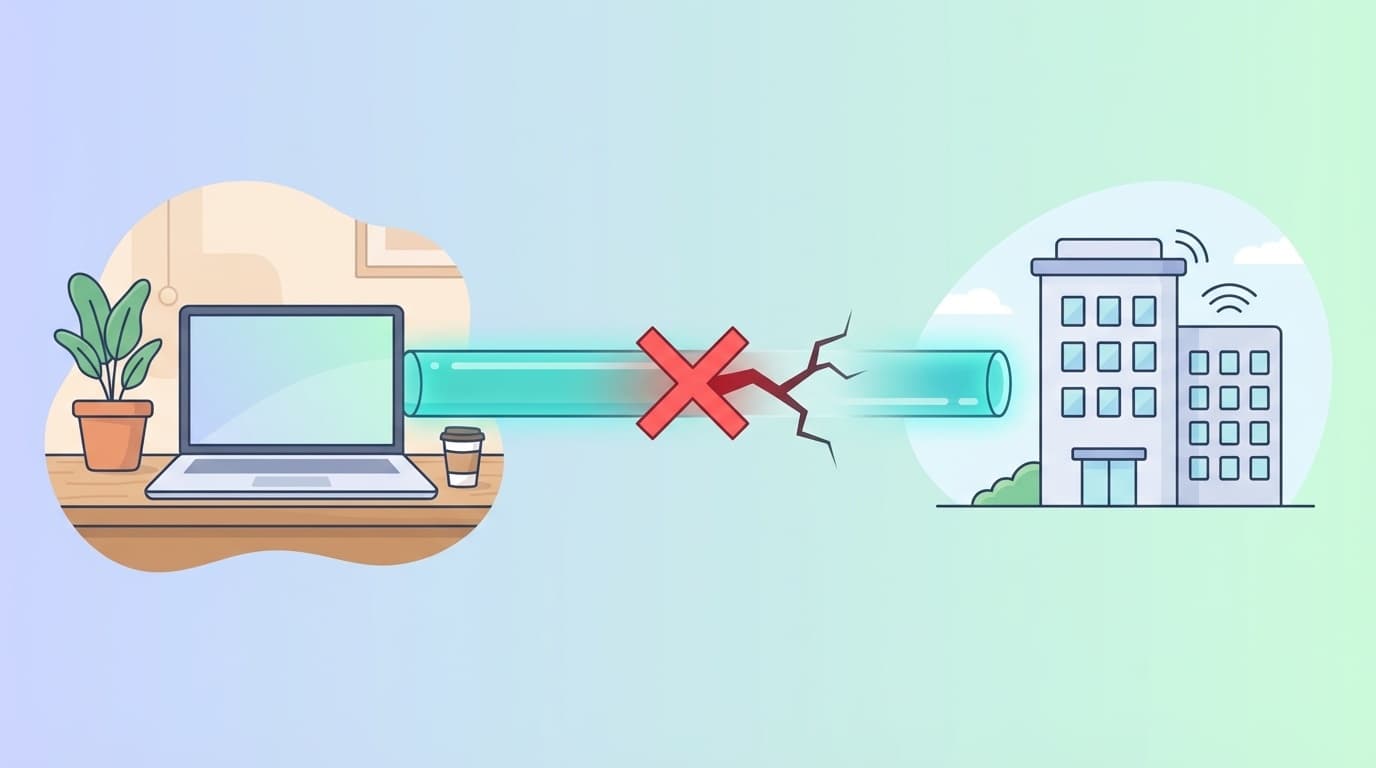
VPN (Virtual Private Network) is a technology that digs a "tunnel" into your company's network via the Internet. By passing through an encrypted tunnel from your home PC to your company's VPN server, you can access file servers and business systems from a cafe or home just as you would at your office.
In other words, when a VPN connection fails, there is a problem with the entrance of the tunnel (home network environment), the tunnel itself (VPN settings/protocol), or the exit of the tunnel (the company's VPN server). If you keep this in mind, you can easily understand the following causes.
Cause 1: Not connected to the internet in the first place
This is surprisingly common. Before using a VPN, make sure that you can connect to the internet itself.
If there is a "!" mark on the Wi-Fi icon or you cannot open Google in your browser, this is a problem before the VPN.
Workaround:
- Turn Wi-Fi off and on again
- Unplug your router/modem, wait 30 seconds, then restart it
- If you can use wired LAN, try connecting directly with a cable
- Try to see if you can connect using tethering on your smartphone (you can isolate whether the problem is with the line or the PC)
Cause 2: Incorrect VPN username/password
According to NURO Biz explanatory article, Authentication information input errors account for a large percentage of VPN connection problems.
If you are saying, "I was connected until yesterday, but suddenly I can't connect," it may be because the password has expired. There are many cases where company security policies require you to change your password every 90 days.
Workaround:
- Re-enter your username and password (be careful of extra spaces when copying and pasting)
- Check if Caps Lock is not turned on
- Confirm password expiration date with information system
- If you are using multi-factor authentication (MFA), check that the time on your authenticator app is correct
Cause 3: Security software/firewall is blocking the VPN
Antivirus software or Windows firewall may block VPN communications as "suspicious communications." This problem is especially likely to occur immediately after updating security software.
Workaround:
- Temporarily disable security softwareTry VPN connection (if connected, confirm cause)
- Add the VPN client to "Allowed apps" in Windows Firewall settings
- Steps: Add the VPN app from Settings → Privacy & Security → Windows Security → Firewall & Network Protection → Allow applications through firewall
*It is dangerous to continue working with security software disabled. Once you've identified the cause, add the VPN app to the exception list and be sure to re-enable your security software.
Cause 4: VPN broke after Windows Update
In Windows 11, there are frequent reports of a problem where VPN connection stops working after update. In 2025, the issue of L2TP/IPsec VPN becoming unable to connect after updating KB5026372 became a hot topic. From the end of 2025 to 2026, an issue where VPN connection is not possible when using WSL has been reported in 24H2 and 25H2 environments.
Workaround:
- Check recent Windows Updates (Settings → Windows Update → Update history)
- If there is an update that coincides with when the problem started, temporarily uninstall it (Settings → Windows Update → Update History → Uninstall updates)
- Check Microsoft's Official Troubleshooting Guide for known issues
Cause 5: IP address conflicts with company network
This is a problem that often occurs when working from home. If the IP address range assigned by your home router (e.g. 192.168.1.x) is in the same range as your work network, your PC will become confused as to which network to access after connecting to the VPN and will be unable to communicate.
Workaround:
- Log in to the management screen of your home router and change the IP address range on the LAN side (e.g. 192.168.1.x → 192.168.50.x)
- In most cases, the router management screen can be opened by accessing "192.168.1.1" or "192.168.0.1" in a browser
- If you don't know how to change it, check the router manufacturer's support page by searching for the model number
Cause 6: Incorrect VPN protocol settings
VPN has several protocols (communication methods). Typical ones includeL2TP/IPsec, IKEv2, OpenVPN, WireGuard, SSTP. You will not be able to connect if the protocol specified by your company and your PC settings do not match.
Especially in Windows 11, there are cases where it is necessary to change registry settings when connecting to L2TP/IPsec. According to the Dot One LLC Guide, adding a registry value called "AssumeUDPEncapsulationContextOnSendRule" may be a solution.
Workaround:
- Check with your information system which VPN protocol they are using
- For Windows 11 built-in VPN settings: Open the VPN connection properties and check the protocol in Settings → Network & Internet → VPN
- If you are using company-specified VPN client software (Cisco AnyConnect, GlobalProtect, etc.), update it to the latest version
Cause 7: There is a problem with the company's VPN server
If there is no problem with your PC, there may be a problem with your company's VPN server. Sometimes the entire company is unable to connect to the VPN. The post by X introduced at the beginning, ``I couldn't connect to the VPN in the morning and Slack wouldn't stop ringing'' was exactly like this pattern.
Workaround:
- Check if your colleagues can also connect (Isolate whether the problem is just you or the server side)
- Check whether there is any failure information on internal Slack or Teams
- Contact information system department
- While waiting for the server to recover, proceed with tasks that can be accessed via tethering or mobile first
3 last resorts if all else fails
If the above seven methods do not resolve the issue, please try the following methods.
Reinstalling WAN miniport driver
According to EasyTweaks explanation, many VPN issues in Windows 11 are caused by the WAN miniport network adapter. Expand "Network Adapters" from Device Manager and uninstall all adapters starting with "WAN Miniport" → Restart the PC and they will be automatically reinstalled.
Reset network settings
Settings → Network & Internet → Advanced network settings → Reset network will reinstall all network adapters. However, please note that your VPN settings will also be deleted, so you will need to reconfigure them.
Information to provide when contacting the information system
If you cannot resolve the issue yourself, please contact the information system. At that time, it will be easier if you provide the following information.
- Since when can you not connect (date and time)
- Error message content (screenshot is best)
- The last operation (Windows Update, security software update, etc.)
- Is your home internet connection normal?
- Is your colleague in the same situation?
FAQ
What should I do first when I can't connect to the VPN?
First, check your internet connection. If you can open the website in your browser, your internet connection is normal. Next, try restarting the VPN client and re-entering your username and password. If that doesn't work, check with your coworkers to determine if it's a server-side issue.
My VPN no longer works after Windows Update. Can I change it back?
Yes. You can remove recent updates from Settings → Windows Update → Update history → Uninstall updates. However, there are risks to removing security updates, so we recommend consulting with your information system before doing so.
I can't connect using Wi-Fi at home, but I can connect using tethering on my smartphone. why?
Your home router may be blocking the ports required for VPN communication (UDP 500, UDP 4500, etc.). It is also possible that your home IP address range conflicts with your company's IP address range. Please try checking the router settings and changing the IP address range.
What should I do if my company's VPN is too slow to work?
If many people are connected to the VPN server at the same time, it will become slow. Things can be improved by shifting the start time of work, avoiding downloading large files, and using cloud storage instead of using a VPN. Fundamentally, you need to strengthen your VPN server, so please consult your information system.
References
- Guidance for troubleshooting remote access (VPN and AOVPN) — Microsoft Learn
- Causes and remedies for not being able to connect to VPN | Explanation of VPN types, mechanisms, and setting procedures — NURO Biz
- Win11 25H2 / 24H2, WSL VPN connection problem — Environment construction for niche PC gamers Z
- What to do when you can't connect to VPN (L2TP/IPsec) on Windows 11 — Dot One LLC
- How to fix VPN connection issues in Windows 11? — EasyTweaks