“Storage is full”—Have you ever been surprised when a notification like this suddenly appeared one day while you were using your smartphone? I can't take photos, I can't update apps, I can't even open LINE... As of February 2026, smartphone cameras are becoming more and more high quality, and the size of apps is also increasing year by year. With a 64GB model, it is not uncommon for the capacity to become full in half a year.
In this article, we will introduce 7 ways to free up space on both iPhone and Android right away. For those who are wondering, "Where should I start?", we have listed them in descending order of effectiveness. You can free up several GB in just 5 minutes, so give it a try.
First, check the current situation! How to check storage usage
Before taking any action, the first priority is to understand what is taking up the capacity. Fighting without knowing who the culprit is is inefficient.
For iPhone: Open "Settings" → "General" → "iPhone Storage" and the usage amount for each app will be displayed in a bar graph. Apps with the largest capacity are listed from top to bottom, so you can see at a glance where the gigabytes are disappearing (Apple Official Support).
For Android:You can check the overall usage status in "Settings" → "Storage". The name differs depending on the model, but you should be able to find it in "Storage" or "Device Care" → "Storage" (Google Help).
In many cases, there are three things that take up space: Photos/Videos, then Apps, and Cache, which is often overlooked. From here, let's take a look at each solution in order of effectiveness.
[Method 1] Transfer photos and videos to the cloud and delete them from the device
The biggest storage culprits are often Photos and Videos. In particular, a 4K video can be about 400MB per minute, so just shooting a few travel videos can quickly wipe out several GB.
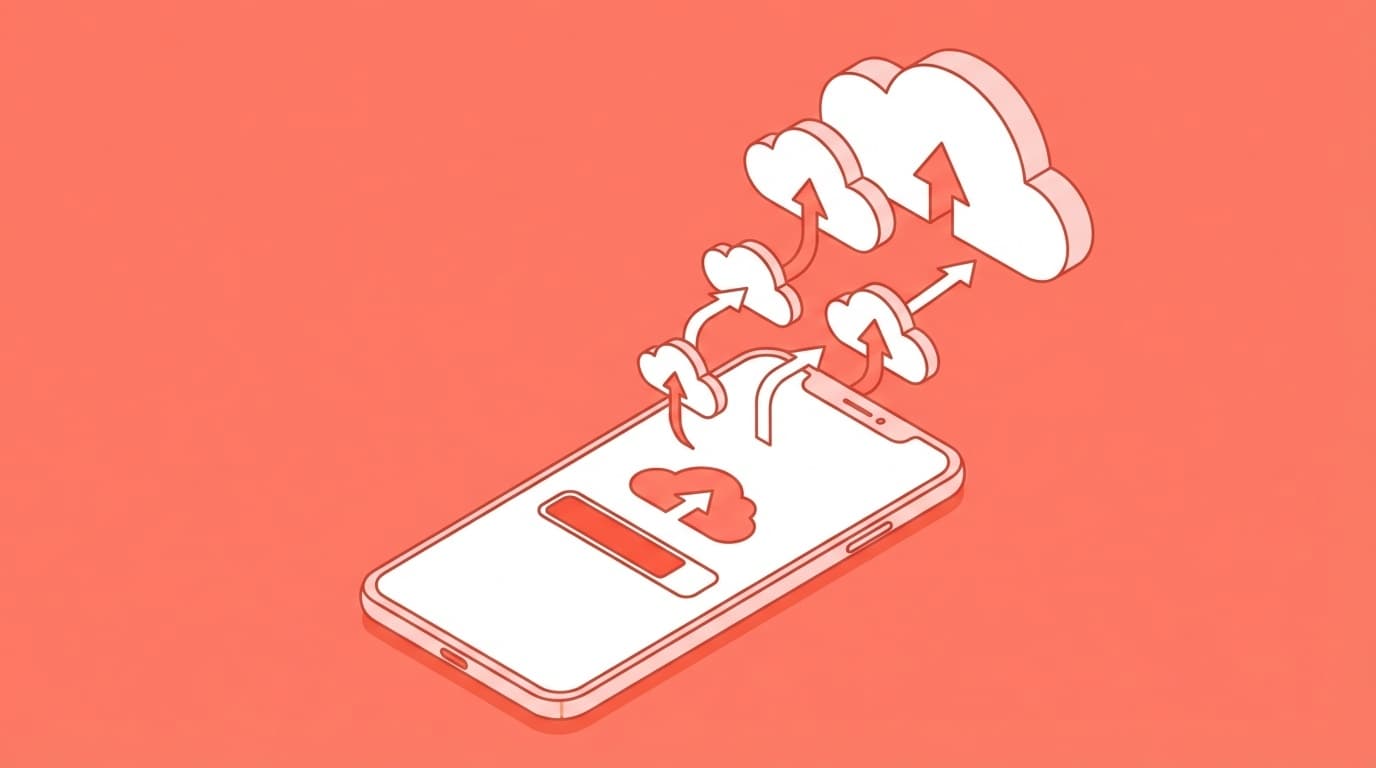
The recommended method is to back up to cloud storage and then delete the data on the device.
- Google Photos (iPhone/Android compatible): Free up to 15GB. After backing up, tap "Free up space" to delete backed up photos and videos from your device all at once
- iCloud Photos (iPhone): "Settings" → "Photos" → turn on "iCloud Photos" and select "Optimize iPhone storage". The original is stored in iCloud and only the lightweight version remains on your device (Apple official)
Roughly speaking, the idea is to leave your photos in the cloud and keep your smartphone handy. iCloud is free up to 5GB, but if you have a lot of photos, consider subscribing to the 50GB plan (as of February 2026) for 130 yen per month.
[Method 2] Delete/remove unused apps
Do you have any apps that you keep installed, thinking you might use them someday? It's not uncommon for a single game app to use 2-5GB, so just deleting 2-3 apps can dramatically free up space.
Useful iPhone feature: "Remove unused apps"
If you turn on ``Settings'' → ``App Store'' → ``Remove unused apps'', apps that you haven't used for a long time will be automatically deleted. Moreover, the data in the app (save data, etc.) remains, so you can restore it by reinstalling it (BIGLOBE Mobile Explanation).
For Android: Sort by size in "Settings" → "Apps" and delete the largest apps you don't use first. Apps purchased from the Google Play Store can be reinstalled, so you don't have to worry about deleting them.
[Method 3] Delete cache
Cache is data that is temporarily stored by an app to speed up its operation. This includes browser browsing history and SNS image data. It's a convenient mechanism, but if left unchecked, it can grow to several GB.
For Android: "Settings" → "Apps" → Select the target app → "Storage" → "Delete cache". In particular, the caches of browsers (Chrome), SNS (X, Instagram), and video apps (YouTube) tend to become large (Android official).
For iPhone:iOS does not have a cache deletion function for each app. Safari's cache can be deleted by going to "Settings" → "Safari" → "Clear history and website data". For other apps, the effective way to delete the cache is to delete the app and then reinstall it.
[Method 4] Organize LINE chat history and received files
What is surprisingly often overlooked is LINE data. It often happens that photos and videos sent in group chats are automatically saved, and before you know it, they've taken up several GB.
Open "Settings" → "Talk" → "Delete data" in the LINE app, and the size of cache and photo data will be displayed. Deleting "cache data" will not affect your chat history, so let's delete it first.
It is also effective to turn off automatic downloading of photos and videos. You can reduce future capacity increase by turning off "Settings" → "Photos and Videos" → "Automatically download photos".
[Method 5] Empty the download folder and trash bin
Files downloaded from browsers and emails, such as PDFs, images, and audio files, accumulate in the "Downloads" folder. Once you check it out, you'll be surprised and wonder, "There were so many!?"
For Android:If you use the "Files by Google" app (Google's official file management app), it will automatically suggest unnecessary files. Junk files and duplicate files can also be deleted with one tap.
For iPhone:Open the "File" app and check the "Downloads" folder. Also, the data in the Photos app's "Recently Deleted Items" is retained for 30 days, so if you want to free up space right away, you can permanently delete it manually.
[Method 6] Delete browser browsing data
Browsing data from Chrome and Safari (history, cookies, cached images, etc.) can take up a surprising amount of space if left unattended for a long time.
Chrome (Android/iPhone common):Chrome app → "︙" (menu) → "Delete browsing history data" → Set the period to "All period" and "Delete data". The cached images alone can be 500MB to 1GB or more.
Safari (iPhone):You can delete them all at once by going to "Settings" → "Safari" → "Clear history and website data". However, your login information will also be reset, so if you have forgotten your password, check your password manager first.
[Method 7] Use SD card or external storage (for Android)
Some Android smartphones are equipped with a microSD card slot. By inserting an SD card, you can move data such as photos, videos, music, etc. to the outside, greatly saving space on the main unit (SHARP AQUOS Official).
As of February 2026, a 256GB microSD card can be purchased for around 2,000 to 3,000 yen. Considering the cost performance, it's much cheaper than buying a new smartphone.
However, many recent high-end models (Google Pixel, Galaxy S series, etc.) no longer have SD card slots, so please check the specifications of your model beforehand. This method cannot be used on iPhone as it does not have an SD card slot.
What if that doesn't work? Last resort and guideline for replacement
If you have tried all 7 methods above and still don't have enough space, consider the following.
- Initialization (returning to factory settings):If you initialize your smartphone after taking a backup, you can also wipe out unnecessary data displayed as "system data" and "other". On iPhone, you can do this by going to Settings → General → Transfer or Reset iPhone → Erase All Content and Settings
- Replacement:If you are using a 64GB model and are constantly running out of space, we recommend choosing a 128GB or higher model for your next model. As of 2026, 128GB is said to be the minimum line
Initialization is a last resort, but it also has the advantage of making operations faster, so it's not scary as long as you make sure to back it up.
FAQ
What happens if I ignore the "Storage is full" notification?
You will no longer be able to save photos and videos, and app updates and OS updates will also fail. Apps such as LINE may stop working properly, so if you receive a notification, take action as soon as possible.
The "system data" on my iPhone is abnormally large. Is it possible to reduce it?
Deleting Safari's cache or restarting the device may reduce the amount by several hundred MB to several GB. If the problem still does not improve, it is most effective to take a backup and then initialize.
Will the app data be deleted if I delete the cache?
Since cache is temporary data, deleting it will not affect account information or saved data. However, your login status may be reset, so be sure to check your password in advance.
How long is the free tier of cloud storage?
Google Photos (shared with Google Drive) is free up to 15GB, and iCloud is free up to 5GB (as of February 2026). Paid plans for Google start from 250 yen/100GB per month, and from 130 yen/50GB per month for iCloud.
References
- Manage storage on iPhone — Apple Support
- Free up space — Android Help (Google)
- You don't have enough space on your smartphone! Learn how to free up internal storage — Android.com
- Manage your photo and video storage — Apple Support
- How to increase the free space of internal storage on Android smartphone? — SHARP AQUOS