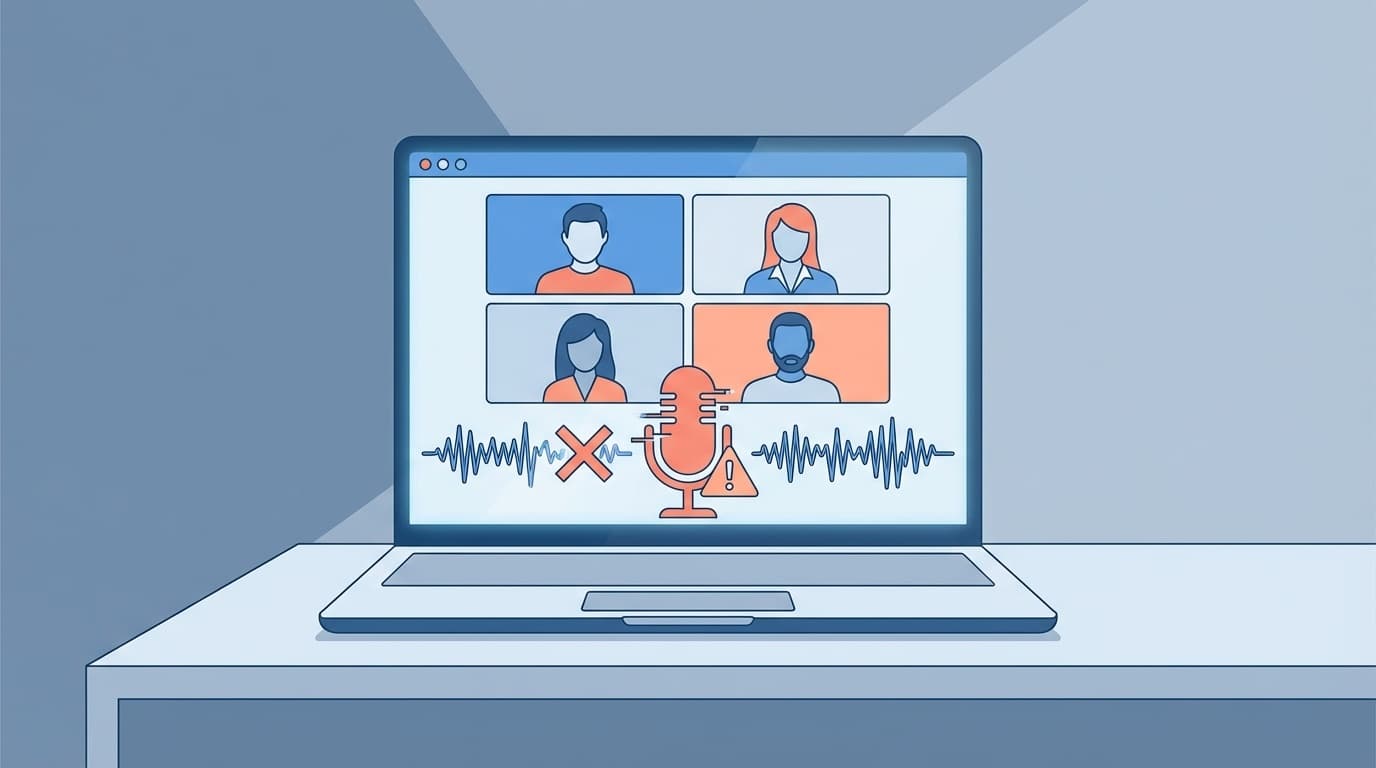
Have you ever been told in a Teams meeting, ``Oh, I couldn't hear the first word'' or ``The voice was so choppy that I couldn't understand it''? Even though you think you're talking normally, the other person can't hear you. This is most often caused by Teams or microphone settings.
As of March 2026, Teams audio problems are frequently reported on SNS. The phenomenon where the first word gets cut off, which is especially common among people who use an external speakerphone or USB microphone, is often caused by Windows' USB power saving function or Teams' noise suppression.
In this article, we will organize six reasons why the voice may be interrupted or the first word may not be heard in a Teams meeting, and we will explain how to deal with each in an easy-to-understand manner with screens included.
What is the cause of the voice breaking? Let's separate it first
Even if you say "your voice breaks", there are various causes. It can be roughly divided into the following three layers.
- Network layer: Unstable Wi-Fi, slow connection speed
- Device layer: Poor microphone connection, disconnection due to USB power saving
- Software layer: Teams noise suppression, automatic microphone adjustment
If it's a network problem, you'll hear all the buzzing, but symptoms like ``only the first word is cut off'' or ``you can't hear the first part of the speech'' are most likely caused by the device layer or software layer.
From here, we will introduce solutions in the order of software settings → device settings → network. They are listed in order from those that can be tried immediately, so please try them one by one from the top.
Cause 1: Teams noise suppression is set to "High"
Teams has a "Noise Suppression" feature that cuts out surrounding noise. It's a useful feature, but if you set it to ``High'', even small voices at the beginning of speaking may be judged as ``noise'' and cut out.
In other words, the preambles like "um" and "um" disappear, and the other person hears "...(silence)...from the middle of the main topic."
How to deal with it
- Click “…” (settings menu) in the top right corner of Teams
- Open Settings → Devices
- Check the "Noise Suppression" item
- If it is set to 'High', change it to 'Auto (default)' or 'Low'
If you set it to "Auto", Teams will choose the appropriate level according to the situation. "Low" is sufficient if you have a quiet office or home. Please also refer to Microsoft official noise suppression guide.
Cause 2: The automatic sensitivity adjustment of the microphone is incorrect
Teams has a feature called "Automatically adjust microphone sensitivity". This function is included to prevent howling, but it increases/lowers the microphone volume without permission, so your voice may become extremely low at the beginning of your speech, or the volume may suddenly change halfway through your speech.
How to deal with it
- Open … → Settings → Devices in Teams
- Find the slider for Automatically adjust microphone sensitivity
- Turn the slider off
- After turning it off, check whether the microphone volume is appropriate (adjust the level in Windows "Settings" → "System" → "Sound" → "Input")
If you turn off automatic adjustment, you will be responsible for managing the microphone volume yourself. It is safe to check the volume with a test call once. You can find detailed instructions at Teams Official Audio Settings Guide.
Cause 3: Windows USB Selective Suspend is turning off the microphone
This is the biggest cause of the "I can't hear just the first word" problem.
Windows has a power saving feature called "USB Selective Suspend". This feature saves battery power by automatically turning off USB devices that have not been used for a certain period of time.
However, this feature may also apply to USB microphones and speakerphones. Then, when you start speaking after being silent for a while, there will be silence for about 0.5 to 1 second until the microphone is turned on -- in other words, the first word is cut off.
Workaround: Disable from power options
- Open by typing Edit power plan in the Windows search bar
- Click Change advanced power settings
- Expand USB Settings → USB Selective Suspend Settings
- Change both "On Battery" and "Connected to Power" to "Disabled"
- Click OK to close
Workaround: Disable from device manager
If the above method does not resolve the issue, change the settings from Device Manager as well.
- Right-click “Start” → Open “Device Manager”
- Expand Universal Serial Bus Controller
- Right-click on "USB Root Hub" → Open "Properties"
- Uncheck ``Allow the computer to turn off this device to save power'' on the ``Power Management'' tab
- Repeat the same operation for all USB Root Hubs
This setting can be found in the Sanwa Supply Official Guide and Buffalo support page.
Cause 4: Incorrect microphone device selection
A surprisingly common pattern is that the microphone used by Teams is different from what you expected.
For example, even though you're using an external speakerphone, Teams often selects your laptop's built-in microphone. If you use the built-in microphone, the distance will be far away, and your voice will be low, and people will say that you can't hear them.
How to deal with it
- During a Teams meeting, open … → Device Settings in the top toolbar
- Make sure the device you want to use is selected in the Microphone dropdown
- If you are using a speakerphone or headset, select the device name
If you set the default microphone from Settings → Devices in Teams before participating in a meeting, you can save yourself the trouble of checking it every time.
Cause 5: Windows audio extensions are interfering
Windows 11 is equipped with Audio Enhancements to improve microphone sound quality. However, it may not work well with some microphones or speakerphones, resulting ininterrupted audio or echos.
How to deal with it
- Open Windows Settings → System → Sound
- In the Inputs section, click the microphone you are using
- Turn Audio Enhancements to Off
- Also, check the "output" side speaker in the same way
Microsoft's official device settings guide also recommends checking this setting in case of audio problems.
Cause 6: Network instability (Wi-Fi frequency band/line speed)
If there is no improvement even after reviewing the settings so far, suspect a network problem.
Especially when working from home and using 2.4GHz band Wi-Fi, audio may be interrupted due to radio wave interference from microwave ovens or Bluetooth devices.
How to deal with it
- Switch to 5GHz band Wi-Fi: Select the router's SSID with "5G" or "A"
- Switch to wired LAN: With a USB-LAN adapter, you can also connect to a wired laptop computer
- Check the distance to the router: If there are two or more walls separating you, the signal will be weak
- Reducing communication from other devices: If your family is playing YouTube in 4K, it eats up your bandwidth
According to Microsoft's official website, the bandwidth required for a Teams meeting is approximately 1.5 Mbps up and down for voice calls. Try running a speed test (search for "speed test" on Google) to check.
Checklist if the problem persists
If the above six solutions do not resolve the issue, please also check the following.
- Clear the cache of the Teams app (close Teams and then delete the cache in the
%appdata%\Microsoft\Teamsfolder) - Update the microphone driver (Device Manager → "Audio Input and Output" → Right-click the microphone → "Update Driver")
- Update the Teams app to the latest version (“…” → “Check for updates”)
- Try connecting to another USB port (connect directly to the port on the PC, not via a USB hub)
- Record and check your voice on a Teams test call (Settings → Device → Make a test call)
FAQ
How can I check if the other party can hear me in Teams?
Click "Settings" → "Device" → "Make a test call" in Teams to record and play your voice. If your voice breaks at this point, you know there's a problem with your settings or device.
Is it okay to turn noise suppression “off”?
There is no problem in a quiet environment. However, in places where there is a lot of background noise, such as cafes or open offices, we recommend setting it to "Auto" or "Low". If you turn it off completely, the sounds of keyboard keys and air conditioning will still be heard by the other party.
Does disabling USB Selective Suspend cause the battery to drain faster?
There is some influence, but the difference is hardly noticeable. Even if you use your laptop for long periods of time on battery power, the USB power saving effect is negligible, so the benefit of preventing audio problems during meetings is greater.
Does the phenomenon of "the first word being cut off" on speakerphone also occurs in other than Teams?
Yes, this can also happen with other web conferencing tools such as Zoom and Google Meet. If the cause is USB selective suspend or Windows audio settings, it will occur regardless of the tool.
Should I use an external microphone or a PC built-in microphone?
Basically, external microphones (headsets or speakerphones) provide better sound quality. However, it is easily affected by USB Selective Suspend, so we recommend setting it in conjunction with the workaround in this article.
References
- Reduce background noise in Microsoft Teams meetings — Microsoft Support
- Manage audio settings in Microsoft Teams meetings — Microsoft Support
- Manage your device settings in Microsoft Teams — Microsoft Support
- What to do if the USB device is not recognized on Windows 11/10 — Sanwa Supply
- The device connected via USB turns off / How to set USB selective suspend — Buffalo