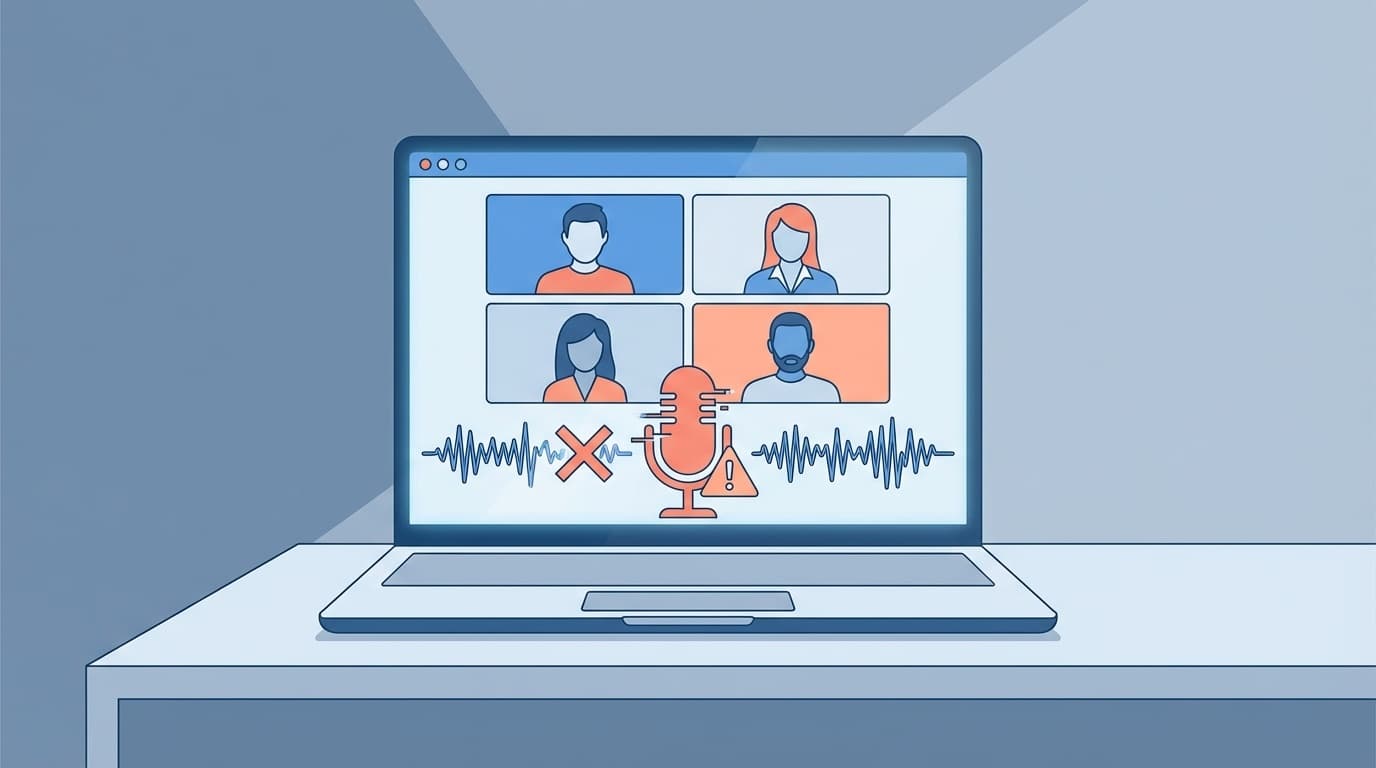
``It seems like the other party can't hear me in a Teams meeting...'' ``My microphone isn't recognized!'' - This is a problem that occurs every time you have a web conference. As of February 2026, Microsoft Teams is an indispensable tool in business settings, but microphone-related problems often occur.
In this article, we will organize the reasons why your voice cannot be heard or the microphone is not recognized in Teams into seven reasons, and explain how to deal with each one with on-screen instructions. There is also an "Immediate Checklist" that you can use right before the meeting starts, so if you are in a hurry, try that first.
Check this first! 3 seconds check just before the meeting
If you enter a Teams meeting and are told "I can't hear you," first check the following three things. This alone will solve more than half of your problems.
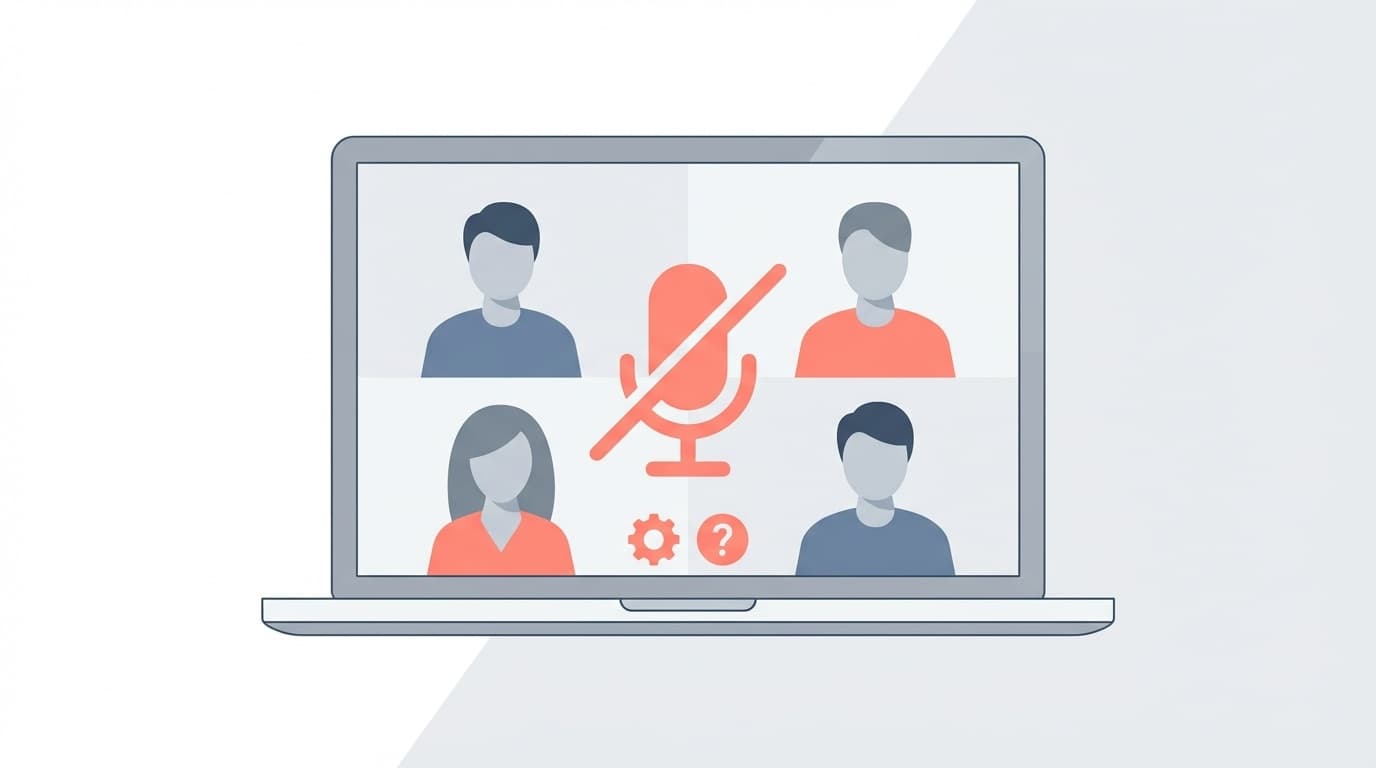
- Is it muted? : If the microphone icon at the bottom of the meeting screen has a diagonal line (/), click it to unmute it
- Has the correct microphone been selected? : Check that the microphone you want to use is selected in "...(Other)" → "Device settings" at the top of the meeting screen
- Mute switch on the microphone itself: Headsets and external microphones often have a physical mute button. If the red light is on, it may be muted
Roughly speaking, the most common causes are ``muting Teams,'' ``wrong device selection,'' and ``muting the microphone itself.'' If that doesn't work, try the following sections in order.
Cause 1: Microphone is blocked by Windows privacy settings
Windows 10/11 has "privacy settings" that allow or deny microphone access for each app. If Teams is blocked here, the sound will not reach you no matter how much you configure it on the Teams side.
According to Microsoft official support, the confirmation steps are as follows:
- Open Windows Settings (shortcut: Windows key + I)
- Select "Privacy and Security" → "Microphone"
- Make sure "Microphone access" is turned on
- Make sure "Allow desktop apps to access your microphone" is turned on
In other words, Windows has decided that ``this app will not be allowed to use the microphone.'' This problem is especially likely to occur immediately after upgrading to Windows 11, or when restrictions are imposed by the company's security policy.
Cause 2: Wrong input device in Windows sound settings
In Windows sound settings, the input device (microphone) may be set to something you do not intend. For example, if you have a USB headset plugged in, but the built-in microphone is selected.
- Open "Settings" → "System" → "Sound"
- In the Input section, make sure the microphone you want to use is selected
- Check out loud to see if the volume bar next to the microphone is moving
- Check if the volume is set to 0 or muted (It is recommended to set it to 80-100%)
In Windows 11, you can click on the input device to open its properties, and click the "Start test" button under "Microphone test" to check whether your voice is being picked up properly. If there is no response at this point, suspect a malfunction of the microphone itself or a problem with the USB connection.
Cause 3: Device settings within Teams are incorrect
Even though there is no problem on the Windows side, a different microphone may be selected within Teams. Teams manages devices independently, so it is necessary to match both the OS side and the Teams side.
According to Microsoft official help, you can check by following the steps below.
- Click “…” next to the profile icon at the top right of Teams → “Settings”
- Select "Device" from the left menu
- Select the microphone you want to use from the "Microphone" pulldown
- After selecting, check whether the level meter directly below responds to the voice
The key is to check in advance by clicking the "Start test call" button before entering the meeting. During a test call, a recording->playback test is automatically performed, so you can check for yourself whether the other party can hear you.
Cause 4: Poor connection of USB port/Bluetooth connection problem
What is surprisingly often overlooked is the issue of physical connectivity.
For USB-connected headsets:
- Try unplugging the USB (it's best to plug it into a different USB port)
- Try switching between USB 2.0 and USB 3.0 ports
- Plug directly into the port on the PC instead of via a USB hub
For Bluetooth-connected headsets:
- Turn Bluetooth off → on and reconnect
- Turn the headset power off and on again
- Check the connection status in "Settings" → "Bluetooth and devices"
- Check if other Bluetooth devices are interfering (be careful when connecting with a smartphone and PC at the same time)
In short, "re-inserting" and "re-connecting" are the basics. In particular, if a Bluetooth headset is paired with both a smartphone and a PC, it often connects to the unintended one.
Cause 5: Old or broken audio driver
If the above steps still do not work, there may be a problem with the Windows audio driver. Especially if the microphone becomes unusable after Windows Update, the driver is often the culprit.
- Open by typing "Device Manager" in the taskbar search
- Expand "Audio input and output"
- Right-click on the microphone you are using → "Update driver"
- Select "Search for drivers automatically"
If the problem still does not improve, uninstall the driver (from the same right-click menu), restart the PC, and Windows will automatically reinstall the latest driver.
PC Kobo's explanatory article reports that many cases were resolved by resetting the driver.
Cause 6: Problem with the Teams app itself (cache corruption)
If the cache of the Teams app is corrupted, device recognition may become incorrect. This is a phenomenon that has also been reported in "New Teams" (Teams 2.0) as of February 2026.
Cache clearing procedure (Windows):
- Completely exit Teams (right-click the Teams icon on the taskbar → "Exit")
- Type
%localappdata%\Packages\MSTeams_8wekyb3d8bbwe\LocalCachein the address bar of Explorer - Delete all files in the folder
- Restart Teams
If you are using an older version of Teams, the path will be %appdata%\Microsoft\Teams. If you don't know which version you want, you can try both.
Cause 7: Microphone is muted in meeting settings (admin settings)
Actually, the meeting organizer or administrator may have set the participants' microphones to "mute." In this case, you cannot unmute yourself.
- If you see "Please ask the host to unmute you" on the meeting screen, contact the host via chat
- Your organization's IT administrator may have restricted voice policies in the Teams admin center, so you may want to check with your IT department.
In short, If all your settings are correct but your voice is still not being heard, you should question your meeting settings.
Be sure to do this before the meeting! Test call procedure
The best way to prevent problems is to run a "test call" before your Teams meeting. This is the method recommended in AvePoint explanation.
How to make a test call:
- Open Teams "Settings" → "Devices"
- Click the "Start a test call" button at the bottom of the screen
- As the guidance plays, speak a short message after the beep
- If the recording is played and you can hear your voice, it's OK
- The result is displayed and if the status of the microphone, speaker, and camera is green, it is normal
Another trick is to start a test call by simply typing /testcall in the Teams search bar and pressing Enter. It's useful to remember.
FAQ
What should I do first when Teams doesn't recognize my microphone?
First, make sure you are not muted on the Teams meeting screen. Next, check if the correct microphone is selected in "...(Other)" → "Device settings". These two will solve most problems.
I can hear my voice on the test call, but it says I can't hear it in the meeting. why?
The meeting host may have set the participants' microphones to "mute." Check if the message "Please ask the host to unmute you" is displayed on the meeting screen, and try contacting the host via chat.
Can the same solution be used on Mac?
The basic idea is the same. For Mac, check the microphone in "System Settings" → "Sound" → "Input", and check whether access is allowed for Teams in "Privacy and Security" → "Microphone".
I can't use the microphone in the browser version of Teams.
For the browser version, click the icon on the left side of the address bar of the browser (Chrome, Edge, etc.) and check whether the "microphone" permission is set to "allow". The browser itself often blocks access to the microphone.
Why is the microphone sound quality bad when using a Bluetooth headset?
Bluetooth has two types of profiles: "A2DP", which has high sound quality, does not support microphones, and "HFP/HSP", which supports microphones, has lower sound quality. When you enter call mode in a Teams meeting, it automatically switches to HFP, resulting in poor audio quality. Switching to a wired connection is the most reliable solution.
References
- My microphone isn't working in Microsoft Teams — Microsoft Support
- Fix microphone problems — Microsoft Support
- Explaining what to do if the microphone does not work or be recognized in Teams! — Ricoh
- I want to solve the problem of not being able to hear the sound or use the microphone in Teams — Computer Studio NEXMAG
- Test calls are a must before a Teams meeting! What to do if the microphone doesn't work — AvePoint Japan