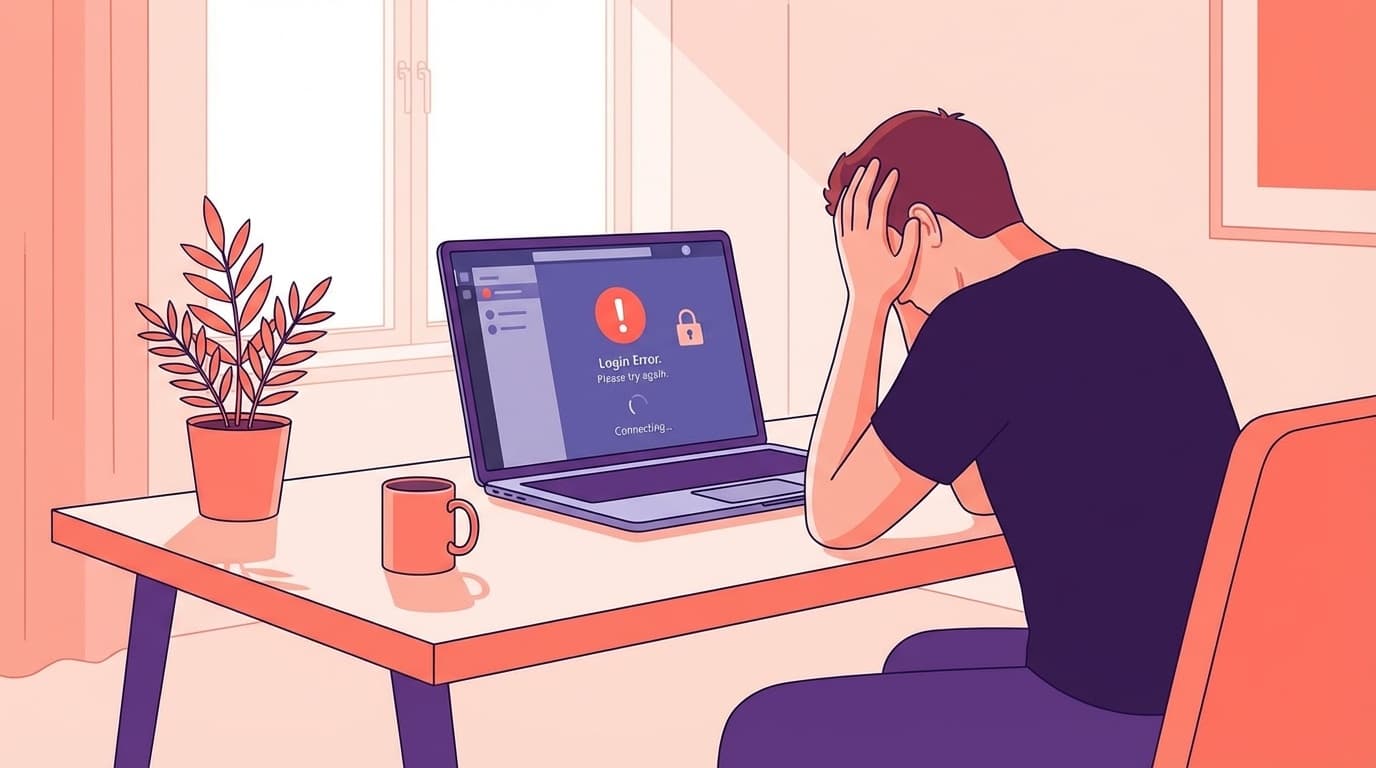
"When I try to log in to Teams, the screen keeps spinning and I can't finish signing in..." "I get an error code, but I have no idea what it means." Have you ever experienced something like that?
Microsoft Teams is used every day for remote work and internal meetings, so if you can't log in, all your work will stop. In this article, based on information as of March 2026, we will explain the causes of not being able to sign in to Teams and solutions for each error code in an easy-to-understand manner, even for those who are not familiar with IT.
There are 6 main reasons why you cannot log in to Teams
The reasons why Teams sign-in fails can be roughly classified into the following six patterns.
1. Cache (temporary file) corruption
Teams temporarily stores login information and data on your computer to speed up operations. If this cache is corrupted, the sign-in screen may loop or remain blank. This is the most common cause.
2. The Teams app version is outdated
Teams is supposed to update automatically, but if the update fails, you may be left with an old version. Older versions of the app may not be able to communicate properly with Microsoft's servers and may cause sign-in failures.
3. Internet connection/firewall issues
Your internal network's firewall (a mechanism that blocks communication with the outside world) or proxy server may be blocking Teams communication destinations. Even if you are working from home and are connected to a VPN, there may be cases where sign-in fails due to communication route issues.
4. The date and time on your computer are incorrect
This is often overlooked, but if the date and time on your computer are incorrect, security certificate verification will fail and you will not be able to sign in. If the error code 0xCAA20003 appears, this is most likely the cause.
5. Blocking due to conditional access policy
Sign-in may be blocked due to "conditional access policy" (security settings that do not allow login unless certain conditions are met) set by your company's IT administrator. This applies if you are unable to log in from your home PC or personal smartphone.
6. Failure of the Microsoft 365 service itself
Even if there is no problem in your own environment, you will not be able to log in if there is a server failure on the Microsoft side. The golden rule is to check the failure information first.
First thing to do: Check the failure information
Before tinkering with your computer's settings, first check to see if there is a problem with Microsoft. In the case of a service failure, no matter how much you try to resolve it, it will not be resolved.
There are three confirmation methods.
Method 1: Check the Microsoft 365 service health page
Service health page in the Microsoft 365 admin center You can check if there are any issues with Teams or Microsoft Entra ID (formerly Azure AD). However, this requires an administrator account.
Method 2: Search for "Teams outage" on X (Twitter)
If a major outage is occurring, many users have reported it on X. Search for "Teams failure" to see real-time status.
Method 3: Check Downdetector
You can check the number of real-time failure reports in Downdetector (Teams). If your graph is skyrocketing, it's not just you.
Causes and remedies for each error code
An error code may be displayed on the bottom left of the screen on the Teams sign-in screen. Once you have identified the code, look for a workaround in the table below.
0xCAA20003: Incorrect date and time
If the date and time on your computer are not set correctly, security certificate verification will fail. For Windows 11, open "Settings" → "Time and language" → "Date and time" and turn on "Set time automatically". Make sure the time zone is set to "(UTC+09:00) Osaka, Sapporo, Tokyo".
0xCAA20004: Blocked by Conditional Access
Due to your company's security policy. Since you cannot resolve this yourself, please contact yourIT administrator. Ask them to check whether access from your home PC is permitted and whether the target device needs to be registered.
0xCAA82EE2: Request timeout
Your internet connection is unstable or a firewall is blocking Teams communication. Please turn off Wi-Fi and reconnect, or switch to wired LAN and try again. If you are connected to a VPN, disconnecting from the VPN and then trying to sign in may resolve the issue.
0xCAA82EE7: Server name cannot be resolved
DNS (like the address book on the Internet) problem. Try running ipconfig /flushdns in a command prompt to clear the DNS cache or change your DNS server to Google Public DNS (8.8.8.8).
0xCAA70004 / 0xCAA70007: Proxy/connection issue
This is caused by a misconfiguration of the proxy server or a connection loss during download. Check with your IT administrator if you're using an in-house proxy, and if you're at home, try changing your browser's proxy settings to "auto-detect."
0xCAA90018: Incorrect password
The email address or password you entered is incorrect. Make sure CapsLock is not turned on, and if you forget your password, reset it from Microsoft's password reset page.
5 steps to take if no error code appears
If the error code does not appear or the code did not resolve the issue, try the steps below in order.
Step 1: Try signing in with the browser version of Teams
First, to isolate the problem, try signing in with the browser version of Teams (teams.microsoft.com) instead of the desktop app. If you can log in without any problems using the browser version, you can be sure that the cause is on the desktop app.
Step 2: Clear your Teams cache
Deleting your desktop app's cache will resolve many login issues.
Steps (for Windows 11):
- Completely exit Teams (right-click the Teams icon on the taskbar → "Quit". Check if
ms-teams.exeremains in the task manager) - Open Run with Windows key + R
- Type
%localappdata%\Packages\MSTeams_8wekyb3d8bbwe\LocalCacheand enter (for new Teams) - Delete all contents of the displayed folder
- Restart Teams and sign in again
*If you are using the classic version of Teams (older version), please delete the contents of the Cache, GPUCache, IndexedDB, Local Storage, and tmp folders in %appdata%\Microsoft\Teams.
Step 3: Delete Windows Credentials
Old credentials stored in Windows may be getting in the way.
- Search for "Credential Manager" using the Windows key and open it
- Select the Windows Credentials tab
- Find items related to
msteamsandMicrosoft Officefrom the list and "delete" them - Restart Teams and sign in again
Step 4: Repair/reset the Teams app
In Windows 11, go to "Settings" → "Apps" → "Installed apps" and find Teams, then click "Advanced options". First try "Repair", and if that doesn't work try "Reset". Resetting will initialize the app data, so it is important to try repairing it first.
Step 5: Reinstall Teams
If none of the above works, uninstall Teams, download the latest version from the official website, and reinstall it. You can easily avoid problems by "Run as administrator" during installation (also recommended by Microsoft official documentation).
If you can't log in to Teams on your smartphone
A similar problem may occur with the Teams app on iPhone and Android. Check points specific to smartphones are as follows.
Check your app version
Open the App Store or Google Play to check for updates to the Teams app. Older versions may cause sign-in failures.
Conflict with Microsoft Authenticator app
Microsoft's official support page, there have been reports of cases where users are unable to log in to Teams due to the Microsoft Authenticator app. The workaround is to uninstall the Authenticator app, try signing in to Teams, and if successful, reinstall Authenticator.
Clear app cache
For Android, you can do this by going to Settings → Apps → Teams → Storage → Clear cache. If you are using an iPhone, you cannot delete just the cache, so please delete the app and reinstall it.
If the problem persists, contact your IT administrator
If the problem persists even after trying all of the above methods, contact your company's IT administrator (information systems department). In such a case, please provide the following information so that we can respond smoothly.
- Error code (displayed at the bottom left of the sign-in screen)
- Device with issue (PC/smartphone/browser version)
- OS version (e.g. Windows 11 24H2)
- Teams version (can be checked in Settings → Teams version information)
- VPN connection available
- Is there a problem with the browser version
IT administrators can use diagnostic tools in the Microsoft 365 admin center to identify issues specific to user accounts. The Official Troubleshooting Guide on Microsoft Learn also provides detailed diagnostic steps for administrators.
FAQ
Why does Teams sign-in loop endlessly?
The main causes are cache corruption and browser cookie issues. If you are using the desktop app, please try clearing your cache, or if you are using the browser version, try signing in in incognito mode (InPrivate).
What happens if I mix up my personal account and work account?
Teams has two types: "Personal" and "Work/School", and if the account type does not match, you will fail to sign in. Please sign in to Teams at work using the email address given to you by your company.
Which Teams desktop app should I use, "New Teams" or "Classic Teams"?
As of March 2026, Microsoft recommends migrating to the new Teams (Microsoft Teams (new)). Support for the classic version is gradually being reduced, so use the new Teams unless you have a good reason not to.
What if I set up multi-factor authentication (MFA) and the sign-in fails?
If you do not receive a notification from the authentication app or the codes do not match, please check the time settings on your smartphone. The authentication code is generated based on time, so if the time on your smartphone is incorrect, the correct code will not be generated.
Why can't I log in to Teams while connected to a VPN while working from home?
The VPN tunnel may be blocking Teams' communication destination (Microsoft 365 server). Either disconnect the VPN and try signing in, or ask your IT administrator to configure the VPN's "split tunnel" settings (settings that do not allow Teams communications to go through the VPN).
References
- Fix Teams sign-in errors — Microsoft Learn, updated October 2025
- Why am I having trouble signing in to Microsoft Teams? — Microsoft Support
- Get clients for Microsoft Teams — Microsoft Learn
- Can't sign in to Teams! How to deal with infinite loops and error codes — Help Desk Partner