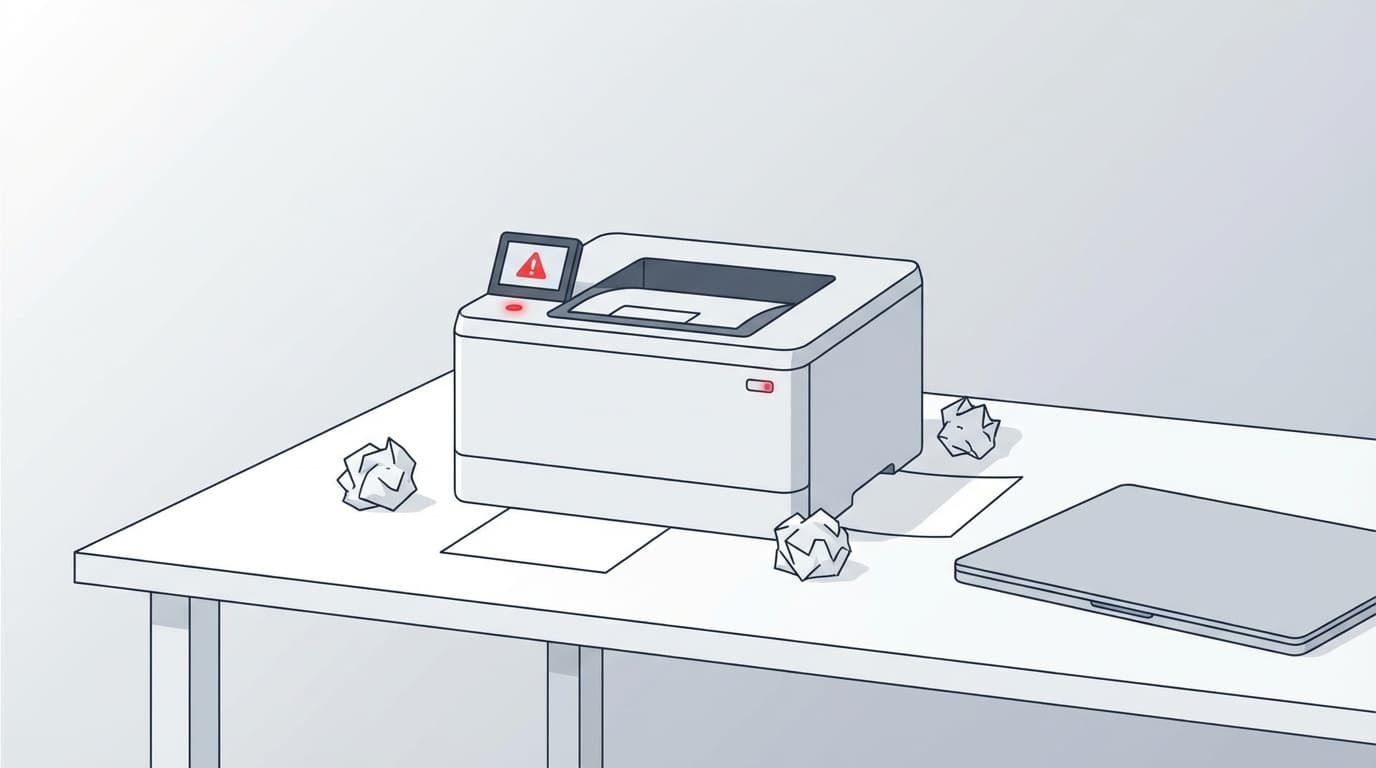
"I pressed the print button, but nothing comes out." "The printer says offline, but it's turned on..." - These kinds of problems occur quite often.
Especially during tax return season and the end of the fiscal year, it tends to happen at a time when you want to print right away! We have summarized 7 reasons why the printer cannot print or goes offline in the Windows 11 environment as of March 2026, as well as solutions you can take yourself. It supports both USB and Wi-Fi connections.
Why does it go "offline" in the first place? 7 common causes
There are three main reasons why a printer cannot print: Connection problems, Settings problems, and Software problems. Specifically, the following seven patterns are common.
| Cause | Common symptoms |
|---|---|
| 1. Poor or disconnected cable | USB connection not recognized |
| 2. Wi-Fi network mismatch | PC and printer are connected to different SSIDs |
| 3. "Use offline" setting is ON | Displays offline even though the power is on |
| 4. Print job is stuck | No matter how many times I press print, it does not respond |
| 5. Problem with Print Spooler | Cannot even delete print job |
| 6. Printer driver corruption/version mismatch | Suddenly unable to print after Windows Update |
| 7. Printer error (paper jam, out of ink) | The lamp on the printer is blinking |
If you come up with something that makes you think, "Oh, this might be it," please try the corresponding solution. If you can't think of any, we recommend starting from the top.
Solution 1: Power cycle the printer and PC (30 second rule)
First of all, the best way is to turn the power off and on again. You may be wondering, "Will rebooting fix it?" This is the first method recommended in Microsoft's official troubleshooting guide.
How to do it:
- Turn off the printer
- Unplug the power cable from the outlet
- Wait 30 seconds (internal memory will be reset)
- Reconnect the power cable and turn on the power
- Restart your PC as well
For USB connections, it is also effective to unplug the cable and plug it into another USB port. The key is to connect directly to the USB port on the PC, rather than via a USB hub.
Solution 2: Check if the Wi-Fi networks are the same
If your Wi-Fi connected printer is offline, it is surprisingly common that the PC and printer are connected to different networks.
For example, if your home router has two SSIDs: "Buffalo-A-XXXX" (5GHz band) and "Buffalo-G-XXXX" (2.4GHz band), you may not be able to communicate if your PC is connected to 5GHz and your printer is connected to 2.4GHz.
How to check:
- Click the Wi-Fi icon on the PC taskbar to check the connected SSID
- Check the connected SSID on the printer's control panel or network settings screen
- If the SSID is different, reconnect to the same SSID
Many printers do not support the 5GHz band, so it is best to connect both to a 2.4GHz band SSID. Canon's official FAQ also introduces mismatched network connections as the cause.
Solution 3: Cancel the "Use offline" setting
Windows 11 has a setting called "Use printer offline," and this may turn on for some reason. This is a problem that is often reported on the NEC support page.
Unlock procedure:
- SettingsOpen app (Windows key + I)
- Bluetooth & Devices → Select Printers & Scanners
- Select the printer in question and click Open Print Queue
- Click Printers on the menu bar
- If "Use printer offline" is checked, uncheck it
Also, make sure that "Pause" is not checked in the same menu.
Solution 4: Cancel all print jobs
If past print jobs are stuck, new print instructions will not be processed. This is especially likely to be the cause if there are jobs that remain in the "Error" or "Deleting" status.
Steps:
- Settings → Bluetooth & Devices → Printers & Scanners
- Select a printer → "Open print queue"
- Click “…” (three-dot menu) in the top right → “Cancel all”
If the problem still does not go away, try the next step "Restart Print Spooler".
Solution 5: Restart Print Spooler
Print Spooler is a service that manages Windows printing behind the scenes. If this gets stuck, you won't even be able to delete print jobs. Microsoft's official guide also recommends resetting the spooler.
Steps:
- Open taskbar search by typing services
- Find “Print Spooler” in the list
- Right click → "Stop"
- Open
C:\Windows\System32\spool\PRINTERSfolder in Explorer - Delete all files in the folder (do not delete the folder itself)
- Go back to the service screen and right-click on Print Spooler → “Start”
This operation clears the accumulated print data and restarts the spooler normally. Also make sure that "Startup type" is set to "Automatic".
Solution 6: Reinstall the printer driver
If you suddenly become unable to print after Windows Update, it is often due to driver inconsistencies.
Steps:
- Settings → Bluetooth & Devices → Printers & Scanners
- Select the printer in question → click Delete
- Restart your PC
- After restarting, click Add Device on the same screen
- Once the printer is detected, select it and install
If it is not automatically detected, download the latest driver from the manufacturer's official website. Click here for driver download pages for major manufacturers.
Solution 7: Use standard Windows troubleshooting tools
If the above methods do not resolve your issue, try the automatic diagnostic tools built into Windows 11.
Steps:
- Open the Get Help app from the Start menu
- Enter "printer" in the search field
- Operate according to the displayed diagnosis
This tool automatically checks the connection status, driver status, spooler status, etc. and repairs any problems. This is the first method recommended on the Microsoft's official offline printer troubleshooting page.
Checkpoints if the problem still persists
If the problem does not improve after trying all 7 methods, please also check the following.
- Interference with security software: Antivirus software (especially Avast or Kaspersky) may block printer communication. Try disabling it temporarily and see if you can print
- Firewall settings: For network printers, Windows Firewall may be blocking the port
- Printer malfunction: If you try printing from another PC and the same error occurs, the printer itself may be malfunctioning. Contact manufacturer support
- Default printer settings: If "Let Windows manage default printers" is turned on, messages may be sent to an unintended printer. You can check it in Settings → Printers & Scanners
FAQ
Is the printer's offline display a malfunction?
No, in most cases it is not a malfunction. In most cases, this is caused by connection issues or Windows settings. This can often be fixed by turning the power off and on again or restarting the spooler.
Why does it go offline even though it is connected via USB?
Poor connection of the USB cable, insufficient power via the USB hub, or a problem with the driver may be the cause. Try reconnecting the cable directly to the USB port on your PC or reinstalling the driver.
The print job remains "Deleting" and does not disappear. What should I do?
Stop the Print Spooler service, delete everything in the C:\Windows\System32\spool\PRINTERS folder, and restart the service. This will force you to clear it.
Can no longer print after Windows Update
Windows Update may break driver compatibility. Either delete and re-add the printer, or download and install the latest driver from the manufacturer's official website.
I can print from my smartphone but not from my PC
This is a problem with the driver or spooler on the PC side. The printer itself is normal, so try solutions 2 to 6 in this article in order.
References
- Fix printer connection and printing problems in Windows — Microsoft Support
- Troubleshooting offline printer problems in Windows — Microsoft Support
- Cannot print because "The printer is offline" is displayed on a Windows computer — Official Canon FAQ
- What to do if the printer displays "Offline" and you cannot print on Windows 11 — NEC LAVIE Official FAQ
- Unable to print because "offline" or "paused" is displayed — dynabook official support