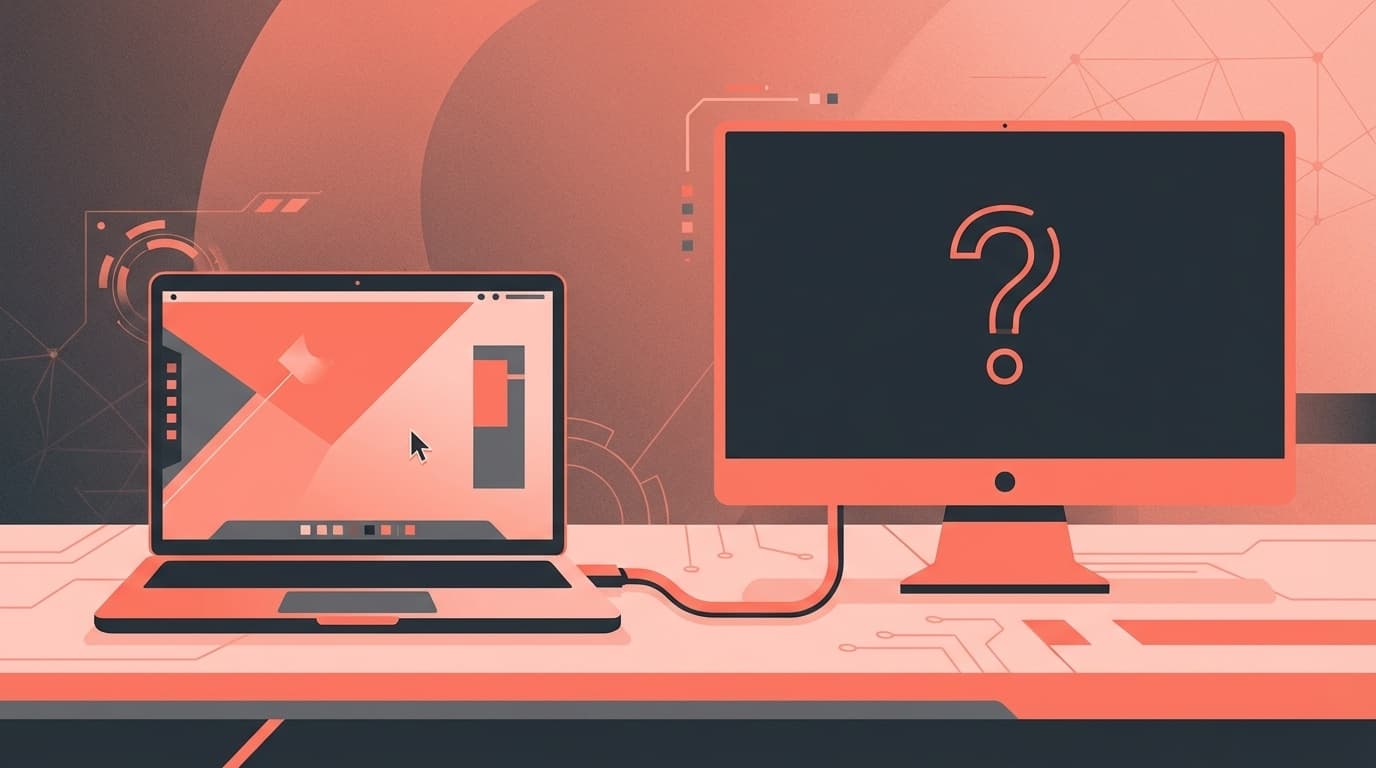
"The screen is completely black even though I connected an external monitor..." "The second display is not recognized..." Have you ever run into trouble like this when trying to create a dual display environment?
As of February 2026, cases have been reported in which automatic detection of external displays fails in Windows 11 (versions 24H2/25H2). This is especially likely to occur immediately after a Windows Update or when connected via a USB-C hub.
In this article, we will classify the reasons why an external monitor is not displayed or recognized even when connected to the PC into seven categories, and explain how to deal with each one in "easiest order". Most cases can be resolved within 5 minutes.
Check first! Physical connection troubles (Causes 1 to 3)
Surprisingly, most problems are caused by hardware rather than software. Before tinkering with the settings, check the following three things first.
Cause 1: The cable is not inserted properly or has deteriorated
You may think, "That can't be true," but Microsoft's official support page also lists "cable connection" as the first item to check. If HDMI and DisplayPort cables are frequently connected and disconnected, the internal wiring may become disconnected.
Workaround:
- Unplug the cable and reinsert it firmly all the way
- Try replacing with another cable (HDMI cables are cheap, so it's safe to have a spare one)
- If you are using a conversion adapter (such as HDMI → DisplayPort conversion), try connecting directly without the adapter
Cause 2: Input switching on the monitor side is incorrect
The monitor has multiple input terminals (HDMI1, HDMI2, DisplayPort, etc.). If the terminal connected to the PC and the input source selected on the monitor side do not match, the image will not be displayed.
Workaround:
- Open the "Input Selection" menu using the buttons on the monitor or the remote control
- Select the terminal connected to the PC (e.g. HDMI1)
- Turn on Auto Detect if available
Cause 3: Monitor not turned on/in sleep state
Is the monitor's power light off or orange (sleep)?
Workaround:
- Press the power button on the monitor to make sure it is turned on
- Check that the power cable is firmly plugged into the outlet
- If you are using a power strip, make sure the switch on the tap itself is turned on
Case caused by Windows settings (Causes 4 to 5)
If there are no problems with the cable or monitor but the image does not appear, check the settings on the Windows side.
Cause 4: Display mode is set to "PC screen only"
Windows has four display modes (PC screen only/duplicate/extend/second screen only). If "PC screen only" is selected, nothing will be displayed on the external monitor.
Workaround:
- Press Windows key + P on your keyboard
- You will see a display mode option on the right, select Expand or Duplicate
By the way, "Expand" is a mode in which you can use two screens as separate workspaces, and "Duplicate" is a mode in which the same screen is displayed on both. If you are working from home or working at a desk, we recommend "Expansion".
Cause 5: Windows cannot detect the monitor automatically
In Windows 11 version 24H2 and later, cases have been reported where the OS fails to automatically detect the monitor due to the power saving function. In this case, you will need to run the discovery manually.
Workaround:
- SettingsOpen app (Windows key + I)
- Select System → Display
- Click the arrow to expand the Multi-Display section
- Click Detect button
In many cases, the monitor can be found using this method. If you can't find it, move on to the next driver-related solution.
Case caused by graphics driver (Causes 6-7)
If there are no problems with the physical connection or Windows settings, but the image does not appear, there is a high possibility that the problem is with the graphics driver (GPU = software that runs the graphics chip).
Cause 6: Graphic driver is outdated or broken
As a result of automatically updating drivers using Windows Update, there are cases where problems may occur. There are also many reports on the Microsoft Q&A forum that "the second monitor is no longer detected after the update."
Workaround (resetting the graphics driver):
First, the easiest way is to reset the graphics driver using a keyboard shortcut.
- Press Windows key + Ctrl + Shift + B at the same time
- The screen goes dark for a moment and then returns (this is normal behavior)
- Check if the external monitor is visible
This is a shortcut to reinitialize the video signal and will not harm your PC. If you are having trouble, try this first.
Workaround (updating/reinstalling the driver):
If the shortcut does not fix the problem, update the driver from Device Manager.
- Right-click on the start button → Select “Device Manager”
- Expand Display adapters
- Right-click on the displayed graphics card (e.g. Intel UHD Graphics, NVIDIA GeForce, etc.)
- Select Update Driver → Search for drivers automatically
- If updates are found, install them and restart your PC
If that doesn't work, follow the same steps to remove the driver by selecting Uninstall device and restart your PC. Windows will automatically reinstall the latest drivers.
Cause 7: Connection problem via USB-C hub/docking station
If you connect an external monitor to your laptop via a USB-C hub or docking station, it may not display due to compatibility issues with the hub itself or lack of power.
Workaround:
- Remove the hub and try connecting directly to the HDMI/DisplayPort of the PC
- Check that the hub's firmware is up to date (often distributed on the manufacturer's official website)
- If power is being supplied to the hub (pass-through charging), try with the power connected
- Check whether the USB-C hub supports "DisplayPort Alt Mode" (video output will not be possible with hubs that do not support it)
Last resort if the image still does not appear
If the problem is not resolved even after trying all 7 solutions above, please perform the following additional checks.
Test your monitor on another PC or device
To rule out the possibility that the monitor itself is malfunctioning, connect another PC or game console to the monitor and check if it displays. If it appears, it's a problem on the PC side. If it does not appear, there is a high possibility that the monitor is malfunctioning.
Check BIOS/UEFI settings
If your desktop PC is equipped with a graphics board (independent GPU), the video output may be fixed to the motherboard (built-in GPU) in the BIOS settings. Try changing the "Primary Display" and "Init Display First" settings to the graphics board (PEG/PCIe) on the BIOS screen.
Suspecting the influence of Windows Update
If it stops displaying immediately after the most recent Windows Update, that update may be the cause. Try removing the latest update from Settings → Windows Update → Update history → Uninstall updates to see if it improves.
As of February 2026, cases have been reported in which display-related problems occur after applying KB5077181. If you have any questions, please try uninstalling this update.
FAQ
Even though the HDMI cable is connected, "No signal" is displayed. What is the cause?
Please check that the input switch on the monitor side is set to the correct terminal (e.g. HDMI1). Also, broken cables or mismatched standards (such as using an HDMI 1.4 cable when you want to output 4K/60Hz) can also be a cause. The best bet is to try a different cable.
Nothing appears on the external monitor when I press Windows + P.
The graphics driver may not be able to detect the monitor. First, reset the driver with Windows Key + Ctrl + Shift + B, and if that doesn't work, try manual detection in Settings → System → Display → Multi-Display → Detection.
It doesn't display when connected via a USB-C hub, but it does when connected directly. Is the hub defective?
This does not necessarily mean a malfunction. If the USB-C hub does not support "DisplayPort Alt Mode", you will not be able to output video in the first place. Check the product specifications for your hub. If it is compatible, it may be improved by updating the hub's firmware or connecting it with a power supply.
Only one side of the dual display is no longer visible.
If only one of the two monitors does not display, there is often a problem with the cable connection or the monitor side. Try swapping the cables between the monitors that display and those that don't, to isolate whether the problem is coming from the monitor or the cable.
After Windows Update, my external monitor is no longer recognized.
This may be caused by the graphics driver being updated with Windows Update. Please delete the latest update from "Settings → Windows Update → Update history → Uninstall updates" and check if it improves.
References
- Troubleshoot external monitor connections in Windows — Microsoft Support
- Windows 11 Troubleshoot Second monitor not detected — Microsoft Q&A, 2024
- External display not detected (dual/multi) — IO Data Equipment
- Known issues and notifications for Windows 11 version 24H2 — Microsoft Learn