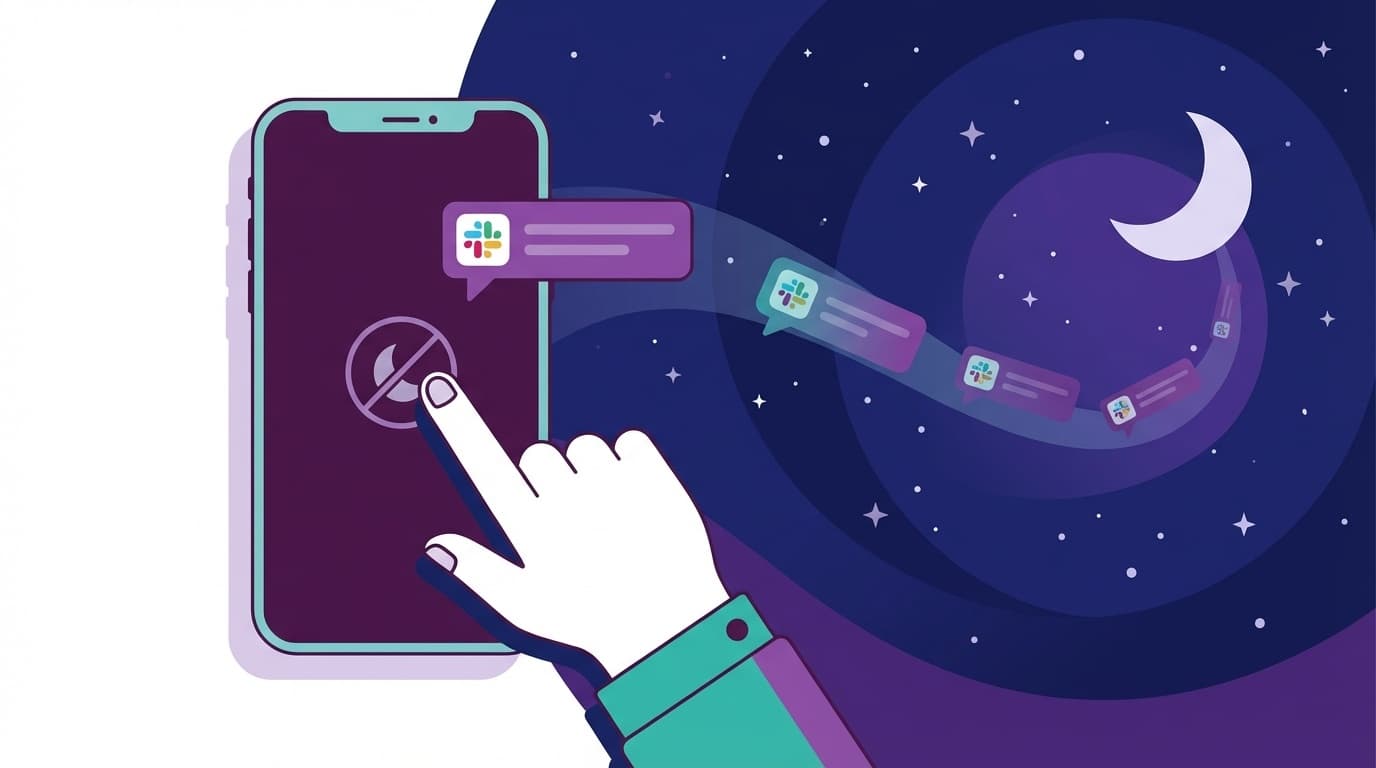
"Even though it's my day off, the Slack notifications won't stop ringing..." or "I woke up in the middle of the night when a mention came in..." Have you ever experienced something like that?
As of 2026, when remote work has become the norm, Slack has become an indispensable tool for work. But while it's convenient, it's also painful to be kept up with notifications even during your private time.
Slack actually has a feature that automatically turns off notifications on holidays and late at night. In this article, we will explain in an easy-to-understand manner 5 ways to set things like Notification schedule, Do not disturb mode, Channel mute, etc. right away.
Why do I receive Slack notifications on holidays and late at night?
In Slack's default settings, the notification schedule is 'Daily 8:00-22:00' (from Slack Official Help, as of February 2026).
In other words, if you keep the default, you will receive notifications until 10pm, and You will receive notifications regardless of Saturdays and Sundays. Settings such as ``I want you to be notified only on weekdays'' and ``I want you to be quiet after 6pm'' will not take effect unless you change them yourself.
Also, if your team members work in different time zones or have members overseas, it is common for you to receive messages late at night.
Method 1: Set a notification schedule (should be given top priority)
Slack's Notification Schedule feature allows you to fine-tune the days and times you want to receive notifications. This is the most effective method.
Setting steps for desktop version
- Click your profile icon in the top right corner of Slack
- Select Preferences
- Open Notifications section
- Scroll to Notification Schedule
- Select Weekdays or Custom Settings from the Allow Notifications dropdown
- Set start time and end time (e.g. 9:00-18:00)
Your settings will be saved automatically. If you select "Weekdays", notifications will be completely turned off on Saturdays and Sundays, so you won't have to worry about Slack on the weekends.
Mobile version setup steps
- Open the Home tab of the Slack app
- Tap your icon in the top right
- Tap Notifications
- Set days and times in Notification schedule
The point is that Desktop and mobile settings are linked. If you set one, it will be reflected in both (from Slack official: Set up Slack for work hours).
Method 2: Stop notifications now with Do Not Disturb (DND)
When you want to stop notifications right away, Do Not Disturb is useful. While the notification schedule is a "daily schedule setting", the Do Not Disturb mode is a "pause for the moment".
Operations on desktop version
- Click status area next to your icon in the top left of Slack
- Select "Pause notifications"
- Select the time to stop, such as "30 minutes," "1 hour," "2 hours," or "until tomorrow"
You can also specify a custom time of your choice. The advantage is that you can quickly set it up when you suddenly want to concentrate or during a break.
Operations in mobile version
- Tap your icon on the Home tab
- Tap Pause notifications
- Select the time to stop
When you are in Do Not Disturb mode, a Zzz mark will be displayed on your profile icon, letting the other person know that you are not receiving notifications at the moment.
Method 3: Mute noisy channels
If you want to receive all notifications, but certain channels are noisy, Mute each channel is effective.
How to set mute
- Open the channel you want to mute
- Click on the channel name to open the details panel
- Select Mute in Notifications
Muted channels will be moved to the bottom of the sidebar and will be grayed out. Banner notifications and sounds will be completely turned off, but you'll still be notified of mentions (@name), so you won't miss out on the messages that really matter. channels).
Roughly speaking, this setting is perfect for people who want the chat channel to be quiet, but want to be noticed when someone calls them by name.
Method 4: Customize notification levels for each channel
If muting alone is too detailed or general, you can set Notification levels for each channel.
Configurable notification levels
- All New Messages: Notify you every time a channel posts
- Mentions only: Notify only @mentions, @here, @channel to yourself
- None (Mute): Turn off notifications completely
Setting procedure
- Open a channel and click on the channel name
- Click Notifications in the details panel
- Select your desired notification level
Use "All" for important project channels, "Mentions only" for information sharing channels, and "Mute" for hobby channels to avoid being flooded with notifications. (rel="noopener">Slack official: Manage notifications for channels).
Method 5: Pick up only "really important things" with keyword notifications
"I want to turn off notifications for most of the time, but I would like to be notified only when a specific keyword appears." - Slack can accommodate such selfish requests.
How to set my keywords
- Open Slack's Preferences → Notifications
- Enter the words you want to receive notifications for in the "My keywords" field (multiple words are OK, separated by commas)
For example, if you register your name (Kanji/Romaji), the name of the project you are in charge of, "emergency", "outage", etc., you will receive notifications only for messages containing those keywords even if you mute the channel.
In short, you can "I want to turn off most notifications, but tell me about the ones that are dangerous."
For administrators (workspace owners): Set team-wide defaults
Slack workspace owners and admins can set default Do Not Disturb times for their entire team.
To set, just specify the default DND time from "Settings and Management" → "Workspace Settings" in your workspace. This will automatically apply to members who have not set it individually (as of February 2026, from Slack official: Set default DND hours).
Please note that members can override their own schedules individually, so there will be no chance of ``DND being canceled without permission''. Administrators should definitely set this up to keep their team working in a healthy manner.
FAQ
What should I do if I want to send an urgent message while in Do Not Disturb mode?
Even if the other party is in Do Not Disturb mode, the "Notify" button will be displayed when sending a message. Click this to bypass Do Not Disturb and receive notifications. Only use it in a real emergency.
What is the difference between notification schedule and Do Not Disturb mode?
The notification schedule is a "regular setting that automatically repeats every day", and the sleep mode is a function to "temporarily stop notifications now". We recommend using the notification schedule on a daily basis and the Do Not Disturb mode for emergencies.
Are muted channels @channel and @here notified?
By default, muted channels @channel and @here are not notified. However, direct mentions of your name (@name) will be notified. You can also fine-tune the notification settings for each channel.
Should I also change the notification settings on the smartphone OS side?
The settings within the Slack app have the highest priority, but when used in conjunction with iOS's "Do Not Disturb Mode" or Android's "Bedtime Mode," it is convenient to manage apps other than Slack all at once. It's best to set this in conjunction with Slack's notification schedule.
References
- Configure your Slack notifications — Slack Help Center
- Pause your Slack notifications — Slack Help Center
- Set default Do Not Disturb hours — Slack Help Center
- Manage notifications for specific channels and direct messages — Slack Help Center
- Mute channels and direct messages — Slack Help Center
- Set up Slack for work hours — Slack Help Center