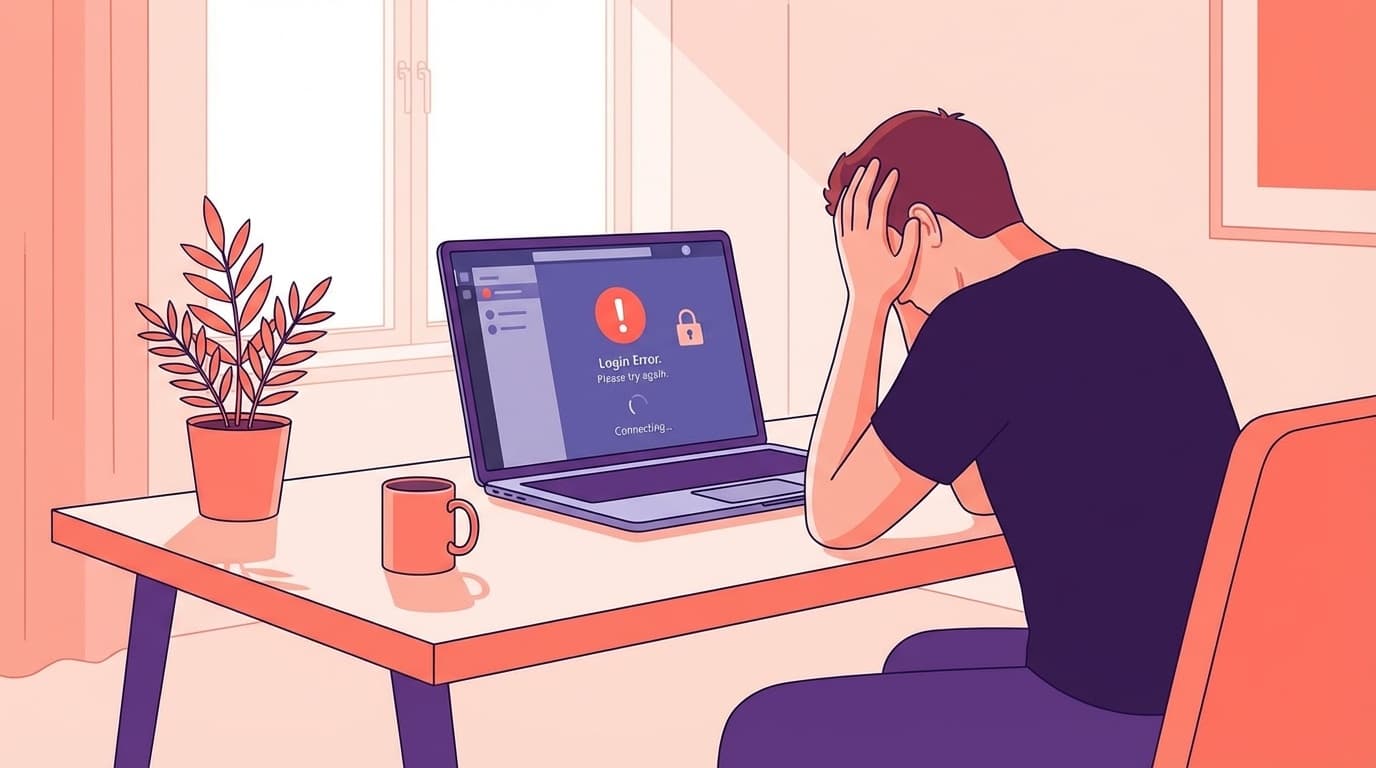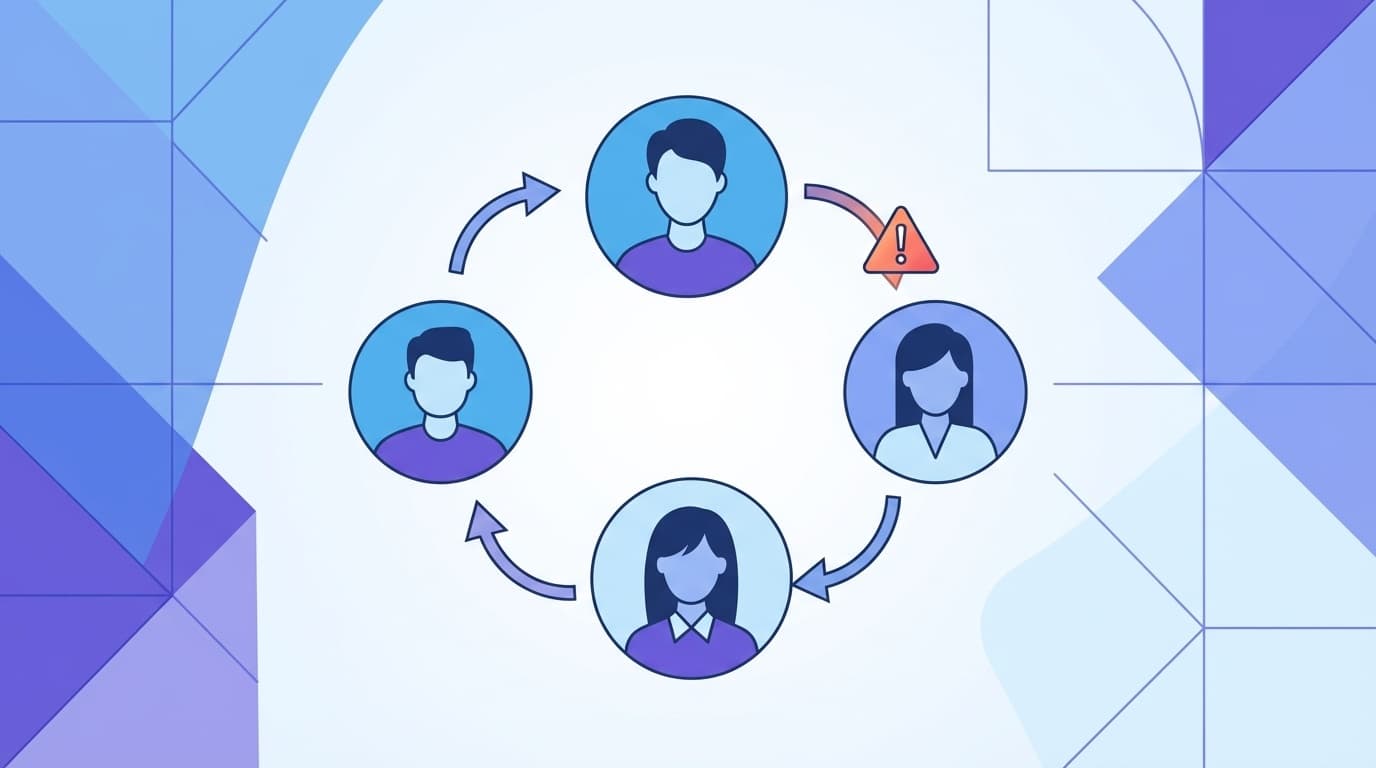
The number of people using multiple accounts (organizations) for their company's Teams is increasing. It's not uncommon for people to switch between two or more accounts, such as a guest account for a side job or project in addition to their main business account.
However, when they try to switch, many people are plagued by problems such as ``My organization doesn't appear in the list,'' ``Even though I switched, I'm still using my previous account,'' and ``Notifications only arrive on one side.'' As of February 2026, there are also comments on X (Twitter) such as ``There is a bug when using Teams with a different account from Office 365'' and ``Clerical staff cannot log in.''
In this article, we will explain in an easy-to-understand manner the 5 reasons why switching between multiple Teams accounts does not work properly and how to deal with each of them. Compatible with all Windows, Mac, and smartphones (Android/iPhone).
What exactly does Teams' multiple account feature do?
First of all, with the August 2024 update, the Teams desktop app now allows you to log in to multiple accounts for work, school, and personal use at the same time. According to Microsoft official support page, you can switch accounts by simply clicking the profile icon.
However, there are some pitfalls here.
- Old version (Classic Teams) does not support simultaneous login with multiple accounts
- Guest account may not be displayed depending on the settings of the inviting organization
- Adding more than one Personal Account is not supported
In other words, it doesn't mean that everything will be fine if you update the app. Let's take a look at some common causes and solutions below.
Cause 1: Teams app remains in old version (Classic)
This is the most common cause. Classic Teams (older version) does not support simultaneous login of multiple accounts. If you have not switched to New Teams, the account switching menu may not appear.
How to deal with it
- Open the … menu in the top left of the Teams app
- If you see something like "Try new Teams" or "Switch to new Teams", click it
- If it is not displayed, download and install the latest version from Microsoft official website
Please note that if your company's administrator has fixed the version to Classic, you cannot update it yourself. Let's talk to the IT department and say, ``I want to use the new Teams.''
Cause 2: Cache is corrupt
Teams locally caches (temporarily stores) login information and account list. If this cache is corrupted, symptoms may occur such as accounts that are expected to be displayed in the organization list or an error occurs when switching.
Microsoft Q&A also recommends deleting the cache in response to the question "I can't switch accounts."
For Windows
- Completely exit the Teams app (right-click the taskbar icon → "Exit")
- Windows key + R to open Run
- Enter the following path and enter:
%appdata%\Microsoft\Teams(for Classic Teams)
or%localappdata%\Packages\MSTeams_8wekyb3d8bbwe(for New Teams) - Delete all files in the folder
- Restart Teams and log in again
For Mac
- Quit Teams
- In Finder, select "Go" menu → "Go to folder"
- Enter
~/Library/Application Support/Microsoft/Teams - Delete the contents of the folder
- Additionally, open Keychain Access and delete items related to "Microsoft Teams" (old credentials remaining will cause the switch to fail)
- Restart Teams
For smartphones (Android/iPhone)
- Close the Teams app completely (also from the background)
- Android: Settings → Apps → Microsoft Teams → Storage → "Clear cache"
- iPhone: Delete and reinstall the Teams app (because iOS does not have individual cache deletion)
- Log in again
Cause 3: There is a problem with the guest account invitation settings
A case where "I was invited as a guest to a business partner's Teams, but it doesn't appear in the switching list." This is often caused by the Azure AD (Microsoft Entra ID) settings of the inviting organization.
Roughly speaking, if the administrator on the other side has set the setting to ``not allow guest access from external users'', it will not be displayed in the organization list even if an invitation email is received.
How to deal with it
- Try accessing directly from the link in the invitation email (even if it doesn't appear in the list, you may be able to access it via the link)
- Tell the other person's administrator, "Please check if guest access is enabled"
- As shown in Microsoft Q&A example, sometimes the problem can be fixed by canceling the invitation and then inviting it again
There are many cases where there is nothing you can do about it, so it is best to contact the other party's IT person first.
Cause 4: "Account locked" error occurs
When you try to switch organizations, you may receive an error that says "Your account has been locked. Please contact your support representative to unlock it and try again.".
This does not mean that the account is actually locked, but is usually caused by authentication token mismatch. There is a similar report in Microsoft Q&A, and it is treated as a cache or credential issue rather than an actual lock.
How to deal with it
- First, try Deleting cache for cause 2
- If that doesn't work, open Credential Manager in Windows (Control Panel → User Accounts → Credential Manager)
- Delete items related to "Microsoft" and "Teams" in the "Windows Credentials" tab
- Restart Teams and log in again
If the problem still persists, ask your company's IT administrator to check the status of your account on the Azure AD (Microsoft Entra ID) side.
Cause 5: I can switch but I don't receive a notification
Although you can switch accounts, the problem is that notifications from organizations you are not currently viewing do not arrive. This is actually a specification of Teams.
According to Microsoft Q&A official answer, as of February 2026, desktop notifications for inactive organizations are not displayed. In short, if you have organizations A and B, you will not receive notifications from B while viewing A.
Countermeasures (workaround)
- Use both the desktop app and a web browser: Log in to one account using the desktop app and the other to Web version of Teams (teams.microsoft.com). Now you can receive both notifications at the same time
- Also use the Teams app on your smartphone: The mobile version uses a different push notification mechanism, so notifications from organizations you don't see on your desktop may arrive on your smartphone.
- Enable email notifications: Go to Teams Settings → Notifications → Email and turn on "Email about out-of-office activity" to avoid missing out
If that doesn't work: Reinstall Teams and last resort
If the above five solutions do not resolve the issue, please try the following in order.
- Completely uninstall and reinstall Teams (for Windows, go to Settings → Apps → Microsoft Teams → Uninstall)
- Check if you can successfully switch using the browser version of Teams (teams.microsoft.com). If there is no problem with the browser version, there is a problem specific to the desktop app
- Consult with your company's IT administrator to check account status on Azure AD (Microsoft Entra ID)
- Contact Microsoft Support (Microsoft 365 administrator account may be required)
FAQ
Can I add two personal accounts in Teams?
No, as of February 2026, you can only add one personal (Microsoft account) in Teams. You can add multiple work/school accounts. If you want to use two personal versions, we recommend opening one in the browser version.
Will my data be lost if I switch from Classic Teams (old version) to New Teams?
Your chat history and files are stored in the cloud (Microsoft 365), so your data won't disappear when you switch apps. However, temporary files downloaded locally may disappear, so be sure to save any necessary files to OneDrive etc. in advance.
Can you be logged out when switching between multiple accounts on Teams on your smartphone?
There is a report that "switching between personal and work accounts fails" on Android at Microsoft Q&A. In this case, try completely closing the Teams app and reopening it, or clearing the app's cache.
Why is the destination of the guest account displayed as "Expired"?
Guest invitations have an expiration date and will no longer be accessible after the period set by the inviting organization. Please ask the inviting administrator to re-invite you.
References
- Manage accounts and organizations in Microsoft Teams — Microsoft Support
- Can't switch Teams account — Microsoft Q&A
- Notifications do not arrive if the organization is different — Microsoft Q&A
- Microsoft lets you switch between work and personal accounts in a single Teams app — ITmedia NEWS, August 2024
- Teams on Android ALWAYS fails to switch between Personal and Work accounts — Microsoft Q&A