After changing smartphone models, the eSIM cannot be transferred properly and communication is not possible - such problems are rapidly increasing. After 2025, an increasing number of devices will abolish physical SIM cards and only support eSIM. However, there are still a lot of people asking, "How do I migrate my eSIM?" and "My quick transfer failed..."
In this article, based on the latest information as of March 2026, we will provide an easy-to-understand explanation of eSIM migration procedures for iPhone and Android, as well as measures for each cause in case of failure.
What exactly does eSIM "migration" do?
eSIM is a mechanism that writes carrier line information to a chip built into the smartphone body. You cannot migrate by simply replacing it like you would with a physical SIM card.
Roughly speaking, there are two methods to transfer the eSIM when changing models.
- Quick transfer: Transfer eSIM information directly from your old device to your new device via Bluetooth, etc. (only compatible carriers and devices)
- eSIM reissue: Request a new eSIM profile from your carrier's My Page or app and download it to your new device
If you were thinking "just replace the SIM card", be careful. Since an eSIM canonly be installed on one device, you will need to delete it from your old device and reinsert it into your new device.
Steps and precautions for iPhone's "eSIM quick transfer"
iPhone has an "eSIM Quick Transfer" feature that can be used with iOS 16 or later. This is a convenient feature that allows you to directly transfer your eSIM from your old iPhone to your new iPhone without contacting your carrier.
Supported carriers (as of March 2026)
According to Apple's official support page, the following carrier brands are supported in Japan.
- Docomo (including ahamo)
- au (including UQ mobile and povo)
- Softbank (including Ymobile, LINEMO)
- Rakuten Mobile
In other words, 4 major carriers and their sub-brands are already supported. However, many MVNOs (cheap SIMs) such as IIJmio and mineo are not compatible, so a reissue procedure is required.
How to do a quick transfer (iPhone → iPhone)
- Turn on Bluetooth on your old and new iPhone
- Place the old and new iPhone close (approximately within 30cm)
- During the initial setup of a new iPhone, or open "Settings" → "Mobile Communications" → "Add eSIM"
- Select "Transfer from nearby iPhone"
- A confirmation screen will be displayed on your old iPhone, so tap "Transfer"
- Enter passcode from old iPhone to new iPhone
- Wait a few minutes and the eSIM will be activated on your new iPhone
Once the transfer is complete, the eSIM on your old iPhone will be automatically disabled.
Notes on quick transfer
- Reception hours: au and Softbank services are not available 24 hours a day and may have limited reception hours. Check the latest reception hours on Docomo official page
- Requires passcode on old device: Transfer is not possible if passcode is not set
- New device requires internet connection: Make sure you are connected to Wi-Fi
Android "eSIM transfer" steps
Android devices also have an eSIM transfer function in Android 14 or later. According to Docomo's official support, you can transfer eSIM from the settings screen if the devices are compatible.
How to transfer Android eSIM
- Open "Settings" → "Network & Internet" → "SIM" on the new device
- Tap "Download SIM" or "Add eSIM"
- Select "Transfer SIM from another device"
- A confirmation message will be displayed on the screen of the old device, so approve it
- Wait until the transfer is complete
However, the current situation is that compatible devices are still limited. It is often not possible to use it with relatively new models, such as Pixel 8 or later or Galaxy S24 or later, so if it is not compatible, try reissuing an eSIM.
5 reasons why eSIM migration fails and what to do
If you are unable to transfer even though you followed the instructions, the following may be the cause.
Cause 1: Bluetooth is turned off
Quick Transfer uses Bluetooth to communicate between devices. Please turn on Bluetooth on both your old and new devices. If you have airplane mode turned on, Bluetooth may also be turned off, so be sure to check.
Cause 2: Old OS version
iPhone requires iOS 16 or higher, Android requires Android 14 or higher. If the OS of your old device is old, the transfer function itself will not be displayed. Update to the latest version by going to "Settings" → "General" → "Software Update" (for iPhone).
Cause 3: Carrier does not support quick transfer
Many MVNOs, such as IIJmio, mineo, and Nippon Telecommunications SIM, do not support quick transfer. In this case, you will need to complete the eSIM reissuance procedure from each carrier's My Page and then transfer by reading the QR code on your new device.
Cause 4: SIM lock is applied
Devices purchased before October 2021 may be SIM-locked. Please try again after unlocking the SIM at the My Page or shop of the carrier you purchased from.
Cause 5: The old device was initialized or sold
This is the most troublesome pattern. If you initialize or sell your old device's eSIM without deleting it, you will no longer be able to use quick transfer. In this case, your only option is tocontact your carrier and request a reissue of your eSIM. Most major carriers have waived eSIM reissue fees since 2024 (see ahamo reissue page, etc.).
"eSIM reissue" procedure when quick transfer cannot be used
Even if you cannot use quick transfer, you can transfer to a new device by Reissuing eSIM. The steps vary by carrier, but the basic flow is the same.
- Log in to your carrier's My Page (My docomo, My au, My SoftBank, etc.)
- Select menu such as "Change SIM" or "Reissue eSIM"
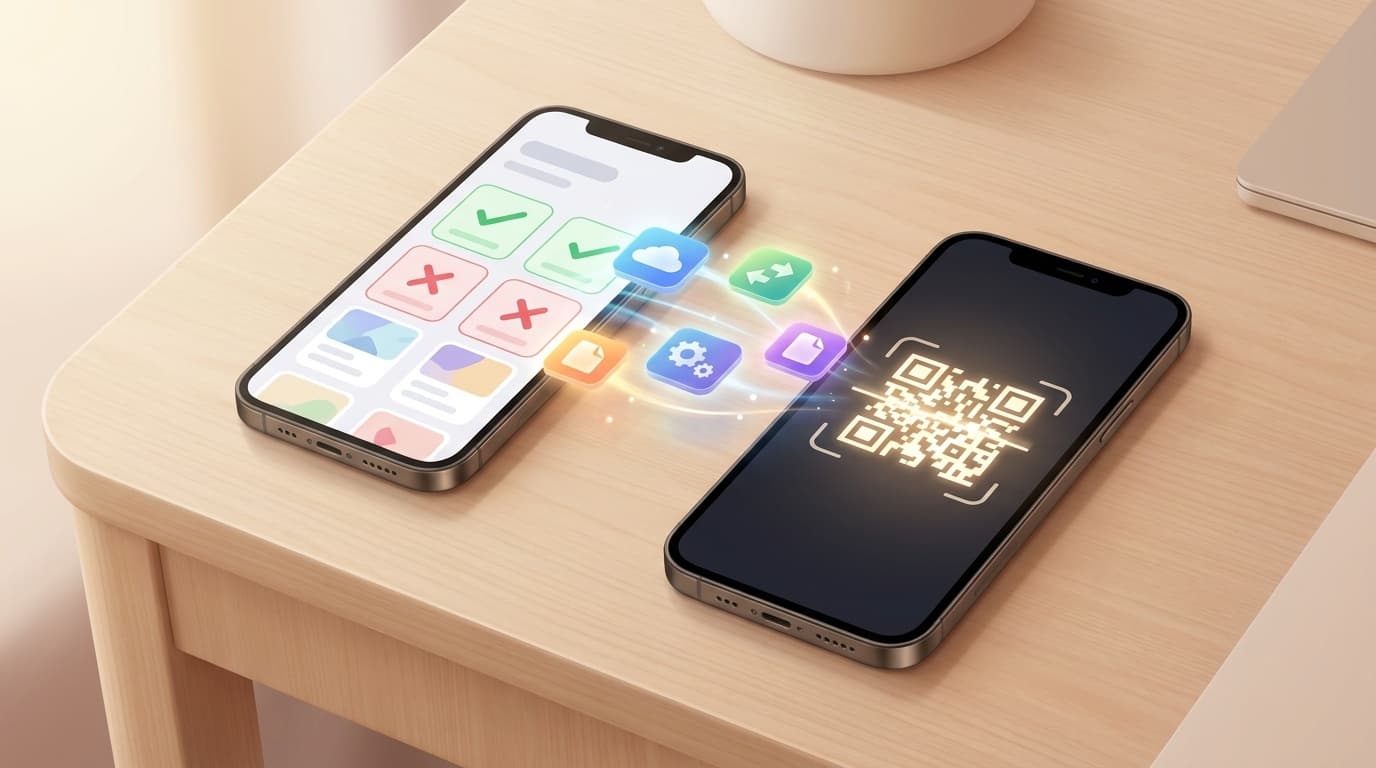
- Once the process is completed, a QR code or activation code will be issued
- Scan from the new device's "Settings" → "Mobile communications" → "Add eSIM" → "Use QR code"
- The profile is downloaded and the line is opened
Note: QR code can only be used once. It is a good idea to take a screenshot, but if reading fails, you may need to reissue it.
Reissue page by carrier
- Docomo / ahamo: ahamo's eSIM reissue page (Docomo can also perform the same procedure from My docomo)
- au / UQ Mobile / povo: "Change SIM" from My au or povo2.0 app
- Softbank / Y!mobile / LINEMO: Y!mobile's eSIM model change page (Y!mobile may require a visit to a shop)
- Rakuten Mobile: "SIM exchange/reissue" from my Rakuten Mobile app
Three preparations to make before changing models
To prevent eSIM migration problems, please check the following before changing your model.
- Check whether your SIM is eSIM or physical SIM: You can check by going to "Settings" → "Mobile Communication". Surprisingly, there are cases where "I thought it was an eSIM, but it turned out to be a physical SIM" (and vice versa)
- Check your carrier's transfer method in advance: Check whether it supports quick transfer, whether a reissue is required, and when the reception hours are so you don't have to worry on the day.
- Initialize and sell your old device after the line is opened: Make sure that you can communicate properly with your new device before letting go of your old device. If you initialize it first, it cannot be undone
FAQ
Can eSIM quick transfer be done for free?
Yes. eSIM quick transfer is free for the four major carriers (Docomo, au, Softbank, Rakuten Mobile) and sub-brands. Starting in 2024, many carriers will charge no fees for eSIM reissue. However, some MVNOs may charge a fee, so please check the official website of the contracting party.
If the old device is broken and cannot be operated, can the eSIM be transferred?
Quick transfer cannot be used, but you can transfer by contacting your carrier and requesting a reissue of your eSIM. Most carriers allow you to complete the procedure online (on My Page), but if your identity needs to be verified, you may be asked to visit a store.
How do I change from physical SIM to eSIM?
Proceed to "SIM change (physical SIM → eSIM)" on your carrier's My Page or shop. On iPhone, you can also convert from physical SIM to eSIM from the eSIM quick transfer screen. Most major carriers charge no fees.
Will the line become unusable if I delete the eSIM?
Yes. If you delete the eSIM profile from a device, you will no longer be able to communicate with that device. To use it again, you will need to have your eSIM reissued by your carrier. When you have a problem, it is no good to just delete it and reinsert it, so first try restarting your device or contacting your carrier.
References
- Set up an eSIM on your iPhone — Apple Support
- About eSIM quick transfer — NTT Docomo
- About Android eSIM transfer function — NTT Docomo
- How to change the eSIM model? Explaining the application procedure and points to note — ahamo
- About eSIM model change — Y!mobile