"Even though I bought a laptop, I can't increase the memory later...?"
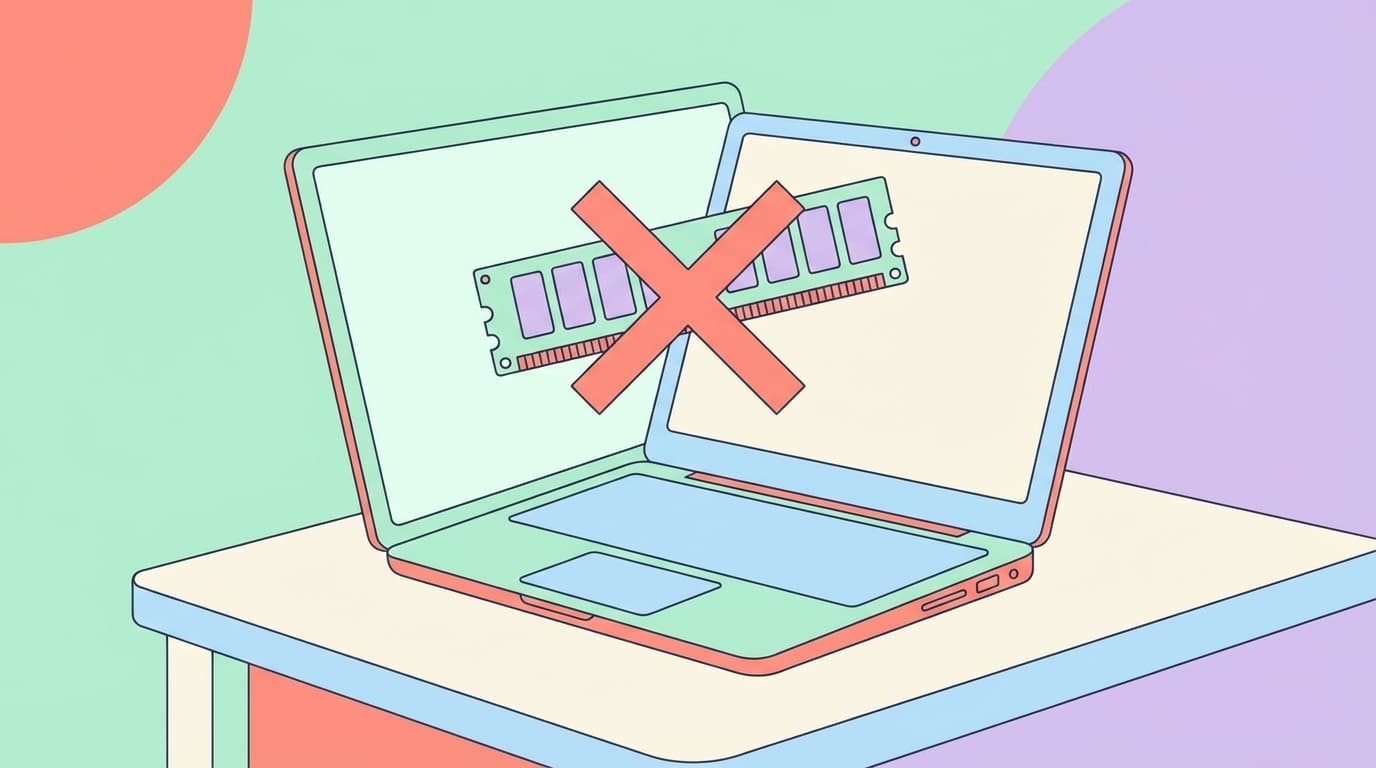
More and more modern notebook computers have "onboard memory" models in which memory is soldered directly to the motherboard. Even though it's designed to be thin and lightweight, it's a huge shock when you buy it and find out that it can't be expanded.
In this article, based on the latest circumstances as of February 2026, we will explain in an easy-to-understand manner How to determine whether memory can be expanded before purchase and 5 checkpoints to avoid failure.
What exactly is "onboard memory"?
There are roughly two types of memory for notebook PCs.
- Slot type (SO-DIMM): Memory is installed in a plug-in slot and can be replaced or expanded later
- On-board: Memory chips are soldered directly onto the motherboard and cannot be removed or replaced
While onboarding has the advantage of making the main body thinner and reducing power consumption, it is generally not possible to increase the memory capacity after purchase. The Apple MacBook series has been onboard for some time, but popular models such as HP Specter and Dell XPS will be onboard from 2025 to 2026 in the Windows camp.
Especially in 2026, "Memory prices are rising," and there are an increasing number of voices on social media saying that they chose 8GB at the time of purchase and wondered if they could expand later, but they were unable to do so.
Understand before you buy! 3 ways to identify onboard memory
Method 1: Check the manufacturer's official specifications (most reliable)
The most reliable method is to check the model number specifications on the manufacturer's official website. Check the memory column of the specification table for the following entries.
- "Onboard" "LPDDR5 (onboard)" → Cannot be expanded
- "SO-DIMM slot x 2" "Empty slot: 1" → Expansion possible
Major manufacturers such as NEC, Lenovo, HP, and Dell provide detailed specification sheets on their product pages. You can usually find it by searching for the model number.
Method 2: Use Crucial's compatibility checker
If you use the free "Crucial Advisor™ tool' provided by memory manufacturer Crucial, you can find out the expandable memory and maximum capacity just by entering the manufacturer name and model name. If "No compatible memory" is displayed, there is a high possibility that it is onboard.
If you already have a PC, download and run "Crucial System Scanner" and it will automatically determine your current memory configuration and whether or not it can be expanded.
Method 3: Check with PowerShell command (if you have a PC)
For Windows, you can find out the memory implementation format by running the following command in PowerShell.
Get-CimInstance Win32_PhysicalMemory | Select-Object FormFactor, Capacity, SpeedCheck the resulting FormFactor value.
- 8 (DIMM) or 12 (SO-DIMM) → Slot type, replacement/expansion OK
- 0(Unknown) → High possibility of onboarding
However, there are rare cases where the slot type is used even if FormFactor is 0, so it is safe to judge by combining it with other methods.
5 points to check before purchasing
Besides checking whether it is onboard or not, check the 5 points below before purchasing to avoid making mistakes when choosing memory.
Point 1: Choose at least 16GB
As of 2026, Windows 11 consumes 3-4GB of memory just by starting it. Furthermore, Microsoft's Copilot+ PC requires 16GB or more of memory, so there are an increasing number of situations where 8GB is insufficient.
If you are using a web browser + Office, 8GB will work just fine, but if you open more than 10 browser tabs or use Zoom or Teams, 16GB is recommended.
Point 2: Know the difference between "LPDDR5" and "DDR5"
LPDDR5 (LP = Low Power) has a power-saving design and excellent battery life, but is almost entirely onboard. On the other hand, many models of DDR5 SO-DIMM can be expanded using slots.
If you see "LPDDR5" written in the catalog, assume that it cannot be expanded, and choose the capacity you need at the time of purchase.
Point 3: Check the number of free slots
Even if it is a slot type, if there is only one slot, the only option is to remove the memory currently inserted and replace it. If there are two slots and one is empty, you can expand it by simply inserting additional memory.
Please check the specification table for a description like "Memory slots: 2 (1 empty)".
Point 4: Check the maximum installed memory
Even if there is a slot, some models have maximum installed memory of up to 16GB. If you want to upgrade to 32GB in the future, choose a model with a maximum capacity of 32GB or more. The specifications list states "Maximum memory: 32GB".
Point 5: Check ease of disassembly and impact on warranty
Even if there is a memory slot, some models opening the back cover will void the manufacturer's warranty. On the other hand, there are models designed with the assumption that users will replace them themselves, such as Lenovo's ThinkPad series and Framework Laptop.
At the 2026 CES (International Consumer Electronics Show), Lenovo announced the ThinkPad X1 Carbon Gen 14, which uses an easy-to-disassemble "Space Frame" structure, and the trend of Right to Repair is also accelerating. Be sure to check the manufacturer's warranty terms and conditions before purchasing.
What to do when your existing PC doesn't have enough memory
Even if you think, "I already bought it, and I can't add more memory...", there are some measures you can take.
Measure 1: Disable unnecessary startup apps
You can reduce memory consumption by disabling apps that automatically start up at startup from the "Startup" tab in Task Manager.
Measure 2: Review browser tab management
If you turn on Google Chrome's "Memory Saver" feature (Settings → Performance), it will automatically free up memory from unused tabs. Microsoft Edge also has a similar "sleep tab" feature.
Countermeasure 3: Adjust virtual memory (page file)
You can manually adjust the page file size from Windows' Advanced System Settings → Performance → Advanced Settings → Virtual Memory. If you have a model with an SSD, you can compensate to some extent with virtual memory, but if you use an HDD, the perceived speed will decrease, so be careful.
Measure 4: Switch to lightweight apps
You can reduce memory pressure by switching to lightweight alternatives, such as using Firefox or Vivaldi instead of Chrome, which consume less memory, or using browser-based Canva or Photopea instead of heavy image editing software.
FAQ
Q. Do notebook PCs with onboard memory have low performance?
No. Onboard devices (especially LPDDR5) have low latency and good battery efficiency, so they may actually have higher performance for the same capacity. However, it is important to choose the capacity you need at the time of purchase, as it cannot be expanded later.
Q. Can I check the number of slots in Task Manager?
In Windows 11's Task Manager, go to "Performance" → "Memory" and you will see "Slot usage", but even onboard memory may be displayed as "1/1", so it is not suitable for accurate judgment. We recommend checking the manufacturer's specifications or Crucial's tools.
Q. Is it okay to buy a laptop with 8GB of memory?
It can be used only for web browsing and light document creation, but as of 2026, 16GB is recommended for Windows 11 + Copilot function. If it's an expandable model, you can start with 8GB, but if it's onboard, choose 16GB or more from the beginning.
Q. Can I expand the memory of my MacBook?
As of February 2026, all MacBook series (Air/Pro) have onboard memory integrated into Apple silicon, and cannot be expanded after purchase. You must select the required capacity when ordering.
References
- How to expand the memory of your laptop and precautions - NEC LAVIE official website
- Memory & SSD Upgrade Compatibility Check - Crucial
- The real reason so many laptops have moved to soldered RAM - Digital Trends
- What is the recommended amount of memory to run Windows 11 comfortably? - Lenovo
- The Repairable Laptop War of 2026 - Lenovo Space Frame vs. Framework - SAFA Tech Blog