
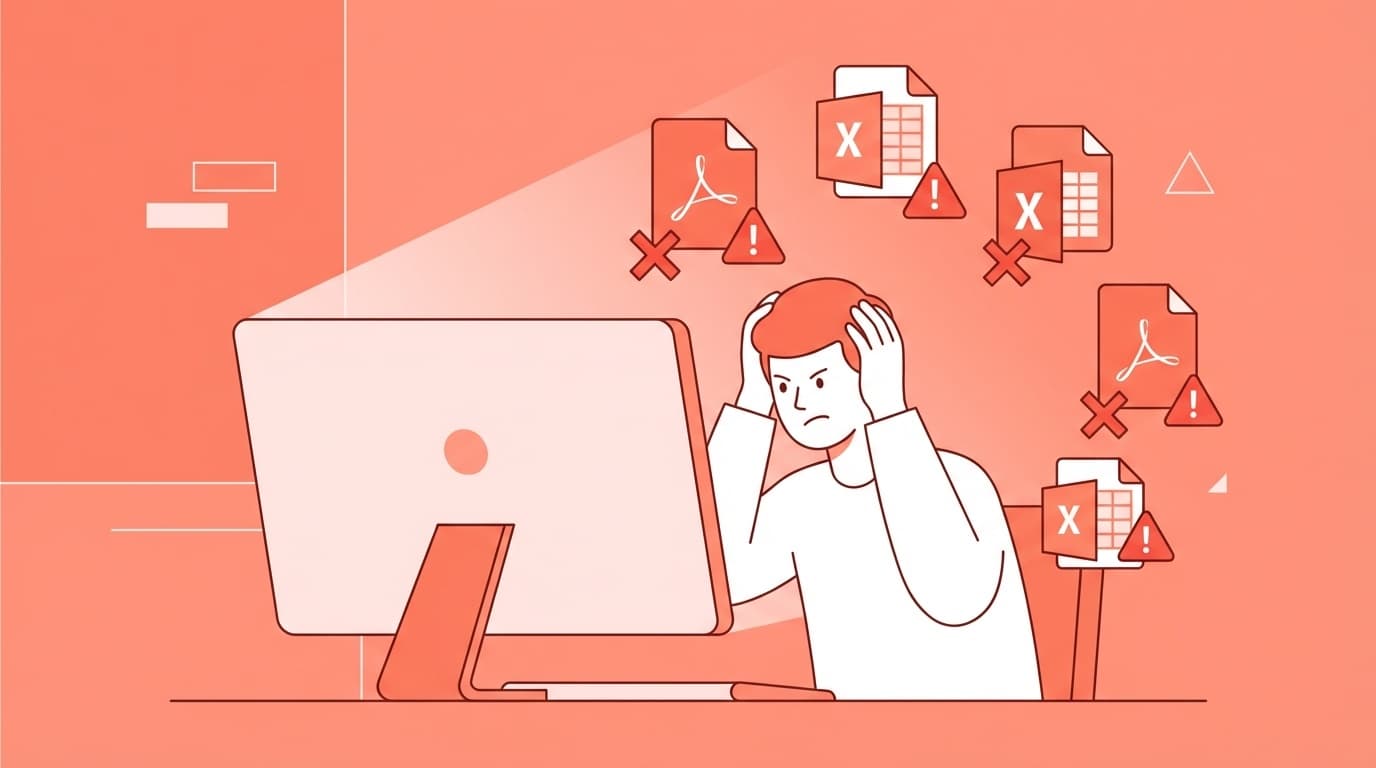
“I uploaded a PDF to ChatGPT, but it doesn’t understand the contents at all...” “I uploaded an Excel file, but it keeps asking me whether a certain section exists.” Have you ever run into something like that?
As of March 2026, ChatGPT supports many file formats, including PDF, Excel, Word, and CSV, but there are still plenty of cases where a file uploads successfully but isn’t actually read correctly. Re-uploading the same file over and over without knowing the cause just wastes time. In this article, we’ll break down five common reasons file analysis fails and explain how to fix each one.
A Quick Refresher on ChatGPT File Uploads
First, let’s review how ChatGPT’s file upload feature works. According to OpenAI’s official File Uploads FAQ, the limits as of March 2026 are as follows.
Supported file types: PDF, Word (.docx), Excel (.xlsx), CSV, text (.txt), PowerPoint (.pptx), images (JPEG, PNG, WebP), code files, ZIP files, and more.
File size limit: Up to 512MB per file. However, text and document files are limited to 2 million tokens, which is roughly 1 million to 1.5 million Japanese characters. OpenAI officially recommends keeping files under 25MB.
Upload limits: Paid plans such as Plus and Pro allow up to 80 files every 3 hours. The free plan is much more limited at 3 files per day.
In other words, when a file uploads but ChatGPT still can’t read it, the problem usually isn’t the file format or size by itself. In most cases, the issue is with the contents or condition of the file.
Reason 1: It’s a Scanned PDF With No Text Data
This is the most common cause. A PDF created by scanning paper documents may look like a normal PDF, but inside it’s just a collection of images. Since it doesn’t contain actual text data, ChatGPT can’t read the characters as text.
Broadly speaking, there are two types of PDFs.
- Text PDF: Created from Word, a web page, or another digital source. You can copy and paste the text → ChatGPT can read it
- Image PDF, or scanned PDF: Created by scanning paper. You can’t copy and paste the text → ChatGPT can’t read the contents as text
Here’s the easy way to tell: Open the PDF and try selecting text by dragging over it, then copying it. If you can’t copy the text, it’s an image-based PDF.
How to Fix It
Method 1: Upload it as images. Instead of uploading the PDF as-is, convert each page to a screenshot or JPEG first. ChatGPT’s image recognition, such as GPT-4o’s vision capabilities, can then read the text from the images.
Method 2: Run OCR before uploading. If you upload the PDF to Google Docs, it can perform OCR, or text recognition, for free. After conversion, copy the text and paste it into ChatGPT. Adobe Acrobat’s PDF-to-Word converter, which is free with some usage limits, is also quite accurate.
Reason 2: The File Is Too Large or Has Too Many Pages
The official limit is 512MB, but in practice, OpenAI also acknowledges that files over 25MB can be less stable to process. PDFs with more than 200 pages may only be read partway through.
Excel files can run into similar trouble. If a workbook contains tens of thousands of rows, it may time out or show an error like “An error occurred while processing the file.”
How to Fix It
- If your PDF is long: Split it by chapter or section before uploading. Free PDF splitting tools like iLovePDF can help
- If your Excel file is large: Copy only the sheets or data ranges you need into a new, lighter file. You can also convert it to CSV, which often reduces the file size dramatically
- If the file contains lots of embedded images, remove the images and keep just the text to improve processing
Reason 3: The File Is Password-Protected or Restricted
This one is easy to miss. ChatGPT can’t read password-protected PDFs or Excel files with editing restrictions. Sometimes you won’t even get a clear error message. It may simply say it couldn’t inspect the file contents.
Company documents and downloaded government forms often have security settings applied.
How to Fix It
- Remove the password before uploading the file. Tools like Smallpdf can do this
- For Excel: go to “File” → “Info” → “Protect Workbook” and remove the protection
- If you can’t remove the restriction: copy the contents into a new file, then upload that version instead
Note: If you’re uploading files that contain sensitive information to ChatGPT, check OpenAI’s privacy policy. For work-related data, it’s a good idea to turn off “Use data to improve models” in your ChatGPT settings.
Reason 4: The File Structure Is Too Complex
Sometimes the file does contain text data, but ChatGPT still doesn’t understand it correctly. In these cases, the issue is often that the file’s structure is too complicated.
Common examples include:
- Excel sheets with lots of merged cells: ChatGPT can lose track of the relationships between data points
- PDFs with multi-column layouts, such as two or three columns: The reading order can get mixed up
- Files with many charts and diagrams: There may be little text, while image-based sections may be skipped
- Excel workbooks with multiple sheets: ChatGPT may only read certain sheets
How to Fix It
- Unmerge cells in Excel before uploading
- Extract only the sheet you want ChatGPT to read into a separate file
- For multi-column PDFs, copy the text into a .txt file and upload or paste that instead
- You’ll get better results if you give specific instructions, such as “Analyze the data in columns A through D on the Sales sheet in this file”
Reason 5: You’ve Hit the Upload Limit
As of March 2026, ChatGPT’s free plan only allows 3 file uploads per day. Once you hit the limit, you’ll see an error saying you’ve used up your uploads.
Paid plans such as Plus also have a limit of 80 files every 3 hours, so you may run into it if you’re processing lots of files in a row. In March 2026, some Plus and Pro users also reported frequent “file upload limit reached” errors, and temporary backend issues were suggested as a possible cause.
How to Fix It
- If you’re on the free plan: wait until the next day, or paste the file contents directly into the chat as text. Pasting text doesn’t count toward the upload limit
- For short text or small tables, copy and paste is often faster and more reliable
- If you’re on a paid plan and see a limit error: wait 3 hours, or try opening a new conversation
- If it seems like a service issue: check OpenAI Status for current system availability
3 Tips to Help ChatGPT Read Files More Accurately
Once you’ve ruled out the causes above, these extra tips can help improve accuracy.
Tip 1: Be specific in your prompt about what you want. If you only say “Analyze this file,” ChatGPT may not know what to focus on. Instead, say something like “From the Sales sheet in this Excel file, calculate the monthly sales totals for 2025.”
Tip 2: Upload files one at a time. Uploading several files at once can make processing less stable. It’s more reliable to upload one file, ask “Were you able to read this file?”, and then move on to the next one.
Tip 3: Use CSV format when you can. CSV files are structurally simpler than Excel files (.xlsx), so ChatGPT can often read them more accurately. In Excel, you can convert a file by choosing “File” → “Save As” → “CSV UTF-8.”
FAQ
Can I upload files on the free plan?
Yes. As of March 2026, ChatGPT’s free plan supports file uploads. However, there’s a limit of 3 files per day. Paid plans such as Plus and above allow up to 80 file uploads every 3 hours.
Can other people see the files I upload to ChatGPT?
Uploaded files are used only within your own conversation. However, if “Use data to improve models” is turned on in your settings, your data may be used to improve AI models. If you’re handling sensitive data, go to “Settings” → “Data Controls” → “Model improvement” and turn it off.
Can I upload ZIP files?
Yes, ZIP files can be uploaded. ChatGPT automatically extracts them and reads the contents. However, password-protected ZIP files aren’t supported.
Why does ChatGPT say “file not found”?
In long conversations, ChatGPT may lose access to files uploaded earlier in the chat. Try starting a new conversation and uploading the file again, or use ChatGPT’s Projects feature to keep files available more persistently.
References
- File Uploads FAQ — OpenAI Help Center
- What types of files are supported? — OpenAI Help Center
- ChatGPT 'Limit of File Uploads' Error Reported by Plus Users — Cyberwarzone, March 2026