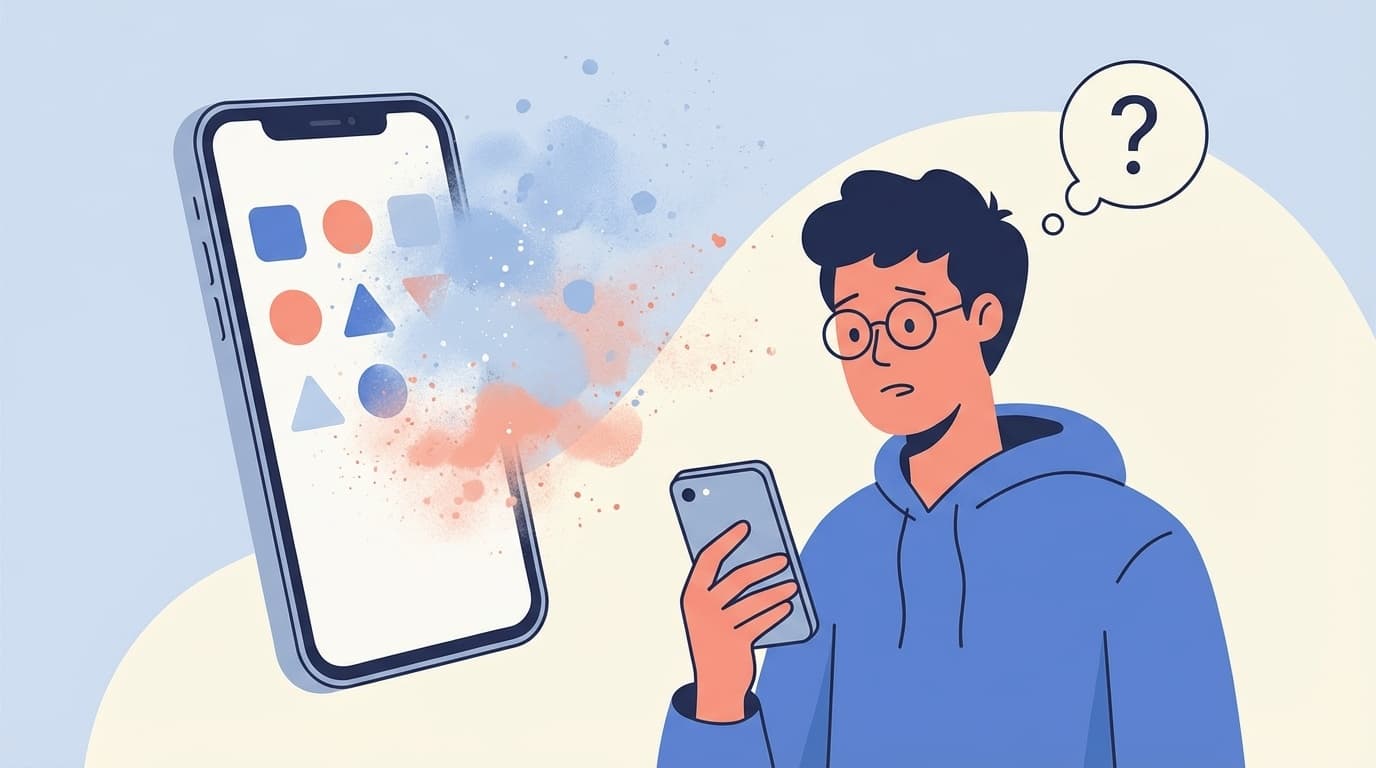
"When I woke up in the morning, all the apps on my iPhone were gone!" "I couldn't find LINE or Instagram after updating!"—As of March 2026, there are many reports on SNS of apps disappearing immediately after updating to iOS 26.
In conclusion, it is highly likely that the app has not been deleted, but has simply been ``hidden'' because the age restriction settings have been automatically changed. In this article, we will explain in an easy-to-understand way how to identify the cause and 6 ways to restore it right away.
Why did the app disappear? Caused by iOS 26 age rating change
In iOS 26, the App Store's app age rating (ranking of age restrictions) has changed significantly. According to Apple's official support, the conventional "12+" and "17+" have been abolished, and the new "13+", "16+", and "18+" have been added.
The problem starts here. If you have set the age limit on Screen Time to ``12+'' (12 years or older), it will be automatically lowered to ``9+'' (9 years old or older) after the update. If you are 9 years old or older, many apps such as LINE, Instagram, and X (formerly Twitter) will be excluded and will be hidden from the home screen.
In other words, the app has not disappeared, but is "just invisible." The data is still there, so if you correct the settings it will return to normal.
6 reasons why apps disappear and how to tell them apart
Besides changing the age limit, there are several reasons why apps may appear to disappear. Please take a look to see which case you are in.
Cause 1: Age limit for Screen Time was automatically changed (most common)
A case where the age limit was lowered by updating to iOS 26. If your LINE and SNS apps disappear all at once, you should first suspect this. Even if you don't remember setting up Screen Time yourself, it may be enabled in your carrier's "Safety Filter" or your family member's Family Sharing settings.
Cause 2: Home screen page is hidden
With iOS 15 or later, you can display/hide each page on the home screen. If a page is accidentally hidden during an update, all apps on that page will appear to have disappeared.
Cause 3: "Remove unused apps" is enabled
iPhone has a feature that automatically removes unused apps to save storage space. If you select "Settings" → "App Store" → "Remove unused apps", apps that you haven't used for a while will be automatically deleted. However, the data remains, so you can recover it by re-downloading it from the App Store.
Cause 4: The app is in a "hidden" folder
As a feature added in iOS 18, if you long press an app and select "Require Face ID", it will be moved to the "Hidden" folder in the App Library. There are cases where it is hidden by mistake.
Cause 5: The app disappeared due to an error during update
In rare cases, if an iOS update fails midway or the installation is interrupted due to insufficient storage, some apps may not load properly.
Cause 6: Family Sharing parental controls are enabled
If you are using Family Sharing with a family member's Apple ID, the parental control settings on the parent's (administrator's) side may have changed in iOS 26. In this case, you cannot cancel it on your iPhone alone, and the administrator needs to change the settings.
6 recovery methods you can try right now
Once you have identified the cause, try the following methods in order. In most cases, method 1 will resolve the issue.
Method 1: Change Screen Time age limit (top priority)
This is the most common pattern. Raise the age limit by following the steps below.
- Open the "Settings" app
- Tap "Screen Time"
- Tap "Content & Privacy Restrictions"
- Tap "App Store, Media, Web, and Games"
- Tap "Apps"
- Change age restriction to "Allow all apps" or "18+"
If prompted for a passcode, enter your Screen Time passcode (separate from your iPhone unlock passcode). If you forget your passcode, you can reset it with your Apple ID by going to Settings → Screen Time → Change Screen Time Passcode.
Method 2: Search from App Library and return to home screen
Swipe the home screen all the way to the right to display the "App Library". Enter the app name in the search bar at the top and once you find it, press and hold the icon and select "Add to Home Screen".
Method 3: Show hidden home screen page
- Press and hold a blank space on the home screen to enter edit mode
- Tap the dot (page indicator) at the bottom of the screen
- If any pages are unchecked, tap to check them
- Tap “Done” in the top right
Method 4: Check the "hidden" folder
- Open App Library (swipe the home screen all the way to the right)
- Scroll to the bottom and find the "hidden" folder
- Unlock with Face ID / Touch ID or passcode
- Long press the app icon and select "No Face ID required"
Method 5: Re-download from App Store
Even if the app itself is deleted, previously purchased (downloaded) apps can be reinstalled for free.
- Open App Store
- Tap the account icon on the top right
- Tap "Purchased"
- Select the “Not on this iPhone” tab
- Tap the cloud (↓) next to the app you want to download
Method 6: Restart your iPhone
If you have tried all the above and the issue still persists, try restarting your iPhone. This is useful in cases where the app is not displayed due to a temporary system problem.
- Press and hold the side button and volume button (either) at the same time
- Slide when "Slide to power off" appears
- Wait about 30 seconds, then press and hold the side button to start it
Last resort if it still does not return
If the problem persists after trying all six methods, consider the following methods.
Reset the home screen layout
Select "Settings" → "General" → "Transfer or Reset iPhone" → "Reset" → "Reset Home Screen Layout" to return the home screen to the default arrangement. App data will not be deleted.
Restore from iCloud backup
If you have an iCloud backup before the update, you can restore from there. However, data (photos, messages, etc.) after the backup will be lost, so please choose carefully.
Contact Apple Support
If you suspect a hardware failure or system-level issue, contact Apple Support or schedule an appointment at the Genius Bar at the Apple Store.
Prevent apps from disappearing! Three measures you should take in advance
To prevent the same thing from happening in future iOS updates, please take the following measures.
1. Check Screen Time settings before updating
Before a major iOS update (such as iOS 27), take a screenshot of the settings in Settings → Screen Time → Content and Privacy Restrictions. Even if changes are made, you can return to the original settings.
2. Keep iCloud backup enabled
Make sure "Settings" → Your name → "iCloud" → "iCloud Backup" is turned on. It is automatically backed up when connected to Wi-Fi, so you can restore it in case of emergency.
3. Turn off "Remove unused apps"
If you don't want apps to disappear automatically, turn off "Settings" → "App Store" → "Remove unused apps". It takes up a little storage space, but you won't have to worry about apps disappearing without your knowledge.
FAQ
If the app disappears, will my data (such as LINE chat history) also disappear?
If it is only hidden due to screen time restrictions, the data will remain intact. If you change the age restriction, you can use it as before, including your chat history. However, if the app is deleted using "Remove unused apps", local data that is not synced to the cloud may be lost depending on the app.
What should I do if I forget my Screen Time passcode?
Tap "Settings" → "Screen Time" → "Change Screen Time Passcode" → "Forgot your passcode?" and enter your Apple ID and password to reset it. If you also forgot your Apple ID password, please reset it from iforgot.apple.com.
Should I not update to iOS 26?
From a security perspective, iOS updates are generally recommended. This issue isn't caused by the app being deleted, but by a change in settings, so you can fix it by simply checking your Screen Time settings after updating. For added peace of mind, make a backup before updating.
What if apps on my child's iPhone disappear with Family Sharing?
From the parent's (administrator's) iPhone, go to "Settings" → Your name → "Family" → Child's account → "Screen time" → "Content and privacy restrictions" to change the age restriction. Changes cannot be made from a child's iPhone.
References
- If you can't find an app on the Home Screen on your iPhone — Apple Support, 2024
- [iPhone] Did LINE and Instagram disappear on iOS26? Explaining why the app disappeared and how to get it back — SBAPP, February 2026
- Apps disappearing after iOS 26 update due to restrictions — Apple Community, 2026
- Fix: Apps Disappearing After iOS 26 Update Due to Restrictions — The Mac Observer, 2026