"Oh, where did the files I put on my desktop go?" "The contents of my Documents folder have been moved to OneDrive..." Have you ever experienced something like this while using a Windows 11 computer?
This is actually caused by a feature called Known Folder Move'' in Windows 11 and OneDrive. As of February 2026, there are a number of cases where users are enabled without their knowledge during Windows 11 setup or after updating.
In this article, we will explain in an easy-to-understand manner the reasons why OneDrive moves files without permission, the steps to return the files locally (on the computer), and the settings to prevent it from happening again.
What's really going on? What is "known folder backup"
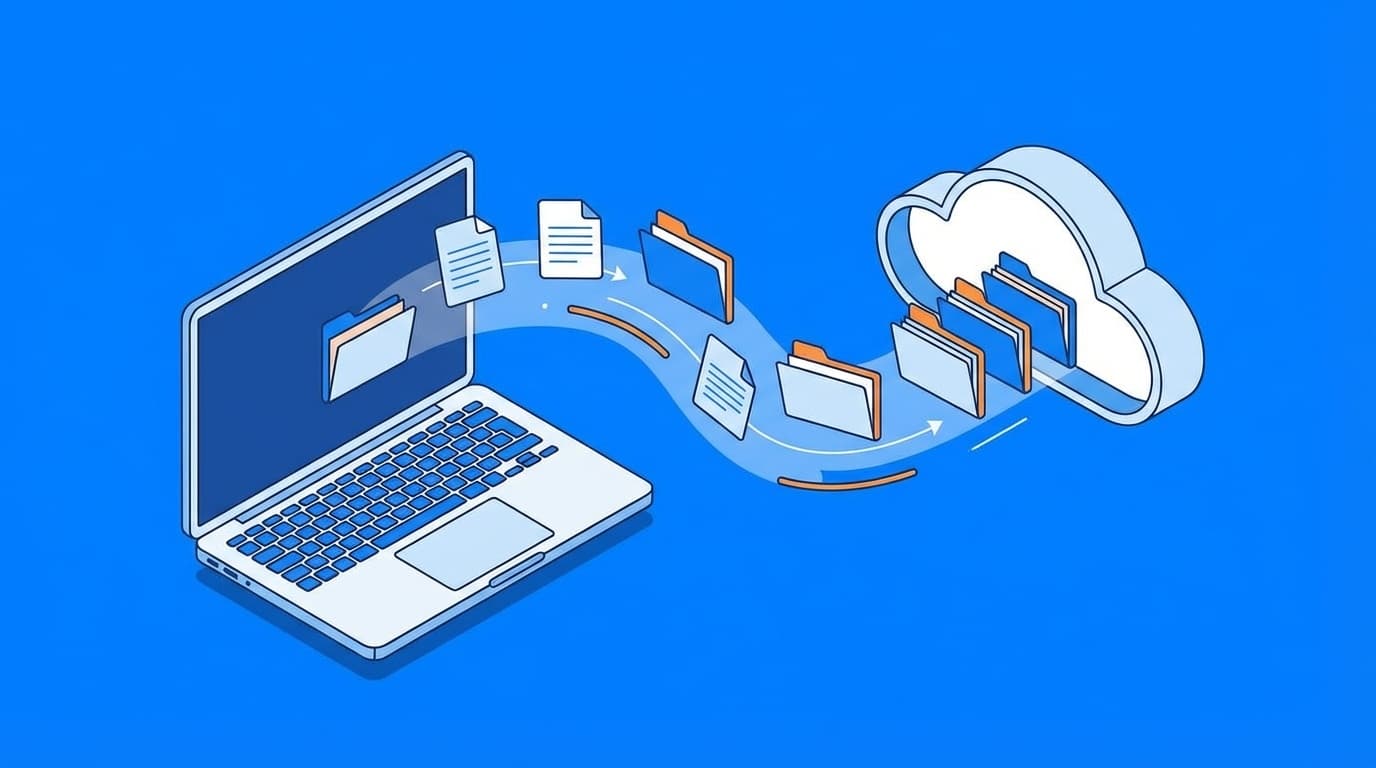
Windows 11 comes with a standard feature that automatically syncs (backs up) the following three folders: Desktop, Documents, and Pictures to OneDrive. This is known folder backup (Known Folder Move = KFM).
Roughly speaking, the "permanent address" of the folder on your computer will change to the OneDrive cloud. It looks like the same "Desktop" folder, but the actual files are saved in the cloud via OneDrive.
This feature itself is useful as a backup in case your computer breaks, but the problem is that it turns on automatically without the user's knowledge. According to Office Watch Research (2026), the "Back up now" button appears large during Windows 11 initial setup (OOBE), while "Save only on this PC" is a smaller link and placed in an inconspicuous location.
In other words, you just pressed a button during setup and OneDrive backup was turned on without your knowledge.
Three things to check before you panic that your files disappeared!
Moving a file to OneDrive does not delete it. First, calm down and check the following three things.
1. Check the address bar of Explorer
Open your desktop or documents folder and look at the address bar at the top. If the path is C:\Users\username\OneDrive\Desktop, OneDrive backup is enabled. Typically C:\Users\username\Desktop.
2. Check the OneDrive cloud icon
Check if there is a OneDrive cloud icon on the taskbar (bottom right of the screen). Click the icon and go to Settings → Sync & Backup → Manage Backups to see at a glance which folders are backed up.
3. Check OneDrive capacity
The free version of OneDrive has only 5GB of storage. If backup is turned on automatically, the capacity will be exceeded in no time and a warning will appear saying "Storage is full". If you see this, KFM is almost certainly enabled.
Steps to stop OneDrive backup and move files back to local
Now comes the main topic. We will explain step-by-step how to stop OneDrive backup and return files to your computer.
Step 1: Stop the backup
- Click the OneDrive icon (cloud mark) on the taskbar
- Click the gear icon in the top right → “Settings”
- Select Sync & Backup from the left menu
- Click Manage Backups
- Turn off the toggles for ``Desktop,'' ``Documents,'' and ``Pictures.''
- Click Stop Backup on the confirmation screen
Microsoft's official support page also has detailed instructions.
⚠ Note: Simply stopping the backup will not automatically return the files to their original locations. The file will remain in your OneDrive folder. Let's move the files manually in the next step.
Step 2: Move files from OneDrive to local
- Open
C:\Users\username\OneDrive\Desktopin Explorer - Select all files in (Ctrl + A)
- Cut (Ctrl + X)
- Open
C:\Users\username\Desktopfolder - Paste (Ctrl + V)
In the same way, move the files from the OneDrive folder to the local folder for "Documents" and "Pictures."
Point: If there are many files, it may take time to move them. Be careful not to turn off the power midway.
Step 3: Check if the folder location is correct
The method introduced in Microsoft Q&A thread is also effective.
- In the Explorer navigation pane, Right-click Documents → Properties
- Click on the Locations tab
- Click the Revert to Standard button
- Ensure the path is
C:\Users\username\Documentsand click OK
It is a good idea to check the desktop picture as well.
I'll never let you turn it on again! 3 settings to prevent recurrence
Even if you stop backup, it may be restored by updating Windows or resetting your account. If you want to fundamentally prevent this, please try the following settings.
Method 1: Disable OneDrive autostart (for beginners)
- Windows Settings→Apps→Startup
- Turn off 'Microsoft OneDrive'
If OneDrive does not start, backup will not turn on automatically. However, if you use OneDrive for other purposes (such as file sharing), don't turn it off.
Method 2: Uninstall OneDrive (for people who don't need OneDrive)
- Settings→Apps→Installed apps
- Look for Microsoft OneDrive and select Uninstall
Microsoft Official Support, files saved on OneDrive will not be deleted even after uninstallation (they can still be viewed by accessing onedrive.com from a browser).
Method 3: Disable automatic backups in the registry (for advanced users)
This method is for corporate IT administrators and advanced users who want to ensure that the settings are fixed. We will explain the steps described in the Microsoft Learn official documentation.
- Open Run with Win + R
- Start the Registry Editor by typing
regedit - Go to the following path:
HKEY_LOCAL_MACHINE\SOFTWARE\Policies\Microsoft\OneDrive - Right-click → Select New → DWORD (32-bit) Value
- Name
KFMBlockOptInand set value to1
This setting blocks OneDrive's automatic opt-in for "known folder backups."
⚠ Caution: Editing the registry is an operation that affects the system. Be sure to back up the registry before proceeding.
Tips for successfully using OneDrive
Up to this point, I have talked about the problem of people being moved without permission, but OneDrive itself is a convenient service. The problem is that it turns on without you knowing, but there are many benefits to using it intentionally.
- Files remain in the cloud even if your computer breaks (Excellent as a backup)
- You can share files between multiple computers (work and home, etc.)
- Can also be accessed from a smartphone (useful when you want to check on the go)
The key to mastering it is to choose the folders you want to synchronize yourself. We recommend that you do not synchronize your desktop, but only synchronize documents.
Also, if you subscribe to Microsoft 365 (formerly Office 365), your OneDrive capacity will increase to 1TB, so you won't have to worry about running out of space. As of February 2026, Microsoft 365 Personal costs 1,490 yen per month (14,900 yen per year).
FAQ
Will my files disappear if I stop OneDrive backup?
It won't disappear. Even if you stop the backup, the files will remain in the OneDrive folder. However, it does not return to local automatically, so you must move the files manually.
Will my files on the cloud remain even if I uninstall OneDrive?
Yes, I will stay. According to Microsoft Official Support, uninstalling it will not affect files on OneDrive. You can view and download it by accessing onedrive.com from your browser.
Does this problem also occur on your work computer?
If your company's IT administrator manages OneDrive backup through Group Policy, it won't turn on automatically. However, the same symptoms can occur in unmanaged environments or when signed in with a personal Microsoft account.
What happens if I exceed OneDrive's free storage capacity of 5GB?
If the capacity is exceeded, file syncing will stop and a "Storage is full" notification will appear. New files will no longer be uploaded to the cloud, but existing files will not be deleted.
References
- Back up your folders with OneDrive — Microsoft Support
- Turn off, disable, or uninstall OneDrive — Microsoft Support
- Redirect and move Windows known folders to OneDrive — Microsoft Learn
- Why did Windows move my files to OneDrive? — Office Watch, 2026
- Control sync settings using OneDrive policies — Microsoft Learn