When using ChatGPT, have you ever experienced that the answer stopped midway? When I'm generating a long sentence, it suddenly cuts off and ends halfway. Actually, this is something that inevitably happens due to ChatGPT specifications, but there is a workaround. In this article, we will introduce how to restart an answer that was cut off midway through, as well as tips to prevent it from cutting off in the first place.
Why are ChatGPT answers cut off?
First, let me answer the question, "Why does it cut?" ChatGPT has an upper limit on the number of tokens (like the number of characters) that can be output in one response. This is a system limit of OpenAI, and varies depending on the model, but the upper limit is approximately 4,000 to 16,000 tokens.
In the case of Japanese, each character consumes 1 to 3 tokens, so the problem is that it tends to reach the upper limit faster than in English. In other words, when you write long sentences, Japanese users are particularly prone to getting cut off in the middle.
Also, it may be disconnected due to network instability or server side load. This tends to occur especially during times when access is concentrated (around 9pm to midnight in Japan).
How to resume a cut-off answer using "Continue"
What to do if your answer gets cut off in the middle is very simple. You can generate the rest by following the steps below.
Step 1:Check that the answer has stopped midway. If the sentence ends in an unnatural place or the code block is not closed, it is cut off in the middle.
Step 2:On the same chat screen, type "Continue" and send. In English, "Continue" is also OK.
Step 3:ChatGPT will continue from where it left off. In most cases, it will understand the previous context and smoothly pick up where you left off.
However, there are some caveats. When restarting with "Continue", there may be rare cases in which the content is slightly duplicated or slightly out of sync with the previous context. Be sure to read through the generated continuation and check for any strange parts.
In addition to "Continue", you can also use the following prompts.
- "It cut off in the middle, so please continue."
- "Please continue your previous answer"
- “Continue from where you stopped”
Tips to avoid cutting off answers in the first place
It's tedious to type "Continue" every time. Therefore, remember how to write prompts that make it difficult to answer from the beginning.
Tip 1: Split your questions
Rather than trying to include everything in one prompt, ask 2 or 3 questions about what you want to hear. If you listen step by step, such as "First, tell me the outline," then "Tell me the details," the amount of output per session will be reduced and it will be harder to cut out.
Tip 2: Specify the output format
It's effective to use prompts that limit the volume of output, such as "Brief summary in bullet points" or "Explain in 500 characters or less." The longer you want a sentence, the more likely it will be cut off, so try to keep it compact.
Tips 3: Preface with "If the line cuts off in the middle, continue automatically"
If you say at the beginning of the prompt, ``If the line is about to cut off in the middle, please break it off at a sharp point and write ``Continue continues.'' ChatGPT may insert a break on its own. It's not 100%, but it's worth a try.
Tips 4: Use ChatGPT Plus
If you subscribe to ChatGPT Plus ($20 per month), you can use higher-end models such as GPT-4o. Higher-end models may have a larger output token limit and may be difficult to cut.
Tip 5: Use the API instead of the browser version
For those who are more technical, the OpenAI API allows you to explicitly specify the number of output tokens with the max_tokens parameter. It offers more flexible control than the browser version, so it is recommended for those who often generate long texts.
About the "Continue generating" button
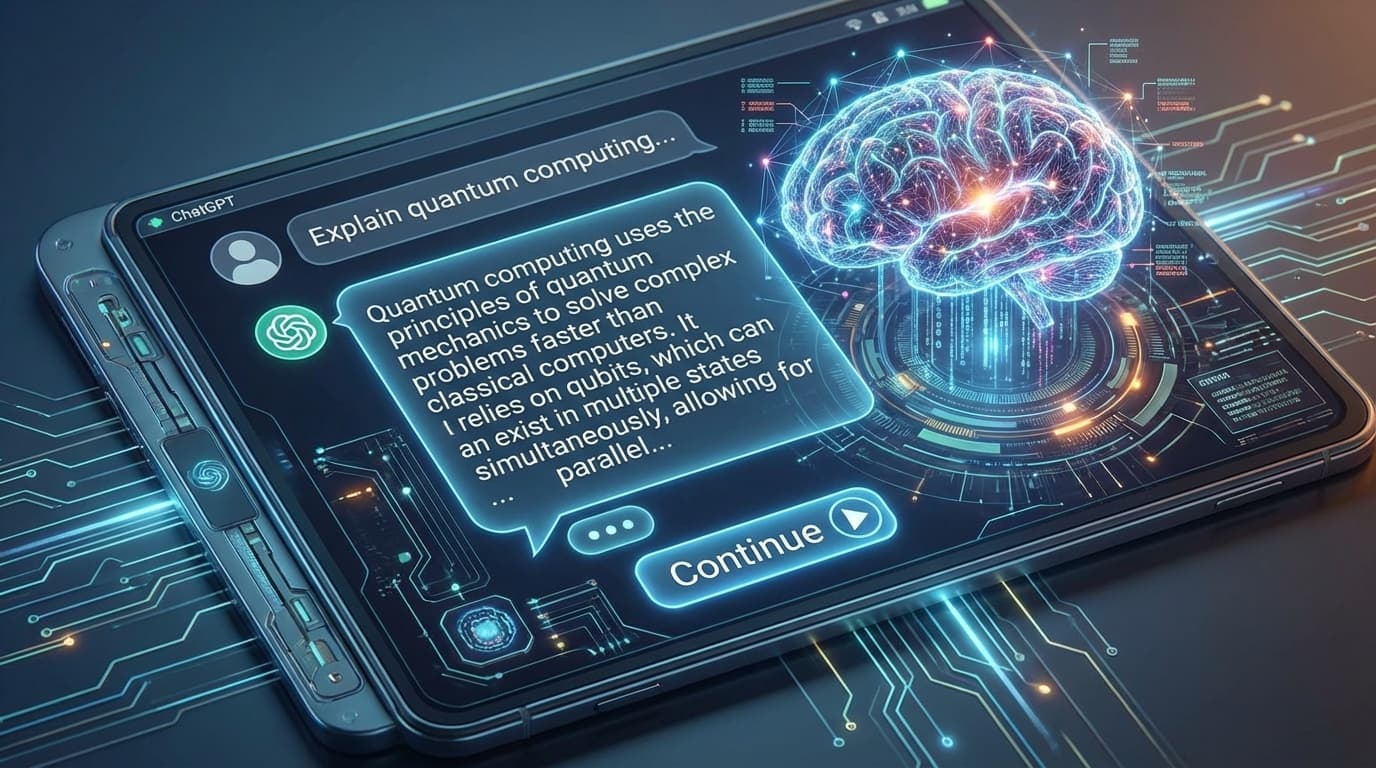
Actually, in the web version of ChatGPT, a "Continue generating" button may be automatically displayed when an answer is cut off. If this button appears, it is very convenient because you can simply click it and the continuation will be generated.
However, there are cases where this button is not displayed. In that case, you will still need to manually enter "Continue". Possible reasons why the button may not appear include if the connection is disconnected due to a network error, or if ChatGPT does not recognize that the token limit has been reached.
Smartphone app version (iOS / Android), you can resume using "Continue" in the same way. Some say that the app version has a more stable network connection and is less likely to disconnect, so if you frequently disconnect, please try the app version.
Frequently Asked Questions (FAQ)
Even if I press "Continue", the continuation does not appear.
In rare cases, ChatGPT may lose context. In that case, it often improves if you specifically tell them what part you want to continue, such as, ``Please continue explaining about 〇〇 earlier.'' If that doesn't work, you can definitely start a new chat and ask your question from the beginning.
If I didn't copy the answer that got cut off, can I view it later?
Yes. ChatGPT's chat history is automatically saved, so if you open a past chat from the left sidebar, any answers that were cut off will still be there. However, if you turn off chat history saving, it will not remain.
Is there a difference in ease of cutting between GPT-4 and GPT-3.5?
Yes, it's not. GPT-4 has a larger limit on output tokens, so it is generally harder to break than GPT-3.5. However, even with GPT-4, if you request a very long output, the output may be cut off midway. The way the question is asked has a greater influence than the difference in models.
What should I do if the code breaks during code generation?
If the code is cut off in the middle, you can restart it with "Continue", but the integrity of the code block may be disrupted. We recommend that you specifically specify where you want the program to resume from, such as "Please continue writing the previous code from function 〇〇."
References
- ChatGPT General FAQ — OpenAI Help Center
- Rate limits - OpenAI API — OpenAI Platform
- ChatGPT Pricing — OpenAI