During remote work, have you ever set your Slack status to ``Away'' and taken a break, only to be surprised when someone says, ``You were online earlier, right?''
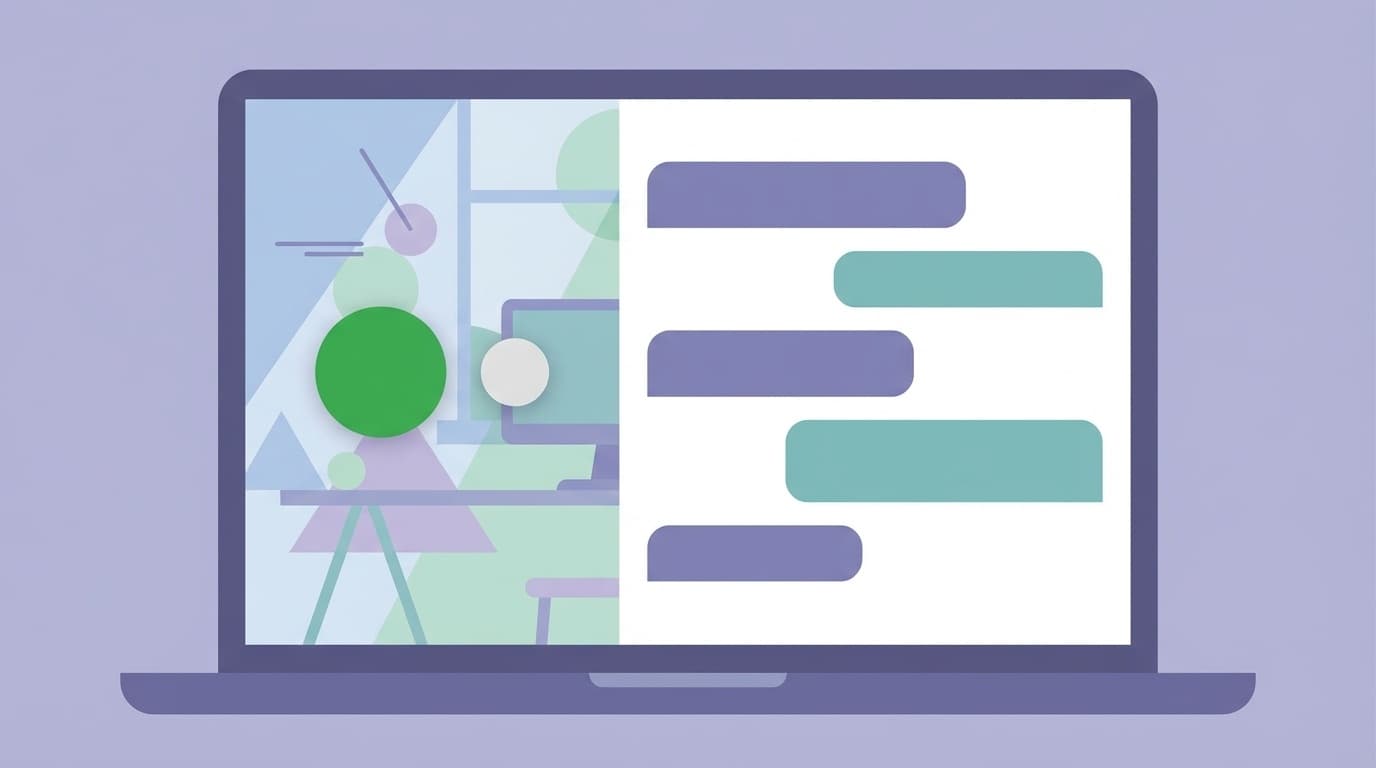
Slack presence (login status) is displayed as "active" with a green circle and "away" with a white circle. You can manually switch to Away, but actually, the other person won't be notified when you open a message or watch a channel. However, there are cases where it becomes obvious that you are actually looking through some of your actions.
In this article, based on the official Slack specifications as of February 2026, we will explain in an easy-to-understand manner how status display works, behavior patterns that can be detected even when you are "away", and how to use them properly.
There are only two types of Slack presence (login status)
Slack's presence display is actually very simple. According to Slack official help, there are only two login states:
- Active (green circle●): The Slack app or browser is open and has been recently interacted with.
- Away (white circle): The app is closed or there is no operation
In other words, Slack does not have a "read" feature like LINE does. A basic feature of Slack is that the recipient cannot directly know whether the message has been opened and read.
However, there are some rules for switching between "active" and "away", and if you don't know these rules, you may find out at an unexpected time.
Conditions for automatically switching to "Away"
Slack automatically becomes "Away" when you are not using it, but the conditions differ depending on the device. The specifications published on Slack Developer Docs are as follows.
Desktop version (PC)
If you do not use your mouse or keyboard for 10 minutes, it will automatically switch to "Away". Conversely, it returns to "active" the moment you resume operation.
Mobile version (smartphone)
If you perform any of the following operations, you will be marked as "Away."
- Close the Slack app (put it in the background)
- Lock your smartphone screen
- Switch to another app
In short, On the smartphone version, even if the Slack app is not displayed, it will indicate that you are away, so switching is faster than on the PC version.
Browser version
As with the PC version, it will switch after 10 minutes of no interaction, but if you close the tab or close the browser itself, it will immediately become "Away".
5 ways to know you are watching even if you are "Away"
Slack does not have a read mark function, but if you do the following actions, you may find out that you are actually looking at it.
1. Add a reaction (emoji)
If you add a reaction to a post even though you are supposed to be away, the other person will be notified with a timestamp. This is the most obvious pattern.
2. Send a message
It goes without saying, but if you send a message even though you are away, it will be found out immediately. What's more, your presence will automatically switch to "active" the moment you send the message, so you'll be doubly aware.
3. Change status
If you change your custom status, such as "in a meeting" or "eating", it will be reflected in the workspace member list. It would be unnatural if only the status changed when it was supposed to be "Away."
4. Upload the file
When you post a file to a channel or DM, other members will receive a post notification even if you are away.
5. Participate in a Huddle
When you join Slack's Huddle (voice call feature), an icon will be displayed on the channel. The Away setting is immediately canceled and returned to active.
On the other hand, If you just read the channel or DM, the other person won't know. Slack has a display that says "Mr. ○○ is typing", but this only appears when you actually start typing a message.
How to manually set "Away" [PC/Smartphone]
Introducing the steps to change the login status yourself.
PC (desktop version/browser version)
- Click your profile icon at the top right (or bottom left) of the screen
- Click "Change login status to Away"
To change back, click "Change login status to active" in the same location.
Smartphone (iOS/Android)
- Tap the You tab at the bottom of the screen
- Tap the status icon (green circle) next to your name
- Tap "Set yourself as Away"
If you manually set Away, it will remain Away until you manually cancel it. It will not return automatically, so please be careful not to forget to return it when you resume work.
"Away" and "Do Not Disturb" are two different things! Correct usage
A lot of people confuse this, but Slack's "Do Not Disturb" and "Do Not Disturb / DND" are completely different functions.
| Features | Away | Do not disturb mode (DND) |
|---|---|---|
| Display change | Green circle → white circle | “z” mark added to icon |
| Notifications | Receive normally | Notifications turned off |
| Message received | Received normally | Received but not notified |
| Main use | Taking a short break | Concentrating work, taking a break, going to bed |
Roughly speaking, While you are away, only the display changes, and Do Not Disturb is a function that stops notifications.
If you don't want to be bothered by Slack notifications during your break, the correct answer is to use Do Not Disturb mode instead of Away mode. For instructions on how to set up Do Not Disturb, please refer to Slack official work hours setting guide.
You can also use Set up work hours to automatically turn Do Not Disturb on or off at a set time every day. For example, if you set "Do not disturb mode from 6:00 pm to 9:00 am", you will not receive a notification after you leave work.
Recommended settings by scene
For those who are wondering, "How should I use them properly?", we have compiled recommended settings for each common scene.
Lunch break (12:00-13:00)
It's best to set your custom status to "Lunch Break" and turn on Do Not Disturb. There's no need to do it while you're away (do not disturb mode is enough).
Intensive work (several hours)
Set your custom status to "Do not focus" and turn on Do Not Disturb mode. Setting a release time will prevent you from forgetting to reset it.
After remote work
The best way to ensure this is to set your work hours to automatically turn on sleep mode. Eliminates the need for manual daily settings.
Vacation/Paid
Take advantage of Slack's "Out of Office" status. If you set a period, the message "○○ is out of town" will be automatically displayed to the person who sent you a DM.
FAQ
If I read a message on Slack while I'm away, will the other person find out?
I won't find out. Slack doesn't have a read mark feature, so people won't be notified just by viewing a message or channel. However, if you take actions such as reacting, replying, or posting files, you will be found out.
Is it possible to automatically return to active after being manually turned away?
No. If you manually mark someone as "Away," they will remain away until you manually set them back to "Active." If you forget to put it back when you return to work, your team may wonder if you're still on break, so be careful.
Can administrators and workspace owners see members' login history?
Enterprise Grid and Business+ plans allow administrators to check member access logs (last active date and time, etc.). You cannot check individual login history on the Free Plan or Pro Plan.
Can “Away” and “Do Not Disturb” be used at the same time?
Yes, they can be used together. Do Not Disturb mode controls notifications, while Away mode controls presence display, so the functions are separate. We recommend turning both on after you leave work.
References
- Set your Slack status and availability — Slack Help Center
- User presence and status — Slack Developer Docs
- Set up Slack for work hours — Slack Help Center
- Set up Slack to go on vacation — Slack Help Center