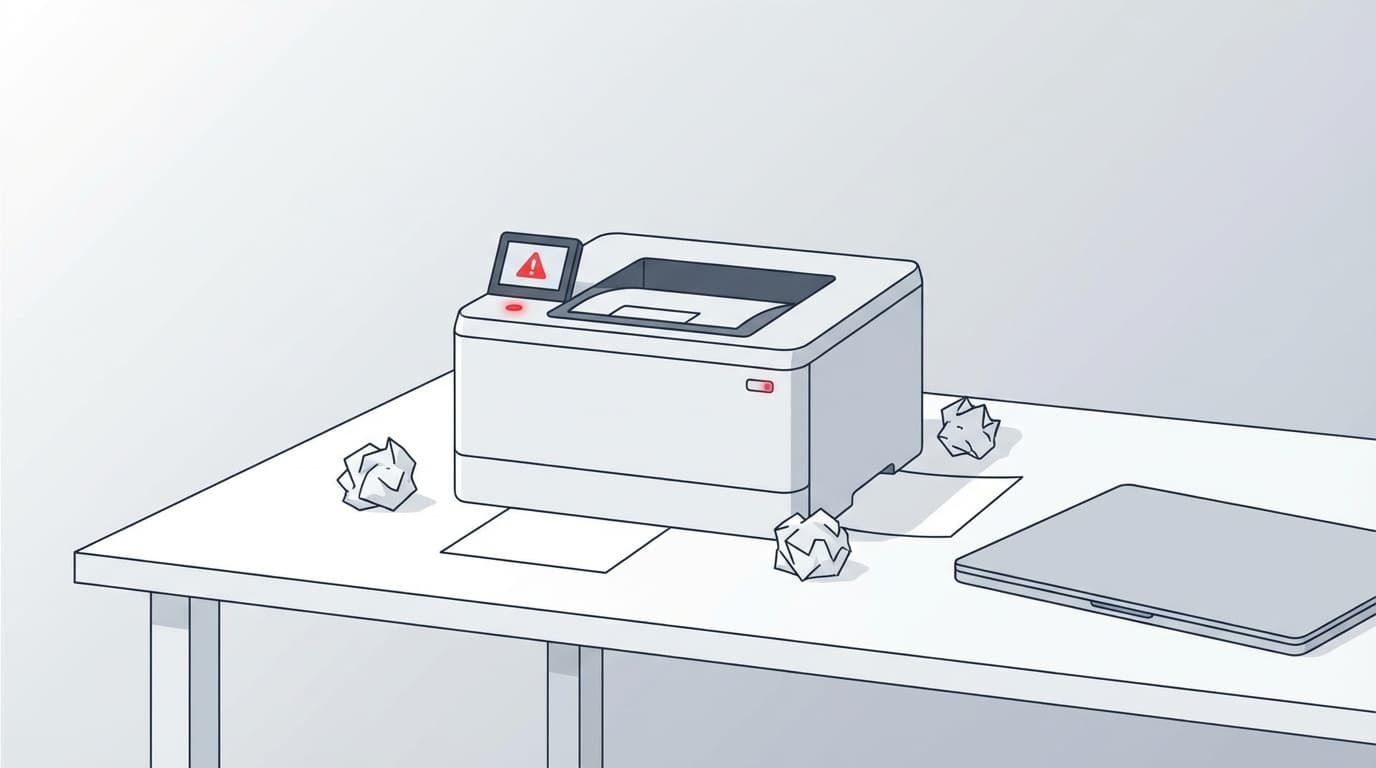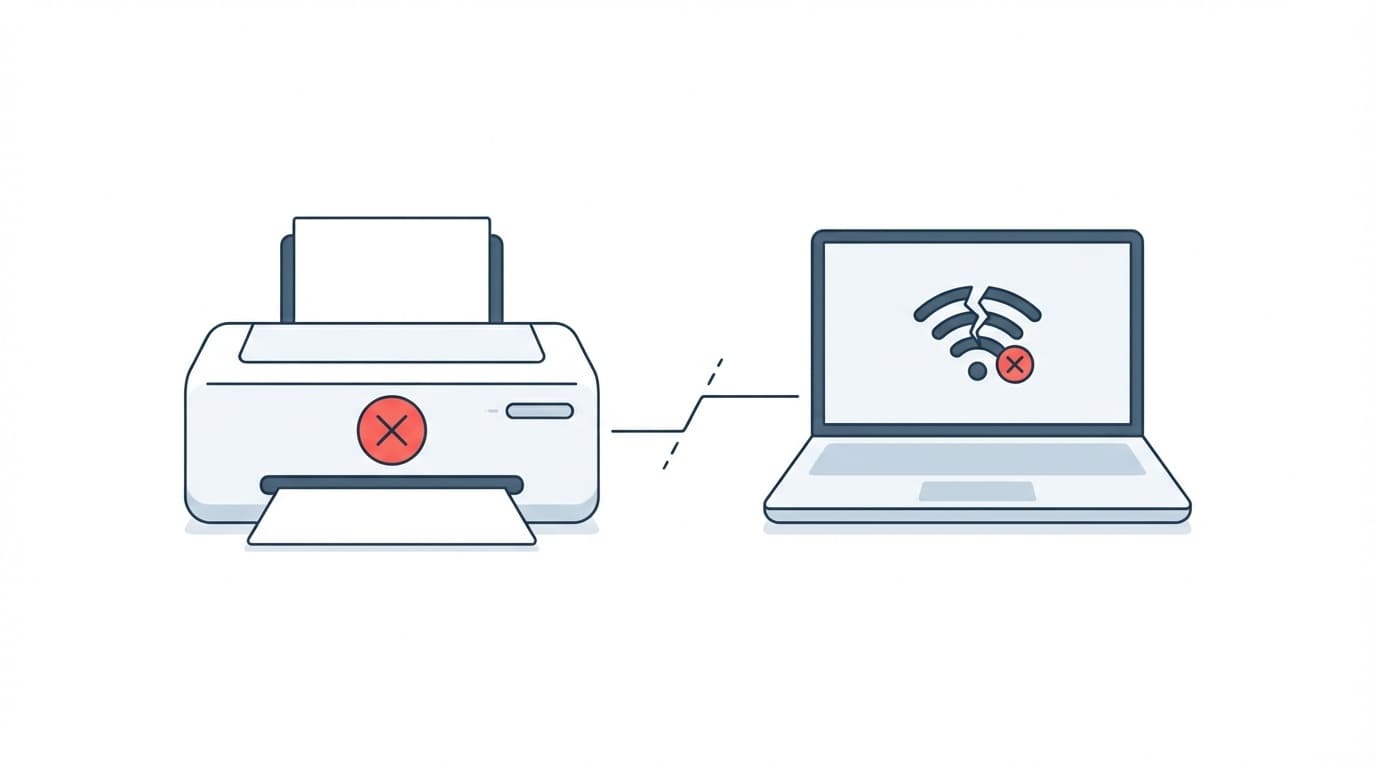
You hit “Print,” but nothing comes out. The printer is powered on, yet your computer shows it as “Offline”. If this happens right when you need to print year-end documents, tax records, or something urgent, it's stressful.
This guide explains, based on information current as of March 2026, the six most common reasons a printer shows as offline on Windows 11 or Mac, plus fixes you can try right away. It covers both USB and Wi-Fi printers, so work through the checklist in order.
What does “offline” actually mean?
When a printer shows as “offline,” it usually means your computer and printer aren't communicating properly. In most cases, the printer itself isn't broken. Your computer just can't “see” it.
So if you fix the connection issue, printing often starts working again. Take a breath and check the causes below one by one.
Cause 1: “Use Printer Offline” is turned on
This is surprisingly common. If Windows has “Use Printer Offline” checked, the printer can show as offline even when it's powered on.
Fix for Windows 11:
- Open “Settings” → “Bluetooth & devices” → “Printers & scanners”
- Click the printer you're having trouble with
- Click “Open print queue”
- From the top menu, choose “Printer” → uncheck “Use Printer Offline”
On the same screen, also check whether “Pause Printing” is enabled. If it is, your print jobs can pile up in the queue without printing.
Microsoft's official support page also lists turning off this setting as one of the first things to try.
Cause 2: A loose USB or LAN cable
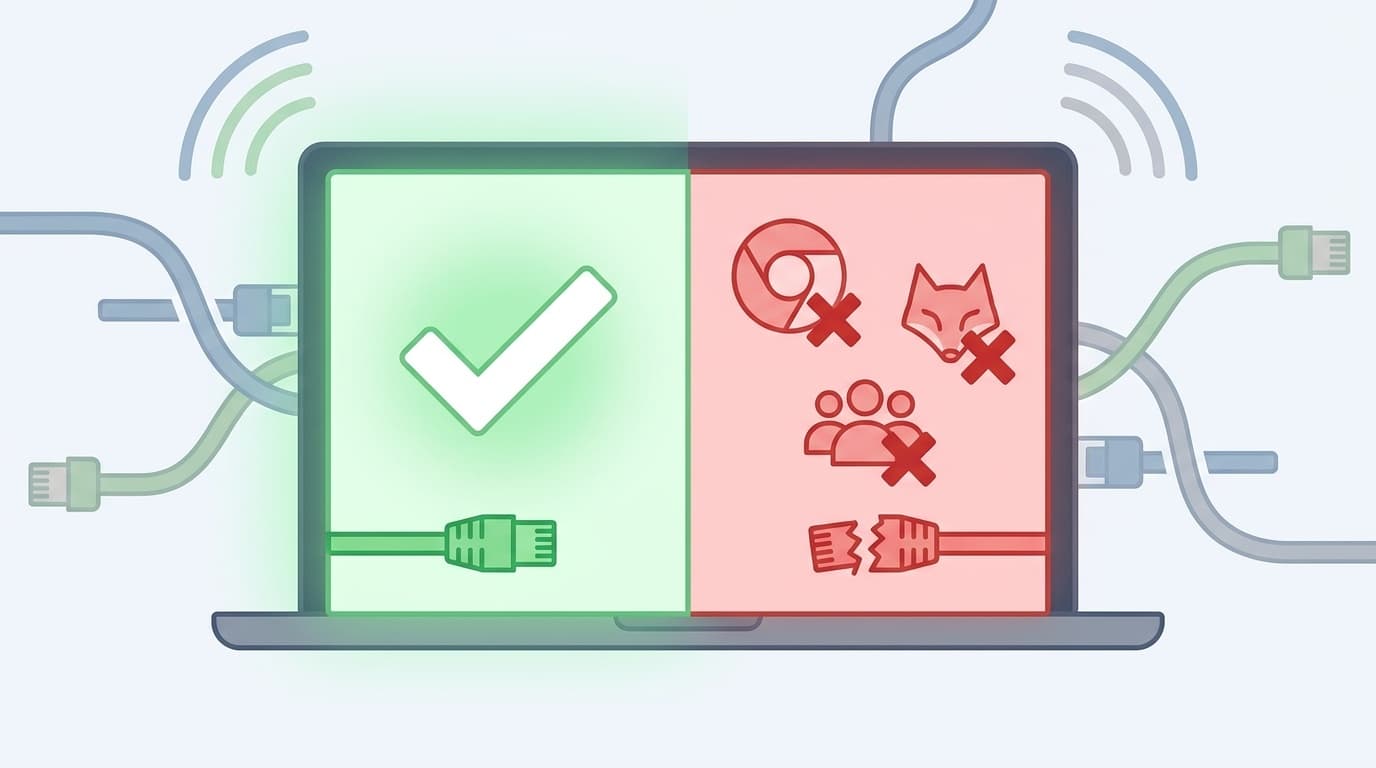
If you're using a USB printer, even a loose or damaged cable can make the printer appear offline. It's an easy thing to overlook.
Fix:
- Unplug and reconnect the USB cable on both the computer side and printer side
- Try a different USB port. If you're using a USB hub, plug the printer directly into the computer
- If possible, test with another USB cable
If your printer uses a wired LAN connection, try unplugging and reconnecting the LAN cable and switching to another port on the router.
Cause 3: The printer is on the wrong Wi-Fi network or disconnected
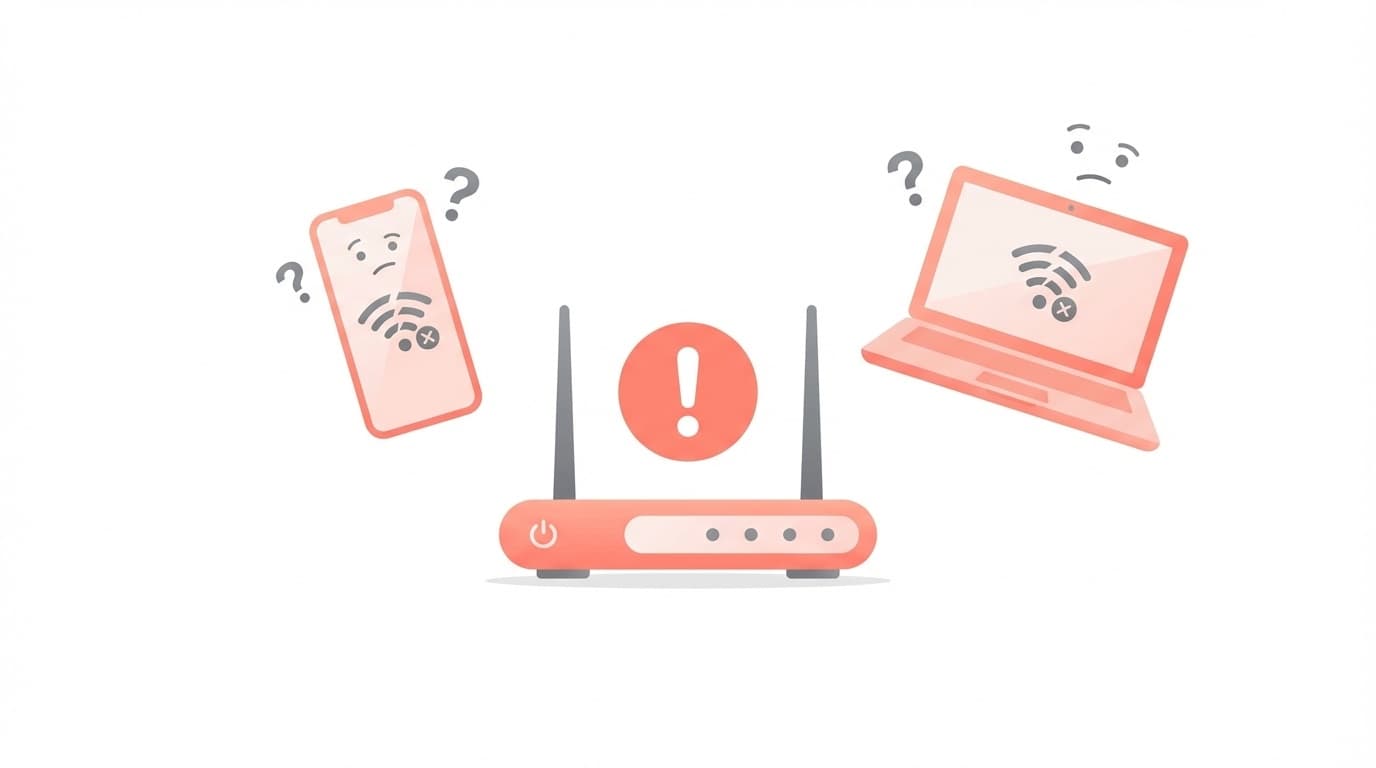
This is one of the most common problems with Wi-Fi printers. If your computer and printer are connected to different networks, they won't be able to find each other.
Common examples include:
- Your router has separate 2.4 GHz (xxx-g) and 5 GHz (xxx-a) SSIDs, with the computer on 5 GHz and the printer on 2.4 GHz
- After restarting the router, only the printer failed to reconnect to Wi-Fi
- You changed your Wi-Fi password but didn't update the printer's Wi-Fi settings
Fix:
- Use the printer's screen or buttons to check its Wi-Fi connection status. The exact steps vary by manufacturer
- Check whether the SSID, or network name, on your computer matches the SSID on your printer
- If they're different, redo the printer's Wi-Fi setup
- A router restart can also help. Turn the router off for 30 seconds, then turn it back on
Canon's official FAQ page explains cases where different Wi-Fi frequency bands can prevent a connection.
Cause 4: The print queue or spooler is stuck
If a failed print job stays stuck in the print queue, it can block everything behind it. Think of it like a traffic jam.
Fix for Windows 11:
- Go to “Settings” → “Bluetooth & devices” → “Printers & scanners,” then click your printer
- Click “Open print queue”
- Right-click each stuck print job and choose “Cancel” to remove them all
If the queue still won't clear, restart the Print Spooler service:
- Press Windows key + R to open Run
- Type “
services.msc” and press Enter - Right-click “Print Spooler” → “Restart”
Cause 5: The printer driver is outdated or corrupted
If your printer went offline after a Windows Update, the driver, which is the software that lets Windows talk to the printer, may no longer be working correctly.
Fix:
- Download and install the latest driver for your printer model from the manufacturer's official website
- If that doesn't help, remove and re-add the printer:
- Go to “Settings” → “Bluetooth & devices” → “Printers & scanners” → your printer → “Remove”
- Use “Add device” to find and add the printer again
Windows 11 also includes automatic troubleshooting in the “Get Help” app. Search for “Get Help” in the Start menu, then type something like “printer troubleshooting” to let Windows diagnose the problem automatically (Microsoft official support).
Cause 6: The Mac printing system has run into an error
On a Mac, many printer issues can be fixed by resetting the entire printing system.
Fix for Mac:
- Open Apple menu → “System Settings” → “Printers & Scanners”
- Control-click, or right-click, a blank area in the printer list
- Choose “Reset Printing System”
- After the reset, use “Add Printer” to add your printer again
This removes all registered printers, so you'll need to add them again afterward. Apple's official support page recommends it as a last-resort fix for printing problems.
Also, on a Mac, it can sometimes take 1 to 2 minutes after turning on a printer for it to connect to the network. If you try printing immediately after powering it on and see “offline,” wait a bit and try again.
If it's still not fixed
If you've tried all six fixes above and the printer still won't come online, check these next.
- Update the printer firmware: Use the manufacturer's website or official app to update the printer's built-in software
- Check firewall or security software: Temporarily disable your security software and test printing. Turn it back on immediately after testing
- Reset the printer to factory settings: This can help if the Wi-Fi settings are corrupted. Check your printer manual for the exact steps
If none of that works, the printer itself may be faulty. Contact the manufacturer's support team.
FAQ
Why does my printer say “offline” even though it's turned on?
“Offline” doesn't necessarily describe the printer's power status. It means your computer can't see or communicate with the printer. Common causes include a loose cable, dropped Wi-Fi connection, or a Windows setting that's blocking printing.
Can Windows 11's “Get Help” app automatically fix printer problems?
Yes. Windows 11 includes an automatic troubleshooter for printer issues. Search for “Get Help” in the Start menu, describe the printer problem, and Windows will start a diagnosis. It may try steps like reinstalling the driver or restarting the print spooler.
How can I stop my Wi-Fi printer from going offline so often?
Assigning the printer a static IP address often helps. In your router's admin settings, reserve an IP address for the printer's MAC address. That prevents the printer's IP from changing after restarts, which can cause offline errors.
What happens when I reset the printing system on a Mac?
All registered printers are removed. You'll need to add your printer again from “Add Printer,” but because printing-related settings are reset, this often clears up hard-to-trace printing problems.
Which is more reliable, USB or Wi-Fi?
In general, USB is less troublesome. Wi-Fi depends on your router, signal strength, and network congestion, so printers are more likely to appear offline. If stability matters most, USB is usually the better choice.
References
- Troubleshooting offline printer problems in Windows — Microsoft Support
- Fix printer connection and printing problems in Windows — Microsoft Support
- Reset the printing system on your Mac to solve a problem — Apple Support
- What to do when a Windows PC says “Printer is offline” and won't print — Canon Official FAQ
- What to do when “Offline” appears and you can't print — Ricoh Official FAQ