When you're away from home and need to get your laptop or tablet online, your phone's tethering or personal hotspot feature is incredibly handy. But once you actually use it, plenty of people run into the same frustrating problems: "It's too slow to get any work done" or "It disconnects after a few minutes."
In this guide, based on information available as of March 2026, we'll walk through six reasons tethering can become slow or unstable, plus seven fixes you can try right away. The steps cover both iPhone and Android, so check the parts that match your phone.
What Is Tethering? The 3 Connection Types Explained
Tethering is a feature that lets other devices, like a laptop or tablet, connect to the internet through your phone's mobile data connection. In simple terms, it's like turning your phone into a pocket Wi-Fi router.
There are three ways to connect, and each one has different speed and convenience trade-offs.
| Connection type | Speed | Pros | Cons |
|---|---|---|---|
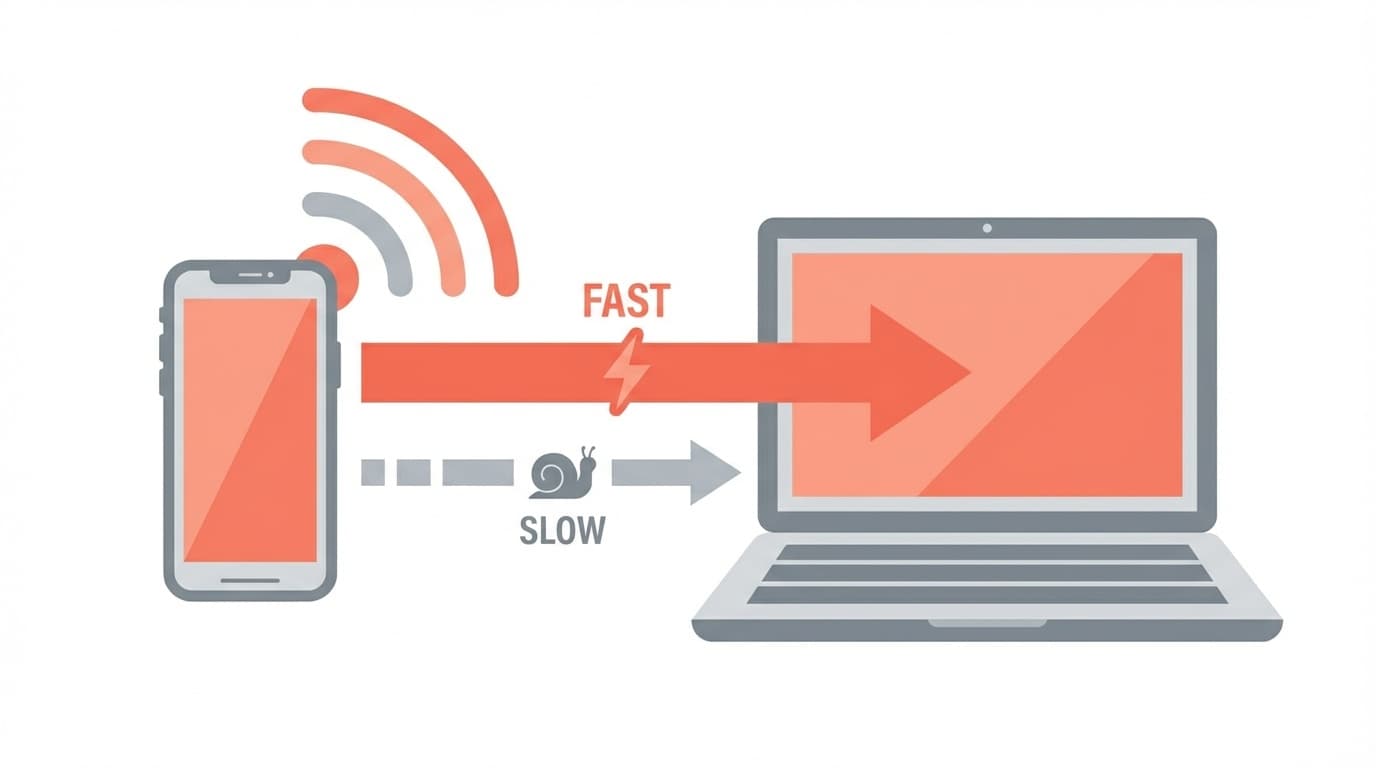
| Wi-Fi tethering | Fast, up to 866 Mbps | Connect multiple devices, no cable needed | Uses a lot of battery |
| USB tethering | Fastest | Charges while in use, very stable | Requires a cable |
| Bluetooth tethering | Slow, around 3 Mbps max | Uses less battery | Very slow |
So if speed matters, use Wi-Fi or USB tethering. If saving battery is your priority, Bluetooth can work. If your connection feels painfully slow, first check whether you're accidentally using Bluetooth tethering.
6 Reasons Tethering Is Slow or Keeps Disconnecting
There are six main reasons tethering becomes unstable. Let's go through them one by one.
Reason 1: Your Phone Has a Weak Cellular Signal
Tethering speed depends completely on the signal strength of the phone acting as the hotspot. If you're underground, deep inside a building, or somewhere with weak reception, your phone's own data connection is already slow, so the connected device will be even slower.
Reason 2: You're Connected on the 2.4 GHz Band
Wi-Fi tethering can use two frequency bands: 2.4 GHz and 5 GHz. The 2.4 GHz band is more likely to suffer interference from microwaves, Bluetooth devices, and nearby Wi-Fi networks, so speeds can drop sharply in busy places like cafes and offices.
Reason 3: Low Power Mode Is Turned On
If iPhone's Low Power Mode or Android's Battery Saver is enabled, background activity may be restricted. That can make tethering unstable or even cause it to disconnect automatically.
Reason 4: Too Many Devices Are Connected
When several devices are connected to one phone, they all share the same bandwidth. That means each device gets less speed. In many cases, things become noticeably slower once three or more devices are connected.
Reason 5: Your Carrier Has Throttled Your Speed
If you exceed your monthly data allowance, your carrier may slow your connection. After throttling, speeds may drop to around 128 kbps to 1 Mbps, which makes tethering nearly unusable. Also, some carriers set a separate tethering cap even on "unlimited" plans, so it's worth checking the details. More on that below.
Reason 6: Your Phone Is Temporarily Glitching
If your phone has been running for a long time, or if problems started right after an OS update, a temporary software glitch can make tethering unstable.
7 Fixes You Can Try Right Now
Now that you know the likely causes, here are the fixes to try. We recommend working through them from top to bottom.
Fix 1: Switch to the 5 GHz Band
This is often the most effective fix. Just switching from 2.4 GHz to 5 GHz can sometimes make your connection 2 to 5 times faster.
On iPhone (supported on iPhone 12 and later):
- Open "Settings" → "Personal Hotspot"
- Turn off "Maximize Compatibility"
According to Apple's official help page, turning off "Maximize Compatibility" enables the 5 GHz band (Wi-Fi 5 / 802.11ac), with speeds up to 866.7 Mbps.
On Android:
- Go to "Settings" → "Network & internet" → "Hotspot & tethering"
- Open "Wi-Fi hotspot," then choose "5.0 GHz" under the advanced AP band setting
Note: 5 GHz has a shorter range and doesn't pass through obstacles as well, so keep your phone and computer close together. Within 3 to 6 feet is ideal.
Fix 2: Turn Off Low Power Mode
iPhone: Go to "Settings" → "Battery" → turn off "Low Power Mode"
Android: Go to "Settings" → "Battery" → turn off "Battery Saver"
Tethering uses a lot of battery, so if possible, use it while your phone is plugged into a portable charger.
Fix 3: Switch to USB Tethering
This method connects your phone directly to your computer with a USB cable. It's a three-in-one win: more stable than Wi-Fi, often faster, and it charges your phone at the same time. It's especially useful in crowded places like cafes.
- Connect your phone and computer with a USB cable that supports data transfer
- Turn on "USB tethering" in your phone's tethering settings
One important note: charging-only cables won't work for USB tethering. Make sure you're using a cable that supports data transfer.
Fix 4: Reduce the Number of Connected Devices
If multiple devices are connected to your hotspot, turn off Wi-Fi on anything you're not using. Limiting the connection to just one computer often improves speed.
Fix 5: Restart Your Phone
It's basic, but it works surprisingly often. Restarting clears temporary glitches and cached issues that may be affecting the hotspot. Turn tethering off, restart your phone, then turn tethering back on.
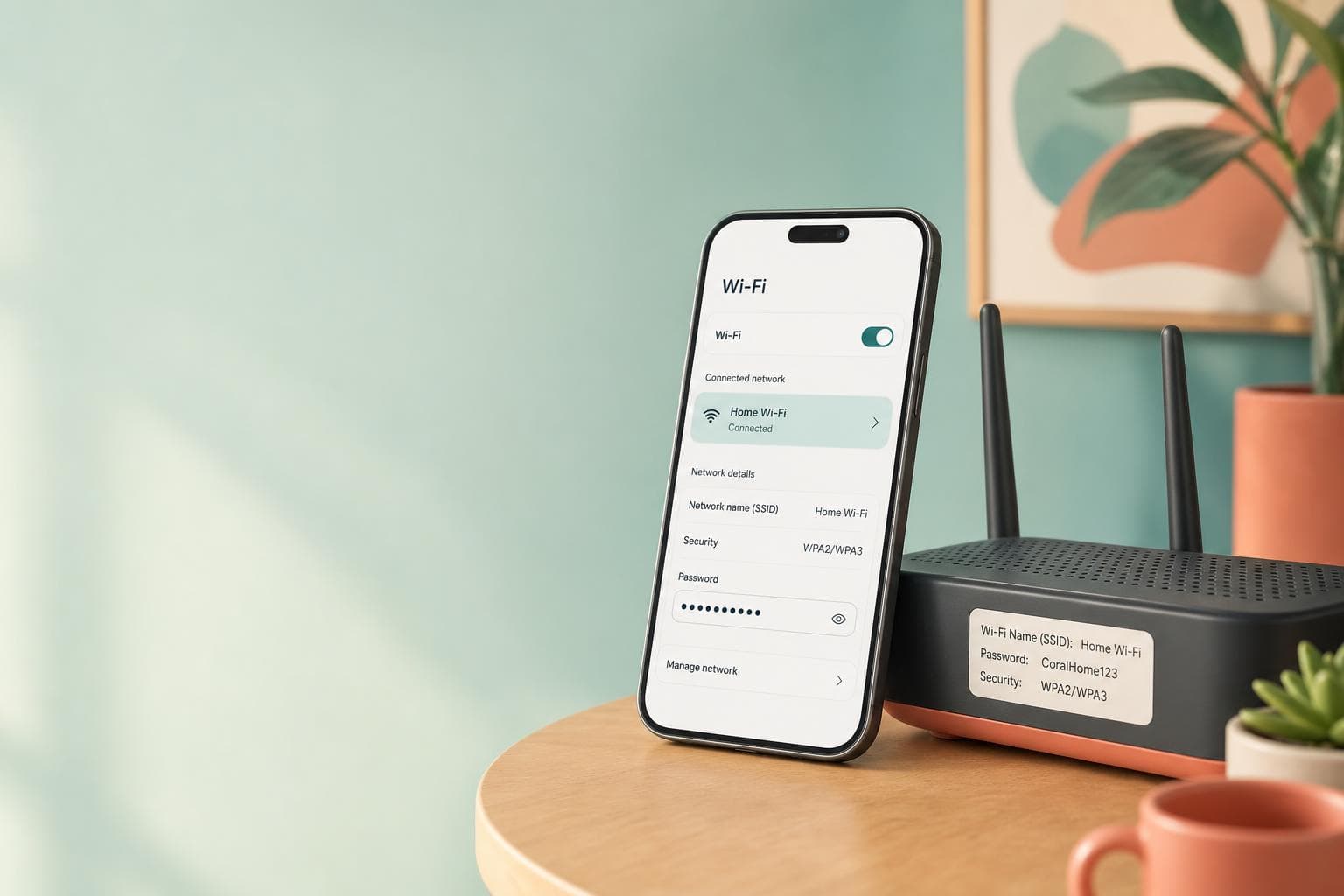
Fix 6: Change Your Hotspot Password
This isn't widely known, but changing your hotspot password and reconnecting can sometimes clear connection problems. On iPhone, go to "Settings" → "Personal Hotspot," change the password, then reconnect from your computer using the new one.
Fix 7: Reset Network Settings
If nothing else works, this is the last resort.
iPhone: Go to "Settings" → "General" → "Transfer or Reset iPhone" → "Reset" → "Reset Network Settings"
Android: Go to "Settings" → "System" → "Reset options" → "Reset Wi-Fi, mobile & Bluetooth"
⚠️ Important: This will erase saved Wi-Fi passwords and Bluetooth pairing information. Make sure you have your home and work Wi-Fi passwords before doing it.
Tethering Limits by Carrier [As of March 2026]
Even if you're on an "unlimited" plan, some carriers apply a separate tethering limit. It's fairly common to hit that cap without realizing it and then wonder why your connection suddenly got slow.
| Carrier | Plan | Tethering limit |
|---|---|---|
| docomo | eximo / irumo | No separate limit, same as regular data |
| au | 使い放題MAX 5G/4G | Up to 60 GB/month |
| SoftBank | メリハリ無制限+ | Up to 50 GB/month |
| Rakuten Mobile | Rakuten最強プラン | No separate limit |
If you use tethering often, docomo or Rakuten Mobile are easier to use without worrying about a separate tethering cap. If you're on au or SoftBank, check your own plan's tethering limit on the official au website or official SoftBank website.
Still Slow? Consider a Mobile Wi-Fi Router
If you've tried all the tethering fixes and it's still too slow or unstable for everyday use, consider getting a mobile Wi-Fi router.
Tethering is ultimately an extra feature on your phone. Long sessions can drain the battery and make the phone heat up. If you rely on tethering for work every day, a dedicated mobile router usually gives you better battery life and a more stable connection.
These days, services like WiMAX and Rakuten Mobile routers offer unlimited-style plans in the roughly 3,000 to 4,000 yen/month range, so they're worth considering if tethering has become a constant headache.
FAQ
Does tethering cost extra?
As of March 2026, docomo, au, SoftBank, and Rakuten Mobile all offer tethering with no extra option fee. However, au and SoftBank may require you to apply for the feature in advance. Data used through tethering counts toward your regular mobile data usage.
What happens if I get a phone call while tethering?
In most cases, an incoming call won't disconnect Wi-Fi tethering. However, your data speed may slow down during the call. If your phone supports VoLTE (Voice over LTE), it can handle calls and data at the same time, so the impact is usually smaller.
Can I use tethering for online meetings like Zoom or Teams?
Yes, but expect to use about 0.5 to 1.5 GB of data per hour. Turning off video can greatly reduce data usage. With 5 GHz Wi-Fi tethering or USB tethering, online meetings usually work without needing to lower video quality.
How can I stop tethering from automatically disconnecting?
On iPhone, if no device stays connected for a while, Personal Hotspot is designed to turn off automatically. If your computer goes to sleep, the connection can drop and the hotspot may shut off. Try extending your computer's sleep timer or using USB tethering. On Android, some models have an "auto turn off hotspot" setting, so try disabling it.
References
- Set up Personal Hotspot on iPhone — Apple Support
- Share a mobile connection by hotspot or tethering on Android — Google Help
- Weak tethering connection? Causes of slow or unstable speeds and how to fix them — NTT docomo Ouchi Net Press
- Why tethering is slow or disconnects, plus 7 ways to speed it up — NURO Hikari