Have you ever joined a Google Meet call only to realize the other person can’t hear you, or that you can’t hear them at all?
Google Meet is used just as often as Zoom and Teams, but audio problems are surprisingly common. They’re especially stressful because you usually notice them right after the meeting starts.
In this article, based on the latest information as of March 2026, we’ll break down seven common reasons why you can’t hear audio or use your microphone in Google Meet, then explain the fixes for Windows, Mac, and smartphones in a simple way. We’ll also show you how to test your mic before a meeting so you can join your next call with less stress.
Check This First: Is Your Mic Muted?
You might think, “Surely it can’t be that simple...” but the most common cause is forgetting to unmute yourself.
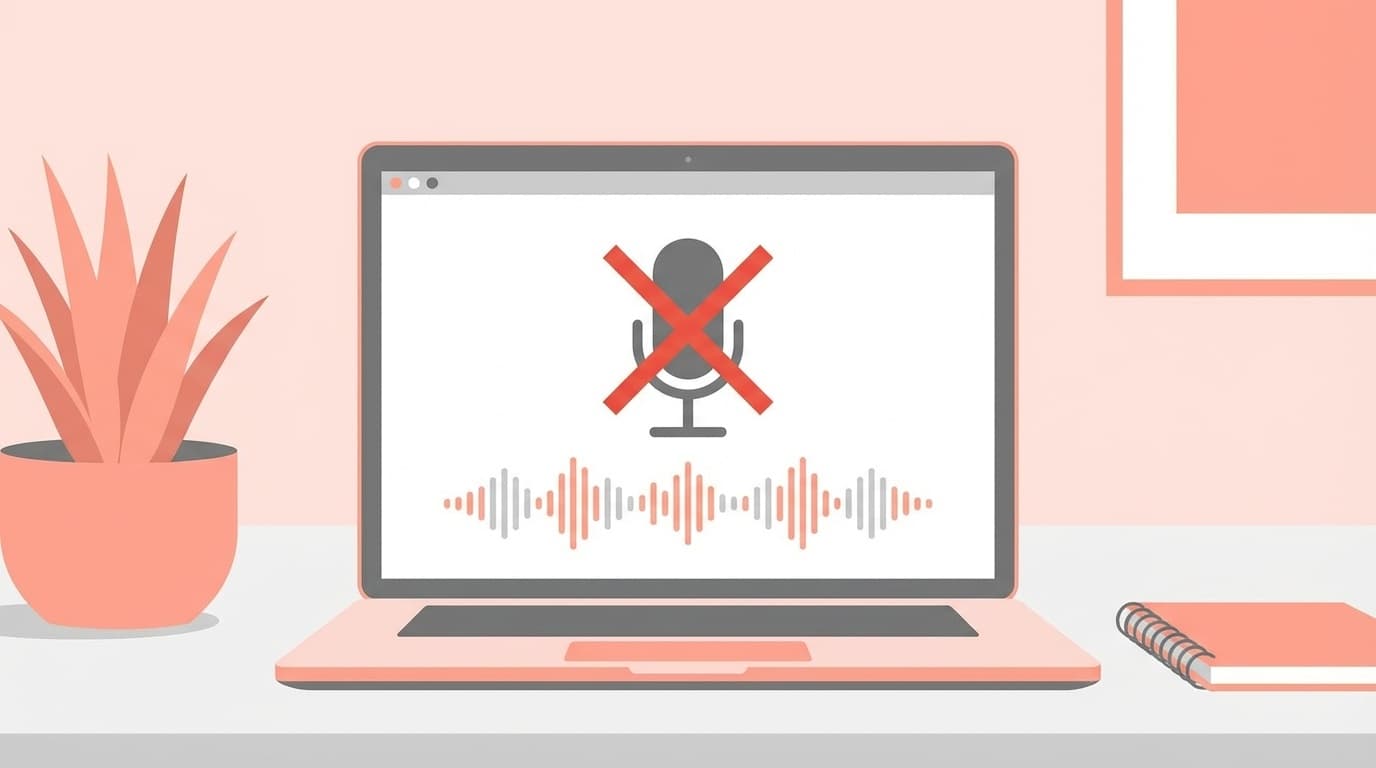
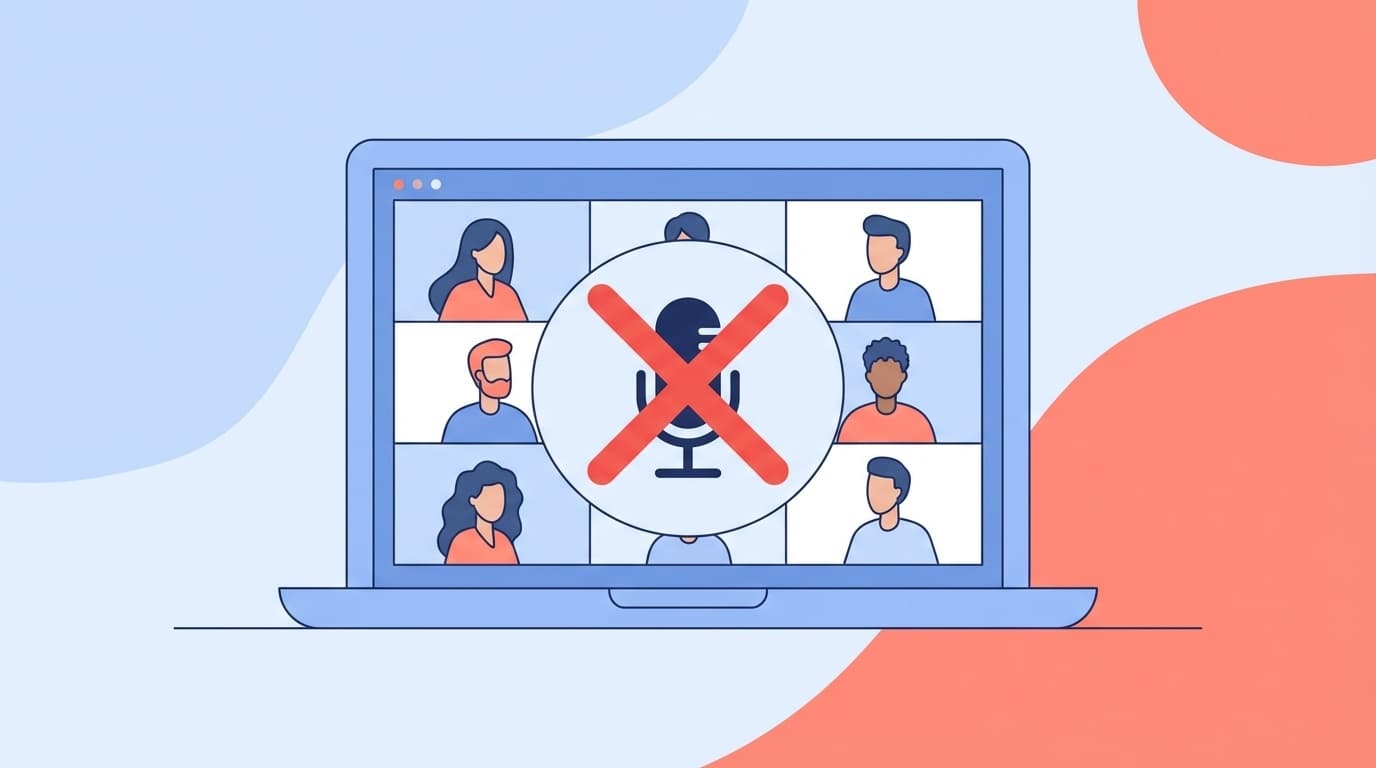
Look at the microphone icon at the bottom of the Google Meet screen. If it has a red slash through it, you’re muted. Just click or tap the icon to unmute.
Also, Google Meet lets the meeting organizer, or host, mute participants. If your audio isn’t working even though you don’t remember muting yourself, ask the host whether you were muted. However, the host can’t “unmute” another participant from their side, so you’ll still need to unmute yourself.
Cause 1: Your Browser Is Blocking Microphone Access
If you’re using Google Meet in a desktop browser like Chrome, your audio won’t work if the browser hasn’t been allowed to access your microphone.
The first time you use Google Meet, Chrome shows a pop-up asking whether you want to allow microphone access. If you accidentally clicked “Block,” your mic may stay blocked after that.
Fix in Chrome
- Type
chrome://settings/content/microphoneinto Chrome’s address bar and press Enter - Make sure “Sites can ask to use your microphone” is turned on
- If
https://meet.google.comisn’t listed under “Allowed,” click “Add” - Reload the Google Meet tab with the F5 key
There’s an easier way, too. On the Google Meet page, click the lock icon or slider icon on the left side of the address bar, change “Microphone” to “Allow,” then reload the page.
Cause 2: Microphone Access Is Turned Off in Your OS
It’s not always just the browser. In some cases, Windows or Mac is blocking microphone access at the operating system level.
On Windows
- Open “Settings” → “Privacy & security” → “Microphone”
- Check that “Microphone access” is turned on
- Scroll down and also turn on “Let desktop apps access your microphone”
- Confirm that “Google Chrome” appears in the list
On Mac
- Open “System Settings” → “Privacy & Security” → “Microphone”
- Make sure the toggle next to “Google Chrome” is turned on
- If it was off, turn it on, then restart Chrome
In Windows 11, updates since 2025 have made privacy settings stricter, so app microphone access may be limited by default. If your mic stopped working right after an update, check here first.
Cause 3: Another App Is Using the Microphone
If another video meeting or voice chat app, such as Zoom, Teams, or Discord, is currently using your microphone, Google Meet may not be able to access it.
This can happen because of a system called “exclusive control,” where one app takes over the mic and prevents other apps from using it.
How to Fix It
- Close any video meeting apps you’re not using, such as Zoom, Teams, Skype, or Discord
- Check apps running in the notification area of the taskbar in the lower-right corner, and right-click to quit anything unnecessary
- If that still doesn’t work, restart your computer, then open only Google Meet
For what it’s worth, Google Meet’s official help page also tells users to check whether another app is using the microphone. It’s a simple step, but it’s easy to miss.
Cause 4: You Joined in Companion Mode
This one catches a lot of people off guard: when you join Google Meet in Companion mode, your microphone and speakers are automatically disabled.
Companion mode is designed for situations where you’re using a conference room display for the call while also joining from your laptop just to share your screen or use chat. In other words, the assumption is, “You’ll hear the audio from the meeting room speakers, so your laptop won’t play sound.”
How to Fix It
- Check whether “Companion mode” appears at the top of the Google Meet screen
- If it does, leave the meeting
- Join again from the normal meeting link, not the Companion mode link
If you’re working from home alone and somehow ended up in Companion mode, it may be because you clicked a meeting URL that had ?companion at the end.
Cause 5: The Wrong Mic or Speaker Is Selected
If you’re using an external headset or Bluetooth earbuds, Google Meet may have selected a different audio device. For example, your headset may be plugged in, but Meet might still be using your computer’s built-in microphone.
How to Fix It
- In Google Meet, click the “︙” three-dot menu in the lower-right corner → “Settings” → “Audio”
- From the “Microphone” dropdown, choose the device you want to use
- Check “Speakers” as well and make sure the correct device is selected
- Use the “Test” button to confirm that sound actually plays
If you’re using Bluetooth earbuds, they may simply have disconnected from your computer. On Windows, check the pairing status under “Settings” → “Bluetooth & devices.”
Cause 6: The Phone App Doesn’t Have Permission
If you’re having audio trouble in the Google Meet app on iPhone or Android, the most likely reason is that the app hasn’t been granted microphone permission.
On iPhone
- Open “Settings,” scroll down, and tap “Meet”
- Make sure the “Microphone” toggle is turned on
On Android
- Open “Settings” → “Apps” → “Meet” → “Permissions”
- Make sure “Microphone” is set to “Allow”
On phones, you should also check silent mode and volume settings. If your phone’s volume is set to zero with the side buttons, you won’t hear the other person. It has nothing to do with Suica settings, but it’s still an easy thing to overlook.
Cause 7: Chrome Extensions or Cache Are Causing Problems
If you’ve tried everything above and it still doesn’t work, a Chrome extension may be interfering, or your cache may be corrupted.
How to Fix It
- Try Incognito mode: In Chrome, open an Incognito window with
Ctrl + Shift + Non Windows orCmd + Shift + Non Mac, then access Google Meet. If audio works there, an extension is probably the cause - Temporarily disable extensions: Open
chrome://extensions, turn off all extensions, then try Google Meet again - Clear the cache: Press
Ctrl + Shift + Delete, check “Cached images and files,” then delete them - Update Chrome: Open
chrome://settings/help, check whether Chrome is up to date, and install any available update
Ad blockers and security-related extensions in particular have been reported to block Google Meet traffic in some cases.
How to Test Your Microphone Before a Meeting
If you don’t want to panic after the meeting starts, here’s how to test your microphone ahead of time.
Test It on the Google Meet Waiting Screen
Before you join a meeting, the “Ready to join?” preview screen shows a microphone volume meter under your video preview. Speak into your mic, and if the meter moves, your microphone is working.
Test It in Windows Sound Settings
- Right-click the speaker icon in the lower-right corner of the screen → “Sound settings”
- In the “Input” section, select the microphone you want to use
- Click “Start test” under “Test your microphone,” then speak
- If the volume bar moves, you’re good
Before an important meeting, opening Google Meet five minutes early and checking the preview screen is enough to prevent most audio problems before they happen.
FAQ
What should I do if Google Meet says “Your mic is muted by your system settings”?
Your OS-level microphone setting is probably turned off. On Windows, go to “Settings” → “Privacy & security” → “Microphone” and allow access. After changing the setting, you may need to restart your browser.
What should I do if there’s no sound on a Chromebook?
On a Chromebook, you can check your microphone and speaker settings from “Settings” → “Device” → “Audio.” Updating ChromeOS to the latest version may also fix the issue.
Does Google Meet have an audio test call?
Google Meet doesn’t have a dedicated test call feature like Zoom or Teams, but you can check the microphone volume meter on the preview screen before joining a meeting. You can also go to meet.google.com, choose “New meeting” → “Start an instant meeting,” create a meeting just for yourself, and try speaking while recording.
What if I can hear the other person, but they can’t hear me?
Then the problem is probably limited to your microphone. Check these three things in order: browser microphone permission, OS microphone permission, and selected input device. If you’re using an external mic, it’s also worth unplugging and reconnecting the USB cable or checking for cable damage.
What if my microphone works in other apps, but not in Google Meet?
The most likely cause is that microphone permission is blocked for Google Meet in your browser. Check microphone access from the lock icon on the left side of Chrome’s address bar, or try using Incognito mode.
References
- Fix audio issues in Google Meet — Google Meet Help
- Use your camera and microphone in Chrome — Google Chrome Help
- Google Meet requirements — Google Meet Help
- Complete guide to using Google Meet and fixing microphone problems — VTV Online