“My Google Photos backup has been running for hours and still won't finish…” “It's been stuck on Getting ready forever.” Sound familiar?
When you realize the important photos and videos on your phone aren't being backed up automatically, it's easy to panic a little. The good news is that this issue is usually fixable with a quick settings check or a few simple steps.
In this article, based on the latest information available as of March 2026, we'll walk through six common reasons Google Photos backup gets stuck or won't finish, plus clear fixes for both iPhone and Android.
First, Check Your Backup Status
Before trying fixes, make sure the backup is actually stuck.
On Android:
- Open the Google Photos app
- Pull down from the top of the screen
- Check the message that appears
On iPhone:
- Open the Google Photos app
- Tap your profile icon in the top right
- Check “Google Photos settings” → “Backup”
If you see “Backup complete,” you're all set. If you see “Waiting for Wi-Fi,” “Getting ready,” or “Backup is off,” go through the causes and fixes below in order.
Cause 1: Backup Is Turned Off
This one is more common than you'd think. After an app update or after signing back into your Google Account, backup may be turned off without you noticing.
How to fix it:
- Open the Google Photos app and tap your profile icon in the top right
- Select “Google Photos settings” → “Backup”
- Check whether the “Backup” toggle is turned on
- If it's off, switch it on
That alone often solves the problem, so this should be the first thing you try.
Cause 2: Wi-Fi Is Unstable, or Mobile Data Backup Is Disabled
By default, Google Photos backs up only when you're connected to Wi-Fi. So if Wi-Fi is disconnected or unstable, backup won't move forward.
It's also possible for your phone to look connected to Wi-Fi even though the internet isn't actually working. In other words, you're connected to the router, but nothing online loads.
How to fix it:
- Check your Wi-Fi connection and try opening any website in your browser
- Restart your Wi-Fi router by unplugging it, waiting 30 seconds, and plugging it back in
- If you need to back up right away while you're out, turn on “Use mobile data to back up” — just watch your data usage
How to enable backup over mobile data:
- Google Photos app → profile icon → “Google Photos settings”
- Tap “Backup” → “Mobile data usage”
- Set a daily limit, or choose “Unlimited”
Be careful, though: backing up lots of photos and especially videos over mobile data can burn through your data allowance very quickly.
Cause 3: Your Google Account Storage Is Full
Your Google Account includes 15 GB of free storage, but that space is shared across Google Photos, Gmail, and Google Drive. According to Google's official Help page, backups stop automatically when your storage is full.
How to fix it:
- Go to the Google One storage management page and check how much space you have left
- Delete unnecessary photos, videos, or Gmail messages with large attachments to free up space
- If you still need more room, upgrade to a paid Google One plan, starting at 250 yen per month as of March 2026
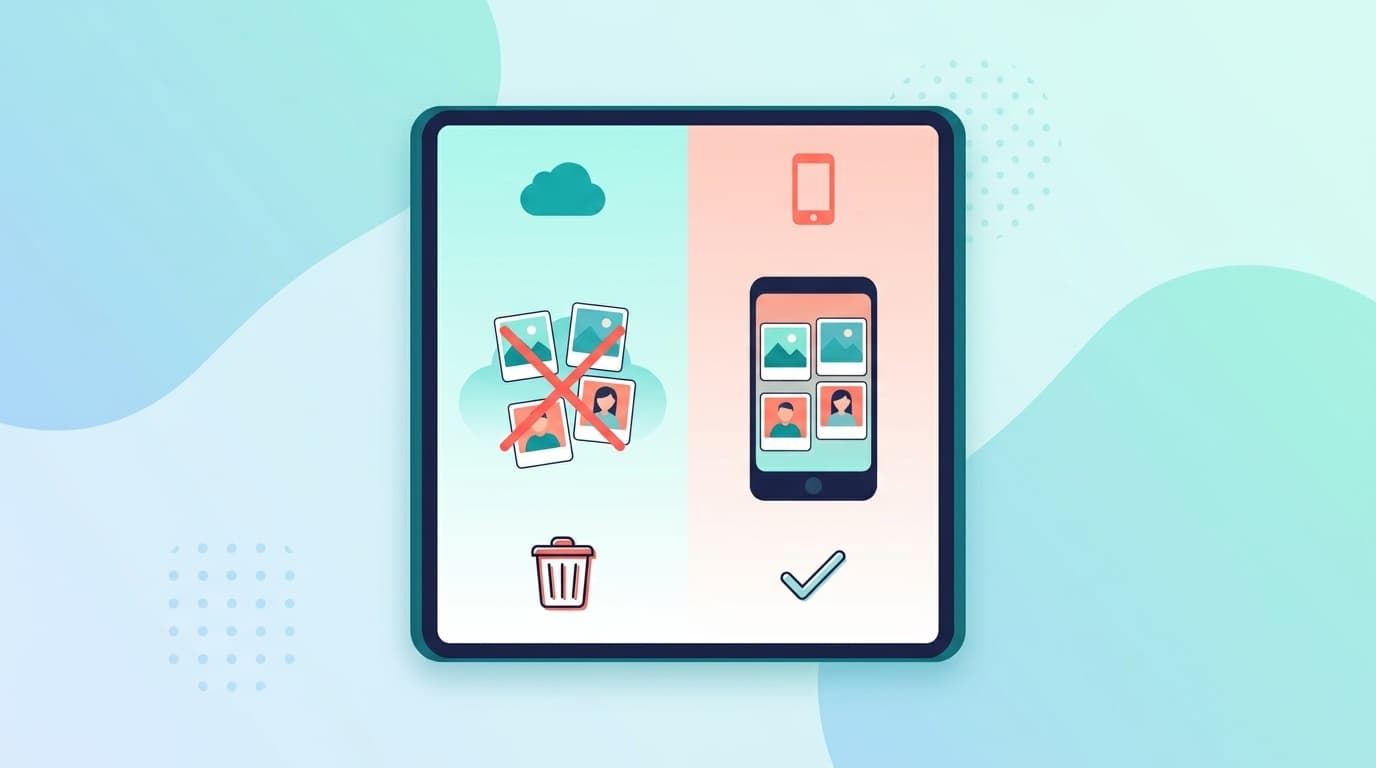
By the way, Google Photos has a “Free up space” feature that deletes already-backed-up photos from your phone in one batch. That's useful for clearing storage on your device, but it's separate from your Google Account storage, so don't mix the two up.
Cause 4: A Photo or Video File Is Too Large or Unsupported
Google Photos has limits on the file sizes and formats it can back up. According to the official Google Photos Help page, files that exceed the following limits won't be backed up.
- Photos: 200 MB or less, and 200 megapixels or less
- Videos: 10 GB or less
- Supported formats: Major formats such as JPEG, PNG, HEIC, RAW, GIF, and WebP, though some RAW formats aren't supported
Long videos shot in 4K or 8K can easily exceed 10 GB, which makes them more likely to fail during backup. Check the file size, and if it's too large, split the video or upload it to another cloud service, such as Google Drive.
Cause 5: The App Cache Has Built Up Too Much (Android)
On Android, if the Google Photos app cache gets too large, backup processing can stop working properly.
How to fix it on Android:
- Go to “Settings” → “Apps” → “Google Photos”
- Tap “Storage & cache”
- Tap “Clear cache” — avoid “Clear storage” at first, because that may require you to sign in again
- Reopen Google Photos and check whether backup starts again
If that doesn't work, you can also try “Clear storage.” Just note that this resets the app data, so you'll need to sign back in with your Google Account.
On iPhone, the closest equivalent is deleting the Google Photos app and reinstalling it. Photos that have already been backed up will remain in the cloud, so deleting the app won't delete those cloud photos.
Cause 6: The App or OS Is Out of Date
If your Google Photos app is outdated, bugs or compatibility issues can cause backup to freeze.
How to fix it:
- Android: Search for “Google Photos” in the Google Play Store and tap “Update” if the button appears
- iPhone: Search for “Google Photos” in the App Store and tap “Update” if available
- Also update your phone's operating system to the latest version
On iPhone in particular, if Background App Refresh is turned off, Google Photos may not be able to run in the background, so backup won't progress. Go to “Settings” → “General” → “Background App Refresh” and make sure Google Photos is enabled.
Last-Resort Fixes If It Still Won't Work
If you've tried all six fixes above and backup still won't move, try these as well.
- Sign out of your Google Account, then sign back in: Remove your Google Account once from your phone's “Settings” → “Accounts,” then add it again
- Restart your phone: This surprisingly fixes the issue sometimes
- Turn off Battery Saver or Low Power Mode: When power-saving mode is on, background data can be restricted, which may stop backup
- Turn off your VPN: A VPN connection can sometimes interfere with communication to Google's servers
If the problem still isn't solved, try posting your symptoms in the Google Photos Help Community. Other users with the same issue may have found a fix.
FAQ
Will Google Photos back up automatically overnight?
If your phone is connected to Wi-Fi and charging, backup should move forward automatically. On iPhone, though, the app needs to be able to run in the background, so if you've fully closed the app by swiping it away, backup may not continue.
Should I choose “Original quality” or “Storage saver” for backup?
“Original quality” backs up your photos and videos at the quality they were captured in, but it uses your Google Account storage. “Storage saver” compresses photos to 16 MP and videos to 1080p, but the quality is good enough for most everyday use. If you're worried about storage, “Storage saver” is the better choice.
Can I use iCloud Photos and Google Photos at the same time on iPhone?
Yes, you can use both. However, if “Optimize iPhone Storage” is turned on in iCloud, your iPhone may keep only smaller versions of photos on the device, which can prevent Google Photos from backing them up in original quality. If you use both services, pay close attention to which one you want to prioritize.
How can I check whether an individual photo has been backed up?
Open the photo in the Google Photos app, then swipe up or tap the “i” icon to view its details. If you see a “Backed up” indicator, that photo is saved in the cloud.
References
- Can't back up photos - Google Photos Help — Google, 2026
- Google Photos storage policy — Google, 2026
- Manage your storage in Google - Google Photos Help — Google, 2026
- Google One storage management — Google