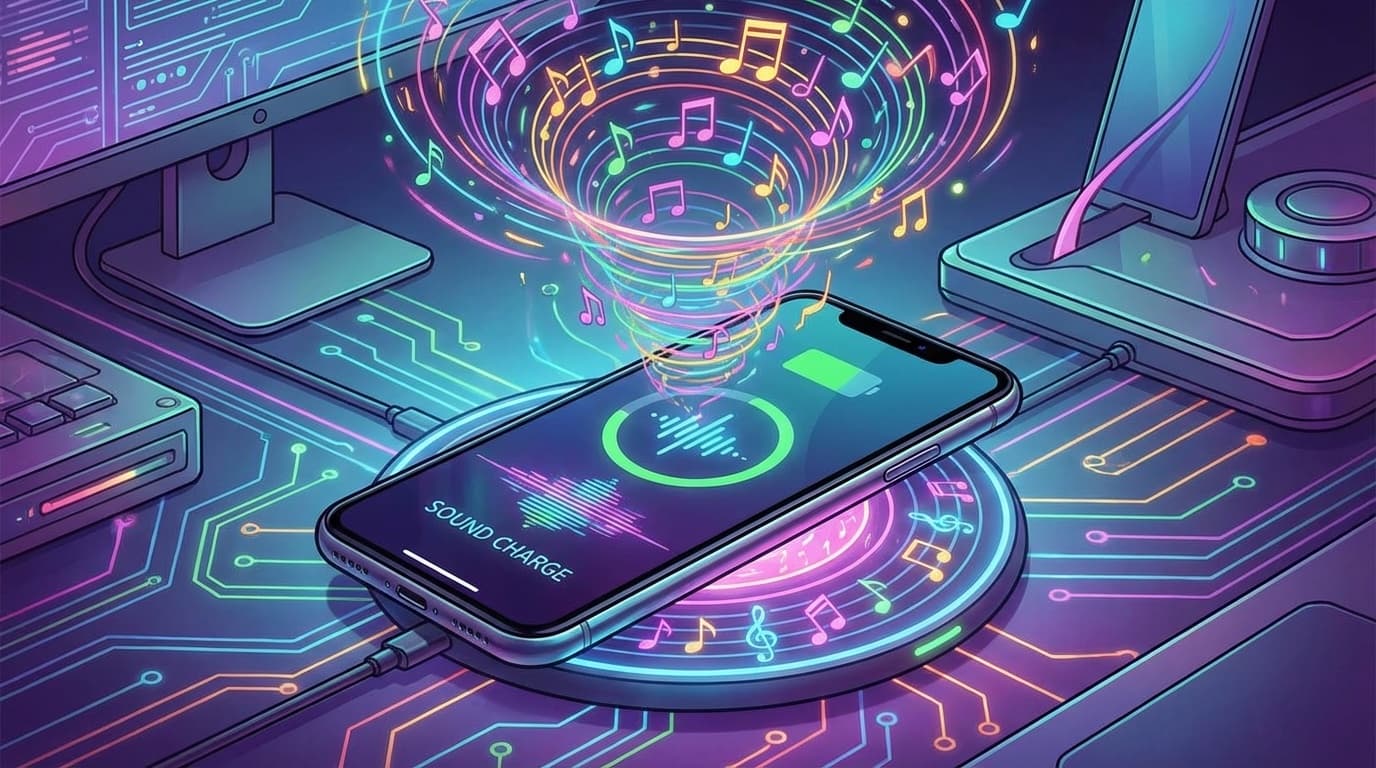
Don't you get a little tired of the "phone ♪" sound when you plug your iPhone into the charger? In fact, if you use the iPhone's "Shortcuts" app, you can change the charging sound to your favorite sound. Your favorite voice, sound effects, the chorus of your favorite song...anything is fine. In this article, we will explain the steps to change the charging sound in detail with screenshots.
What you need/prerequisites
To change the charging sound, you need the following:
- iPhone (iOS 14 or later. Also confirmed to work with iOS 17 and 18)
- Shortcut app (Apple genuine. If you have deleted it, please use Re-download from App Store)
- Sound source file you want to play (extract from video or prepare audio file)
By the way, this method is completed using only the standard functions of the iPhone. Don't worry, no jailbreak is required.
Step 1: Convert the sound source to Base64
First, prepare the sound you want to use for the charging sound. This is a little time consuming, but once you do it, it's easy.
1. Prepare the sound source as a video
Videos saved in the camera roll are OK. Prepare a video with your favorite sound. If you want to use YouTube sound, it's easy to record sound with screen recording.
2. Create a conversion shortcut with the Shortcuts app
- Open Shortcuts app
- Create a new shortcut by tapping "+" in the top right corner
- "Add action" → Add "Get latest videos" in search
- Then add an "Encode Media" action → turn on "Audio Only"
- Next add "Base64 encode" action
- Add "copy to clipboard" action at the end
- Tap the play button ▶ on the bottom right to run
The audio of the latest video will now be converted to a Base64 string and copied to the clipboard. We will use this string in the next step.
Step 2: Create charging automation
The main settings start here. Use the "Automation" feature of the Shortcuts app to create a system that plays your favorite sound when charging starts.
- Open the Shortcuts app and tap the Automation tab at the bottom
- Tap "+" in the top right → select "Create personal automation"
- Scroll down and select "Charger"
- Make sure "Connected" is checked and click "Next"
- Select “New Empty Automation”
- Tap "Add action"
Next, add the following actions in order.
- Add "Text" action → Paste the Base64 string you copied earlier
- Added "Base64 Encode" action → Changed "Encode" to "Decode"
- Added "Play Sound" action
There is an important setting at the end. Turn off "Ask before running" at the top of the screen. If you don't turn this off, a confirmation dialog will appear every time you charge, and the sound will not play automatically.
When the settings are complete, tap "Done" to save.
Step 3: Testing and what to do when things go wrong
After completing the settings, let's actually connect it to the charger and test it.
Test method:Connect your iPhone to the charging cable. If you hear the set sound in addition to the original charging sound, it's a success!
If you also want to mute the standard charging sound:If you turn on the iPhone's silent switch (silent mode), the standard charging sound will disappear and only the sound you set with the shortcut will sound.
If it does not work, please check the following.
- Is the Base64 string pasted correctly? — If it is cut off in the middle, the sound cannot be played.
- Is "Ask before running" turned off — otherwise it will not run automatically
- Are notifications allowed for the Shortcuts app — Check in "Settings" → "Shortcuts" → "Notifications"
- Is the volume set to 0? — This is surprisingly easy to overlook
Notes and frequently asked questions
When changing the charging sound using this method, there are some things you should know.
What is the effect on the battery?
Shortcut automations only work for a fraction of a second, so the impact on your battery is almost zero. Please use it with confidence.
Does it still work after iOS update?
It basically works, but in rare cases the automation settings get reset after a major iOS update. After updating, be sure to check the operation.
How do I restore it?
Just delete the automation you created. Swipe left on the automation list and tap "Delete" to return to the standard charging sound.
Frequently Asked Questions (FAQ)
Can I change the charging sound to a voice of encouragement?
Yes, you can! All you have to do is save the video with the Oshii audio in your camera roll and convert it to Base64 using the steps above. The same method can be used for audio recorded with voice memos.
Does the sound come from MagSafe or wireless charging?
Yes, the "Connect to Charger" automation will also be activated with MagSafe and Qi compatible wireless chargers. It works fine both wired and wireless.
Will changing the charging sound affect my Apple warranty?
No effect. This only uses the functionality of Apple's genuine Shortcuts app, so it does not affect the warranty in any way. There are zero risks like jailbreak.
Can I change multiple charging sounds on a daily basis?
It takes some effort, but it is possible. You can use an "if statement" (conditional branch) in your automation to play a different sound for each day of the week. Get the day of the week using "Get current date" → "Date format" in the shortcut app and branch it.
References
- Shortcuts User Guide — Apple
- Automation Overview — Apple