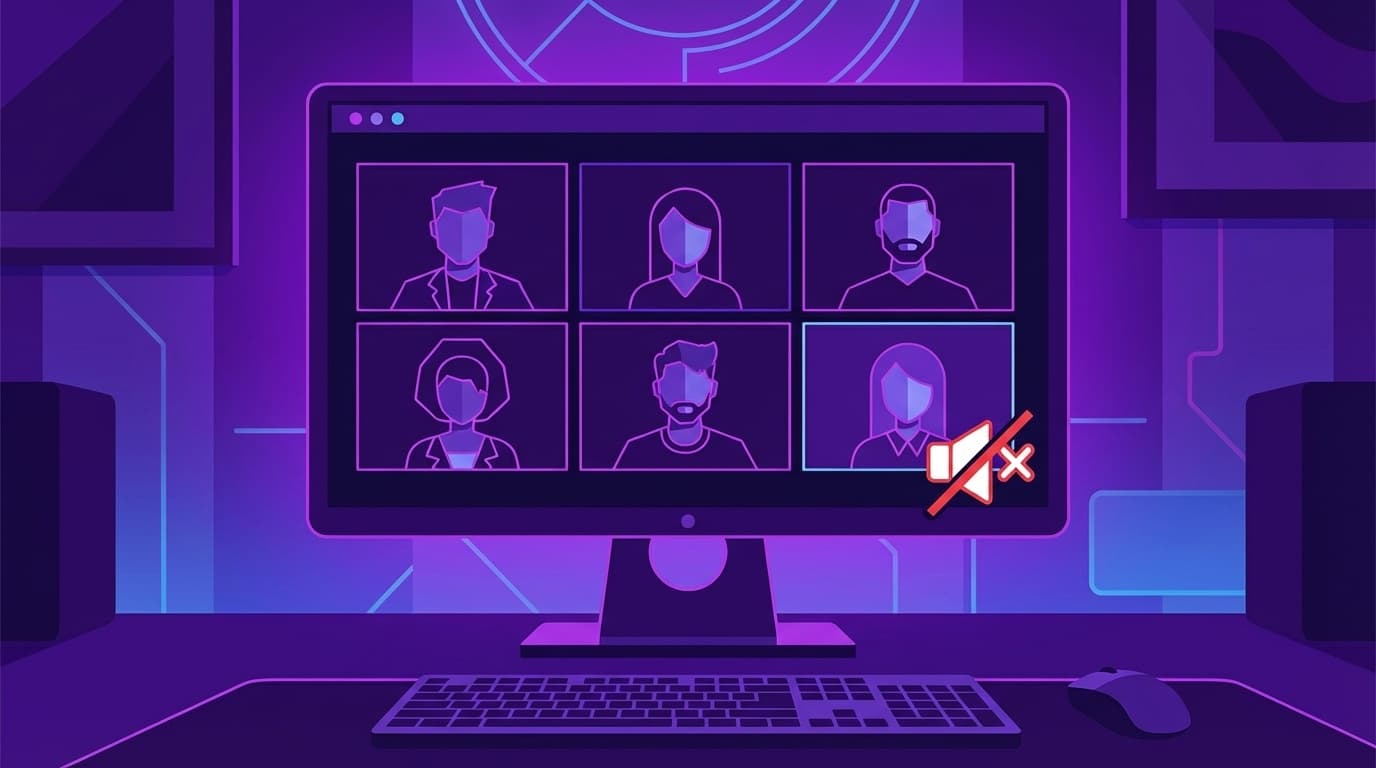
The screen is visible but I can't hear the sound...
When I try to share my screen on Discord to watch a game or watch a video together, I can see the image but the other person cannot hear the sound. This is a crazy thing.
There are several possible causes, so try them in order from the top. The problem is usually resolved by the third step.
Solution 1: Check if the "audio" for screen sharing is turned on
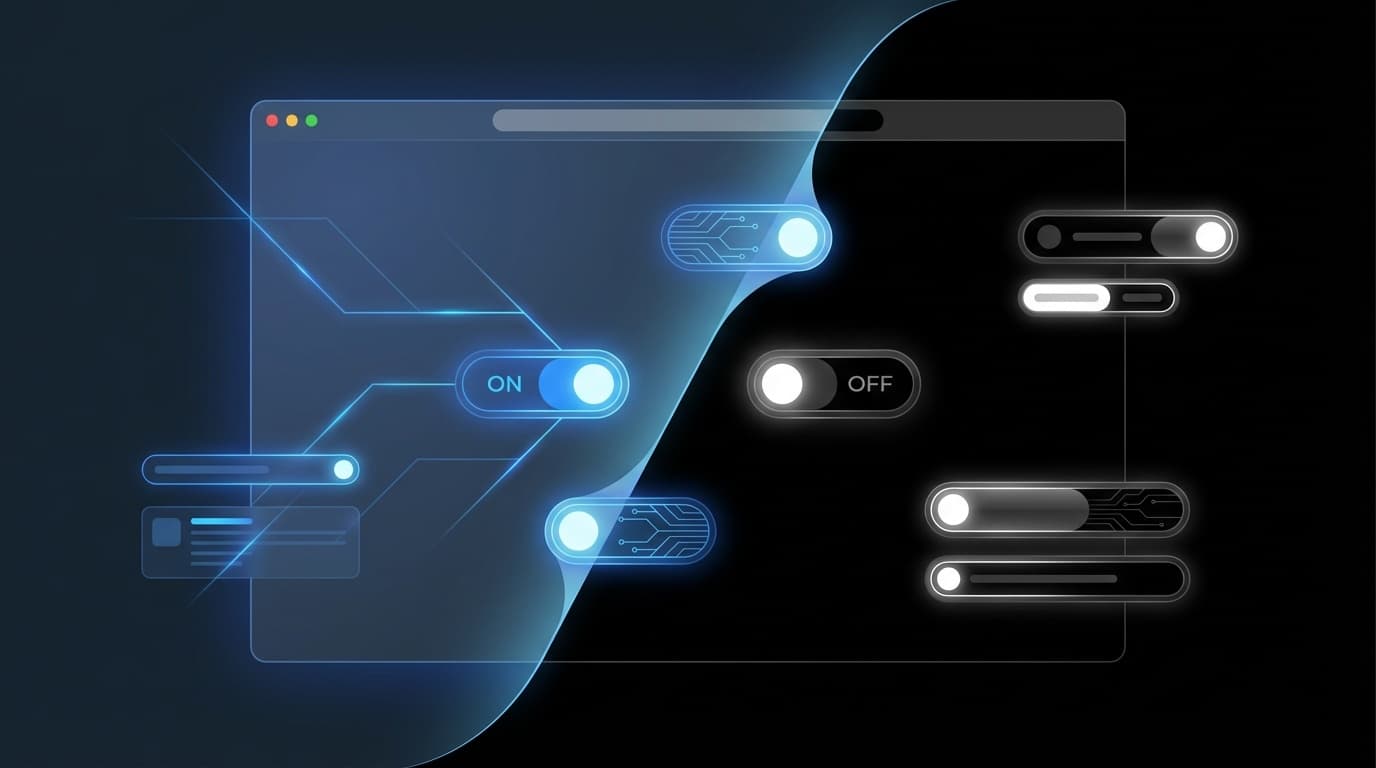
This is the most common cause. This is a case where the audio toggle is turned off when you start screen sharing.
- Select "SHARE YOUR SCREEN" on the screen to start screen sharing
- Choose the screen or app to share
- Turn on the toggle “Also share sound”
- Press "Go Live"
If you are already sharing, please stop sharing and try again. It cannot be turned on halfway.
Solution 2: Share on an app-by-app basis (be especially careful when using a browser)
Rather than sharing the entire screen, it is easier to share audioby app.
Especially when watching and sharing videos in a browser (Chrome, Firefox):
- Choose your browser from the Applications tab instead of the entire screen
- In the case of Chrome, Sharing by "tab" will ensure that the audio will be heard
Since system audio may not be picked up when sharing "the entire screen," it is important to specify the app.
Solution 3: Check your Discord audio settings
There may be something wrong with the Discord audio settings themselves.
- Open the gear icon (user settings) at the bottom left of Discord
- Select "Audio/Video"
- Check if "Output device" is set to the correct speaker/headphone
- Check if "output volume" is not set to 0
Also, if you check the "input device" (microphone), you can also prevent problems where the other party cannot hear your voice.
Solutions 4 to 6: If that doesn't work
4. Run Discord as an administrator (Windows)
Some games and apps run with administrator privileges, which may prevent Discord from capturing audio. Try restarting Discord by right-clicking and selecting "Run as administrator."
5. Update the Discord app
Older versions may have bugs in the screen sharing audio feature. Restart Discord with Ctrl+R and it will automatically update to the latest version.
6. Try using the browser version of Discord
If the desktop app doesn't work, try using the browser version of Discord. The browser version processes audio using WebRTC, so it may behave differently than the app version.
FAQ
Can I output screen sharing audio using Discord on my smartphone?
On iPhone, system audio is also shared when sharing the screen. Compatibility varies depending on the Android model, and audio sharing may not be possible on some devices.
I can't share audio from video distribution services such as Netflix
Due to copyright protection (DRM) on Netflix, Amazon Prime Video, etc., when you share your screen, the video may turn black or there may be no audio. This is a DRM specification, not Discord's, so there is no workaround.
I can share the game sound, but the microphone audio disappears
Screen sharing audio and microphone audio are separate systems. If the screen sharing audio cancels out the microphone input, turning OFF "Echo Removal" in the Discord settings may improve the situation.
References
- Screen sharing - Go Live — Discord Support