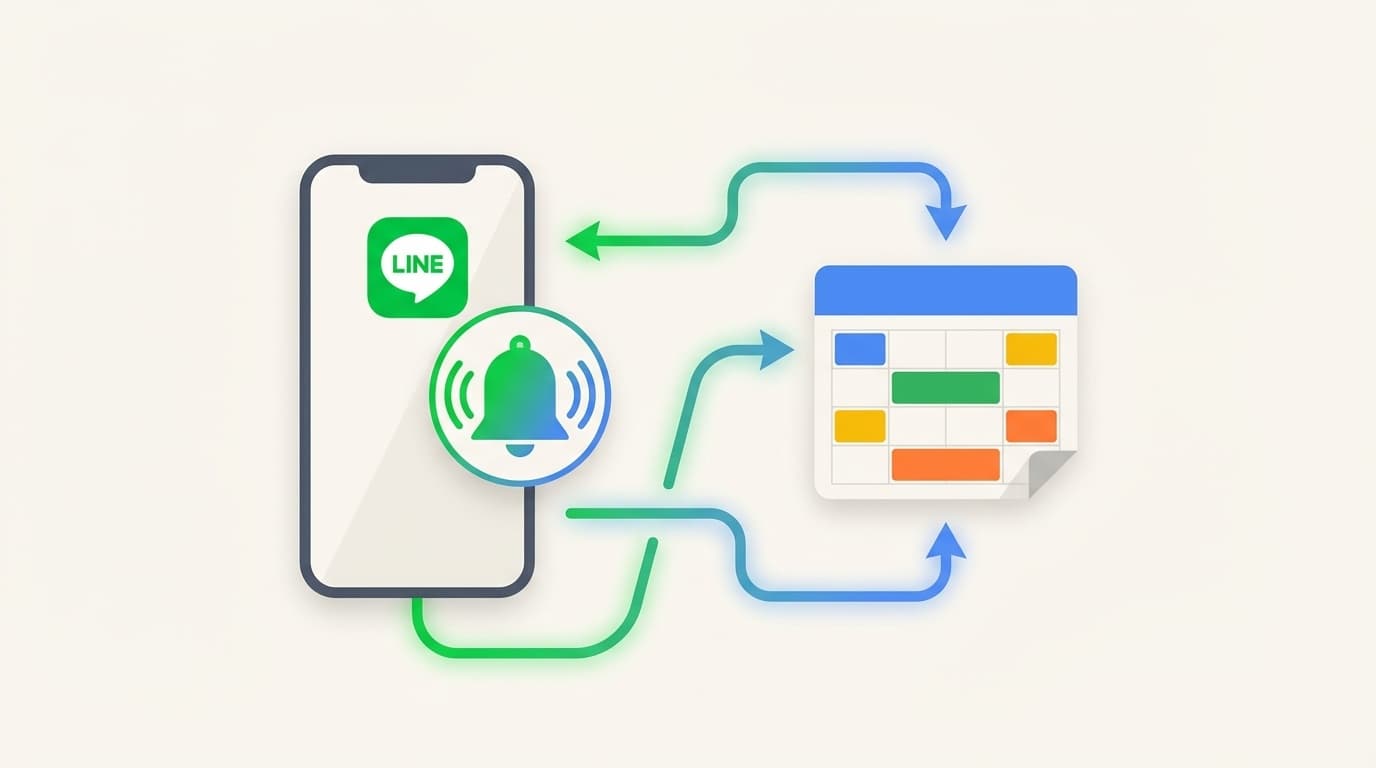
"I put my plans in Google Calendar, but I always forget about them..." "When I get a notification on LINE, I always look at it!" Are you worried?
Actually, I used to be able to quickly transfer my Google Calendar schedule to LINE using the combination of IFTTT x LINE Notify. However, LINE Notify's service will end on March 31, 2025. Many people are wondering, "Oh, so I can't use it anymore?"
But don't worry. As of February 2026, there are methods that can be used instead of LINE Notify. In this article, we will explain 3 alternative ways to notify LINE of Google Calendar events in an easy-to-understand manner, even for people with no programming knowledge.
Reason and impact of LINE Notify termination
First of all, let's quickly clarify "what happened?"
According to LINE Developers official announcement, LINE Notify has completely terminated its service as of March 31, 2025. After April 1, 2025, the management screen and API will no longer be available.
There are three main reasons for termination.
- Enhanced security — Integration into more secure mechanisms
- Changes to privacy policy — stricter handling of user data
- Increased API operating costs — Difficult to maintain free services
In other words, LINE Yahoo's policy is to "close the old system and integrate with the new system (Messaging API)."
This affected people who were using LINE Notify with IFTTT or GAS (Google Apps Script). If you have set your Google Calendar schedule to be sent to LINE, you should have suddenly stopped receiving notifications.
[Method 1] Notify via LINE official account + Messaging API (recommended)
This is an alternative method recommended by LINE official. Create your own LINE official account and send notifications using the Messaging API from there.
You may be thinking, "An official account? It's not a store?", but Even individuals can create one for free. According to LINE Developers official documentation, with the free plan (communication plan), you can send up to 200 messages per month for free.
If you receive schedule notifications once a day, it will be about 30 notifications per month. Even if you share it with your family, the free tier is sufficient for personal use.
General flow of settings
- Create an official account with LINE Official Account Manager
- Enable "Messaging API" on the settings screen
- Issue channel access token (long term) at LINE Developers
- Add the official account you created as a friend on your LINE
- Create a script to retrieve calendar + send message using GAS (Google Apps Script)
GAS script example (copy and paste OK)
Using Google Apps Script, you can retrieve your Google Calendar schedule at a fixed time every morning and send it to LINE. Roughly speaking, it's a program that ``looks at Google Calendar and sends today's schedule to LINE.''
The procedure is like this.
- Open Google Apps Script
- Create a "new project"
- Paste the code below and replace
ACCESS_TOKENandUSER_IDwith your own. - Set it to run every morning with "trigger"
How to write the code is very easy to understand with illustrations. Even if you don't have any programming knowledge, you can run it just by copying and pasting and rewriting the settings.
Advantages: It is a method recommended by LINE, so it is safe for the long term. High degree of freedom in customization
Disadvantages: Initial setup is a bit time consuming. Need to touch GAS
[Method 2] Use no-code automation tools such as Yoom and Make
For those who say, "To be honest, I can't use GAS or scripts..." Click here. No-code automation tool allows you to link Google Calendar and LINE without any programming required.
As of February 2026, there are two representative tools:
Yoom
Yoom is a no-code automation tool from Japan. A template for linking Google Calendar and LINE official account is available, and you can set it up just by following the on-screen instructions.
- Free plan available (up to 100 tasks per month)
- Easy to understand operation with Japanese support
- Simply select a template and connect
Make (formerly Integromat)
Make is an automation tool originating from overseas. It is a service that is upwardly compatible with IFTTT, and allows you to create more complex collaborations.
- Free plan available (up to 1,000 operations per month)
- Google Calendar → LINE Messaging API can be linked
- English UI, but simple settings
Advantages: No programming required. You can set it intuitively while looking at the screen
Disadvantages: The free plan has a limit on the number of runs. Depends on specification changes on the tool side
[Method 3] Substitute with Google Calendar's standard notification + LINE's "Remain-kun"
The simplest method for those who find it troublesome to use external tools and settings... How to use LINE's reminder bot "Remain-kun".
Reminder-kun is a reminder bot that you can use just by adding friends on LINE. If you send a message like "Dentist tomorrow at 2pm," LINE will notify you at the specified date and time.
How to use
- Search for "Remindkun" on LINE and add friends (@remindkun)
- Send "date and time + content" on the talk screen (e.g. "3/1 10:00 meeting")
- You will receive a notification on LINE on the specified date and time
However, this method does not automatically link with Google Calendar, so you will have to enter the schedule twice. It's not suitable for people who want LINE to automatically come to them when they put it in their calendar.
Advantages: Zero configuration. You can use it immediately by just adding friends
Disadvantages: Not automatic integration with Google Calendar. You need to manually send the schedule
Comparison summary of three methods
| Method | Difficulty | Cost | Automatic integration | Recommendation level |
|---|---|---|---|---|
| Messaging API + GAS | Slightly expensive | Free | ◎ | ★★★ |
| Yoom / Make | Low | Free~ | ◎ | ★★★ |
| Remain-kun | Super low | Free | ×(manual) | ★★ |
My recommendation is Messaging API + GAS for those who are confident in IT, and Yoom or Make for those who are not. Both are free to use, and once you set them up, you'll receive automatic notifications every day, which will dramatically reduce the number of times you accidentally forget something.
Is it possible to "sync" LINE and Google Calendar?
Some people may have read this far and thought, "I want to sync the calendar itself, not the notifications."
In conclusion, The regular LINE app does not have a synchronization function with Google Calendar. Schedules created using LINE's "Events" function can only be viewed within LINE.
However, if you are using LINE WORKS (LINE for business), it is a different story. According to LINE WORKS official help, you can import Google calendar events into the LINE WORKS calendar using an iCalendar format URL (unidirectional synchronization in 10-minute intervals).
However, there are two points to note.
- One-way only — One-way from Google Calendar to LINE WORKS. The reverse is not possible
- Not real-time — takes up to 10 minutes to update
If you want to completely synchronize your calendars, the best way is to simply install the Google Calendar app on your smartphone and turn on the notification settings. Think of notifications to LINE as responding to the needs of ``I often check LINE, so I want it to arrive there.''
FAQ
Can I no longer use the IFTTT linkage that was set up with LINE Notify?
Yes. LINE Notify will be completely terminated on March 31, 2025, so all integrations that used LINE Notify with IFTTT will no longer work. Even if LINE Notify remains on the IFTTT settings screen, you will not receive notifications. You will need to switch to another method such as the Messaging API.
Is the free tier of Messaging API (200 messages per month) enough?
It is sufficient for personal use. Approximately 30 schedule notifications per month, once a day. Even if you share it with 3 family members, you only need to send 90 messages a month, which will keep you within the 200 free limit. However, if you set it to send notifications for each schedule (send multiple notifications a day), the number of notifications may exceed the limit, so we recommend "Send all schedules for the day once a day".
What should I do if the GAS script does not work?
Common causes are mistyped channel access token and forgetting to allow access to Google Calendar. If you check the GAS "execution log", the details of the error will be displayed. Also, please make sure that "Webhook" is turned on in the response settings of your LINE official account.
Can it be used with both iPhone and Android?
Yes. All three methods introduced in this article are compatible with both iPhone and Android. Messaging API and Yoom settings are done from your PC browser, but you will receive notifications from the LINE app on your smartphone, so it doesn't matter which device you use.
References
- Notice of termination of LINE Notify service — LINE Developers, April 2025
- Messaging API overview — LINE Developers
- Can I synchronize with other companies' calendars (such as Google Calendar)? — LINE WORKS Help Center
- How to automatically notify the day's schedule on Google Calendar with GAS×LINE — Takumi IT Tools
- Comparing alternative service notification methods due to termination of LINE Notify — Social PLUS