Even though I bought a new iPhone, I can't log in to Microsoft Teams! I can't even get the authentication code for Authenticator! ...This is really frustrating.
On X (formerly Twitter), the post ``I bought a new smartphone and can't log in to Teams'' has received 143 likes and 27 RTs, so many people have fallen into this trouble. Especially for those who use it for business, this is a big problem that can completely stop their work.
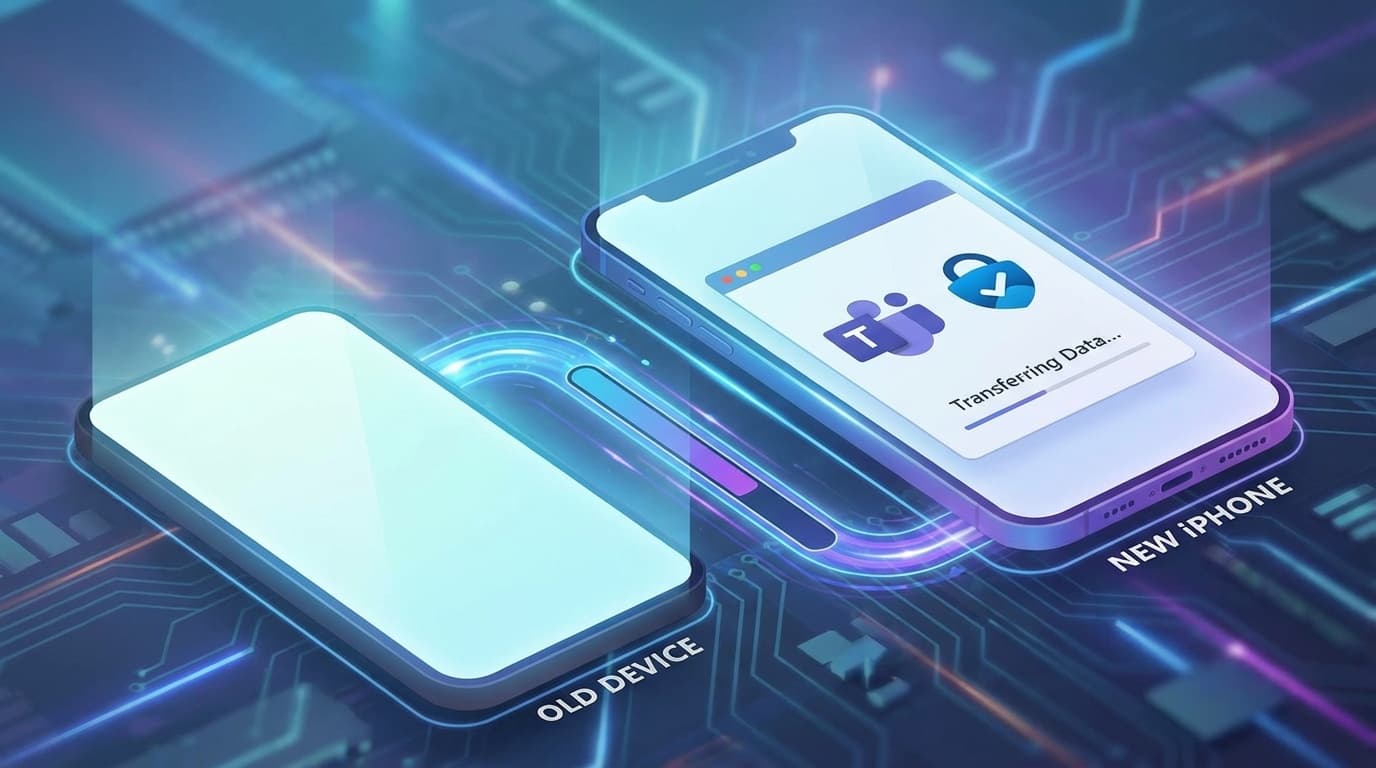
In this article, we will explain step-by-step how to correctly migrate and reconfigure Microsoft Teams and Microsoft Authenticator after changing iPhone models, based on information as of February 2026. As soon as you get your new iPhone, use this article to set it up.
Basic premise: Preparations to be made ``before'' changing models
Actually, the most important thing is preparation before changing models. If you have already changed your model, you can proceed to the next section, but if you are about to change your model, please read this.
1. Turn on Microsoft Authenticator backup
According to Microsoft official help, the Authenticator app has a cloud backup feature. Enable it by following the steps below.
1. Open Microsoft Authenticator on your old iPhone
2. Tap the three-line menu on the top left → “Settings”
3. Turn on “iCloud Backup”
4. Wait until the backup is completed (several seconds to minutes)
If you do this, your account information will be restored via iCloud when you install Authenticator on your new iPhone.
2. Contact your company's IT administrator
Your company's Microsoft 365 account may not be able to log in on new devices unless your IT administrator resets multi-factor authentication (MFA). Before changing the model, it will be smoother if you tell your IT administrator that you are changing your smartphone and would like them to reset your authentication.
3. Confirm your phone number
If you have set up SMS authentication and your phone number changes, you will not receive the authentication code. There is no problem if you transfer using MNP (number portability), where your number does not change, but if you want to use a new number, check the Microsoft account authentication method in advance.
Steps to restore Microsoft Authenticator on a new iPhone
When you get a new iPhone, follow the steps below to restore the Authenticator.
With backup (recommended)
1. Install Microsoft Authenticator from the App Store on your new iPhone
2. Open the app and tap "Start recovery"
3. Make sure the Apple ID signed in to iCloud is the same as your old iPhone
4. Account information will be automatically restored from backup
5. Tap each account and re-authenticate to unlock
Your personal Microsoft account will be restored almost automatically. However, work and school accounts often require additional verification.
Without backup (somewhat troublesome)
If you have not taken a backup, you will need to manually add the account back.
1. Install Authenticator on new iPhone
2. Access the security settings page for each service from your PC
3. Select "Change authentication app" or "Reset two-step verification"
4. Scan the displayed QR code with the new iPhone's Authenticator
For company accounts, ask your IT administrator to reset MFA, then reset it from the Security Information Page.
Steps to log in to Microsoft Teams on a new iPhone
Once the Authenticator is restored, the next step is Teams.
1. Install Microsoft Teams from the App Store
2. Open the app and enter your company email address
3. Enter your password
4. When the multi-factor authentication screen appears, approve it with Authenticator
5. Login completed!
Checklist if you cannot log in
If you receive the message "Your account is locked": Your account will be locked if you enter your password incorrectly several times. Wait 15-30 minutes and try again or contact your IT administrator to unlock it.
If you receive "Depending on your organization's policies": If your company has Intune (device management), you need to enroll a new device. Please follow Microsoft's official instructions to enroll your device from the Company Portal app.
If you do not receive Authenticator notifications: Please check if notifications are allowed in iPhone's "Settings" → "Notifications" → "Authenticator". If the banner display is turned off, you will not notice the approval request.
Common failure patterns and solutions
People who run into problems with Teams/Authenticator after changing their device usually follow the following three patterns.
Pattern 1: I have already gotten rid of my old iPhone
If you traded in your old device and don't have a backup of the Authenticator. In this case, your only option is to ask your IT administrator to reset MFA. For personal accounts, proceed from Microsoft account recovery page.
Pattern 2: Forgot your password
A pattern where you lose your password after changing the model. If Self-Service Password Reset (SSPR) is enabled at your company, you can reset it yourself.
Pattern 3: Authenticator conflict on two smartphones
If you set up a new device while the old device's Authenticator is still active, you may not know which one is the real one. Once you have confirmed that it works properly on your new device, delete your account from the Authenticator on your old device.
FAQ
Q. Is it okay to use this method when changing from Android to iPhone?
The basic steps are the same, but the Authenticator cloud backup mechanism is different. Since Android uses a Google account and iPhone uses iCloud, backups cannot be restored cross-platform. Manual reconfiguration will be required.
Q. Can I receive the authentication code via SMS instead of Authenticator?
Depending on your company's Microsoft 365 settings, SMS is also often an option for authentication. You can add or change authentication methods on the Security information page. However, as of 2026, Microsoft recommends using the Authenticator app over SMS.
Q. My company's IT administrator won't reset my MFA. What should I do?
Submit a formal request to your company's help desk or IT department. At many companies, you can have your account reset after verifying your identity (verification using your employee number or another contact information). In case of an emergency, you can also make a request through your boss.
Q. Will the Teams chat history disappear when I change the model?
No, it won't disappear. Your Teams chat history is stored in the cloud (server side), so it will sync automatically when you log in with your new iPhone. Files and threads remain intact.
Q. What happens if I have set a passkey?
If you have set a passkey for your Microsoft account, the passkey will be synced via iCloud Keychain when you change your iPhone model. If you have iCloud Keychain enabled with the same Apple ID, you can still use passkey login.
References
- Microsoft Authenticator app backup and recovery — Microsoft Support
- Microsoft Entra multi-factor authentication overview — Microsoft Learn
- My Sign In - Security Information — Microsoft
- Enroll your iOS device in Intune — Microsoft Learn