I want to convert meeting recordings and interview audio into text, but it's too tedious to type them by hand. In such cases, you can rely onAI transcription. As of March 2026, the number of options has increased considerably, including Gemini (Google AI Studio), ChatGPT related tools, and even dedicated transcription apps.
However, many people may have questions such as "Which one should I use?" and "How much can I do for free?" In this article, we will explain A specific method for using AI to transcribe audio recorded with a smartphone, along with the differences in accuracy and free tier of each tool.
What does AI transcription do in the first place?
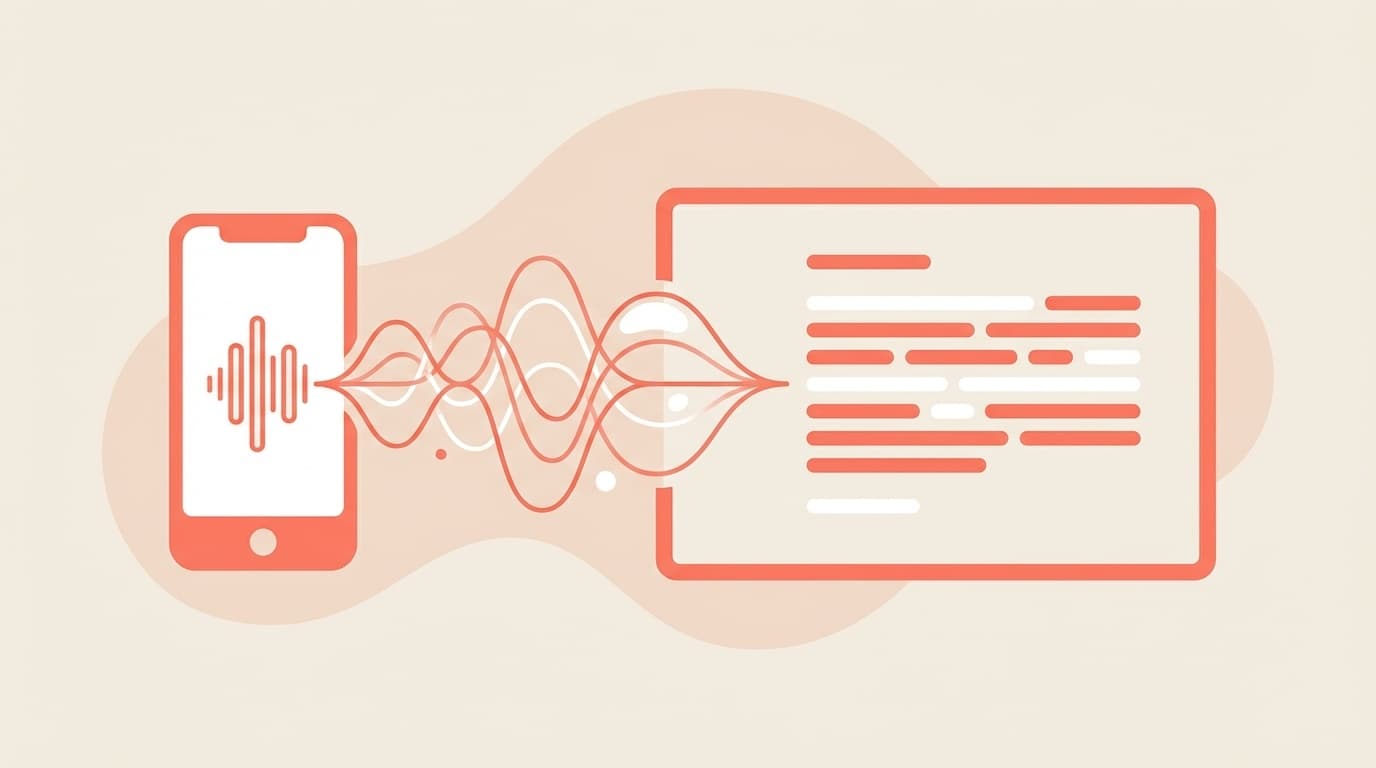
AI transcription is a technology in which AI automatically converts recorded audio data into text (characters). Roughly speaking, it's something like "a robot that listens to recordings and types."
Since 2025, the accuracy of AI speech recognition has improved dramatically. In the past, it was said that "accuracy in Japanese is not good," but as of 2026, Gemini and Whisper (OpenAI's speech recognition model) are quite accurate even in Japanese.
A rough summary of what you can do is as follows.
- Audio to text conversion: Just upload the recording file and convert it to text
- Speaker separation: Display "Person A's statement" and "Person B's statement" separately (depending on the tool)
- Summary/Formatting: Summarize in minutes format, remove filler words such as "um"
In other words, we are now in an era where everything from recording → transcription → creating minutes can be done all at once.
Method 1: Transcription with Google AI Studio (Gemini) — Free and best class
As of March 2026, it can be said that Google AI Studio is the best for transcribing long audio for free. Using Google's latest AI model "Gemini", you can convert audio files into text simply by uploading them.
How to do it (5 steps)
- Log in to Google AI Studio with your Google account
- Click “Create Prompt”
- Set model to “Gemini 2.5 Pro” or “Gemini 2.5 Flash”
- Upload audio files by drag and drop (supported formats: MP3, WAV, FLAC, M4A, etc.)
- In the prompt field, type "Transcribe this audio in Japanese. Please distinguish between speakers and remove fillers." and run
Advantages
- Free to use (start right away if you have a Google account)
- File size that can be uploaded is up to 2GB
- By devising prompts, you can format and summarize meeting minutes at the same time
- Japanese accuracy is quite high
Notes
- The free version has a limit on usage per day (the limit may be applied if you process many long audio lines)
- Although it can be used from a smartphone browser, PC browsers are easier to use
- Audio data is sent to Google's servers, so Be careful with sensitive meeting audio
As a tip for increasing accuracy, using uncompressed/reversible compressed audio formats such as WAV and FLAC will improve recognition accuracy. M4A or MP3 recorded with a smartphone can be used, but if you want more accuracy, we recommend converting the file before uploading.
Method 2: ChatGPT doesn't allow "direct upload" — use an alternative method
Many people think, "You can transcribe audio files by uploading them to ChatGPT, right?" However, in reality, As of March 2026, ChatGPT (web version/app version) does not support transcription by uploading audio files.
ChatGPT's Advanced Voice Mode can be used for real-time conversations, but it cannot be used to read pre-recorded files and convert them into text.
Then what should I do?
Let's use the speech recognition model "Whisper" provided by OpenAI. Whisper is a highly accurate speech recognition model trained on over 680,000 hours of multilingual data and is available as open source on GitHub.
There are several ways to use Whisper.
- Whisper Web UI: A web app that allows you to use Whisper on your browser. Easy if you have a PC
- OpenAI API: For people who can program. Latest model "GPT-4o Transcribe" available (released in 2025)
- Local installation: Completely free and unlimited if you have Python and a PC with GPU
In short, if you want to transcribe with ChatGPT, there are two steps: ``transcribe with Whisper (or GPT-4o Transcribe) → summarize and format with ChatGPT'' In terms of ease of use, Gemini (Google AI Studio) wins.
Method 3: Dedicated transcription app — if you want to complete it with just your smartphone
For those who want to complete the process on their smartphone without opening a PC, we recommend a dedicated transcription app. Introducing popular apps as of March 2026.
Notta
- Compatible with both iPhone and Android
- Free plan: 120 minutes per month of transcription
- Supports 104 languages. Japanese accuracy is also high
- Also supports real-time transcription
- Official website
AutoMemo
- Services from Japan provided by Sourcenext
- Transcription accuracy is approximately 99% (for clear audio)
- With speaker identification and summarization function
- Transcription starts at the same time as recording
- Official website
Otter.ai
- English accuracy is outstanding (for people who often have meetings in English)
- Free plan: 600 minutes per month
- You can check the text in real time on your PC while recording
- Japanese language accuracy is slightly lower than others
- Official website
If your meetings are mainly in Japanese, it's easy to use Notta or AutoMemo, and if your meetings are in English, use Otter.ai.
Which one should I use? How to choose by purpose
For those who are confused by the many options, we have summarized them by purpose.
| What I want to do | Recommended tools | Reason |
|---|---|---|
| Free transcription of long audio | Google AI Studio (Gemini) | Free and supports file sizes up to 2GB. Formatting is also possible at the prompt |
| Complete everything from recording to transcription using just your smartphone | Notta / AutoMemo | Batch processing from recording to transcription to summarization within the app |
| Transcription of English meetings | Otter.ai | English recognition accuracy is very high, and the free quota is 600 minutes a month. |
| Secure processing of audio containing confidential information | Whisper (local version) | No data is sent outside as it is completed within your own PC |
| I want to summarize and translate after transcription | Gemini + ChatGPT | Transcription with Gemini → Summarize and translate efficiently with ChatGPT |
The key point is to decide based on "what is most important". Just remember to use Google AI Studio if you want to do it for free, Notta if you want to do it on your smartphone, and Whisper local version if you want security.
5 tips to improve transcription accuracy
No matter which tool you use, the quality of the original audio greatly determines its accuracy. ``Even if the AI is excellent, it won't help if the voice is shaky.''
- Move the microphone closer to the speaker: Even with a smartphone's built-in microphone, the accuracy changes just by placing it in the center of the table
- Record in a quiet place: BGM in cafes and open spaces is the enemy of AI
- Consider a pin microphone for meetings with multiple people: If there are many speakers, their voices will overlap and recognition accuracy will decrease
- The ideal recording format is WAV/FLAC: You can often change to WAV output even with standard smartphone recording apps
- Divide long audio: Divide audio over 2 hours into 30 minute to 1 hour chunks to reduce errors
FAQ
Can audio recorded with a smartphone be transcribed using AI?
Yes, you can. You can transcribe files recorded with iPhone voice memos (M4A format) or Android recording apps (MP3 or OGG format) by simply uploading them to Google AI Studio. There is basically no need to convert file formats.
Is there a time limit for free AI transcription?
It depends on the tool. Google AI Studio has a usage limit per day, but there is no problem for one or two regular meetings. The free quota for Notta is 120 minutes per month, and for Otter.ai 600 minutes per month (as of March 2026).
Is it okay to hand over recordings of meetings containing confidential company information to AI?
Cloud-based services (Google AI Studio, Notta, Otter.ai, etc.) send audio data to the server, so please check your company's security policy. If the information is highly confidential, consider using the local version of Whisper (processes only on your PC and is not sent externally).
Can I directly pass an audio file to ChatGPT and transcribe it?
As of March 2026, there is no function to upload and transcribe audio files to the web and app versions of ChatGPT. The process is to first transcribe using OpenAI's speech recognition model "Whisper" or OpenAI API's "GPT-4o Transcribe", and then pass the result to ChatGPT for summarization and formatting.
Can I transcribe audio that is a mixture of Japanese and English?
Gemini and Whisper support multiple languages, so they can recognize mixed Japanese and English voices. However, it may be misrecognized at the timing of the change, so if you tell the user in advance that ``Japanese and English are mixed'' in the prompt, accuracy will be improved.
References
- Google AI Studio — Google, 2026
- Whisper - Robust Speech Recognition via Large-Scale Weak Supervision — OpenAI, GitHub
- Notta - AI transcription service — Notta Co., Ltd.
- AutoMemo — SourceNext Inc.
- Otter.ai - AI Meeting Assistant — Otter.ai, Inc.