“The Wi‑Fi icon is there, but pages won’t load...” I ran into this exact problem on my mom’s iPhone the other day and spent 30 minutes troubleshooting it over the phone. The Wi‑Fi icon was clearly showing, but Safari said, “Not Connected to the Internet.” LINE and YouTube wouldn’t work either. A lot of people think “Wi‑Fi” and “the internet” are the same thing, so when this happens, it’s easy to feel completely stuck.
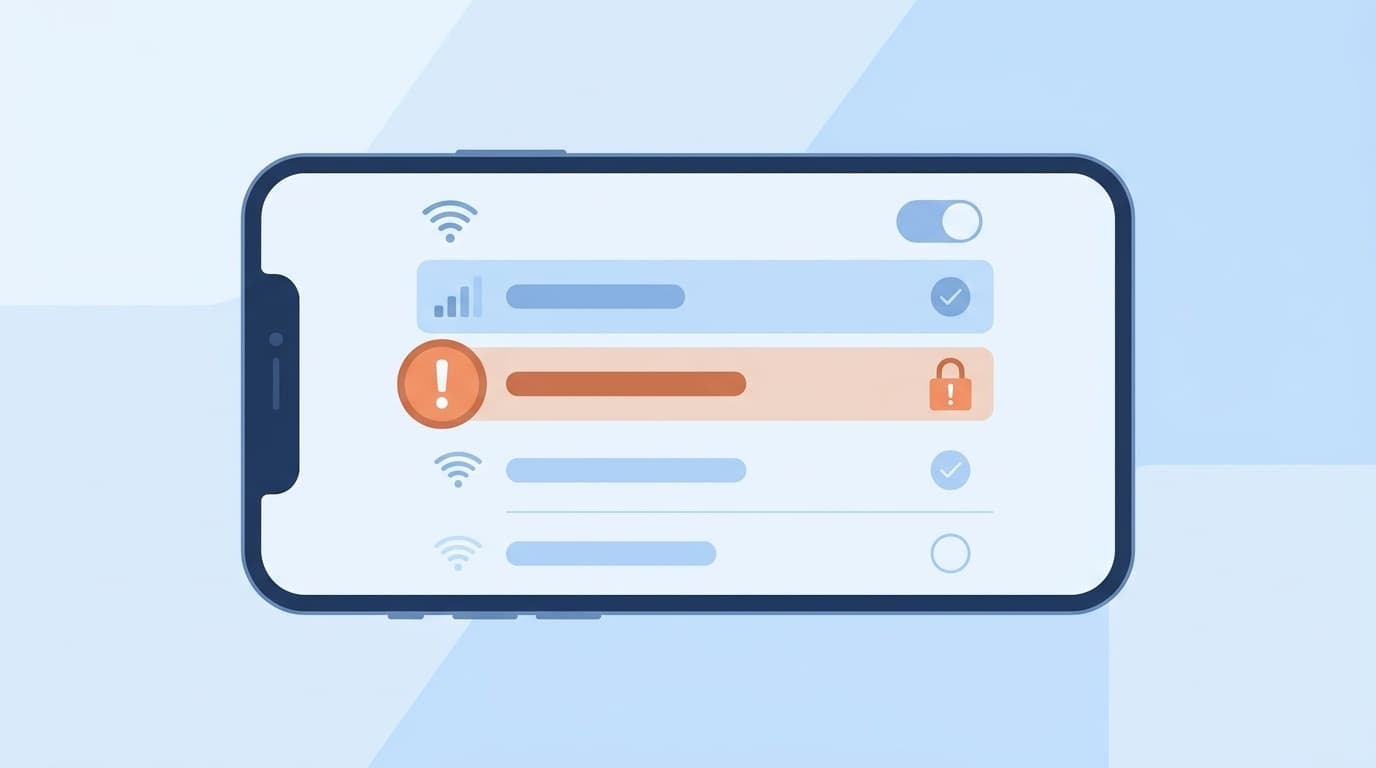
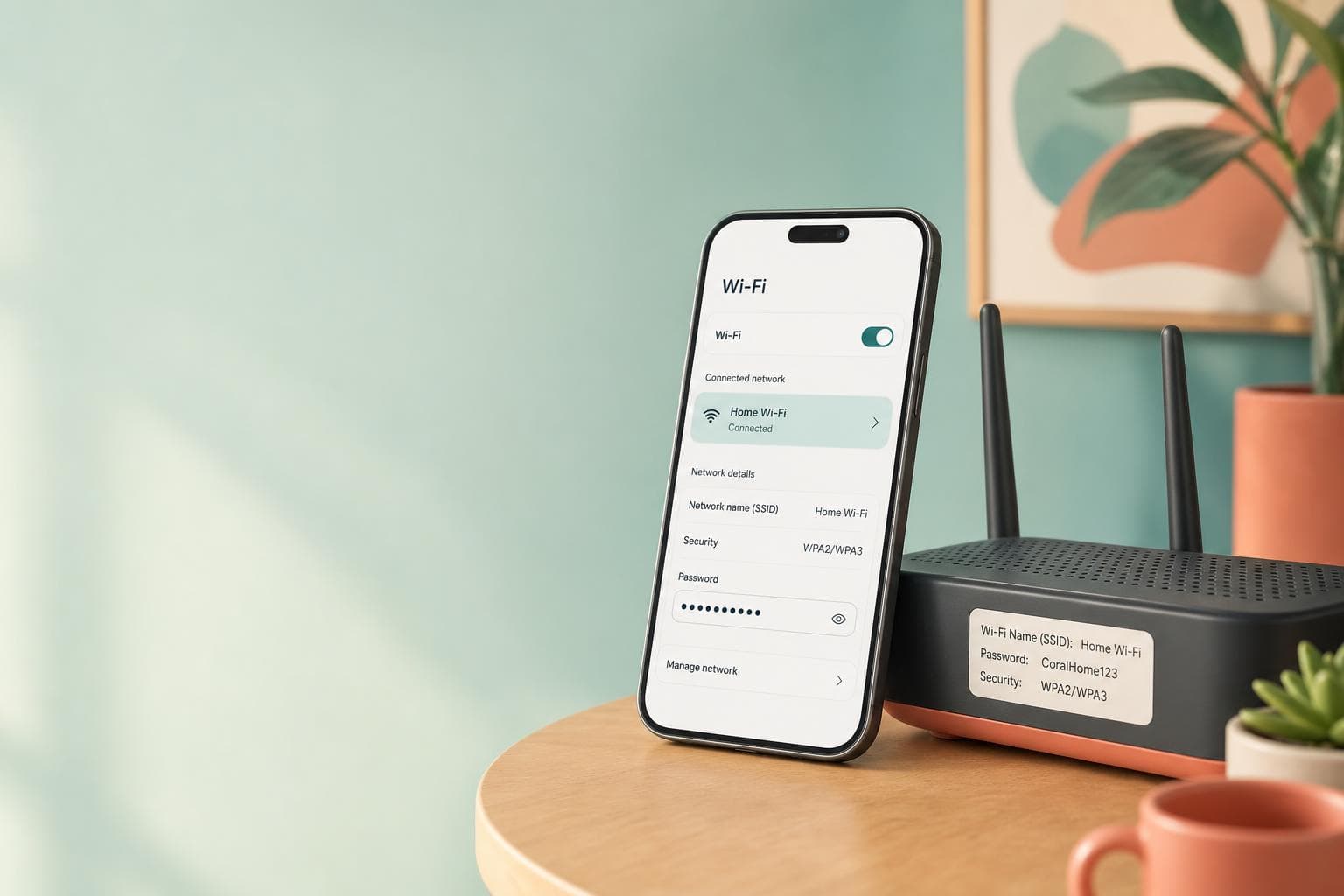
Here’s the key point: being connected to Wi‑Fi and being connected to the internet are two different things. Wi‑Fi only means the wireless connection between your iPhone and your router is working. If there’s a problem beyond the router, with your actual internet line, you can still see the Wi‑Fi icon and have no internet access. In this guide, I’ll walk through how to narrow down the cause and fix it step by step, based on the latest iOS environment as of April 2026.
First Check: Do Other Devices Have Internet?
Before trying fixes, check whether another device on the same Wi‑Fi network, like a family member’s phone or a laptop, can use the internet. This one check can narrow the problem down fast.
- Other devices also can’t connect → The router or internet service is probably the issue (Causes 1–2)
- Only your iPhone can’t connect → The issue is probably with your iPhone’s settings or software (Causes 3–6)
When my mom calls and says, “The internet isn’t working!” I usually ask, “Does YouTube work on the TV?” If the TV doesn’t work either, it’s probably the router or internet line. If the TV works, it’s probably the iPhone. That one question saves a lot of guessing.
6 Reasons Your iPhone Is Connected to Wi‑Fi but Has No Internet
Cause 1: Your Router Is Frozen
This is the most common cause. A Wi‑Fi router is basically a small computer, and if it runs for a long time, it can get bogged down or freeze. The lights on the front may look normal, but internally, the router may have stopped passing traffic to the internet.
Cause 2: Your Internet Service Is Down
Sometimes the internet line itself is temporarily unavailable because of an outage from your provider or maintenance on a shared line in an apartment building. In this case, the router’s WAN or Internet light is often off or blinking.
Cause 3: Your iPhone Didn’t Get a Proper IP Address
When your iPhone joins Wi‑Fi, the router automatically assigns it a communication number called an “IP address.” If that doesn’t happen correctly, your iPhone can connect to Wi‑Fi but still can’t reach the internet. If the IP address starts with “169.254.x.x,” that’s a sign your iPhone didn’t receive an address from the router.
Cause 4: There’s a DNS Problem
DNS is like the internet’s phone book. In simple terms, it turns a website name into the actual address your device needs to reach it. If the DNS server is having trouble or your DNS settings are wrong, your iPhone may stay connected to Wi‑Fi while no websites open.
Cause 5: iCloud Private Relay Is Interfering
If you subscribe to iCloud+, your iPhone may have a privacy feature called Private Relay turned on. According to Apple Support, this feature sends internet traffic through two relay servers, which means some Wi‑Fi networks, such as workplaces, schools, or hotels, may block the connection.
Cause 6: A VPN or Security App Is Getting in the Way
If a VPN app or ad-blocking app is running in the background, it can change the route your internet traffic takes and cause the connection to fail. Even if you don’t remember installing a VPN app, some security apps include VPN features, so it’s worth checking.
Fixes to Try Right Now, From Easiest to Hardest
Fix 1: Restart Your Router and Leave It Off for 30 Seconds
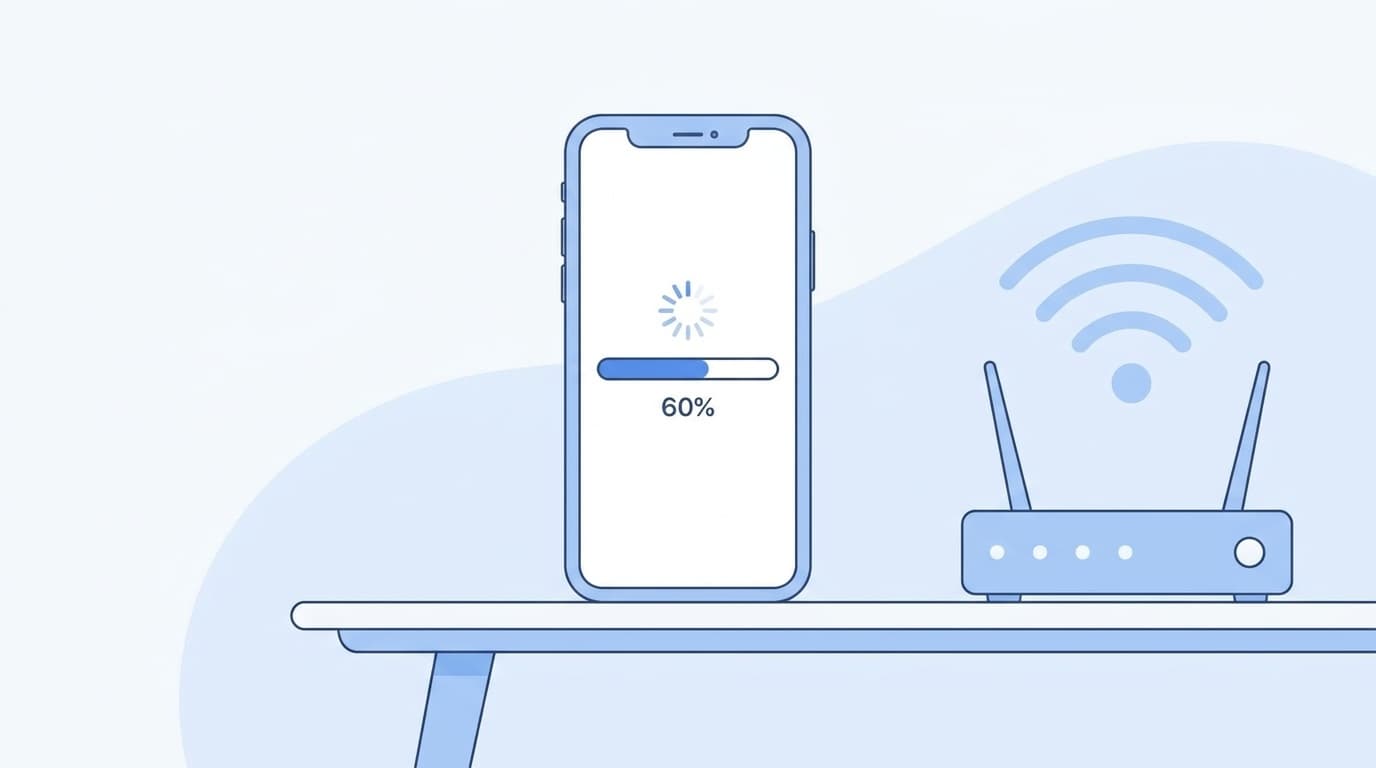
Unplug your router from the wall, wait 30 seconds, then plug it back in. If you plug it back in right away, the internal memory may not fully reset, so make sure you really wait the full 30 seconds. After restarting, it may take 1–2 minutes for the lights to stabilize. Apple’s official support page also lists restarting the router as an early troubleshooting step.
Fix 2: Turn Wi‑Fi Off and Back On on Your iPhone
Go to “Settings” → “Wi‑Fi,” turn the switch off, wait about 10 seconds, then turn it back on. The Wi‑Fi button in Control Center, the panel you open by swiping down from the top right, only temporarily disconnects Wi‑Fi, so use the Settings app for this step.
Fix 3: Forget the Network and Reconnect
Go to “Settings” → “Wi‑Fi” → tap the (i) button next to the network you’re connected to → “Forget This Network” → choose the network again from the Wi‑Fi list and enter the password. Make sure you have the Wi‑Fi password before doing this.
Fix 4: Change DNS Manually to Google Public DNS
Go to “Settings” → “Wi‑Fi” → tap the (i) next to your network → “Configure DNS” → switch to “Manual” → delete the existing DNS servers and add these:
8.8.8.8(Google Public DNS primary)8.8.4.4(Google Public DNS secondary)
Tap “Save,” then open Safari and see if pages load. If this fixes it, the DNS server you were using before was probably having a temporary issue.
Fix 5: Turn Off Private Relay
Go to “Settings” → tap your name at the top → “iCloud” → “Private Relay” → turn the switch off. If you don’t subscribe to iCloud+, you won’t see this option, so you can skip it.
Fix 6: Turn Off VPN
Go to “Settings” → “General” → “VPN & Device Management” and check whether a VPN connection is turned on. If it is, turn it off and test the internet connection again.
Last Resorts If Nothing Else Works
Reset Network Settings
Go to “Settings” → “General” → “Transfer or Reset iPhone” → “Reset” → “Reset Network Settings.”
Important: This will delete saved Wi‑Fi passwords, Bluetooth pairing information, and VPN settings. Write down your home or office Wi‑Fi password before you do it.
Update iOS to the Latest Version
Go to “Settings” → “General” → “Software Update” and install the latest iOS version. Network-related bug fixes are often included in updates, so it’s worth checking if Wi‑Fi problems keep happening. If Wi‑Fi isn’t working, you may be able to update using mobile data, but watch your data usage.
Check Your Router’s Firmware
Some Wi‑Fi 6E routers have been reported to have compatibility issues with iPhone. Check your router manufacturer’s website to see if newer firmware is available, and install it if there is.
FAQ
Why does my iPhone show the Wi‑Fi icon but have no internet?
The Wi‑Fi icon only means your iPhone is wirelessly connected to the router. It can still appear even if the router’s connection to the internet is down. In other words, the Wi‑Fi icon does not always mean you have internet access. Start by restarting your router.
What should I do if public Wi‑Fi won’t connect to the internet?
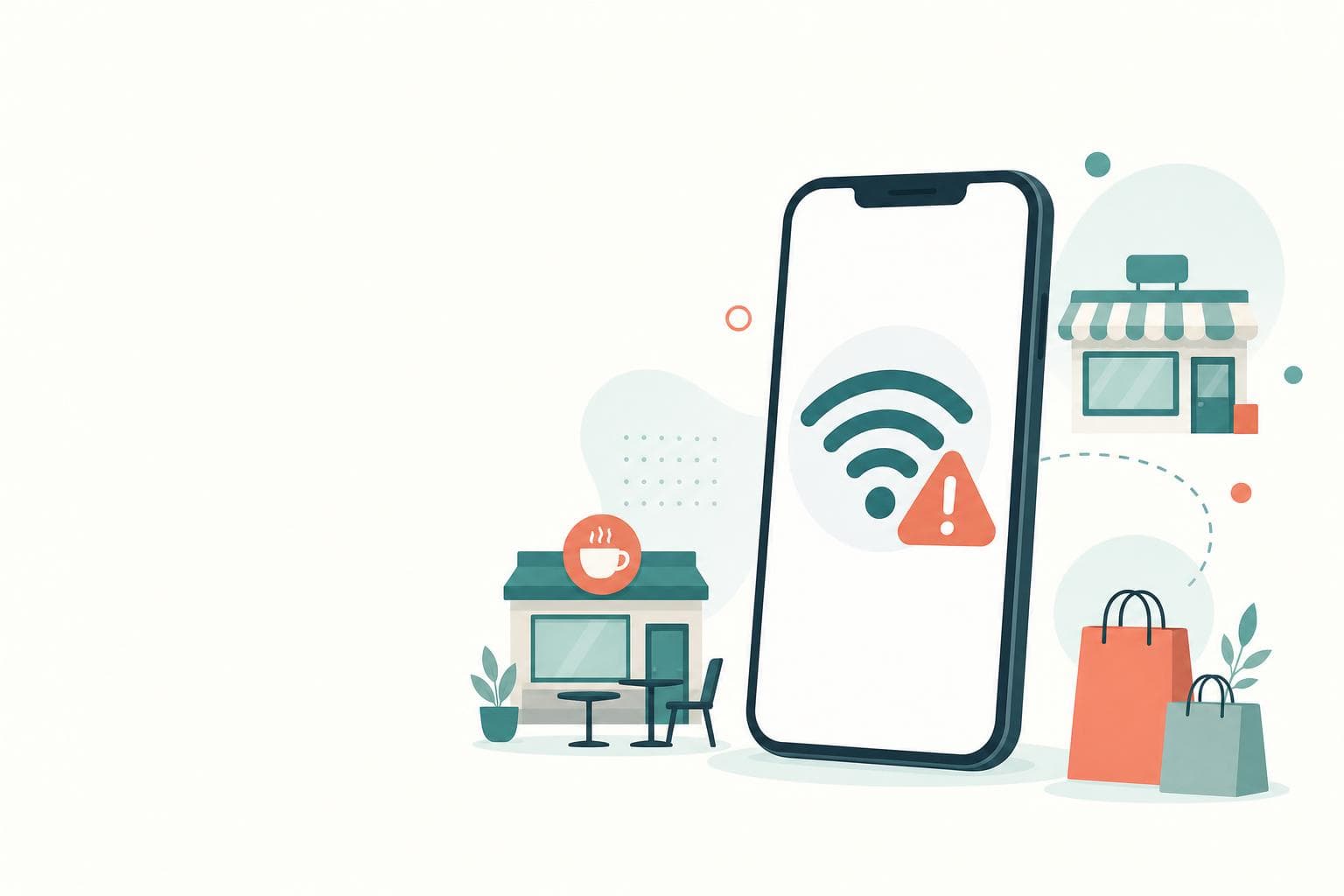
At cafes, hotels, and other public Wi‑Fi spots, you usually need to open a login page in your browser after connecting. Open Safari and visit any website, and you’ll often be redirected to the login screen automatically. If that still doesn’t work, try turning off Private Relay or VPN.
What’s the first thing I should do when I see “No Internet Connection”?
The easiest and most effective first step is to unplug your router for 30 seconds, then plug it back in. That alone fixes a large share of cases. If it still doesn’t work, turn Wi‑Fi off and back on on your iPhone, then reconnect.
Why can’t I use mobile data, 4G, or 5G at the same time?
When your iPhone is connected to Wi‑Fi, it normally prioritizes Wi‑Fi over mobile data. So if the Wi‑Fi network has a problem, go to “Settings” → “Wi‑Fi” and turn Wi‑Fi off. Your iPhone should automatically switch back to mobile data.
Is it safe to change my DNS settings?
Yes, switching to Google Public DNS (8.8.8.8) is safe. It’s a free service from Google, and it can help with speed and stability in some cases. If you want to go back, open “Configure DNS” and switch it back to “Automatic.”
References
- If you can't connect to Wi‑Fi on your iPhone or iPad — Apple Support
- Manage iCloud Private Relay for specific websites, networks, or system settings — Apple Support
- Recommended settings for Wi‑Fi routers and access points — Apple Support
- Why Your iPhone Won’t Connect to Wi‑Fi and How to Fix It — UQ mobile