Have you ever opened a Microsoft Teams channel and wondered, "Where's the latest post?" By default, older posts are at the top and newer posts at the bottom, but depending on the channel, the settings have changed and the newest posts are at the top. Furthermore, in the 2025 UI update, "Chat" and "Channels" were integrated, and there are increasing voices saying that the left sidebar has become cluttered.
In this article, based on the latest Teams as of February 2026, we have summarized how to change the display order of channel posts and how to neatly organize the chat/channel integrated UI using the section function. If you're having trouble viewing Teams, you can fix it in just 5 minutes.
Why you can't tell whether the channel posts are "latest on top" or "latest on bottom"
The display order of Teams channel posts is a setting that individuals can change for each channel. In other words, even if you haven't changed the settings, if someone in another channel has "Show new posts on top" turned on, the display order will be reversed for that channel.
However, to be more precise, this setting applies to your entire account, not per channel (Microsoft Official Support). Once a change is made, it is reflected in all channels, so there are many patterns in which the settings change and become confusing.
The default (initial setting) is "New posts below". Like a bulletin board, posts are arranged in chronological order from top to bottom, with the latest posts displayed at the bottom.
Steps to change the display order of channel posts [Common for PC and Mac]
Switching the display order is very easy. You can change it by following the steps below.
How to display new posts on top
- Open any channel in Teams
- Click “…” (more options) at the top right of the channel screen
- Select Show new posts on top from the menu
The latest posts and threads will now be displayed at the top. Like an email inbox, you can check new information from the top down, so this is recommended for people who don't want to miss the latest posts.
How to undo (new posts below)
- Click “…” at the top right of the channel screen
- Select Show new posts at bottom
This will return to the default "oldest order (oldest on top, newest on bottom)". If you want to read in chronological order like a chat, this will suit you.
Note: Changing this setting will apply to all channels you watch. As of February 2026, it is not possible to set a channel-by-channel setting such as "I want to update only this channel."
Chat and channels are integrated and difficult to see? How to separate
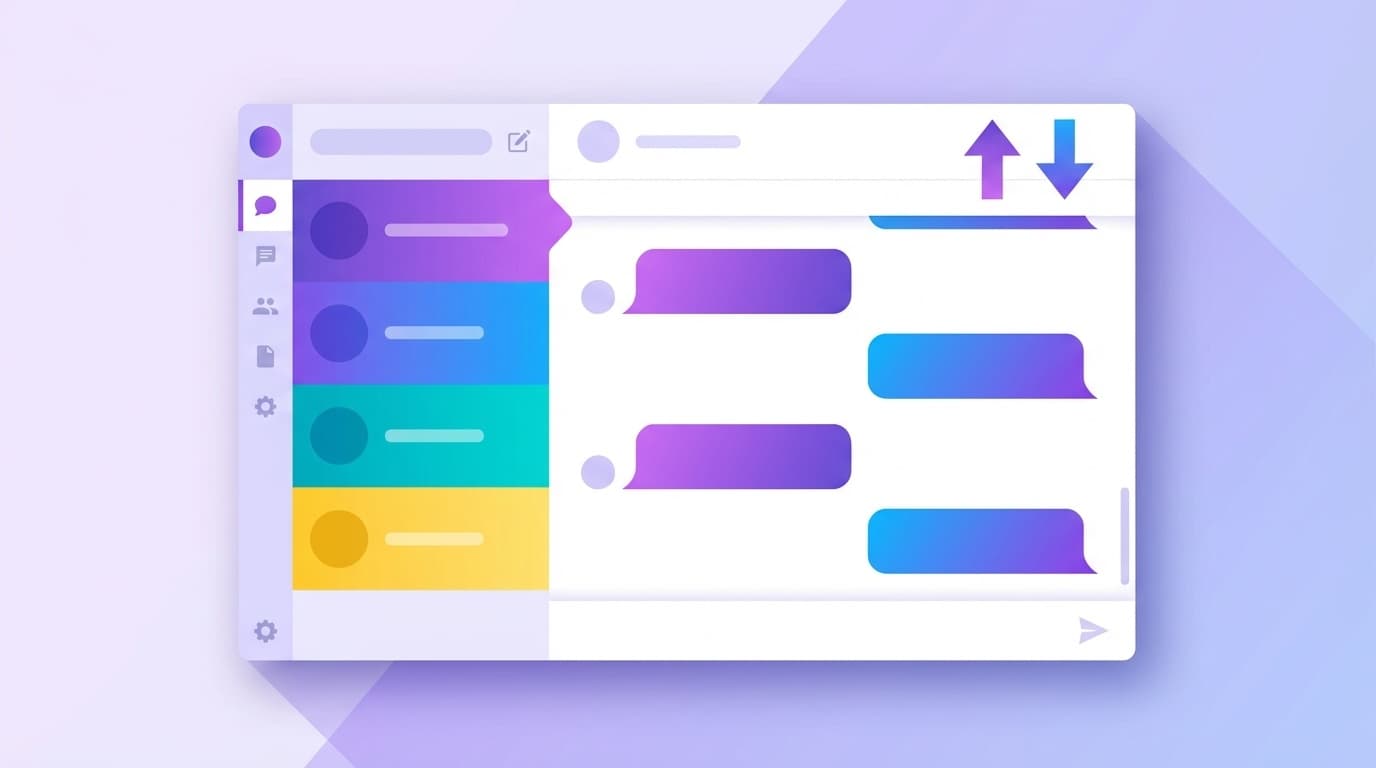
With the 2025 Teams update, Chat and Teams in the left sidebar are combined into one view. Where previously the Chat and Team tabs were separate, they are now all mixed together under Chat.
A lot of people say, "Channel notifications and DMs are mixed and hard to see!" But don't worry. There is a setting to separate back to original.
Steps to separate chat and channels
- Click “…” to the right of “Chat” in the left sidebar
- Select Customize your view
- In the Chats & Channels section of the settings screen, check Show chats, teams, and channels
- Click Separate
Chat and Teams will now appear in the sidebar as separate icons as before (Microsoft Official Guide).
Group chat channels with sections feature
For those who want to use the integrated view but want to organize it a little more, we recommend the "Section" function. Sections is a feature that allows you to divide chats and channels into your own categories. You can easily find the information you need by organizing it by project or team.
How to create a section
- Open the "Chat" screen on the left sidebar
- Choose New Section from the "+" button at the top or the "…" menu
- Enter the section name (e.g. "Project A", "Accounting Team", "Chat", etc.)
- Move chats and channels to the section you created by drag and drop
The nice thing about the sections feature is that you can collect all types of chats, channels, and conference chats into one section. You can use it to say, "Everything related to this project is here."
Please note that sections are personal settings that apply only to your account, so they do not affect other members' screens. Please feel free to try it.
3 tips to avoid getting lost in Teams display
Based on the settings so far, we will introduce three tips for keeping Teams display comfortable.
1. Unify posting order rules as a team
Although the order in which posts are displayed is a personal setting, problems can be reduced if the team agrees that ``we should keep the latest posts at the bottom.'' In particular, when you say ``please see the latest posts,'' the latest posts are displayed at the top of the other person's screen, which prevents misunderstandings.
2. Pin channels you use often
Right-click the channel and Pin it to pin it to the top of the sidebar. If you have 5 or more channels that you check every day, a trick to make them easier to see is to pin only the top 3 channels.
3. Adjust notification settings by channel
If you turn on notifications for all channels, important posts will be buried. We recommend that you go to Channel Notifications from the ``…'' to the right of the channel name and set only important channels to ``All New Posts,'' and set other channels to ``Mentions Only.''
FAQ
Can the display order of Teams channels be changed for each channel?
As of February 2026, it is not possible to set individual display order for each channel. The "Show new posts on top" setting applies to all channels you view at once.
I can't undo the chat and channel integration?
You can return to the original separated display by clicking "..." next to "Chat" → "Customize view" → "Separate". If you can't find the menu, you may have an outdated version of Teams, so please update the app.
Is thesection function visible to other members?
No. The section is completely personal. No matter how you organize your chats and channels on your screen, it won't affect other members' screens in any way. You can freely customize it.
Can I change the display order in the smartphone version (mobile app)?
Yes. You can also change the display order from the channel's "..." menu on the mobile version of Teams. However, the section functions are easier to operate on the desktop version, so we recommend performing the initial settings on a PC.
References
- Choose your channel layout in Microsoft Teams — Microsoft Support
- The new chat and channels experience in Microsoft Teams — Microsoft Support
- Reorder the chat and channels list in Microsoft Teams — Microsoft Support
- New posts on Teams channels can now be displayed at the top — Management Engineering Research Institute, Inc.