``I've never done programming before, but I wonder if I can create an app or web page by myself?'' - This dream-like story is becoming a reality in 2026.
Google's Gemini Canvas is a workspace where you can edit code and text while talking to AI. Just by saying "make an app like this" in Japanese, it will generate a properly working web app. Andyou can also use the free plan.
In this article, we have summarized how to start Gemini Canvas, what you can do, common mistakes and things to be careful of, based on the latest information as of March 2026. If you're thinking, "I want to create an app using AI, but where should I start?", please refer to it.
What is Gemini Canvas? How is it different from normal chat?
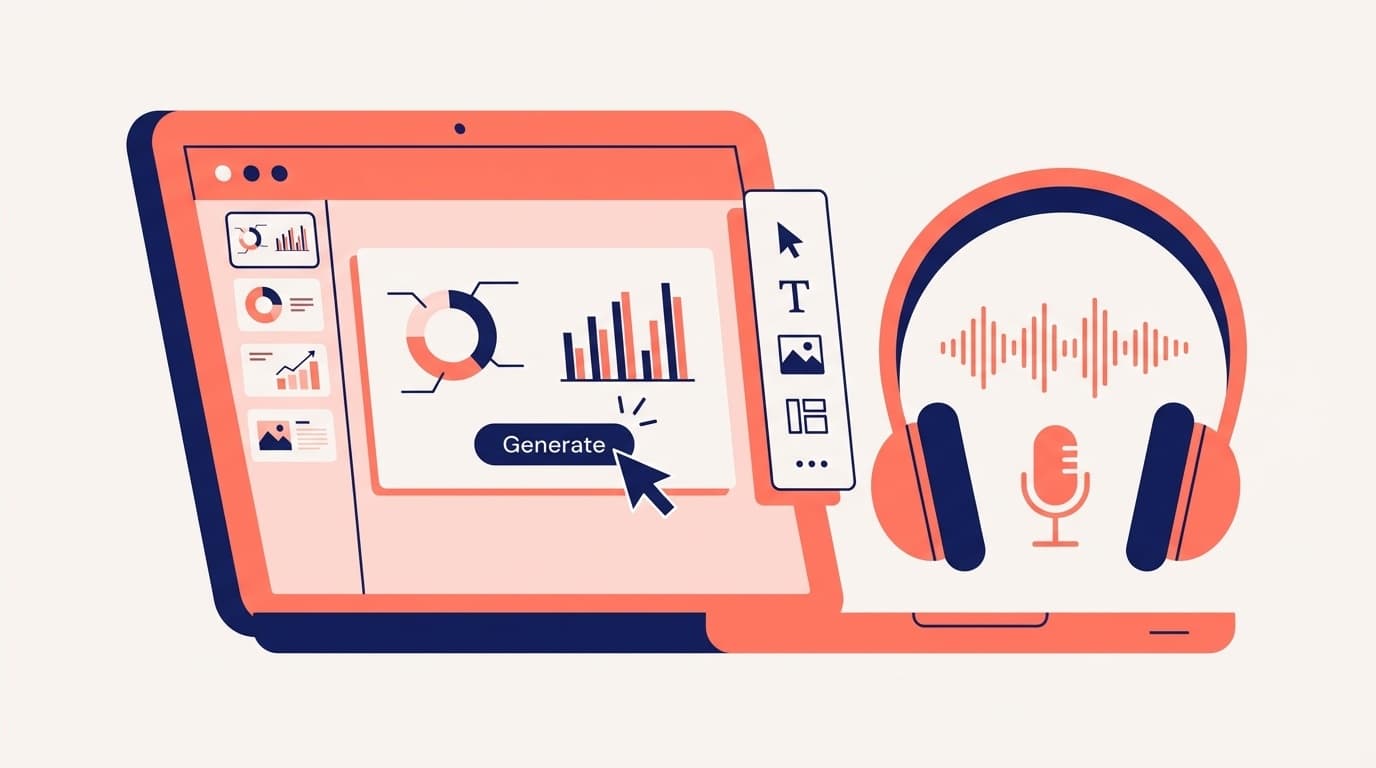
Gemini Canvas is a code/text workspace function built into Google Gemini. On a normal chat screen, the AI's answers flow down the page. Canvas displays a work area on the right side of the screen, where you can edit code and text in real time.
Roughly speaking, there are the following differences.
- Normal chat: Ask AI → Answers flow → Copy and paste to use
- Canvas: Instruct the AI → Code is displayed in the work area → You can edit, preview, and make corrections on the spot
In other words, think of it as a dedicated screen for "creating things together with AI." It can be used not only for writing code, but also for revising texts and creating reports, but this time we will focus on creating apps and web pages.
How to start Gemini Canvas | Get started in 3 steps
No special software installation is required to use Gemini Canvas. If you have a Google account, you can start right away from your browser.
Step 1: Access Gemini
Access Gemini on your computer's browser and log in with your Google account. Although you can view the project using the smartphone app, code editing is limited to a computer browser (as of March 2026), so work on your computer.
Step 2: Turn on Canvas mode
Click the Canvas button below the chat input field to turn it on. It's OK if the button turns blue. The AI's answers will now be displayed in the Canvas (work area) instead of in the chat field.
Step 3: Tell us what you want to make in Japanese
All you have to do is give instructions in Japanese. For example, like this.
- "Create a ToDo app that can manage today's schedule"
- "Create a web page that can calculate BMI"
- "Make a quiz game. The questions should be Japanese geography"
In a few seconds to tens of seconds, a code that combines HTML, CSS, and JavaScript will be generated, and you can check the operation on the spot by pressing the "Preview" button.
How much can you do with the free plan? Differences from paid plans
Many people are surprised, saying, "What, can we use this for free?" However, the Canvas function itself is also available on the free plan (from Google official help, as of March 2026).
However, there are differences in the AI models and processing power that can be used depending on the plan.
- Free Plan: Available based on Gemini 3 Flash. You can easily create simple apps and web pages. However, accuracy may decrease with long codes or complex logic
- Google AI Pro (approximately 2,900 yen per month): Uses Gemini 3 models and supports large-capacity contexts of 1 million tokens. Can handle large-scale projects stably
- Google AI Ultra: Access to the top model. Suitable for developing complex applications and processing large amounts of data
You can try the free plan first, and then consider a paid plan if you are not satisfied with it.
5 common mistakes made with Gemini Canvas and how to avoid them
I see people saying "I tried using it, but it doesn't work..." on SNS such as X. Here are some common points that get you hooked.
Failure 1: When I say "create a multi-page site", only one page appears
Gemini Canvas generates basically one HTML file. Therefore, if you expect separate pages for the ``top page'', ``contact page'', ``company profile'', etc., you will get ``Huh? There's only one page.''
Workaround: Instruct the user to ``make the screen switchable with a button, like a SPA (single page application).'' JavaScript generates code to show and hide sections, so it looks and behaves like a multi-page site.
Failure 2: If the code becomes long, it stops midway or becomes strange
The free plan has a limit on the length of code that can be processed. If you include too many functions, the code will be cut off in the middle, or contradictory code will be output between the first half and the second half.
How to avoid it: Instead of trying to create everything in one instruction, the trick is to issue instructions step-by-step: ``First create only the basic function'' → ``Next, add this function''.
Failure 3: Preview button is not displayed
This is a known bug that has also been reported in Google Community. There may be cases where the sharing settings with Google Documents or browser extensions are interfering.
Workaround: Try in an incognito window, clear your browser's cache, or reopen in a different browser (Chrome recommended).
Failure 4: The generated app cannot be shown to others
An application created with Canvas is just a preview that runs on your browser. As it is, you cannot share the URL and show it to others.
Workaround: Download the code and upload it to a free hosting service such as Netlify or GitHub Pages to get a URL that anyone can access. The procedure is ``just drag and drop the HTML file,'' so even if you have no programming experience, it's okay.
Failure 5: Entering confidential information
This is a case where you inadvertently paste customer information or internal data by saying, ``Create a dashboard with internal sales data.'' The information you enter into Gemini will be processed by Google's servers, so please never enter personal information, API keys, passwords, etc.
Workaround: Check the operation using dummy data for testing, and handle the actual data in the local environment (on your own computer). If you use it at your company, please check the usage policy with your Google Workspace administrator.
Differences between ChatGPT and Claude Artifacts | Which one should I use?
You may be thinking, "Can't something similar be done with ChatGPT or Claude?" Certainly, code can be generated using ChatGPT's "Canvas" function or Claude's "Artifacts" function. A rough comparison looks like this.
- Gemini Canvas: Direct code editing, difference display, and preview execution can be completed on one screen. Also good at linking with Google services (documents, spreadsheets, etc.). Available with free plan
- ChatGPT Canvas: Good at elaborating sentences and highly accurate code generation. However, Gemini has a higher degree of freedom in preview execution
- Claude Artifacts: A preview of the code is displayed, but inline editing (selecting and modifying parts) within Canvas is not possible, and the entire code will be replaced.
In short, If you want to easily create and run a web application, Gemini Canvas is currently the easiest to use. On the other hand, if you want to improve the quality of your writing, ChatGPT is suitable, and if you want to improve your code through long conversations, Claude is suitable.
FAQ
Can Gemini Canvas be used in Japanese?
Yes, you can generate codes and sentences by giving instructions in Japanese. Canvas is available in all languages and countries where the Gemini app is available (as of March 2026).
Can I use Gemini Canvas on my smartphone?
With Gemini's smartphone app, you can view projects created with Canvas, but full-scale work such as direct code editing and previewing is only supported on a computer's web browser (as of March 2026).
How can I publish and share the app I created?
Copy the HTML code from Canvas' View Code, save it as a file, and then upload it to a free hosting service like Netlify or GitHub Pages. With Netlify, just drag and drop a folder to generate a URL.
What happens to the copyright of the code created with Gemini Canvas?
According to Google's Terms of Service, the use of content generated with Gemini is permitted, but if you wish to use it commercially, please check the Google's Terms of Service for Generative AI. The general view is that code generated by AI is not subject to copyright, but the legal interpretation has not yet been determined.
References
- Create documents, apps, and more with Canvas — Google Gemini Help
- Gemini Canvas — Write, code, and create in one place with AI — Google
- Google Search rolls out Gemini's Canvas in AI Mode to all US users — TechCrunch, March 4, 2026
- Vibe coding: From prompt to prototype with Gemini Canvas and Netlify — Beyond the Code