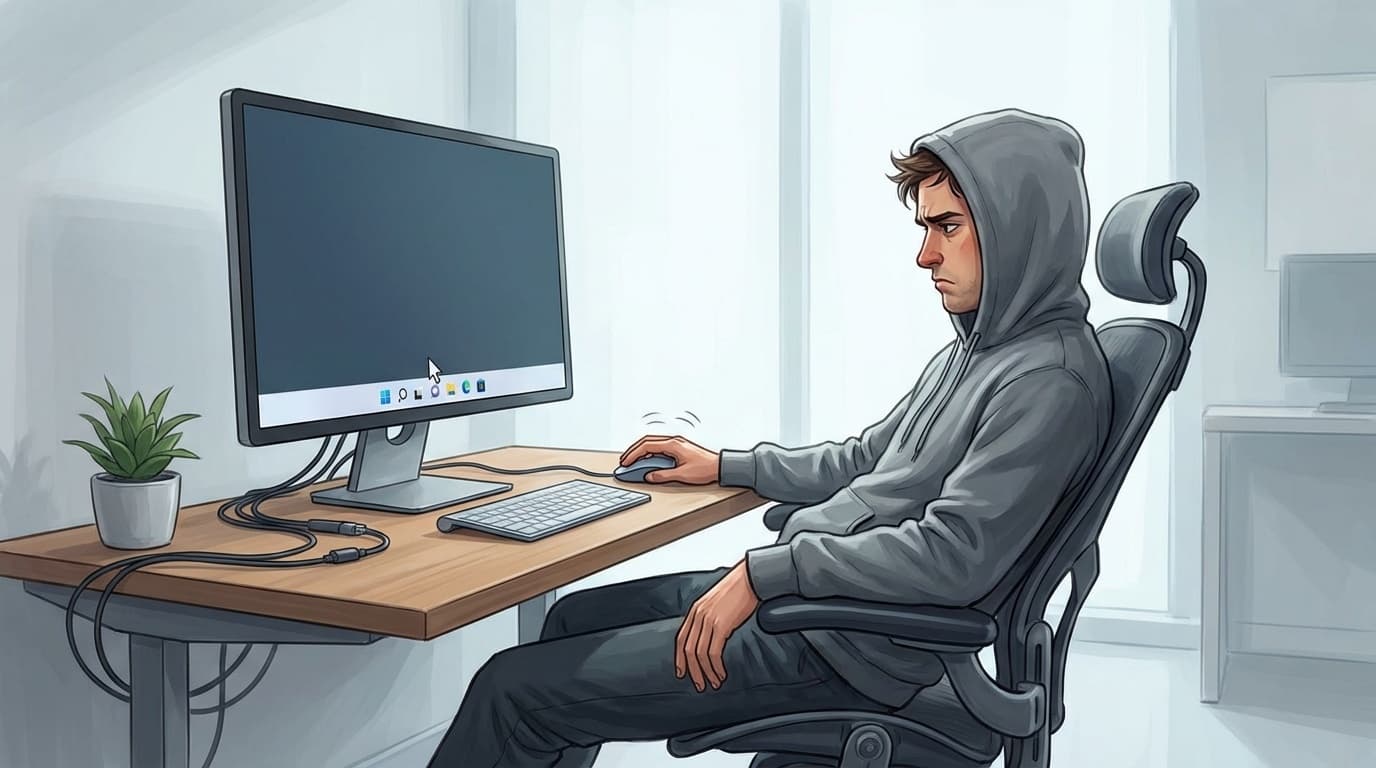
Have you ever had the experience of "I turned on my computer, but even after the desktop appears, it keeps fidgeting and I can't do anything..."? In Windows 11, Startup applications that start automatically at startup greatly affect the startup speed of the PC.
As of February 2026, Windows 11 has delay processing built into the startup timing of startup apps, so more people are finding that their startup is slower than in Windows 10. Microsoft Japan official blog also explains this specification.
In this article, we will provide step-by-step instructions that even computer beginners can understand, including how to find and disable unnecessary startup apps, and even registry settings for advanced users.
What is a startup app? Why is the startup slow?
Startup apps are apps that start automatically when you turn on your computer and sign in to Windows. For example, something like this is often registered with a startup.
- Antivirus software (required, do not disable it!)
- Cloud storage (OneDrive, Dropbox, Google Drive, etc.)
- Chat apps (Teams, Slack, Discord, etc.)
- Game launcher (Steam, Epic Games Launcher, etc.)
- Printer management tools, manufacturer-specific utilities
If these numbers increase to 10 or 20, the CPU and memory will be used up at once when the computer starts up, and even if the desktop is displayed, it will be impossible to operate properly for several minutes.
Furthermore, Windows 11 includes a mechanism that intentionally delays the startup of startup applications in order to distribute the system load. In other words, the more apps you have, the longer the waiting time will be. Many users have also reported this issue on Microsoft Q&A.
[Beginner] How to disable startup from the Settings app
I will introduce the easiest method first. If you are not familiar with computers, please try this first.
Steps
- Right-click the Start button and open Settings
- Click "Apps" from the left menu
- Click Startup
- In the displayed list of apps, turn off the toggle switches for unnecessary ones
A "Impact" is displayed next to each app. The ones marked as "high" have an impact on startup speed, so be sure to check them first.
You may be worried, "Is it okay to disable this?" However, disabling startup will not erase the app itself. You can use it normally if you start it manually. It just won't start up automatically.
Examples of apps that can be disabled
- Game launcher (Steam, Epic Games Launcher)
- Manufacturer's own tools (〇〇 updater, 〇〇 helper, etc.)
- Chat apps you don't use
- Music apps such as iTunes and Spotify
Examples of apps that should not be disabled
- Security software (including Windows Defender)
- Audio driver (such as Realtek Audio Console)
- Touchpad driver (for notebook PC)
- Don't disable something you don't understand; search for the app name and find out before making a decision
[Intermediate] How to check in more detail with the task manager
Some startup apps may not be displayed in the Settings app. In such cases, use Task Manager.
Steps
- Ctrl + Shift + Esc to launch Task Manager
- Click Startup Apps from the icons on the left
- Apps whose “status” is “enabled” are eligible for automatic startup
- Right-click on the app you want to disable → Select "Disable"
Task Manager allows you to check more detailed information than the Settings app.
- “Impact on startup” column — 4 levels: high, medium, low, and unmeasured
- “CPU (at startup)” column — how much CPU was used at startup
- Disk I/O (at startup) column — how much storage was accessed at startup
If there are multiple "high" values, it is likely that this is the cause of the slow startup.
By the way, Microsoft's official support page also recommends startup management from Task Manager.
[Advanced] How to eliminate startup delay with registry settings
From here on, it's for a little more advanced users. Windows 11 has a mechanism that intentionally delays the startup of startup apps, which may cause a ``sluggish feeling'' after logging in.
You can disable this delay by editing the registry.
Caution
Edit the registry at your own risk. If you make a mistake, Windows may not function properly. If you are unsure, just using the settings app or task manager method introduced earlier is sufficient.
Steps
- Press Windows Key + R to open Run
- Type regedit and enter → Registry Editor will start
- Go to the following path:
HKEY_CURRENT_USER\Software\Microsoft\Windows\CurrentVersion\Explorer - Right-click the "Explorer" key → "New" → "Key" and create a key named "Serialize"
- Right-click inside the created "Serialize" key → select "New" → "DWORD (32-bit) value"
- Name it 'StartupDelayInMSec' and set the value data to '0'
- Restart your computer to eliminate startup delays
The effectiveness of this setting has been verified on multiple sites such as Niche PC gamer environment construction Z. However, please be aware that on low-spec PCs, it may become slow immediately after logging in. The reason for including the delay is to "distribute the load immediately after startup."
What if the startup is still slow? 5 points to check
If cleaning up the startup does not improve the problem, there may be another cause.
1. Fast startup is disabled
If the "Fast Startup" feature of Windows 11 is disabled, a full boot (complete startup process) will be performed every time. Go to "Control Panel" → "Power Options" → "Choose what the power buttons do" → make sure "Turn on fast startup" is checked.
2. Using HDD
As of 2026, it is natural for PCs that do not use SSD (Solid State Drive) to boot slowly. Simply replacing the HDD with an SSD will shorten boot time fromseveral minutes to tens of seconds. It's the most effective investment you can make.
3. Windows Update is running in the background
If Windows Update downloads and installations begin immediately after startup, the PC will become extremely slow. Check the update status by going to "Settings" → "Windows Update".
4. Insufficient memory (RAM)
The recommended memory for Windows 11 is 4GB, but for practical purposes, 8GB or more is required. If it is 4GB, your hands will be occupied with the operation of the OS itself, and there will be no room to start applications. Check the memory usage in the Performance tab of Task Manager.
5. Infected with virus/malware
If malicious software is running in the background, startup will be extremely slow. Let's run a full scan with Windows Defender.
FAQ
Will the app disappear if I disable startup?
No, it won't disappear. Even if you disable startup, the app itself remains on your PC. It just won't start automatically, and you can use it normally if you start it manually from the Start menu or desktop.
What if you don't know which apps to disable?
It is best to Google the app name and find out "Can I disable 〇〇 startup?" Generally, there are many cases where there is no problem even if you disable everything other than security software, audio drivers, and touchpad drivers.
How can I undo registry changes?
In Registry Editor, right-click the created "Serialize" key and select "Delete" to restore it. It is even safer to back up the registry before making changes (Registry Editor's File -> Export).
How much faster can startup organization be?
Depending on the environment, disabling 3-5 high-impact apps can reduce startup time by 30-50%. When combined with an SSD, it takes only 20 to 30 seconds from power on to operation.
References
- About the event that the timing of automatic application startup is delayed in Windows 11 — Microsoft Japan Windows Technology Support Blog, November 2025
- Configure Startup Applications in Windows — Microsoft Support
- How to make Windows 11 startup apps start faster — Environment construction Z for niche PC gamers
- How to disable unnecessary startup apps
— dynabook Support - Apps in the startup folder do not start easily in Windows 11 — Microsoft Q&A