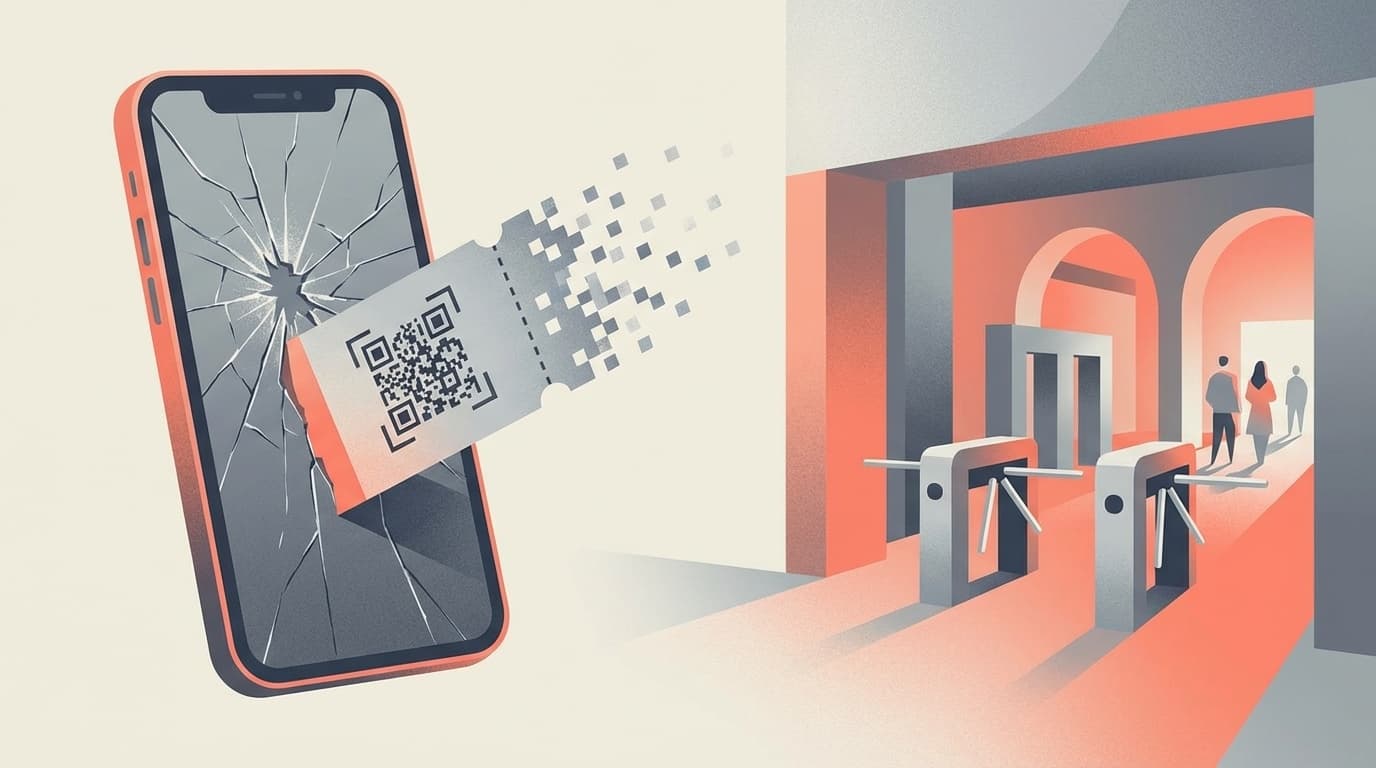
When your smartphone suddenly breaks, gets submerged in water, or gets lost, the problem you face is that you can't receive the SMS authentication (two-factor authentication) code. Bank apps, Google, Apple ID, SNS... Nowadays, most services use SMS authentication, so if you don't have a smartphone, you'll be stuck in hell where you won't be able to log in to anything!
As of February 2026, many heartbreaking voices have been raised on X, such as ``I can't check emails or SMS without my main smartphone, so I can't log in to anything,'' and ``I can't use Smartphone because my smartphone is broken.''
This article provides an easy-to-understand explanation of How to break through SMS authentication when your smartphone becomes unusable and 5 precautionary measures to avoid the same situation.
What is SMS authentication (two-step authentication)?
SMS authentication is a security mechanism that requires you to enter a "confirmation code sent to your phone number" in addition to your password when logging in. Officially, it is a type of Two-Step Authentication (2FA/2SV) that prevents unauthorized logins by using a code that can only be received on the device that the person owns.
Roughly speaking, in addition to the password, you will also be asked for ``proof that you have a smartphone.'' That's why it's safe, but If you can't use your smartphone, you'll be stuck.
As of 2026, almost all major services such as Google, Apple, Amazon, LINE, and bank apps support two-step authentication. According to Google's official help, users who enable two-step verification can significantly reduce the risk of account takeover.
5 things to try when your smartphone is broken or lost
I can't use my smartphone and can't receive the SMS verification code! If you find yourself in this situation, please try from above.
Solution 1: Swap the SIM card to another smartphone
This is the quickest method. If you remove the SIM card from your broken phone and insert it into a family member's or friend's phone, or even an old phone, you can receive SMS on that device.
In the case of an eSIM, it cannot be physically replaced, so you will need to have the carrier shop reissue the eSIM for a new device. Steps are provided on the Docomo support page.
Solution 2: Use a backup code
Many services such as Google and Apple allow you to issue a "backup code (recovery code)" when setting up two-step verification. This is a set of 8 to 10 10-digit codes, and is an "emergency key" that can be used to log in instead of SMS authentication.
According to Google's official help, each code can only be used once and 10 backup codes will be issued. For peace of mind, print it out on paper or save it in a password management app.
However, it cannot be used unless it is issued and stored in advance. If you haven't published it yet, do it now after reading this article (see below).
Solution 3: Operate from another authenticated device
You're lucky if you have another device, such as a PC or tablet, that you've already logged in to. If you have a Google account, you may be able to authenticate with a login permission prompt that arrives on another device.
In the case of an Apple ID, if there is a device such as an iPad or Mac that is signed in with the same Apple ID, a verification code will be displayed on that device (see Apple Official Support).
Solution 4: Recover your phone number at a carrier shop
If you lose your smartphone, you can take your identification documents to a carrier shop (Docomo, au, Softbank, Rakuten Mobile, etc.) and have your phone number transferred to a new SIM card.
SoftBank FAQ provides instructions on what to do at a store if you are unable to receive SMS due to malfunction or loss. Please remember to bring your identification documents (driver's license, My Number card, etc.) as they are required.
Solution 5: Use the service's account recovery form
If all the above methods fail, as a last resort, perform the service account recovery procedure.
- Google: Answer the verification questions from the account recovery page. If you have registered a recovery email address, you will receive the code there
- Apple: Requested from Account Recovery Page. Recovery may take 3-5 business days
- LINE: Send identity verification information from the LINE inquiry form (however, chat history may not be recoverable)
Please note that Account recovery often takes time. In some cases, Google takes a few days, and Apple takes up to several weeks. If you are in a hurry, prioritize solutions 1 to 4.
Never get stuck again! 5 things to prepare in advance
The scary thing about SMS authentication is that it's too late once it's broken. 5 precautions you can take now to prepare yourself for the next time your smartphone becomes unusable.
Preparation 1: Issue a backup code and print it on paper
This is what you should do with top priority. For Google accounts, you can issue a "backup code" from Google's two-step verification settings page. Once issued, print it out on paper and store it in your wallet or safe. It is no good to save only to the memo app on your smartphone (because you won't be able to view it if your smartphone breaks).
Preparation 2: Register email address and phone number for recovery
Both Google and Apple allow you to set a "recovery email address" and "recovery phone number". Even if you can no longer use your smartphone, you can register an email address (separate from Gmail) that you can access from your PC and send the authentication code there.
For Google, you can set it from "Security settings" → "How to access your account."
Preparation 3: Set passkey
Passkey is a new authentication method that will rapidly become popular from 2025 to 2026. You can log in using fingerprint authentication or face authentication, eliminating the need for SMS authentication.
According to Google's official help, using a passkey bypasses the second step of two-step verification. In other words, if you set it up on a PC or tablet that supports passkeys, you can log in even without a smartphone.
As of February 2026, major services such as Google, Apple, Microsoft, Amazon, and Yahoo! JAPAN support passkeys. There is no harm in setting it up.
Preparation 4: Have authentication apps on multiple devices
If you are using an authentication app such as Google Authenticator, it is safe to install it not only on your smartphone but also on your tablet. Starting in 2023, Google Authenticator supports cloud syncing, so you can check your code on another device by logging into your Google account.
Preparation 5: Register multiple trusted devices
For both Google and Apple IDs, you can register multiple "trusted devices". If you trust not only your smartphone but also your PC or tablet, you can operate from there in case of an emergency. If you use an Apple ID, just sign in on your iPad or Mac and it becomes a trusted device.
By service: List of contacts when SMS authentication does not arrive
We have compiled contact information for major services so you know who to contact in an emergency (as of February 2026).
| Service | Response method | Estimated recovery time |
|---|---|---|
| Google account | Account recoveryProcedure | A few hours to 5 business days |
| Apple ID | Request from iforgot.apple.com | Days to weeks |
| LINE | In-app "problem report form" or email inquiry | A few days |
| Amazon | Call customer service | Same day to a few days |
| Bank app | Counter or call center of each bank | Same day to several days |
| X (Twitter) | Request account recovery from Help Center | A few days to a few weeks |
What all services have in common is that it takes time to verify your identity. That's why the precautions in the previous chapter are so important.
FAQ
Will I receive SMS if I change my SIM card to another smartphone?
Yes, if you have a physical SIM, you can receive SMS by simply replacing it with another SIM fleece smartphone. If it is an eSIM, it will need to be reissued at a carrier shop.
How many times can I use the backup code?
In the case of Google, 10 codes are issued, each of which can be used once. Once you have used all of them, you can issue a new code. Please note that used codes will be invalidated.
If I set a passkey, will SMS authentication be completely unnecessary?
For Google Accounts, using a passkey bypasses the second step of SMS authentication. However, not all services support passkeys, so it's best to use SMS authentication and also keep a backup code.
How long will it take to recover my account?
Depending on the service, Google's delivery time is a few hours to 5 business days, and Apple's delivery time is a few days to a few weeks. If you register your recovery email address and phone number in advance, the process can be significantly shortened.
References
- Solve common issues with 2-Step Verification — Google Account Help
- Sign in with a backup code — Google Account Help
- Log in with a passkey instead of a password — Google Account Help
- How to use account recovery when you can't reset your Apple Account password — Apple Support
- Get a verification code and sign in with two-factor authentication — Apple Support
- I cannot receive the security number because I cannot receive SMS due to malfunction or loss — SoftBank FAQ
- Please read this in case of trouble such as loss or malfunction — NTT Docomo