Have you ever experienced something like, "My smartphone won't charge even though I plugged in the charging cable..." or "It doesn't respond unless I change the grip angle..."?
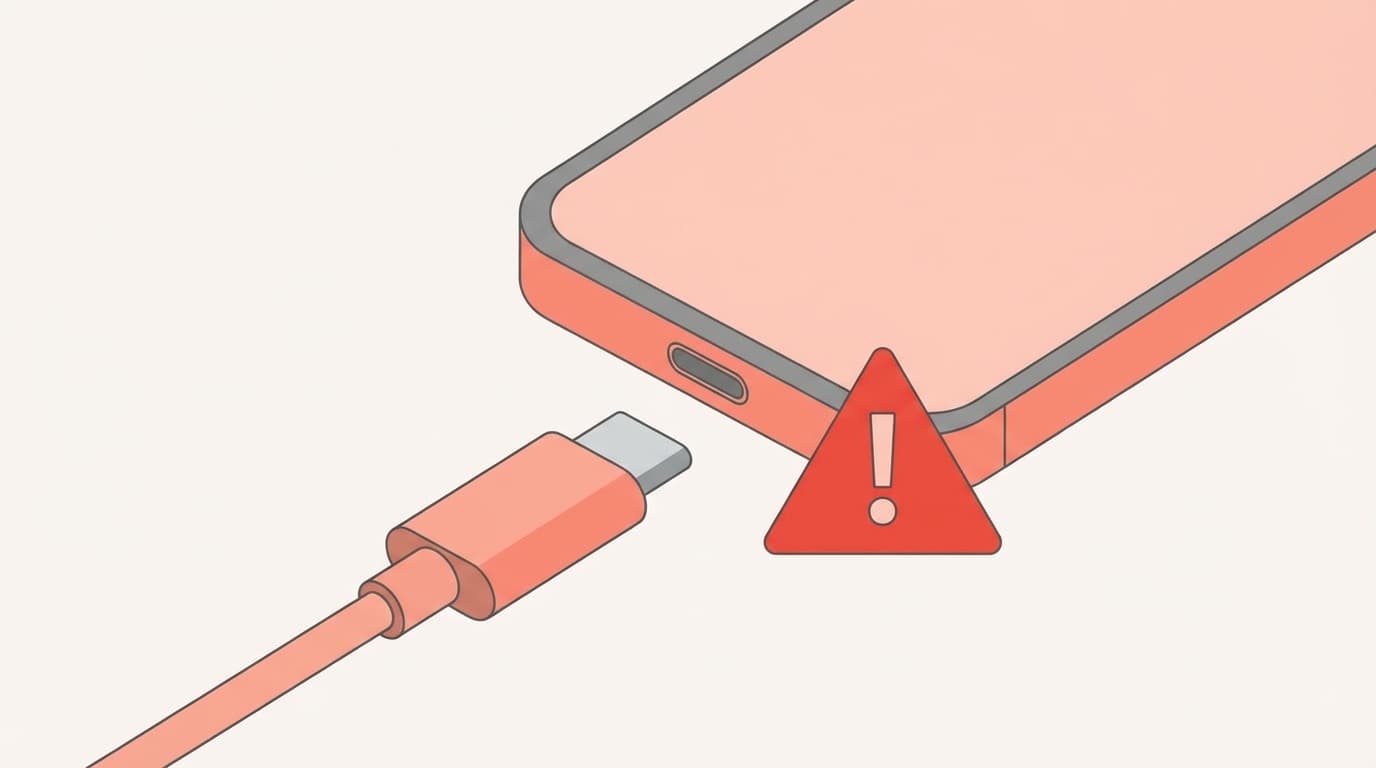
Anyone can experience problems with their smartphone's charging port (USB terminal/Lightning terminal) as they continue to use it. As of February 2026, even with iPhone 15 and later models that have been standardized on USB-C, there are an increasing number of inquiries about poor terminal connections and malfunctions.
Even if you think it's broken, there are many cases where you can fix it just by cleaning it. In this article, we will introduce 6 reasons why your battery won't charge and some solutions you can try on your own before sending it in for repair.
Is your charging port broken? Three things to check first
Before assuming that the charging port is broken, first check the following three things. Surprisingly, the cause is often caused by something other than the terminal.
1. Try a different charging cable
It's common for the cable itself to be disconnected. The base part is especially prone to bending, and even if the inner line is broken, it may not be obvious from the outside. If you can charge it by changing to another cable, the problem is with the cable, not the terminal.
2. Try a different charging adapter (power supply)
The charger (AC adapter) may be malfunctioning. Try connecting it to your computer's USB port or another adapter.
3. Restart your smartphone
There may be a software issue that prevents the charging from being recognized. First of all, you may be able to recover by simply turning off the power and then on again, so please try that.
6 reasons for not being able to charge or poor connection
There are no problems with the cable or adapter, but I can't charge it... There are six possible reasons for this:
Cause 1: The charging port is clogged with dust and dirt
Actually, this is the most common cause. When you carry your smartphone around in your pocket or bag, lint and dust accumulate in the small hole in the charging port.
If dirt is pushed deep into the cable, the cable terminal will not be able to go all the way in, causing poor contact. There may be dirt stuck deep inside that you can't see by looking at it, so try illuminating it with a light and taking a peek.
Cause 2: The metal pin of the terminal is bent or broken
In the case of USB-C, a small metal plate (terminal) protrudes from the side of the smartphone body. If you insert the cable at an angle or apply force while it is inserted, this terminal may bend or break. iPhone University article also points out that the USB-C terminal is structurally at risk of such damage.
Cause 3: Corrosion due to water/humidity
Even with waterproof smartphones, the charging port terminals are metal and will corrode. If you repeatedly use the device in the bathroom or put it in your pocket while sweating, white powder (white rust) or green discoloration (patina) may appear on the terminals.
For iPhones, you may see the following messages: "Liquid has been detected in the Lightning connector" and "Cannot charge." In this case, avoid charging until the terminals are completely dry. Apple's official support page also advises to dry the terminal and then connect it again.
Cause 4: Terminal wear due to use with the cable plugged in
Using your smartphone while charging is not a problem, but if you use it while lying down or at an angle with the cable plugged in, repeated force will be applied to the connection part. This may cause the solder inside the terminal to crack or the contacts on the board to peel off.
Cause 5: Damage caused by non-genuine cable
Some extremely cheap non-genuine cables have terminal dimensions that are slightly off. If you continue to use such cables, the terminals on the smartphone side will expand, causing the original cable to become loose. In particular, the Lightning terminal has a hook structure, so differences in dimensions can easily lead to poor contact.
Cause 6: Internal board damage due to drop or impact
When you drop your smartphone, even if the screen does not break, the internal circuit board may be damaged. If the part that connects the charging port to the board is damaged, charging will no longer be possible even though the terminal itself is intact. In this case, it is difficult to repair it yourself and you will need to consult a specialist shop.
4 ways to deal with it yourself
Now that you know the cause, we will introduce some workarounds that you should try before sending it in for repair. In particular, cause 1, dust clogs, can often be resolved by yourself, so please try this first.
Countermeasure 1: Blow away the dust with air duster
This is the easiest and safest method. Use an air duster (compressed air spray can) sold at electronics stores or 100 yen stores to spray a puff of air into the charging port.
Easy to do:
- Turn off your smartphone
- Turn the charging port downward (to make it easier for dirt to fall off)
- Hold the air duster 2-3cm apart and push it several times
Caution:Hold the can straight as liquid may come out if you tilt it too far.
Countermeasure 2: Scrape out the trash with a toothpick
Toothpicks are effective for stubborn dirt that cannot be removed with air duster. Wooden toothpicks are relatively safe as they won't damage metal terminals.
- Turn off your smartphone
- Illuminate the inside of the charging port with a light (a light from another smartphone is OK)
- Gently scrape out any debris that has accumulated around the terminal with the tip of a toothpick
Caution:Avoid metal pins or clips as they can damage the terminals. Smartphone Repair King However, thin baby cotton swabs are also recommended for cleaning. Work gently and don't use too much force.
Countermeasure 3: First aid with wireless charging
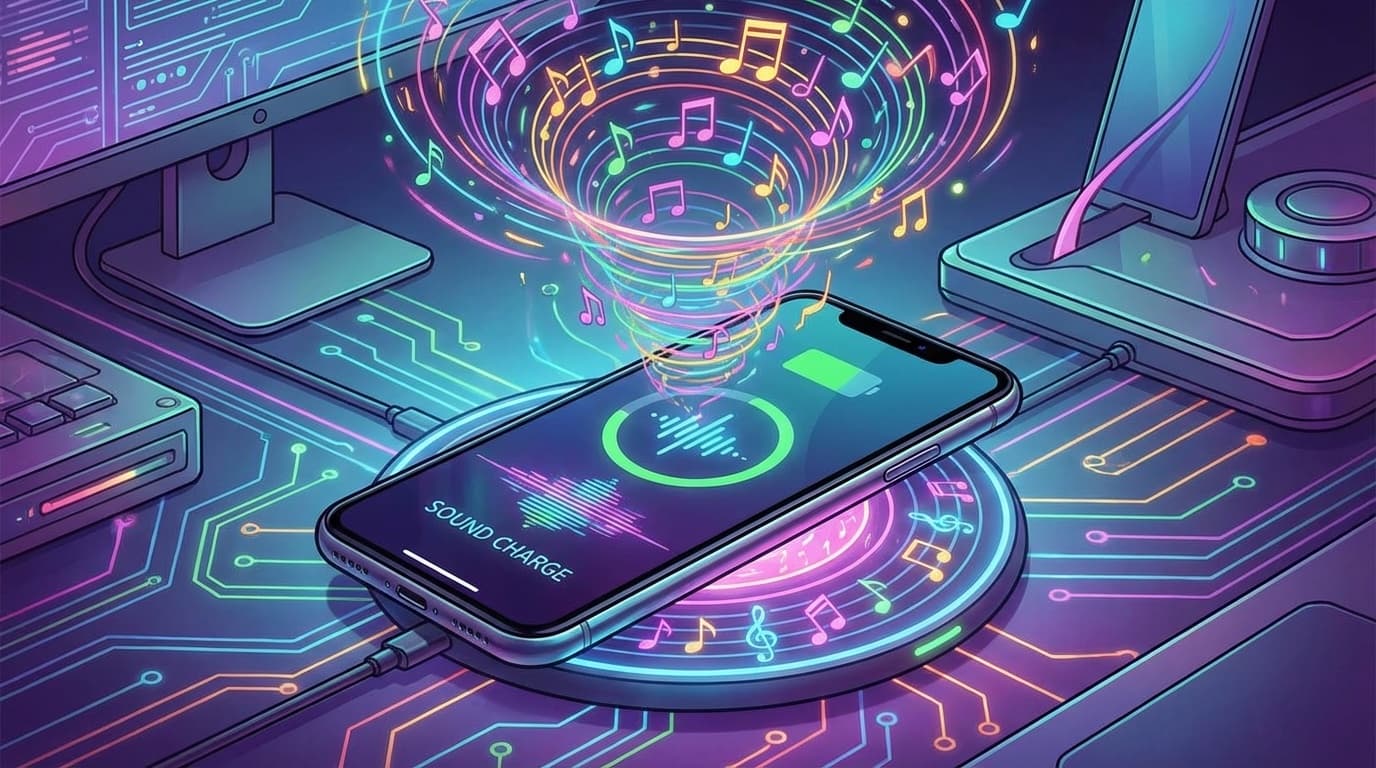
Even if the charging port becomes completely unusable, Qi-compatible smartphones can be charged wirelessly. Starting with iPhone 8, many Android smartphones support Qi standard wireless charging.
Wireless chargers can be purchased for around 2,000 to 3,000 yen, and can be charged just by placing them on the device, so they can be used as an emergency measure until you send them in for repair. To find out whether your smartphone supports wireless charging, check the manufacturer's specifications page for "Qi" or "wireless charging."
Even if your smartphone does not support wireless charging, you may be able to do so by attaching a Qi receiver (around 1,000 yen). However, the charging speed will be slower.
Solution 4: Completely dry the moisture in the charging port
If you suspect that the item may have gotten wet, use the following method to dry it.
- Unplug the charging cable
- With the charging port of your smartphone facing down, tap it lightly with your palm to release water droplets
- Let dry naturally for several hours to half a day in a well-ventilated place
Do not: Apply hot air directly from a hair dryer, insert a cotton swab or tissue into the terminal, or put it in rice (there is a risk of rice grains clogging it). Even Apple's official support does not recommend these methods.
Cost and options when sending for repair
If you cannot fix the problem yourself, you will have to send it in for repair. We have summarized the estimated repair costs for 2025-2026.
For iPhone
| Repair destination | Estimated cost | Characteristics |
|---|---|---|
| Apple official (with AppleCare+) | 0-12,900 yen (tax included) | Data may be erased |
| Apple official (no AppleCare+) | Approx. 50,000 to 100,000 yen | Main unit often replaced |
| Unofficial registered repair company | Approx. 5,000 to 15,000 yen | Only the terminal is replaced, data is unchanged |
Apple official repairs cannot repair just the charging port, and in many cases the device must be replaced (express replacement service), so If you do not have AppleCare+, it tends to be expensive. Kitamura Camera Explanation Article also provides a detailed comparison of official repair costs and non-official repairs.
For Android
| Repair destination | Estimated cost | Characteristics |
|---|---|---|
| Manufacturer repair (within the warranty period) | Free ~ several thousand yen | Free of charge in case of initial defects |
| Manufacturer repair (outside of warranty period) | Approx. 10,000 to 30,000 yen | Depends on model |
| Carrier compensation service | Approximately 5,000 to 12,000 yen | Mainly exchange support |
| Smartphone repair shops in town | Approximately 4,000 to 10,000 yen | Some shops offer same-day repairs |
According to Android Gate, charging terminal repairs for Android devices range from a few thousand yen to around 10,000 yen, and if the damage is severe, changing the model is also an option.
What to do before repair
Be sure to back up your data before sending it in for repair. In particular, data will be erased if the device is replaced with an Apple official repair.
- iPhone:iCloud Backup (Settings → Apple ID → iCloud → iCloud Backup)
- Android:Google Backup (Settings → System → Backup)
If the charging port is broken and you cannot connect it to your PC, cloud backup via Wi-Fi is your best option. Do it as soon as possible while the battery is still available.
5 preventive measures to extend the life of your charging port
Since repair costs are not cheap, it is important to use the terminals with care on a regular basis. Please keep the following five things in mind.
- Insert and remove cables straight — Do not insert them at an angle, or leave them inserted at an angle
- Use reliable cables — Choose cables that are Apple certified (MFi) or USB-IF certified
- Reduce use while charging — In particular, do not use while lying down
- Clean the charging port regularly — Just wipe it with compressed air once a month
- Use a dustproof cap — A charging port lid sold at 100 yen stores. Prevents dust from entering
FAQ
Is it okay to use anhydrous ethanol to clean the charging port?
You can use it, but you need to be careful. It's OK to wipe the terminal with a small amount on a cotton swab, but there is a risk of liquid getting inside, so we recommend cleaning with air duster or a dry toothpick.
Is there a way to retrieve data from a smartphone with a broken charging port?
It is most reliable to secure the battery with wireless charging and then save data to cloud backup (iCloud/Google Drive) via Wi-Fi. For Android, you may be able to transfer data to a USB memory via an OTG adapter.
Is it okay to continue using it only with wireless charging?
There is no problem with charging itself, but the disadvantage is that you cannot connect by wire to a PC or connect the earphones via USB. Also, the charging speed is often slower than wired. Although this is sufficient as an emergency measure, we recommend that you repair it as soon as possible.
Is charging port repair free if I have AppleCare+?
If it is a natural failure (malfunction during normal use), it may be free of charge within the warranty. However, if the cause is physical damage or water exposure, it will be treated as "damage due to negligence" and you will be responsible for 12,900 yen (tax included) (as of 2025).
References
- If your iPhone or iPod touch won't charge — Apple Support
- How to safely clean the terminals of your smartphone? Effective cleaning method when charging is not possible due to poor contact — Smartphone repair king
- Is it because of a poor connection that you can't charge your smartphone? Introducing causes and remedies — Smartphone Station
- Is the connector the reason why iPhone cannot be charged? Explanation of solutions, repair locations and costs — Camera Kitamura
- The charging terminal of your Android smartphone is broken! What is the estimated repair cost? — Android Gate
- What causes the charging port of your smartphone/iPhone to break and what should you do after it breaks? — Smartphone Spital