“Wait, it's plugged in but the battery isn't going up...” “I connected the cable and nothing happened!” Sound familiar?
Phone charging problems can be frustrating, but the right fix depends on whether the issue is with the cable, charger, or phone itself. Before you start replacing things at random, it's worth narrowing down the cause.
Based on the latest information as of March 2026, this guide explains 7 common reasons your iPhone or Android phone won't charge or charges slowly, plus simple fixes you can try right now.
Start Here: 3 Quick Checks to Find the Cause
If your phone suddenly won't charge, don't rush straight to a repair shop. Start with these three quick checks to narrow things down.
Step 1: Try charging with a different cable
This alone fixes the problem surprisingly often. Borrow a cable from a family member or friend and test it.
Step 2: Try a different charger or wall adapter
If changing the cable doesn't help, the charger itself may be the problem.
Step 3: Restart your phone, then try charging again
If both the cable and charger seem fine, the phone's software may be acting up.
If those three steps don't solve it, work through the causes below one by one.
Cause 1: The Charging Cable Is Damaged or Worn Out
The most common cause of charging trouble is a bad cable.
Daily plugging and unplugging slowly wears down the tiny copper wires inside the cable. Then one day, it suddenly stops charging. Be especially careful with cables that are bent or kinked near the connector. Even if the outside looks fine, the wire inside may be broken.
What to do:
- If your phone charges with a different cable, you've found the problem
- For iPhone, choose a cable with MFi certification (Made for iPhone). According to Apple's official support page, uncertified cables may trigger a message saying the accessory may not be supported
- Some USB-C cables are for data transfer only, while others support charging. Check the wattage listed on the package
Cause 2: The Charger Doesn't Provide Enough Power or Is Failing
Even with a good cable, your phone may charge slowly or barely gain battery if the charger doesn't provide enough power.
For example, if you charge an iPhone 15 or newer USB-C model with an old 5W charger, it can take more than three hours to reach full charge. Very cheap chargers also tend to have low output, so they may work but charge extremely slowly.
What to do:
- Check the charger's wattage or output rating, such as “5V/2A” or “20W,” printed on the adapter
- If you want fast charging, check which standard your phone supports. For iPhone, use a USB PD (Power Delivery) charger rated 20W or higher. For Android, choose one that matches your model's fast-charging standard, such as USB PD or Quick Charge
- As Anker's official blog explains, fast charging only works when both the cable and charger support it
Cause 3: Dust or Debris Is Stuck in the Charging Port
One easy-to-miss cause is dust, lint, or debris packed into the phone's charging port. Tiny fibers from pockets and bags can build up inside and prevent the connector from making proper contact.
Google's official help page also recommends checking and cleaning the charging port when an Android device won't charge.
What to do:
- Shine a flashlight or another phone's light into the charging port and look inside
- If you see debris, turn the phone off first, then gently remove it with a toothpick or the tip of a SIM eject tool
- Compressed air can also help. Just be careful not to tilt the can, since some products may spray liquid when angled
- Don't use metal pins or needles. They can short the contacts and damage the phone
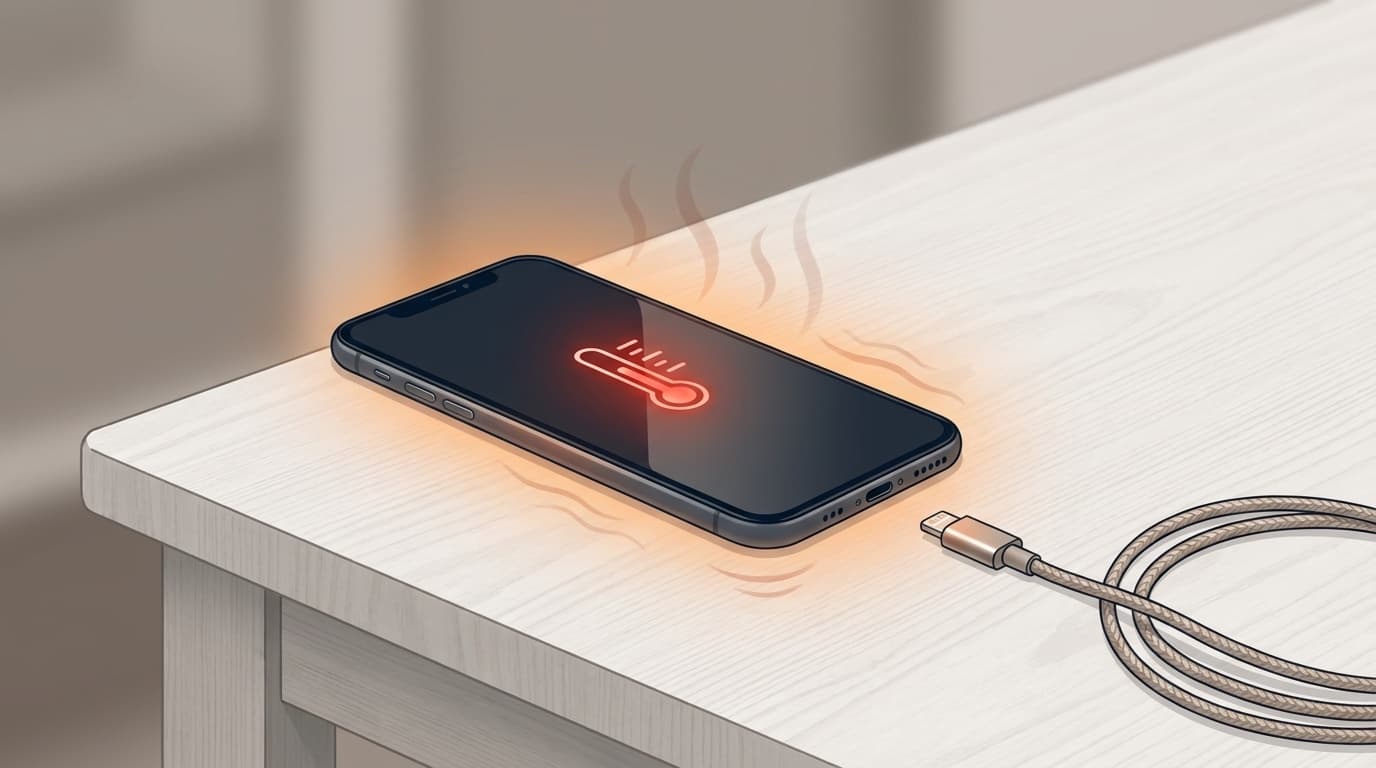
Cause 4: Your Phone Is Too Hot and Has Stopped Charging
Phones have built-in safety features that automatically stop charging when the device gets too hot. This is normal behavior designed to prevent battery damage, overheating, or fire risk.
This often happens in a hot car during summer, or when you're gaming while charging with a case on. According to Samsung's official guidance, phones are designed to stop charging automatically if the temperature gets too high.
What to do:
- Remove the case and place the phone somewhere cool, such as near an air-conditioned area
- Stop using the phone until it cools down. Avoid watching videos or playing games while charging
- Never cool it in a refrigerator or with an ice pack. A sudden temperature change can cause condensation inside the phone and lead to damage
Cause 5: The Battery Is Worn Out
Phone batteries are consumable parts. In general, after about 500 full charge cycles (the equivalent of charging from 0% to 100% 500 times), a battery's maximum capacity may drop to around 80%.
If you charge your phone every day, the battery may start noticeably aging after about 18 months to two years. If your phone drains quickly after charging or takes an unusually long time to charge, battery wear could be the reason.
How to check battery health:
- iPhone: Go to Settings > Battery > Battery Health & Charging and check Maximum Capacity. If it's below 80%, it's probably time to replace the battery
- Android: Go to Settings > Battery > Battery health, though the exact menu varies by model. On Galaxy phones, you can check under Device care > Battery
What to do:
- If the battery health is below 80%, ask the manufacturer or your carrier about battery replacement
- As of March 2026, Apple Store battery replacement for the iPhone 15 series starts at around ¥15,800, depending on the model
- Until you replace it, use Low Power Mode or battery saver mode to reduce power drain
Cause 6: A Software Glitch or OS Bug
Sometimes, charging issues appear after an iOS or Android update. If the charging icon appears but the percentage doesn't rise, or charging suddenly becomes much slower, software may be involved.
What to do:
- First, restart your phone. This fixes more charging issues than you'd expect
- Update the OS to the latest version
- On iPhone: Settings > General > Software Update
- On Android: Settings > System > Software update
- If that doesn't help, try booting into Safe Mode (Android only). If charging works in Safe Mode, an installed app may be causing the problem
Cause 7: Liquid Detection or Water Exposure Is Blocking Charging
On iPhone, if moisture is detected in the charging port, you may see an alert such as “Charging Not Available — Liquid has been detected in the Lightning (or USB-C) connector,” and charging will be blocked.
According to Apple's official support page, if this warning appears, you should gently tap the phone with the connector facing down, then leave it in a dry, well-ventilated place for at least 30 minutes.
What to do:
- Hold the charging port facing down and gently tap the phone against your hand to help remove moisture
- Leave it in a well-ventilated place to dry for at least 30 minutes to several hours
- Don't use a hair dryer. Hot air can damage internal components
- Don't put it in rice. Rice grains can get stuck in the charging port, and Apple does not recommend this method
- If you absolutely need to charge right away, wireless charging such as Qi or MagSafe may be an option
Still Not Fixed? Check These Before Sending It for Repair
If you've tried everything above and your phone still won't charge, the charging port may be physically damaged, or the battery may be severely worn out. Before sending it in for repair, check the following.
- Warranty coverage: Check whether the phone is still under the manufacturer's warranty, usually one year, or covered by your carrier's protection plan. If it is, repair may be free
- Data backup: Repairs may require the phone to be reset, so back up your data to iCloud, Google Drive, or another backup service first
- Risks of unauthorized repair shops: Local repair shops can be cheaper and faster, but using one may void the manufacturer's warranty. For iPhone repairs in particular, an Apple Authorized Service Provider is usually the safer choice
FAQ
Why doesn't the charging icon appear when I plug in the cable?
In most cases, the cause is a damaged cable, debris in the charging port, or a faulty charger. Try a different cable and charger combination first. If that doesn't work, clean the port carefully.
Is it bad for the battery to use my phone while charging?
Using your phone while it charges can make it heat up, which can speed up battery wear. It's especially better to avoid heavy tasks like gaming or watching videos while charging.
Does fast charging damage the battery?
As long as you're using a fast-charging standard officially supported by your phone maker, the impact on the battery is designed to be minimal. However, using an incompatible fast charger can cause extra heat and battery wear.
Is it bad to leave my phone plugged in at 100%?
Modern phones have optimized charging features that help protect the battery, such as slowing charging around 80%. Still, leaving your phone sitting at 100% for hours every night can shorten battery life, so stopping around 80% to 90% is ideal when practical.
Why does my phone charge slowly with a power bank?
If the power bank has low output, such as 5V/1A, charging will take longer than with a wall charger. For faster charging, choose a USB PD power bank that outputs at least 18W.
References
- If your iPhone won't charge — Apple Support
- Fix an Android device that won't charge or turn on — Google Help
- Why your smartphone won't charge and what to do — Samsung Japan Official
- If you see a liquid-detection alert on your iPhone — Apple Support
- Why won't my phone charge? 5 causes and fixes — Android.com