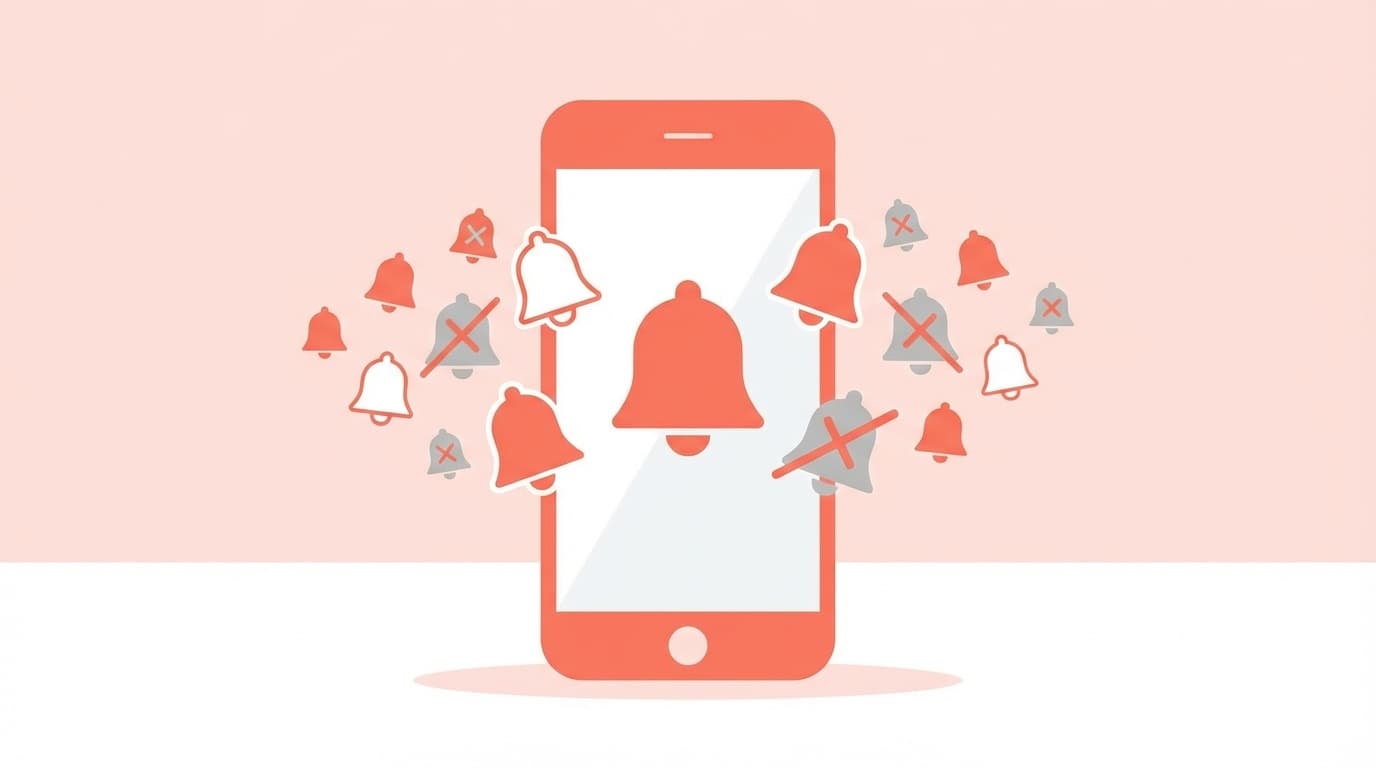
You missed a LINE message, Gmail notifications never showed up, or social media likes arrived hours late. Phone notification problems may seem small, but they can seriously disrupt daily life.
In this article, based on the latest information as of March 2026, we'll cover six common reasons notifications don't arrive or show up late on iPhone and Android, along with exactly where to look in your settings. Whether one specific app is affected or every notification has stopped, you can work through this checklist from top to bottom.
Cause 1: Notifications Are Turned Off for That App
This is the most common cause. If notifications are disabled for an app, you obviously won't receive them. Even if you don't remember turning them off, they can sometimes be reset after an app update or reinstall.
How to Check on iPhone
Go to “Settings” → “Notifications” → select the app → make sure “Allow Notifications” is turned on. Also check that “Lock Screen,” “Notification Center,” and “Banners” are all enabled.
How to Check on Android
Go to “Settings” → “Apps & notifications” (or “Apps”) → select the app → “Notifications,” then confirm notifications are turned on. Starting with Android 13, apps ask for notification permission when installed, so it's also common to accidentally tap “Don't allow”.
Cause 2: Focus Mode or Do Not Disturb Is On
If all of your notifications suddenly stopped for no obvious reason, this is often the culprit.
On iPhone, the cause is usually “Focus,” which was introduced in iOS 15. Open Control Center and check whether Focus is turned on, such as the crescent moon icon or a person icon. Modes like “Do Not Disturb,” “Work,” or “Sleep” may also be set to turn on automatically on a schedule, so go to “Settings” → “Focus” → each mode's “Schedule” settings.
On Android, look for “Do Not Disturb” or, depending on your phone maker, settings like “Bedtime mode” or “Mute notifications.” Swipe down to open Quick Settings and check whether the crossed-out bell icon is enabled.
Cause 3: Battery Optimization or Power Saving Mode Is Blocking Notifications
This is actually the easiest cause to overlook. Battery-saving features meant to make your phone last longer can delay or stop background notification delivery.
On iPhone
When Low Power Mode is on, background app refresh and data fetching are limited, which can delay notifications. Go to “Settings” → “Battery” → “Low Power Mode” and make sure it's off. It may also turn on automatically when your battery drops below 20%.
It's also important to check “Settings” → “General” → “Background App Refresh” and make sure the apps you want notifications from are turned on. If this is off, the app may not fetch new data until you open it, so notifications won't arrive.
On Android
The biggest culprit is “Battery optimization,” which has been part of Android since Android 6.0. When this setting is enabled, background app activity is restricted, which can delay push notifications.
To fix it, go to “Settings” → “Apps” → select the app → “Battery” → “Manage battery usage,” then choose “Unrestricted”. Use this only for apps that need real-time notifications, such as LINE or Gmail.
Some phones also add manufacturer-specific power-saving features on top of Android's standard settings, especially Galaxy, Xperia, OPPO, and similar devices. On Galaxy, check “Device care” → “Battery” → “Background usage limits.” On Xperia, check “Settings” → “Battery” → “Power-saving features.”
Cause 4: Connection Problems, Such as Airplane Mode, Mobile Data, or Wi-Fi
It sounds obvious, but connection issues are surprisingly easy to miss. Notifications arrive over the internet, so if your connection is down, they can't reach your phone.
Check these three things:
- Airplane Mode isn't turned on (check Control Center or Quick Settings)
- Mobile data isn't turned off (“Settings” → “Cellular” / “Network & internet”)
- Your phone is connected to Wi-Fi but can't actually reach the internet (for example, a public Wi-Fi login page isn't completed, or your router is frozen)
As a quick test, if a web page loads in your browser, your connection is probably fine. If it doesn't load, try turning Airplane Mode on, waiting five seconds, then turning it off. That often resets the connection and fixes the issue.
Cause 5: The App or OS Is Outdated or Has a Bug
If an app is outdated, it may no longer match changes made on the server side, which can stop notifications from arriving. Apps that are updated frequently, such as LINE, Instagram, and X (Twitter), are especially worth checking.
What to do:
- Update the app to the latest version in the App Store / Google Play
- Update iOS or Android OS itself (“Settings” → “General” → “Software Update” / “Settings” → “System” → “System update”)
- If updating doesn't fix it, clear the app cache (on Android: “Settings” → “Apps” → select the app → “Storage” → “Clear cache”; on iPhone, you'll need to reinstall the app)
That said, the opposite can also happen: notifications may stop arriving right after an OS update. During the 2025 iOS 19 update, some users reported a temporary bug that reset notification settings. After updating, recheck the notification settings from Cause 1.
Cause 6: A Restart Can Clear Built-Up Glitches
If you've checked every setting above and notifications still don't work, restarting your phone often solves it. When a phone stays on for a long time, memory or background processes can get stuck and interfere with notification delivery.
On iPhone, press and hold the power button (on Face ID models, hold the side button plus a volume button) → slide to power off → wait 10 seconds → restart. On Android, press and hold the power button → tap “Restart.”
If that still doesn't help, try resetting network settings as a last resort.
- iPhone: “Settings” → “General” → “Transfer or Reset” → “Reset” → “Reset Network Settings”
- Android: “Settings” → “System” → “Reset options” → “Reset network settings”
Note: You'll need to enter Wi-Fi passwords again afterward, so keep that in mind.
FAQ
Why am I only missing notifications from one specific app?
The app's individual notification settings may be off, or the app may be affected by battery optimization. Check it individually under “Settings” → “Notifications” on iPhone, or “Settings” → “Apps” → select the app → “Notifications” on Android.
Why do banners appear, but no notification sound plays?
On iPhone, Silent Mode may be on, or “Sounds” may be disabled in that app's notification settings. Go to “Settings” → “Notifications” → select the app → turn on “Sounds” and test again.
Is it okay to turn off Battery optimization for every Android app?
Your battery life will probably get a bit worse. The better approach is to set only apps that need real-time notifications, such as LINE or Gmail, to “Unrestricted”, and leave apps like games on the default setting if you don't need notifications from them.
Could switching to a low-cost SIM carrier make notifications slower?
A low-cost SIM itself doesn't directly delay notifications, but if mobile data is slow during busy hours, data fetching can lag and notifications may arrive late as a result. If things improve on Wi-Fi, the connection is likely the cause.
References
- Turn on Focus on iPhone — Apple Support
- Turn on Adaptive Battery and battery optimization — Google Pixel Help
- Causes and fixes when Android notifications don't arrive, are delayed, or don't appear — Appllio
- When notifications don't arrive — LINE Help Center