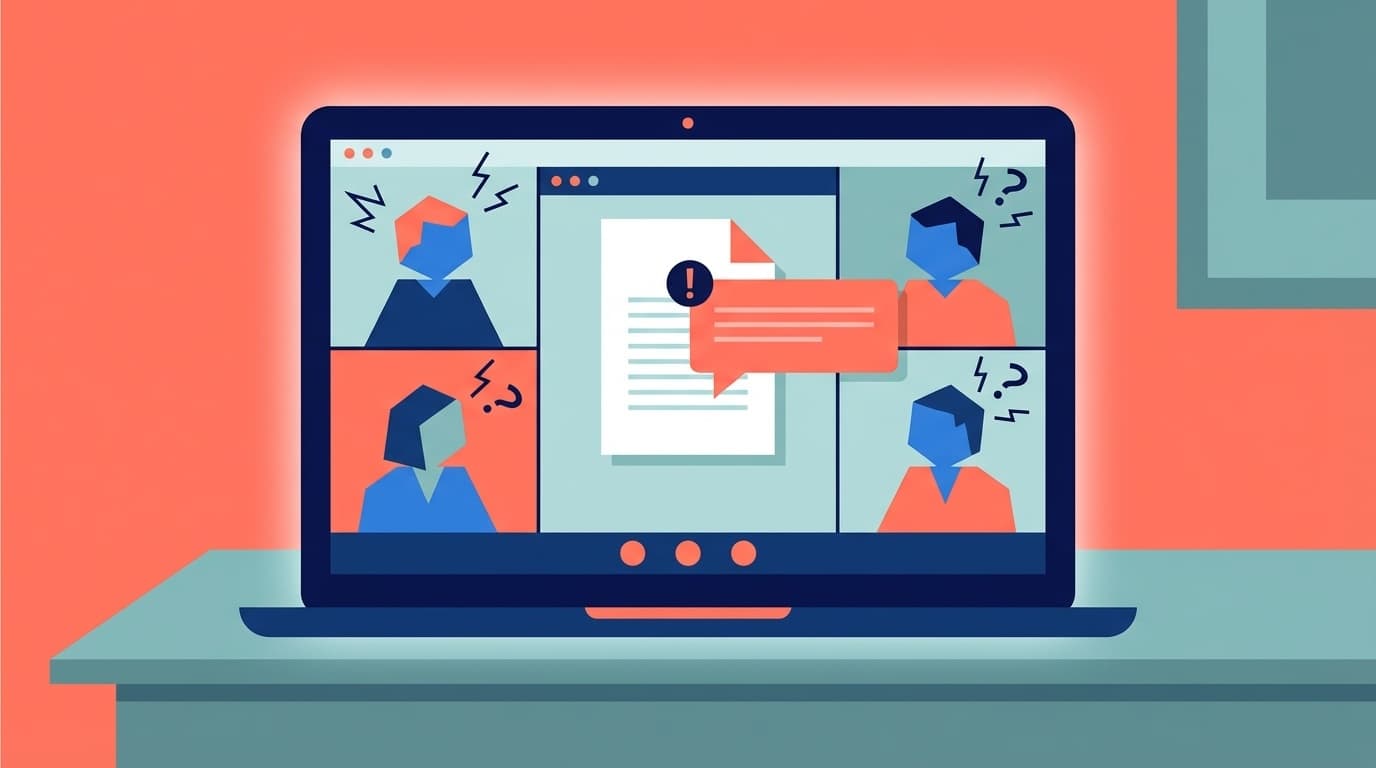
Have you ever shared your screen on Zoom, only to have a private chat or notification suddenly pop up and make your stomach drop?
As of March 2026, with remote work and online classes now so common, screen-sharing mishaps can happen to anyone. You still see plenty of stories on social media about things like LINE notifications appearing during a Zoom meeting or a job-search tab accidentally showing up on screen.
In this article, we'll walk through five preventive settings that can help you avoid embarrassing Zoom screen-sharing mistakes, plus what to do if something does appear by accident, in a clear and beginner-friendly way.
Why Do Screen-Sharing Mishaps Happen in the First Place?
Zoom screen sharing has two main modes.
- Share your entire desktop: Everything on your screen is visible to others, including notifications, the taskbar, and windows in the background
- Share only a specific window: Only the selected app window is visible to others
Most accidents happen because someone is sharing their entire desktop. In that mode, pop-up notifications, sticky notes on your desktop, and even browser tab titles can all be seen.
In other words, keeping the shared area as limited as possible is your best defense. With that in mind, let's look at the specific settings to check.
5 Settings to Prevent Mishaps: A Pre-Meeting Checklist
1. Share a Window, Not Your Entire Desktop
This is the most important step. When you click Zoom's screen sharing button, you'll see a screen where you choose what to share. Instead of selecting “Desktop” or “Screen,” choose the specific app window you want to show.
When you share by window, notifications or pop-ups from other apps won't be visible to other participants. Zoom's official help page, “Sharing your screen or desktop on Zoom”, also explains this approach.
2. Turn On Zoom's “Hide Notifications” Setting
Zoom has a feature that can automatically silence system notifications while you're sharing your desktop.
Steps in the Zoom Workplace desktop app:
- Click the gear icon (Settings) in the Zoom app
- Select the Screen Share tab
- Check “Silence system notifications when sharing desktop”
That said, this setting alone may not hide app-specific notifications from tools like Slack or LINE, so it's best to combine it with your operating system's notification settings, covered next.
3. Enable Focus Assist, Do Not Disturb, or Focus Mode in Your OS
If you block notifications at the operating system level, you're less likely to miss an app-by-app setting.
On Windows 11:
- Open Settings → System → Notifications
- Turn on Do not disturb (formerly Focus Assist)
- Or click the clock in the bottom-right corner of the taskbar and turn on “Do not disturb” with one click
On Mac:
- Click Control Center in the top-right of the menu bar
- Turn on Focus → Do Not Disturb
- Shortcut: You can also Option-click the Control Center icon
Make it a habit to switch this on right before your meeting starts.
4. Keep a “Presentation-Ready” Desktop
It's also smart to clean things up ahead of time so you're covered even if your entire desktop gets shared by mistake.
- Hide desktop icons (Windows: right-click → View → turn off Show desktop icons / Mac: run a Terminal command)
- Switch to a simple wallpaper (temporarily replace favorite character art or family photos)
- Use a separate browser profile (separating work and personal Chrome profiles keeps bookmarks, history, and account data from mixing)
5. Close Apps You Don't Need Before the Meeting
Simply put, closing every app you don't need for the meeting is the most reliable approach. Pay special attention to these:
- LINE / Slack / Discord: Message notifications may appear as pop-ups
- Email apps (Outlook, Thunderbird): Notifications can reveal subject lines and senders
- Job-search sites and recruiting apps: If a tab is left open, your manager might see it
- Social media (X, Instagram): Tab titles and DM notifications can become visible
- Private notes or sticky notes: If they're on your desktop, they're fully exposed
Oops, It Happened! What to Do Right After a Screen-Sharing Accident
The moment you think, “Wait, they saw that...” it's easy to panic. But how you respond can keep the damage to a minimum.
3 Things You Can Do Immediately
- Stop sharing right away: Click the red “Stop Share” button at the top of the screen. The shortcut is Alt + S on Windows or ⌘ + Shift + S on Mac
- Acknowledge it briefly: A simple “Sorry, I shared the wrong screen for a moment” is enough. A quick, calm note usually comes across better than a long explanation
- Share again: This time, re-share only the specific window you need
What Not to Do
- Leave the meeting without saying anything: That usually makes things more awkward
- Over-explain what was visible: The more you talk about it, the more memorable it becomes
- Shut down your computer in a panic: Suddenly disappearing from the meeting will only make people worry
Screen-Sharing Restrictions Hosts Can Set
If you're the meeting host, you can also configure settings to help prevent participants from accidentally sharing the wrong thing.
Settings in the Zoom Web Portal
- Log in to the Zoom Web Portal settings page
- Find the Meeting tab → Screen sharing section
- Configure the following:
- “Who can share?” → Set this to “Host only” to prevent participants from accidentally sharing
- “What can be shared?” → Check the option to disable sharing of screens, desktops, and whiteboards if you want to block full-desktop sharing
In short, this approach prevents desktop sharing from being available in the first place. It's also useful as part of an internal security policy. Zoom's official guide, “Managing advanced screen sharing settings”, has more detailed instructions.
For Extra Peace of Mind: Helpful Tools and Bonus Techniques
Chrome 135 and Later: Automatic Notification Pausing
Starting with Google Chrome version 135, released in April 2025, Chrome includes a feature that automatically pauses browser notifications while you're sharing your screen. It's useful not only for Zoom, but also when you're screen sharing in Google Meet or Teams.
You can check your Chrome version by entering chrome://settings/help in the address bar.
Use Virtual Desktops
With the virtual desktop features in Windows 11 and macOS, you can separate your “work” desktop from your “personal” desktop.
- Windows 11: Press Win + Tab → create a “New desktop.” Put only work-related apps on your meeting desktop
- Mac: Press Control + ↑ (Mission Control) → click the “+” in the top-right corner to add a desktop
If you switch to a clean desktop before presenting, you'll be safer even if you accidentally share the whole screen.
Open Presentation Pages in Guest Mode
For web pages you'll show during a presentation, it's also a good idea to open them in your browser's guest mode or an incognito window. That way, your bookmarks bar, browsing history, and logged-in services won't appear, which greatly reduces the chance of exposing extra information.
FAQ
Q. If a notification appears on top of a window I'm sharing, will other people see it?
No. When you're sharing a specific window, Zoom sends only the image of that selected window. Even if another app's notification appears on top of it on your screen, it won't show up for others. If you're sharing your entire desktop, though, everything will be visible.
Q. Can other people see my desktop wallpaper during a Zoom meeting?
Not if you're sharing only a window. If you share your entire desktop, your wallpaper will be shown as-is. If that concerns you, switch to a simple wallpaper before the meeting.
Q. Do notifications show up when I share my screen from a phone?
Yes. Sharing your phone screen works much like sharing an entire desktop. On both iOS and Android, you should turn on Do Not Disturb before sharing. On iOS, use Control Center. On Android, go to Settings → Notifications → Do Not Disturb.
Q. What should I do if I accidentally type a password while screen sharing?
Stop screen sharing immediately and change that password as soon as possible. If the login screen was set to show the password in plain text instead of dots or bullets, change the password right after the meeting.
Q. Will it also appear in the Zoom recording?
Yes. If the meeting is being recorded, whatever appears during screen sharing will be recorded too. Ask the host to delete that section from the recording or restrict who can access the recording.
References
- Sharing your screen or desktop on Zoom — Zoom Support
- Managing advanced screen sharing settings — Zoom Support
- Changing settings in the Zoom Workplace desktop and mobile app — Zoom Support
- How to Hide Notifications While Sharing Your Screen in a Video Call — How-To Geek
- Change notification settings in Windows — Microsoft Support