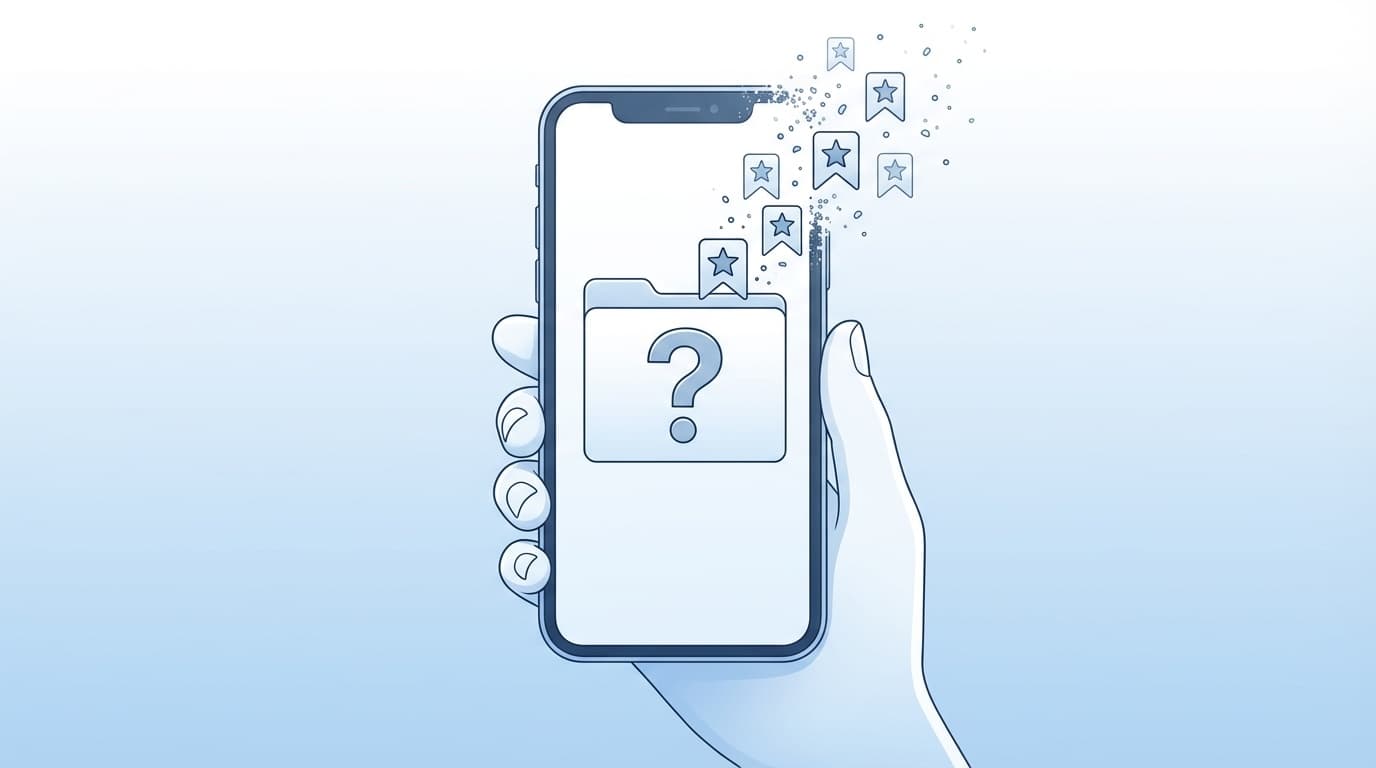
“Wait, where did all my bookmarks go…?” One day you open your phone and the favorites you’d saved are suddenly gone. Has that happened to you?
This is actually a pretty common problem. As of March 2026, people on X (formerly Twitter) still regularly report that “all my phone bookmarks disappeared.” The cause is often something surprisingly ordinary, like an account sync issue or an app update.
In this article, we’ll cover both iPhone (Safari) and Android (Chrome), explain five common reasons bookmarks disappear, and walk you through the recovery methods you can try right away.
5 Reasons Your Bookmarks Disappear
First, let’s figure out why they disappeared. Your chances of recovery depend on the cause.
Reason 1: You Were Signed Out of Your Google Account or Apple ID
Chrome stores bookmarks with your Google Account, while Safari stores them with your Apple ID through iCloud. If you get signed out for some reason, the bookmarks saved in the cloud may stop showing up on your phone.
In other words, in many cases they aren’t actually gone. They’re just not visible.
Reason 2: Sync Is Turned Off
You may be signed in, but if bookmark sync is turned off, your bookmarks still won’t appear.
- Chrome: Go to Settings → Google Account → check that “Sync” is on
- Safari: Go to Settings → Apple ID → iCloud → under “Show Safari,” check that “Safari” is on
Be especially careful after switching phones or updating your OS, since sync settings can sometimes get reset.
Reason 3: You’re Logged In With a Different Account
This is common if you have multiple Google Accounts. If Chrome is signed in with a secondary account instead of the one you normally use, your bookmarks won’t show up.
Tap the profile icon in the top right of the Chrome app and check which account you’re using.
Reason 4: An App Update or Data Clear Removed Them
On Android, if you use “Clear data” or “Clear storage” for the Chrome app, locally saved bookmarks can be deleted. If sync was on, you can usually restore them by signing back in. But if sync wasn’t turned on, locally stored bookmarks are very unlikely to be recoverable.
On iPhone, bookmarks may also disappear after clearing Safari’s history and website data.
Reason 5: Sync Overwrote Your Data
This is the trickiest case. For example, if you turn on sync from a device that has zero bookmarks, the empty bookmark data may overwrite what’s stored in the cloud.
Google Chrome Help also lists this as a sync-related issue. If you use Chrome across multiple devices, it’s worth being extra careful.
How to Restore Bookmarks in Chrome on Android
If your bookmarks disappeared in Chrome on Android, try the following methods in order.
Method 1: Turn Google Account Sync Off, Then Back On
- Open the Chrome app, then tap the “︙” three-dot menu in the top right → “Settings”
- Tap your account name → select “Sync”
- Turn “Sync” off once, then wait about 30 seconds
- Turn “Sync” back on
That alone may pull your bookmarks back down from the cloud and restore them.
Method 2: Reset Chrome Sync Data
If your sync data is corrupted, resetting it may help.
- On a computer or phone browser, go to
chrome.google.com/sync - Tap “Clear data” near the bottom of the page
- On another device that still has your bookmarks, sign in to Chrome and turn sync on
Important: When you tap “Clear data,” all sync data stored on Google’s servers will be deleted. Only do this if you still have another device where the bookmarks remain. You can then restore them by syncing again from that device.
Method 3: Re-Bookmark Pages From Your Browsing History
If the methods above don’t work, you can also check Chrome’s History, find pages you visited before, and bookmark them again manually. It won’t be a perfect restore, but sites you used often should still be there.
How to Restore Bookmarks in Safari on iPhone
If your Safari bookmarks disappeared on iPhone, iCloud’s recovery tools can be very helpful.
Method 1: Turn iCloud Sync Off, Then Back On
- Go to “Settings” → your name (Apple ID) → “iCloud”
- Find “Safari” under the apps using iCloud, then turn it off
- If you see “Delete from iPhone,” choose “Delete from iPhone” (your data will remain in iCloud)
- Wait a few minutes, then turn “Safari” back on
This will re-download your bookmarks from iCloud.
Method 2: Restore From iCloud.com Within 30 Days of Deletion
According to Apple Support, if it has been less than 30 days since the bookmarks were deleted, you can restore them from iCloud.com.
- On a computer or phone browser, go to icloud.com/recovery
- Sign in with your Apple ID
- Select “Restore Bookmarks”
- Choose the version by date, then tap “Restore”
The restore process may take a few minutes. While it’s running, don’t add or delete bookmarks.
Method 3: Restore From an iCloud Backup as a Last Resort
You can also restore your entire iPhone from an iCloud backup, but this rolls other data back to the backup date too. Treat it as a last resort. Restoring from iCloud.com in Method 2 is usually better because it targets only your bookmarks.
3 Ways to Keep This From Happening Again
Once your bookmarks are restored, set things up so you don’t run into the same problem again.
Tip 1: Keep Sync Turned On
For both Chrome and Safari, keep bookmark sync turned on. With sync enabled, you can recover your bookmarks from another device even if your phone is lost.
Tip 2: Export Your Bookmarks Regularly
On Chrome for desktop, you can use Bookmark Manager to export your bookmarks as an HTML file. Backing them up about once a month can give you real peace of mind.
In short, go to “Chrome Bookmark Manager → three-dot menu in the top right → Export bookmarks,” and you’re done.
Tip 3: Check Sync Before Clearing Data
Before using “Clear data” on Android to fix an app problem, always confirm that Google Account sync is turned on. If you clear data while sync is off, your local bookmarks may be gone for good.
FAQ
How long after bookmarks disappear can I still restore them?
For Safari on iPhone, iCloud.com can restore bookmarks within 30 days of deletion. For Chrome, you can restore them as long as the sync data still exists in your Google Account. But if sync was off, recovering local data is difficult.
Will my bookmarks transfer automatically when I switch phones?
For both Chrome and Safari, bookmarks transfer automatically if sync is on and you sign in with the same account. Before switching phones, make sure sync is enabled.
Can I move bookmarks between Chrome and Safari?
Yes. On a computer, you can export bookmarks from Chrome as an HTML file, then import that file into Safari or Edge. There’s no standard direct transfer feature using only a phone, so doing it through a computer is the easiest route.
Can I restore just one bookmark I deleted by mistake?
In Safari, iCloud.com restores your bookmarks as a whole to an earlier state, so you can’t restore just one item. In Chrome, there’s no built-in individual bookmark restore feature, so the practical option is to find the page in your browsing history and bookmark it again.
References
- If you accidentally deleted contacts, calendars, or bookmarks from iCloud — Apple Support
- If your iCloud or Safari bookmarks aren’t syncing — Apple Support
- Fix Chrome sync problems — Google Chrome Help