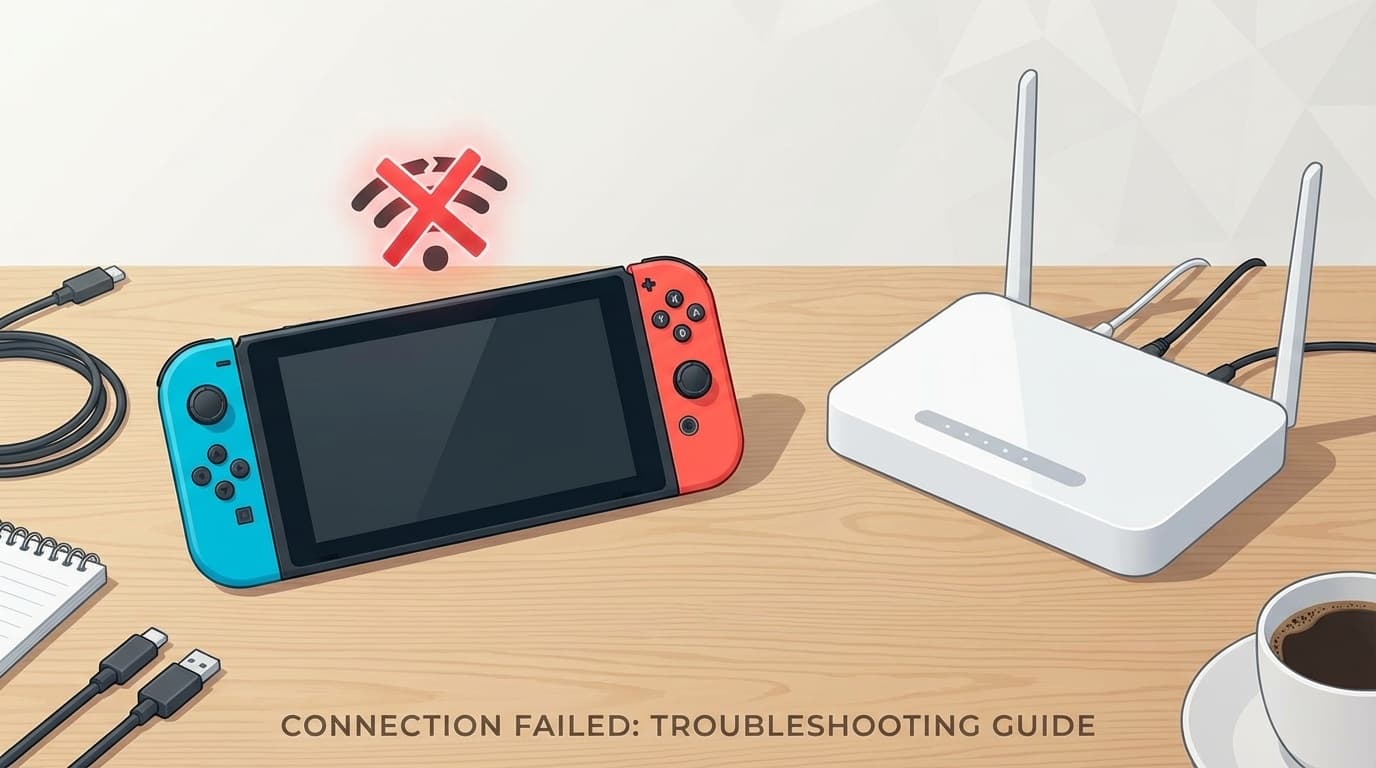
``When I tried to play online on Switch, the Wi-Fi suddenly turned off'' or ``I can't connect to the internet in the first place'' - the stress of losing your internet connection while playing a game is really tough, isn't it?
But don't worry. Most Switch Wi-Fi problems can be fixed by yourself once you know the cause. In this article, we will organize six reasons why the Nintendo Switch cannot connect to Wi-Fi or cause unstable communication, and explain how to deal with each in an easy-to-understand manner, even for beginners.
Finally, for those who say, "Wireless is at its limit," we will also introduce How to make a stable connection with a wired LAN adapter, so please read until the end.
How to check the Wi-Fi connection status of Switch in the first place
Before trying the solutions, first check the network status of Switch. It's easy to do.
- Select Settings → Internet → Connection Test from the HOME menu
- The connection test will begin and "Connection speed" and "NAT type" will be displayed on the result screen
- If "Connection failed" appears, write down the error code
If an error code is displayed during this connection test, you can find specific solutions by searching for the code on Nintendo's official support site (Nintendo Switch Support).
Also, NAT type (indicated by A to F) affects the ease of online matches. If the NAT type is D or lower, problems such as "unable to find an opponent" and "matching takes time" are likely to occur. I will explain how to improve this later.
6 reasons why Switch won't connect to Wi-Fi and how to deal with it
Switch Wi-Fi troubles can be roughly divided into the following six patterns. We recommend trying them in order from the top.
Cause 1: Temporary problem with the Switch itself
The pattern of ``I was able to use the device normally until recently, but suddenly I can no longer connect'' is often caused by a temporary malfunction of the main unit.
Workaround:
- Press and hold the power button for 3 seconds and select "Power Options" → "Restart"
- It is important to select "Restart" instead of Sleep (memory will not be reset if it is in Sleep mode)
- After restarting, please try "Connection Test" again
In short, "Restart if you have a problem" is the rule even on Switch. It's surprising how often this alone can fix things.
Cause 2: Malfunction of the router (Wi-Fi main unit)
Even if you can connect to your smartphone or computer but cannot connect to your Switch, it may be a problem with the router. When a router is running for a long time, its internal memory becomes overwhelmed and it may stop accepting new connections.
Workaround:
- Unplug your router and wait 30 seconds to 1 minute, then power it back on
- If you have a modem (ONU), power cycle it in modem → router
- If your router's firmware (internal software) is outdated, update it to the latest version from the manufacturer's website
In other words, the basic solution is to restart both the Switch and the router. In fact, this solves many cases.
Cause 3: Wi-Fi signal is weak/unreachable
Switch's Wi-Fi antenna performance is weaker than that of smartphones. Even in places where you can connect without problems with your smartphone, the signal may be weak and unstable with your Switch.
Workaround:
- Move the router and Switch closer to within 2-3 meters
- Reduce as much as possible obstructions such as walls, doors, aquariums, etc.
- Keep away from sources that cause 2.4GHz radio wave interference such as microwave ovens and Bluetooth devices
- Avoid placing metal shelves or televisions near the router
What you should be especially careful about is Microwave oven. Microwave ovens emit radio waves in the 2.4GHz band, so Wi-Fi on the Switch may become extremely unstable while in use. Be careful when you say, ``Let's play Splatoon while the food is heating up.''
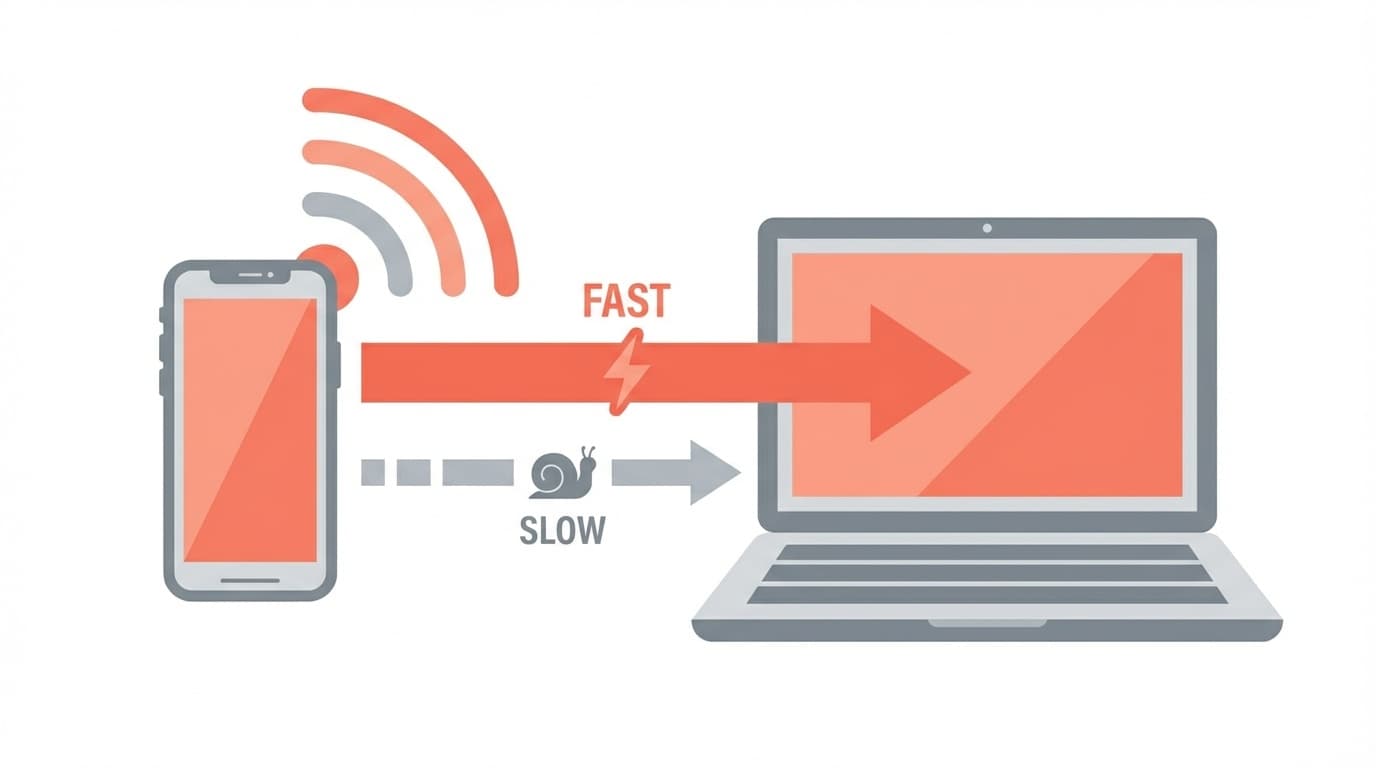
Cause 4: Wi-Fi frequency band (2.4GHz/5GHz) does not match
Wi-Fi routers usually have two types of radio waves: 2.4GHz band and 5GHz band. Many people have probably seen "-G", "-A", "-2G", and "-5G" at the end of the router's SSID (network name).
| Frequency band | Advantages | Disadvantages |
|---|---|---|
| 2.4GHz | Strong against walls and obstacles, can reach long distances | Slow, easily interferes with microwave ovens, etc. |
| 5GHz | Fast speed, less interference | Weak against walls, unstable when away from router |
Workaround:
- If the Switch and router are close (in the same room)→ Connect to a 5GHz band SSID
- If the Switch and router are far apart or there is a wall→ Connect to a 2.4GHz band SSID
- If you cannot connect on the 5GHz band, try switching to the 2.4GHz band
To switch, simply go to ``Settings'' → ``Internet'' → ``Internet Settings'' on the Switch, delete the current connection destination by ``Delete this registration'', select the SSID of the other frequency band, and enter the password.
Cause 5: DNS settings are incorrect
DNS (Domain Name System) is like an "address book" for the Internet. If the connection to this DNS server is not successful, Error code "2110-3127" etc. will be displayed and connection will not be possible.
Workaround:
- Select the connection destination in "Settings" → "Internet" → "Internet Settings"
- Change "DNS Settings" to "Manual"
- Preferred DNS: 8.8.8.8 (Google's public DNS)
- Alternative DNS: 8.8.4.4
- Save and run connection test
Google DNS is a free DNS server that anyone can use, with fast response times and stability. Simply changing this will often resolve DNS-related errors.
Cause 6: Unable to play online due to strict NAT type
If the NAT type is displayed as 'D' or 'F' during the connection test, matching for online games will be affected. NAT types have stricter restrictions in the order of A → B → C → D → F, and with D and F, problems such as "not being able to find an opponent" and "not being able to do voice chat" are likely to occur.
Workaround:
- Check for double router connections (a state in which another router is connected below the router). If so, switch one to bridge mode (AP mode)
- Enable UPnP (Universal Plug and Play) from the router management screen
- If the problem still does not improve, set Open port on the router's management screen (port number published by Nintendo: UDP 1-65535)
If you are using pocket Wi-Fi or a shared line in your apartment, it may be difficult to improve the NAT type. In that case, please consider wired connection introduced in the next section.
If that doesn't work, connect by wire! How to stabilize with LAN adapter
``Wi-Fi is always unstable'' or ``I don't want to lose the connection in the middle of an online match'' - for those people, wired LAN connection is recommended.
What you need
- USB wired LAN adapter (about 1,000 to 2,500 yen)
- LAN cable (Category 5e or higher recommended)
``LAN Adapter for Nintendo Switch'' manufactured by HORI is an officially licensed product of Nintendo. Commercially available USB LAN adapters will also work, but please note that they may not be recognized depending on the chipset.
Connection procedure (TV mode)
- Connect the LAN adapter to the USB terminal of the Switch dock
- Connect the LAN adapter and router with a LAN cable
- Select Switch's "Settings" → "Internet" → "Internet Settings" → "Wired Connection"
- Choose "Connect to the Internet via wire" and run a connection test
In other words, just plug the adapter into the dock and connect the cable. No complicated settings are required. If you use a wired connection, you will not be affected by Wi-Fi radio wave interference, so the communication speed and NAT type will often be improved.
How to check for Nintendo server failure
If you still can't connect even after trying all the solutions above, there may be a problem with Nintendo's servers.
You can check the operating status of Nintendo's network from the official website Network maintenance information/operating status. During maintenance or when a failure occurs, no matter how much you review the settings, you will not be able to connect. Please wait patiently for recovery.
Also, if you search "Switch cannot connect" on X (formerly Twitter) and see many similar reports in the same time period, you can almost certainly conclude that it is a server-side problem.
Frequently Asked Questions (FAQ)
Q. What communication speed does the Switch need to play online?
Nintendo's official standards have not been released, but in general, online play is possible with download speeds of 3Mbps or more. However, if you want to play comfortably, the recommended speed is 10Mbps or more. Please check with a connection test. What is more important than speed is "a stable and continuous connection" and "a low PING value (response speed)."
Q. Can I make a wired LAN connection with Switch Lite?
Switch Lite does not have a dock or USB-A terminal, but it can be connected using a wired LAN adapter that supports USB Type-C. However, please note that wired connection is not possible while charging. If you use a USB hub (sold separately), you can charge and connect wired at the same time.
Q. I can't connect to hotel or public Wi-Fi.
Wi-Fi at hotels and airports often requires browser authentication (displaying the login screen), but Switch does not have a browser function, so this authentication cannot be cleared. Practical solutions include tethering (internet sharing) with your smartphone or bringing your own pocket Wi-Fi.
Q. Even though the Wi-Fi password is correct, the message "Connection failed" appears. why?
If the password fails even if the password is correct, it may be due to the router's limit on the number of connected devices. The number of devices connected to your family, such as smartphones, computers, smart speakers, and IoT home appliances, may increase without you even realizing it. Try turning off Wi-Fi on devices you are not using, or check the upper limit on the number of simultaneous connections on your router.
Q. Can this workaround also be used on Switch 2?
Yes, the basic solution is the same for Switch 2. Switch 2 supports Wi-Fi 6 and has improved communication performance, but problems with the router, DNS settings, and NAT type can occur regardless of the hardware. The location of the settings menu may be slightly different, but the idea is the same (as of March 2026).
References
- Internet connection | Nintendo Switch support information | Nintendo Support
- [Switch] A communication error occurs or communication becomes unstable during online play | Nintendo Support
- How to connect to the Internet wirelessly | Nintendo Switch support information | Nintendo Support
- How to connect to the Internet via wire | Nintendo Switch support information | Nintendo Support