I'm sure there are many people who are interested in Claude, but what's the difference between the Web version and the Desktop version? I've often heard of MCP, but what can it do?
As of February 2026, Claude Desktop has established a position that is clearly different from the web version due to the evolution of MCP (Model Context Protocol) and Desktop Extensions. In this article, we will explain the differences between Claude Desktop and the web version, what you can do with MCP, and how to actually set it up.
What is Claude Desktop? What's different from the web version?
Claude Desktop is a desktop app version of the AI assistant "Claude" provided by Anthropic. It is compatible with Windows and macOS and can be downloaded for free from official website.
You may think, "If I can use it in a browser, why don't I need an app?", but the truth is, it's quite different. A rough summary of the main differences is as follows.
| Features | Web version (claude.ai) | Desktop version |
|---|---|---|
| How to start | Access with browser | Launch the app/immediately call with shortcut key |
| Local MCP | Not available | Also available on free plan |
| Remote MCP | Available with paid plans | Available with paid plans |
| Desktop Extensions | Not available | One-click installation |
| Local file operations | Upload only | Can be read and written directly by MCP |
| Work in parallel with other apps | One of the browser tabs | Freely arrange in an independent window |
In other words, The web version is for "easy chatting in a browser," and the desktop version is for "connecting and using data and tools on your computer."
The most important thing is Local MCP support. With the Desktop version, even with the free plan, you can have Claude read and write files on your computer and connect to a database. This is not possible in the web version.
What is MCP (Model Context Protocol)? Rough explanation
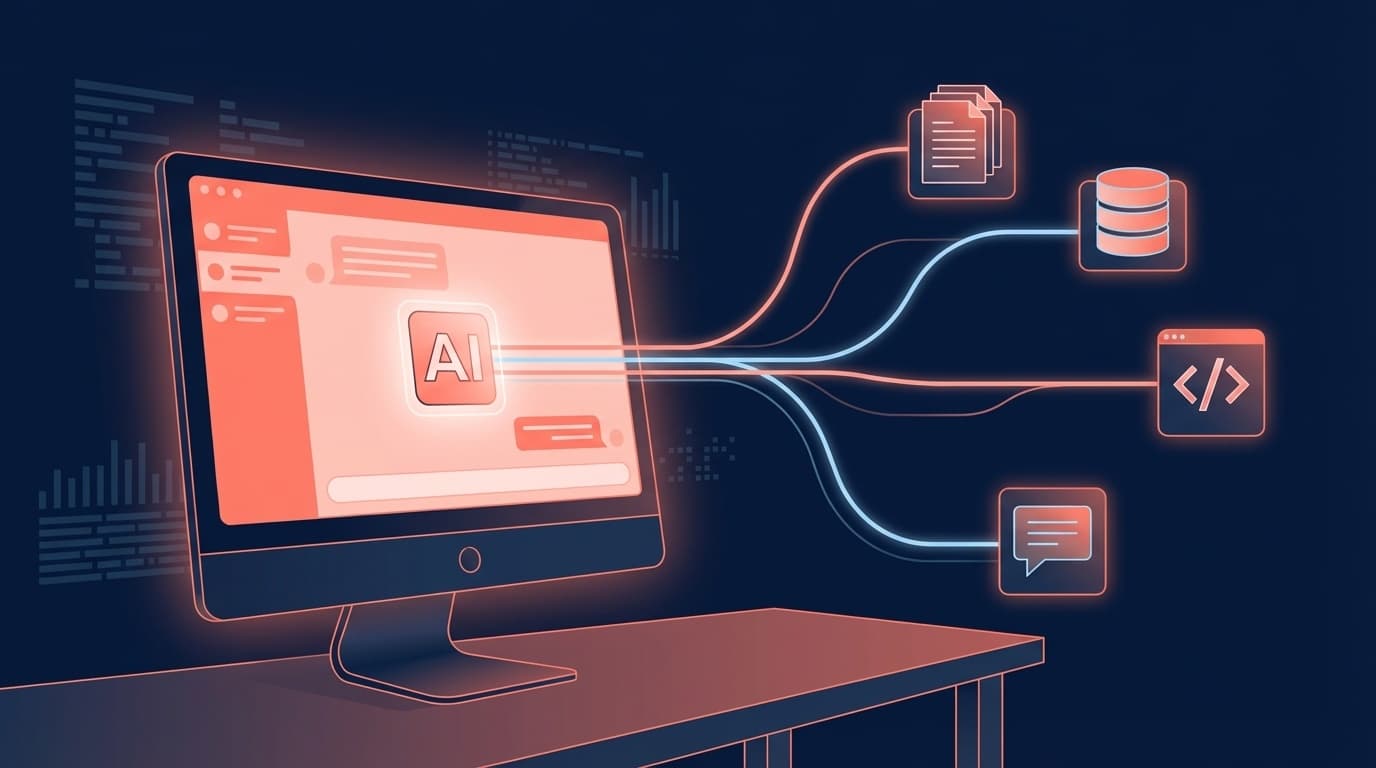
MCP is an abbreviation for "Model Context Protocol", and roughly speaking, it is a mechanism that allows Claude's AI to have "hands".
Normal ChatGPT and Claude Web version only "receive text and return text". But MCP gives Claude direct access to external tools and data.
For example, you can do something like this.
- File system MCP: Read files on your computer and create new files
- GitHub MCP: Read code in repositories, create issues and review pull requests
- Slack MCP: Search and retrieve Slack messages
- Database MCP: Connect to PostgreSQL or SQLite to search and update data
- Google Drive MCP: Browse documents on Drive
In short, Claude will be able to directly view and operate information on his computer and the services he uses. MCP is an open source protocol published by Anthropic, so anyone can use it for free.
There are two types of MCP: local MCP and remote MCP
There are broadly two types of MCP. This is a bit of a complicated point, so let's get it sorted out.
Local MCP
This method runs the MCP server on your computer and connects to Claude. It is suitable for operations that can be completed within your own PC, such as file system access and local database connections.
As of February 2026, it is also available in Claude Desktop's free plan. However, setup requires editing a JSON format configuration file, and requires a little technical knowledge.
Remote MCP
This is a method of connecting Claude to services on the Internet (GitHub, Slack, Notion, etc.). This requires a paid plan (Pro or higher).
With the "Connectors" function added in February 2026, remote MCP can now be used from the web version as well. However, local MCP remains limited to the Desktop version.
Desktop Extensions make setup super easy
Good news for those who thought, "MCP settings involve editing JSON files, right? It's boring."
With the release of Desktop Extensions (DXT) in late 2025, deploying an MCP server is now as easy as installing a browser extension.
This is the only setting method.
- Open Settings → Extensions in Claude Desktop
- Browse extensions to see a list of extensions
- Find the extension you want to use and click "Install"
- Enter API key etc. if necessary
- You can use it in conversation right away
Only extensions that have been reviewed by Anthropic are released, so you can rest assured about security. It is designed for enterprise use, including code signing and encrypted storage of API keys.
How to add an MCP server with JSON manual configuration
If you want to use an MCP server that does not support Desktop Extensions, or if you want to run your own custom MCP server, use the traditional method of editing the JSON configuration file.
Configuration file location
- macOS:
~/Library/Application Support/Claude/claude_desktop_config.json - Windows:
%APPDATA%Claudeclaude_desktop_config.json
Setting procedure
- Open File → Settings from the Claude Desktop menu
- Select the Developer tab and click Edit Configuration
- Describe MCP server information in the configuration file
- Save the file and Completely exit Claude Desktop → Restart
The configuration file is written like this (example for file system MCP).
{
"mcpServers": {
"filesystem": {
"command": "npx",
"args": [
"-y",
"@modelcontextprotocol/server-filesystem",
"/Users/yourname/Documents"
]
}
}
}
After restarting, it is OK if a hammer icon is displayed near the chat input field. Click to see a list of available tools.
How far can I use the free plan and the paid plan?
We have summarized Claude Desktop's price plans and available functions as of February 2026.
| Plans | Monthly fees | Local MCP | Remote MCP | Desktop Extensions | Usage model |
|---|---|---|---|---|---|
| Free | Free | Available | Not available | Available | Sonnet 4.5 |
| Pro | 0/month | Available | Available | Available | Opus 4.6 / Sonnet 4.5 |
| Max | 00~/month | Available | Available | Available | All models/high usage limit |
Even with the free plan, you can use approximately 20 to 40 messages per day (varies depending on the length of the message). The fact that you can use Local MCP for free is a great point, and you can try reading and writing files and connecting to a local DB without paying.
If you want to use remote MCP (integration with GitHub, Slack, Notion, etc.), you need a Pro (monthly 0) or higher plan.
FAQ
Can I use Claude Desktop's MCP for free?
Yes, local MCP (file operations on your computer, local DB connection, etc.) can be used even with the free plan. However, remote MCPs such as GitHub, Slack, and Notion require a paid plan (Pro or higher, starting from 0 per month).
Can't I use MCP with the web version of Claude?
Local MCP is not available in the web version. However, as of February 2026, remote MCP (Connectors feature) is also available on the web version paid plan. If you want to access data on your computer such as working with local files, you need the Desktop version.
Should I use Desktop Extensions or traditional JSON configuration?
We recommend trying Desktop Extensions first. It can be installed with one click and has passed security screening, so you can rest assured. Use JSON settings only if the MCP server you want to use does not support Extensions, or if you are using your own MCP server.
Do I need programming knowledge to use MCP?
No programming knowledge is required to use Desktop Extensions. For JSON manual configuration, you need to understand a little about how to write configuration files (JSON syntax), but since you just copy and paste the template and rewrite it, it can be done even if you are not a programmer.
References
- Getting Started with Local MCP Servers on Claude Desktop — Claude Help Center
- Connect to local MCP servers — Model Context Protocol official documentation
- Deploying enterprise-grade MCP servers with desktop extensions — Claude Help Center
- What is Claude Desktop? Explaining how to use and fees based on the differences with the browser version — AI Research Institute