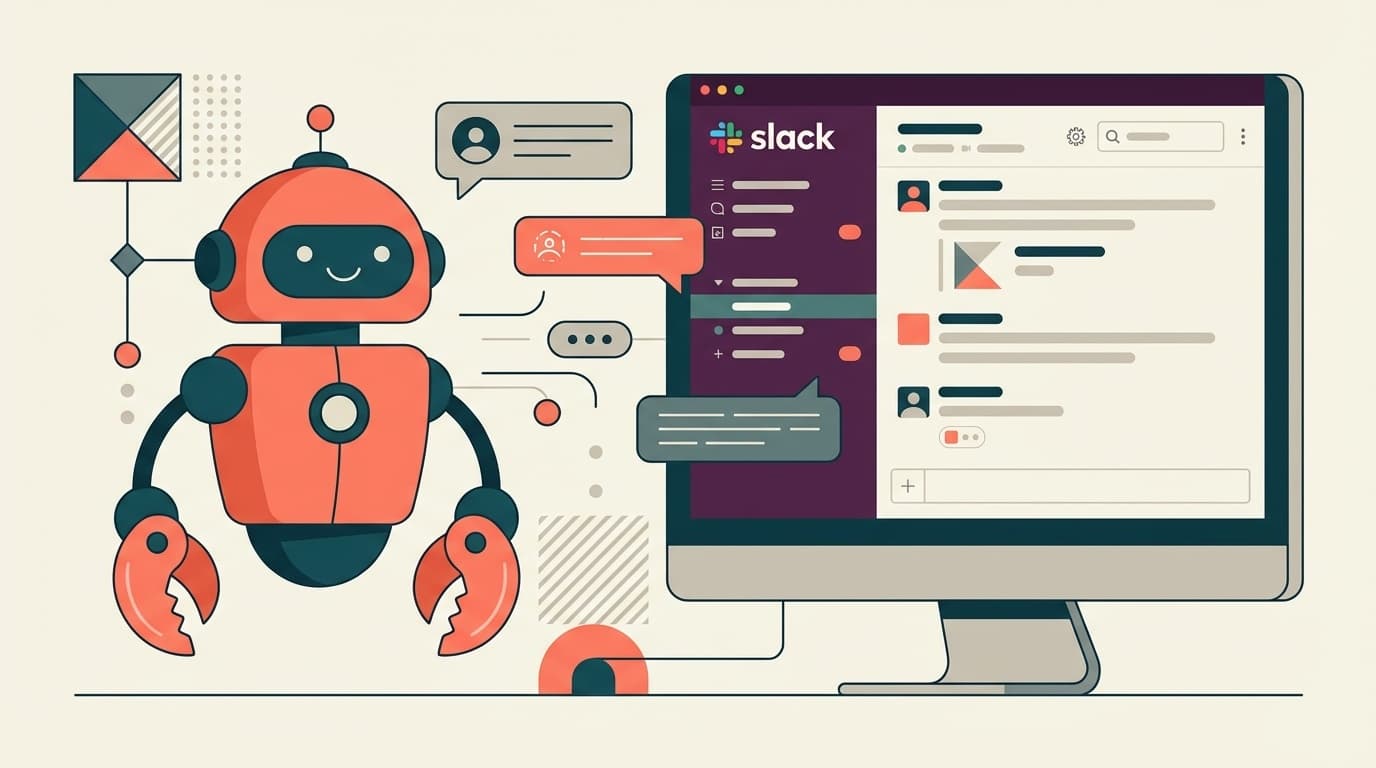
``What if I could just give instructions on Slack and the AI would perform tasks on its own...'' That dream-like story has already become a reality as of February 2026. Its true identity is an open source AI agent calledOpenClaw. You can run it on your own PC and issue instructions via chat apps such as Slack, LINE, and Discord.
However, while it is convenient, it has also been pointed out that there are security risks, and some have asked, "Is it okay to use it in Slack at work?" In this article, we will explain everything from the basics of OpenClaw to the specific steps for integrating it with Slack, as well as points to keep in mind when using it for work.
What is OpenClaw? Rough explanation
OpenClaw is an open source AI agent released by Austrian developer Peter Steinberger in November 2025. Originally named "Clawdbot," the name was changed to "Moltbot" on January 27, 2026 after Anthropic pointed out a trademark issue. After three more days, we settled on the current "OpenClaw" (from Wikipedia).
Roughly speaking, it is an AI assistant that runs on your own computer. The biggest feature is that while using AI models like ChatGPT and Claude as the "brain", you can send instructions from the chat apps you usually use such as Slack, Discord, WhatsApp, Telegram, and iMessage. It became a hot topic in late January 2026, and on February 14th, the developer announced that it would be joining OpenAI.
In other words, "You can ask AI to do work from your usual Slack."
What you can and cannot do with OpenClaw
As of February 2026, the main features of OpenClaw are as follows (from official GitHub).
What you can do
- Multi-channel support: Connect to 11+ platforms including Slack, Discord, WhatsApp, Telegram, Signal, Google Chat, Microsoft Teams, and more
- File operations: Send instructions to read, write, and organize files on your PC from chat
- Browser control: Automate web searches and information gathering
- Scheduled execution: Automated tasks with cron jobs and webhooks
- Voice control: Supports voice commands with VoiceWake
- Custom skills: Plugins can be added from ClawHub (skills registry)
What you can't do/precautions
- Does not work completely offline: Requires API connection to AI model (subscription contract such as Claude Pro or ChatGPT Plus is required)
- Setup requires command line operation: It cannot be completed with just the GUI, so it is a high hurdle for those who are reluctant to use terminals
- Requires Node.js 22 or higher: If you have an older PC, you will need to start by updating Node.js
Steps to connect OpenClaw to Slack [5 steps]
Now comes the main topic. There are five main steps to connecting OpenClaw to Slack. This explanation is based on the official document as of February 2026.
Step 1: Install OpenClaw
First, open the terminal (Terminal.app for Mac, WSL2 for Windows) and run the following command.
npm install -g openclaw@latest
openclaw onboard --install-daemon
The wizard will launch, so enter the API key of the AI model you want to use (Claude, ChatGPT, etc.) and complete the initial settings. Node.js 22 or higher is required, so check the version with node -v.
Step 2: Create a Slack app
Click Create New App on the Slack API page to create a new app. Please set the bot token scope below.
chat:write(send message)channels:history,channels:read(read channels)im:history(DM read)app_mentions:read(mention detection)files:read,files:write(file operations)reactions:read,reactions:write(reaction operations)
After setting the scope, install the app in your workspace and copy the Bot User OAuth Token (starting with xoxb-) that is displayed.
Step 3: Enable Socket Mode (recommended)
Enable "Socket Mode" in the Slack app settings screen and generate an App-Level Token (one that starts with xapp-). Select connections:write for scope.
By using Socket Mode, you can integrate with Slack without making the server public, so this is recommended for personal use or during the verification stage.
Step 4: Configure Slack information in OpenClaw
Add the following to the OpenClaw configuration file (~/.openclaw/openclaw.json).
{
"channels": {
"slack": {
"enabled": true,
"mode": "socket",
"appToken": "xapp-app-token-here",
"botToken": "xoxb-bottoken here"
}
}
}
Can also be set in environment variables (SLACK_APP_TOKEN, SLACK_BOT_TOKEN). If you don't want to write the token directly into the configuration file, environment variables are safer.
Step 5: Pairing and connection complete
After saving the settings, start the gateway with the openclaw gateway command. When you send a message to the OpenClaw bot via Slack DM, a pairing code will be displayed, so execute the following in the terminal.
openclaw pairing approve slack pairing codeConnection is now complete! From Slack, say things like ``Check tomorrow's weather'' or ``Summary this file.''
Security precautions you should know when using it for work
As some people say, ``You can't use your full power at work. The security risks are too high,'' so careful judgment is required when using it for work.
Note 1: Over 140,000 instances exposed on the internet
According to a security firm's research, as of February 2026, approximately 140,000 OpenClaw instances have been detected as externally accessible (from Codebook). If the settings are incorrect, there is a risk that your PC may be manipulated from outside.
Note 2: Authentication token stealing malware has been confirmed
Stealer malware that targets API keys and tokens stored in OpenClaw configuration files has been observed in the wild (from Codebook). Stolen tokens can lead to unauthorized access to Slack and AI services.
Warning 3: ClawHub skills contain malicious content
It has been reported that hundreds of fake skills loaded with malware have been uploaded to OpenClaw's skill registry "ClawHub" (from GIGAZINE). When installing a skill, be sure to check whether it is official.
Three rules to follow when using for business
- Do not connect to your company's Slack workspace: Use in a personal or test workspace
- Manage tokens with environment variables: Use
.envfiles and environment variables instead of writing them directly in the configuration file - Run in a virtual machine or container: Separate from the main PC environment to limit potential damage
ITmedia and Trend Micro also explains the security risks of AI agents using OpenClaw as an example, so we recommend reading it if you are considering introducing it for business.
Troubleshooting when something doesn't work
We have summarized common problems and solutions as explained in the official documentation.
The bot does not respond even if I send a DM
- Check if
dm.enabledistrue - If
dmPolicyis inpairingmode, check if pairing is complete - Check connection status by running
openclaw channels status --probein terminal
No response when mentioned in channel
- Check the
groupPolicysetting (default isopen, but ifallowlistyou need to register the channel ID) - Check if the bot has joined the channel (invite with
/invite @bot name)
Unable to connect in Socket Mode
- Check that you have not confused
appToken(xapp-) andbotToken(xoxb-) - Check if Socket Mode is enabled on Slack
- Diagnose the entire configuration with the
openclaw doctorcommand
FAQ
Can I use OpenClaw for free?
OpenClaw itself is open source and free. However, usage fees for the AI models that serve as the brain (such as Claude Pro and ChatGPT Plus) will be charged separately. As of February 2026, Claude Pro is $20 per month and ChatGPT Plus is also $20 per month.
Can I use it without any programming knowledge?
Terminal (command line) operation is required for installation and initial settings. However, most commands can be done by copying and pasting from the official documentation, so even inexperienced users can do it if they follow the steps.
Is it okay to introduce it to my company's Slack?
This is fine for personal verification, but it is not recommended for use in workspaces that handle confidential information. Multiple specialized media such as Trend Micro and ITmedia have pointed out the security risks, and some companies have even banned its use.
Can I use it not only with Slack but also with Discord and LINE?
Yes. In addition to Slack, OpenClaw supports over 11 channels including Discord, WhatsApp, Telegram, Signal, Google Chat, and Microsoft Teams. LINE is not supported as an official channel as of February 2026.
References
- Slack - OpenClaw official documentation — OpenClaw Docs
- openclaw/openclaw: Your own personal AI assistant — GitHub
- OpenClaw - Wikipedia
- Approximately 140,000 OpenClaw instances exposed to the internet — Codebook, February 2026
- First observed stealer theft of OpenClaw secrets — Codebook, February 2026
- The spread of AI agents is a turning point in risk.Explaining defense points using OpenClaw as an example — ITmedia Enterprise, February 17, 2026
- Proliferating AI and invisible risks: OpenClaw reveals the current state of agent assistants — Trend Micro, February 2026