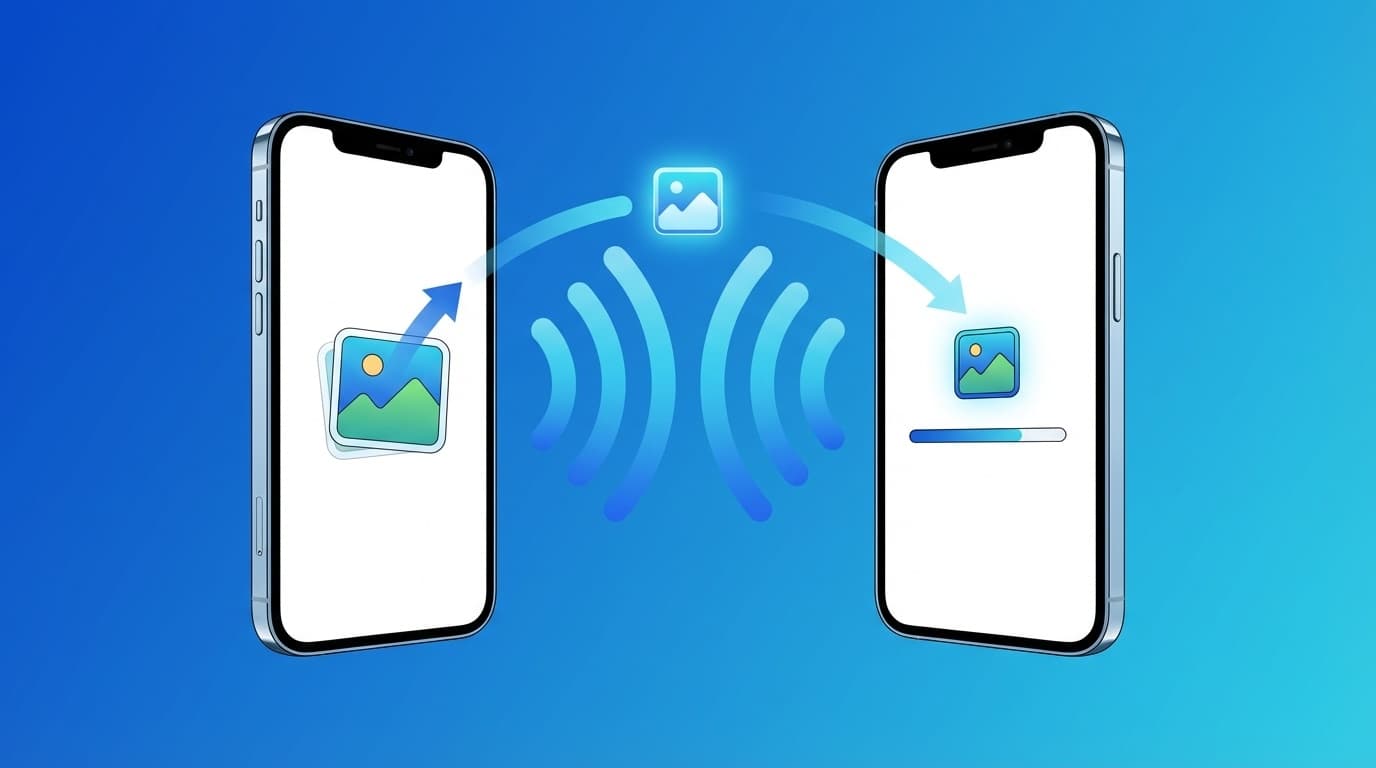
AirDrop suddenly stopped working?
When I tried to send a photo to a friend, The other person's iPhone did not appear using AirDrop. Or even if you send it, it doesn't reach the recipient. You get quite anxious, don't you?
There are generally fixed patterns of reasons why AirDrop cannot be used. If you try the solutions below in order, most cases will be resolved.
First check: AirDrop reception settings
This is the most common cause. This is a case where the receiving side's AirDrop settings are set to ``Do not receive.''
- Open "Settings" → "General" → "AirDrop"
- Select "Everyone (10 minutes only)"
From iOS 16.2 onwards, "Everyone" has been changed to Limited to 10 minutes as a security measure. After 10 minutes, it will automatically return to "Contacts only". Please be sure to check again just before sending, as the message may be cut off at the time of sending and receiving.
If "Contacts only" does not work, please check that the email address and phone number are registered correctly in each other's contacts.
Countermeasures 1 to 4: Basic check
1. Check if Wi-Fi and Bluetooth are ON
AirDrop uses both Wi-Fi and Bluetooth. If either one is OFF, it will not work. Check that both are turned on in the control center.
By the way, If airplane mode is on, both will be off. It's surprisingly easy to overlook.
2. Turn off Internet sharing (tethering)
If tethering is turned on, you will not be able to use AirDrop. Go to "Settings" → "Internet Sharing" and turn off "Allow others to connect".
3. Bring them closer together
The effective range of AirDrop is approximately 9 meters. You may not be able to reach it if there is a wall between you. Try it at a distance of 1-2 meters.
4. Restart both iPhones
Simple but effective. Try restarting both the sending and receiving sides. Temporary Bluetooth glitches will be reset.
Solutions 5-7: If that doesn't work
5. Reset network settings
Settings → General → Transfer or reset iPhone → Reset → Reset network settings. You will need to re-enter the Wi-Fi password, but AirDrop-related issues will be cleared.
6. Update iOS to the latest version
Compatibility issues may occur if the iOS versions on the sender and receiver are significantly different. Update to the latest version by going to Settings → General → Software Update.
7. Sign back into iCloud
"Contacts only" mode uses iCloud information to identify the other party. It will not be displayed if iCloud authentication is incorrect. The problem may be resolved by going to "Settings" → your name at the top → "Sign out" → signing in again.
Same for iPhone → Mac / iPad
AirDrop works not only between iPhones, but also between Macs and iPads. On your Mac, open "Finder" → "AirDrop" and check that "Everyone" is set for "People who can discover this Mac."
FAQ
Is there an upper limit to the file size that can be sent using AirDrop?
No upper limit is officially set. You can also send videos of several GB. However, the larger the file, the longer it will take to transfer, and the transfer may be interrupted.
Can I send it to Android using AirDrop?
AirDrop is a function between Apple devices, so it cannot be sent to Android. If you want to communicate with Android, use Google's Quick Share or LINE's file sending.
Is it safe to use “everyone” for security?
With iOS 16.2 or later, it will automatically return to "Contacts only" after 10 minutes, so you don't have to worry about people continuing to send you files from people you don't know. If you receive a message from a stranger, just press "Decline".
References
- How to use AirDrop — Apple Support
- If AirDrop isn't working — Apple Support