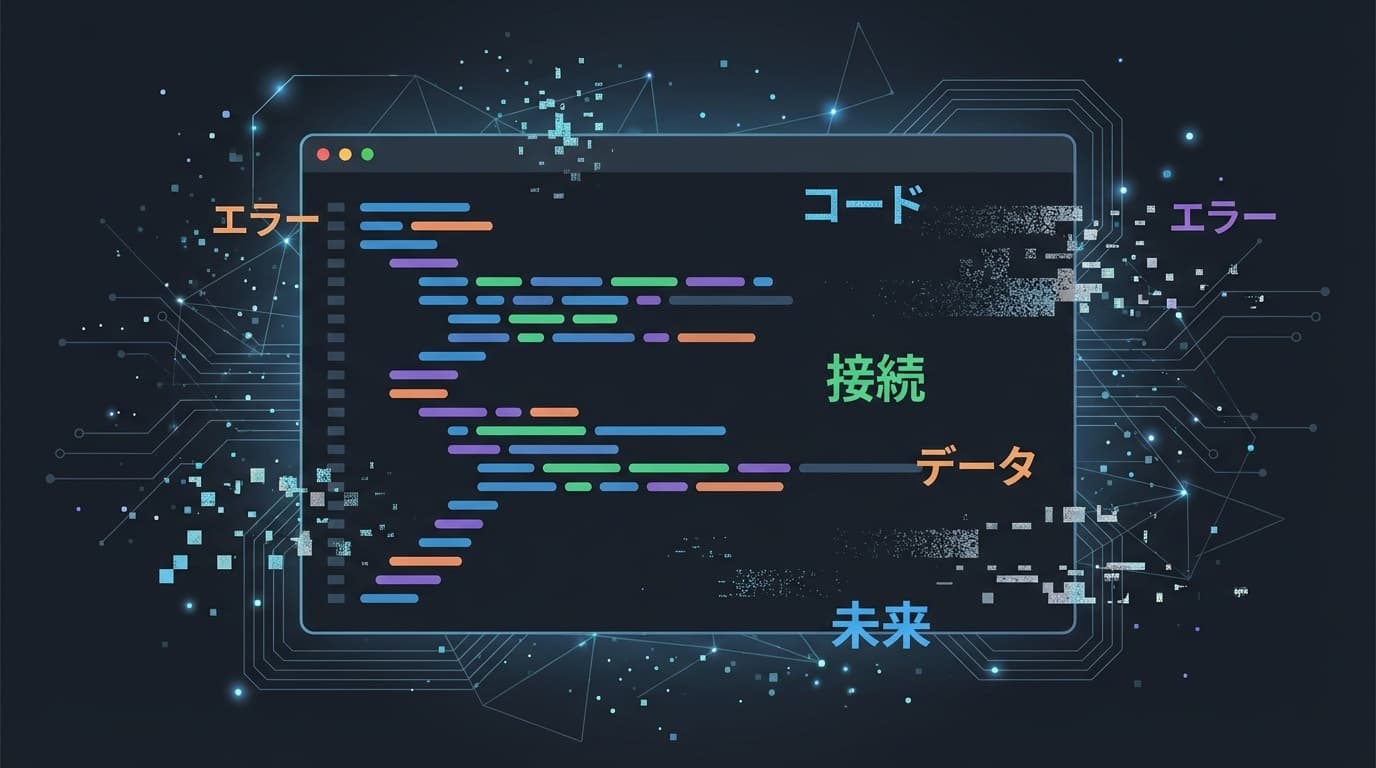
When you enter Japanese in the VS Code (Visual Studio Code) terminal, the characters disappear the moment you confirm the conversion, the characters are garbled and unreadable, the display is shifted and the input position is strange—Are you having trouble with these problems?
Many people use VS Code for programming learning and web development, but problems related to Japanese in the terminal will continue to be reported even in 2025-2026. There are also many bug reports regarding Japanese IME in VS Code GitHub Issues.
In this article, based on information as of February 2026, we will provide an easy-to-understand explanation of 5 reasons for Japanese input not working properly in the VS Code terminal and specific solutions for each.
Cause 1: Character code mismatch (CP932 vs UTF-8)
This is the most common cause. The VS Code editor runs in UTF-8, but the Windows terminal (PowerShell/Command Prompt) uses a different character code by default, CP932 (Shift-JIS).
In other words, it's like trying to have a conversation with someone who only speaks English and someone who only speaks Japanese. If the character code is incorrect, Japanese characters may become garbled or the entered characters may not be displayed correctly.
Workaround: Change the terminal character code to UTF-8
Method 1: Temporarily change with command
Type the following command in the terminal and press Enter.
chcp 65001This will switch the terminal character code to UTF-8. However, it reverts every time I close the terminal.
Method 2: Set permanently in settings.json
In VS Code, press Ctrl + Shift + P (Cmd + Shift + P on Mac), search for "settings json", and open settings.json. Please add the following:
{
"terminal.integrated.profiles.windows": {
"PowerShell": {
"source": "PowerShell",
"args": ["-NoExit", "chcp 65001"]
}
}
}
Now, every time you open the terminal, it will automatically switch to UTF-8.
Method 3: Solve the problem with Windows system settings
In Windows "Settings" → "Time and Language" → "Language and Region" → "Administrative Language Settings" → "Change System Locale", check "Use Unicode UTF-8 for Worldwide Language Support" and restart the PC. This is the most fundamental solution.
Cause 2: Impact of GPU acceleration
The VS Code terminal uses GPU acceleration (a function that draws the screen at high speed using the power of the graphics board) to speed up drawing. This may disrupt the calculation of the display width of full-width characters such as Japanese.
Specifically, when entering Japanese, symptoms such as the cursor position shifts, characters are displayed overlapping, and the position of the conversion candidate window is strange occur.
Workaround: Turn off GPU acceleration
Add the following to settings.json.
{
"terminal.integrated.gpuAcceleration": "off"
}
The drawing speed may be slightly slower, but it is not noticeable. Prioritize the stability of Japanese input.
Cause 3: Unicode width calculation version is outdated
The VS Code terminal has a Unicode version setting. This is a rule for calculating how wide full-width characters should be displayed on the screen.
If the default version does not match the shell or environment you are using, the Japanese character width will not be calculated correctly, resulting in shifted display or overlapping characters.
Workaround: Change Unicode version
Add the following to settings.json.
{
"terminal.integrated.unicodeVersion": "11"
}
Unicode 11 is the version released in 2018, but it is highly compatible with many shell environments and stabilizes the calculation of Japanese full-width character width. After changing the settings, close and reopen the terminal.
Cause 4: Extension is interfering with IME input
An extension installed in VS Code may be interfering with the operation of Japanese input (IME). From 2025 onwards, the following cases are particularly frequently reported.
- VSCodeVim: Confirmation of conversion using the Enter key is processed as a Vim command, and Japanese conversion cannot be confirmed An issue has been reported (occurred in VS Code 1.101.0 or later)
- AI tools such as Claude Code / Gemini CLI: An issue has been reported where AI tools running in the terminal are unable to correctly recognize the width of full-width characters and the display is shifted
- Other terminal-linked extensions: Any extensions that hook key inputs may intercept IME composition events (temporary inputs during conversion)
Workaround: Temporarily disable the extension and isolate it
First, check if an extension is the cause. Start VS Code from the terminal (not the VS Code terminal, but the OS standard terminal) with the following command.
code --disable-extensionsIf Japanese input works normally in this state, the extension is the cause. All you have to do is enable the extensions one by one to identify the culprit.
If you are using VSCodeVim, adding the following to settings.json may improve the situation.
{
"vim.autoSwitchInputMethod.enable": true
}
Cause 5: Enter key responds to both conversion confirmation and command execution
This is a relatively new issue that has been reported more frequently since late 2025. The problem is that when you select a conversion candidate in the Japanese IME and press the Enter key, form submission and command execution in VS Code are triggered at the same time as the conversion is confirmed.
For example, if you enter a branch name in Japanese and press Enter to confirm the conversion, the branch may be created automatically even though you are in the middle of inputting it. This issue, which was reported in VS Code 1.105.1, did not occur in VS Code 1.104.3, so it is a version-specific bug.
Workaround: Update VS Code to the latest version
This kind of problem is usually fixed by updating VS Code. Please update by following the steps below.
- Open
Ctrl + Shift + P(Cmd + Shift + Pon Mac) - Type "Update" and select "Check for Updates..."
- Install any updates and reboot
The latest stable version as of February 2026 is VS Code 1.97 series. If updating does not fix the issue, it may have been fixed in VS Code Insiders version, so please try that.
Summary: It is recommended to include all three settings at once
I've introduced five causes and solutions so far, but if you're not sure which one is the cause, a quick way is to add the following settings to settings.json.
{
"terminal.integrated.gpuAcceleration": "off",
"terminal.integrated.unicodeVersion": "11",
"terminal.integrated.profiles.windows": {
"PowerShell": {
"source": "PowerShell",
"args": ["-NoExit", "chcp 65001"]
}
}
}
To open settings.json, Ctrl + Shift + P → search for "settings json" → select "Preferences: Open User Settings (JSON)".
This will solve most cases. If that doesn't work, try disabling extensions (code --disable-extensions).
FAQ
Do the same symptoms occur on Mac?
Yes, it can happen. However, character code mismatch (Cause 1) is a Windows-specific problem. On Mac, the main causes are GPU acceleration (Cause 2) and extension interference (Cause 4). The settings.json settings can be used in the same way on Mac.
I don't know where settings.json is. Where is it?
In VS Code, press Ctrl + Shift + P (Cmd + Shift + P on Mac), search for "settings json", and select "Preferences: Open User Settings (JSON)" to open automatically. There is no need to directly locate the file.
I changed the settings but they are not reflected
After saving settings.json, you must close the terminal and reopen it. The settings will not be reflected on existing terminals. If that doesn't work, try restarting VS Code itself (completely closing and reopening).
Can the same solution be used for WSL (Windows Subsystem for Linux)?
If you are using WSL, there is no need to set the character code for cause 1 (WSL is UTF-8 by default). Turning off GPU acceleration (cause 2) and changing the Unicode version (cause 3) are equally valid. If you have WSL-specific issues, also check the locale settings on the WSL side (check with the locale command).
References
- Japanese text Input causes hard crash in all text fields · Issue #238811 — microsoft/vscode, GitHub, 2025
- Pressing Enter to confirm Japanese IME conversion simultaneously submits the Create Branch form · Issue #272407 — microsoft/vscode, GitHub, 2025
- Terminal Basics - Visual Studio Code Documentation — Microsoft, official documentation
- Japanese IME conversion not committed when pressing Enter with VSCodeVim enabled · Issue #9672 — VSCodeVim/Vim, GitHub, 2025