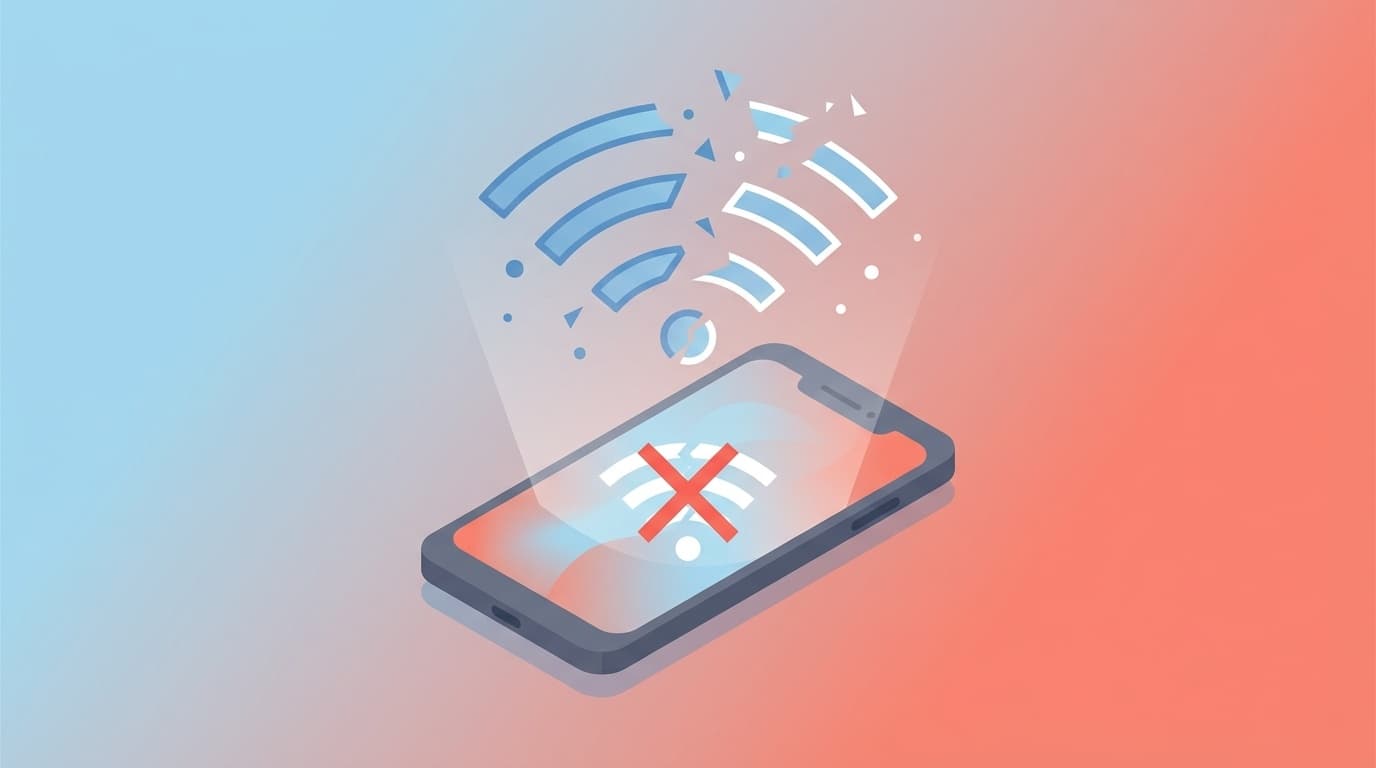
Have you ever experienced that after updating your iPhone to iOS and suddenly not being able to connect to Wi-Fi? As of February 2026, iOS 26.3 has just been released, but there are many reports on SNS that ``Wi-Fi became unstable after the update'' and ``The connection immediately disconnects.''
In this article, we will explain in an easy-to-understand manner the six main reasons why Wi-Fi won't connect after an iOS update, and the solutions you can try right away. If you're wondering, "What is a network settings reset?" or "Is it related to a VPN?", that's okay. If you do it in order, you can probably solve the problem.
6 reasons why Wi-Fi won't connect after iOS update
Firstly, the question is "Why does it suddenly stop connecting?" There are actually quite a few Wi-Fi problems after updating iOS. There are six main causes:
1. iOS bugs (software defects)
This is the most common cause. New iOS may contain bugs that may affect Wi-Fi or Bluetooth connectivity. In fact, with iOS 26 released in September 2025, there were reports of a problem in which the iPhone 17 series and iPhone Air were experiencing frequent Wi-Fi disconnections, and Apple Fixed an issue where Wi-Fi and Bluetooth connections were interrupted in 26.0.1.
In other words, it is normal for iOS to become unstable immediately after an update.
2. Inconsistent network settings
When updating iOS, the saved Wi-Fi connection information (password, authentication method, etc.) may become incorrect internally. This pattern often occurs when a device appears to be connected, but is actually not connected to the Internet.
3. VPN/security app interference
VPN (Virtual Private Network) apps and security apps may not be compatible with the new iOS. Apple's official support page also recommends that ``rather than disabling VPNs and security software, completely remove them and check.''
4. Malfunction of Wi-Fi assist function
Wi-Fi Assist is a function that automatically switches to mobile data communication (4G/5G) when the Wi-Fi connection is unstable. This may react overly after an update and disconnect the Wi-Fi connection without permission. If you're saying, "The Wi-Fi mark is showing, but the gigabyte is decreasing!", this may be the cause.
5. Router problems
Although it is often overlooked, the cause may be on the Wi-Fi router side. If your router has outdated firmware, it may have compatibility issues with newer iOS Wi-Fi standards (such as WPA3).
6. Interference with UWB (Ultra Wide Band Radio)
Starting with iOS 26.2, the UWB (ultra wideband) control stack for AirTag 2 has been rewritten. There have also been reports of target="_blank" rel="noopener">this change interfering with existing Wi-Fi/Bluetooth connections. This is especially likely if the symptoms appeared immediately after updating to iOS 26.2.1.
Try it first! 3 easy solutions
Now that we know the cause, we will introduce solutions in "easy order". Let's start with a method that can be done in 1 minute.
Solution 1: Turn Wi-Fi on/off
It's the simplest, but surprisingly effective.
- Swipe down from the top right of the screen to open Control Center
- Tap the Wi-Fi icon to turn it off
- Wait about 10 seconds, then tap again to turn it on
The key is to wait 10 seconds. If you turn it on immediately, it may not be reset.
Solution 2: Turn on/off airplane mode
This is a method to reset not only Wi-Fi but also the communication system all at once.
- Turn on Airplane mode in Control Center
- Wait about 30 seconds
- Turn off airplane mode
- Check if it automatically reconnects to Wi-Fi
Airplane mode resets Wi-Fi, mobile data, and Bluetooth all at once, so it is often more effective than solution 1.
Solution 3: Restart your iPhone
You may be wondering, "What's the point of restarting?", but it's especially effective after an iOS update. This is because the cache remaining halfway through the update process is cleared.
- Press and hold the side button and volume button (up or down) at the same time
- When "Slide to power off" appears, slide to turn off
- Wait 30 seconds, then press and hold the side button to launch
If that doesn't work! 3 ways to deal with it properly
If the above three methods do not resolve the issue, you will need to take a more in-depth approach.
Solution 4: Delete and reconnect the Wi-Fi network
Effective when the saved Wi-Fi settings are corrupted.
- Settings → Open Wi-Fi
- Tap ⓘ (information button) to the right of the name of the network you are connected to
- Tap Delete this network setting
- Select the same network from the Wi-Fi list and re-enter the password to connect
Note:Please check your Wi-Fi password in advance. It is often written on the label on the router itself.
Solution 5: Temporarily delete VPN/security apps
If you are using a VPN app or antivirus app, please not only turn it off in the settings of the app, but also delete the app itself and check. Apple's official support also states that ``disabling it is not enough.''
- Uninstall your VPN/security app
- Restart your iPhone
- Check if you can connect to Wi-Fi
- If the issue is resolved, reinstall the app and update to the latest version
Solution 6: Reset network settings
This is "one step before the last resort." All saved Wi-Fi passwords, VPN settings, and APN settings will be reset.
- Settings → General → Transfer or reset iPhone
- Reset → “Reset network settings”
- Enter and confirm passcode
- Manually reconnect to your Wi-Fi network after reboot
Roughly speaking, this is an operation that returns the Wi-Fi settings to the clean state. All saved Wi-Fi passwords will be deleted, so make a note of your home and work passwords before proceeding.
Easy to overlook! Things to check on the router side
If you can't fix the problem no matter how much you tweak the settings on your iPhone, the cause may be on the router side.
Restart your router
Just unplug your router, wait 30 seconds, and plug it back in. There are many things that can be fixed just by doing this.
Update the router firmware
Check and update the latest firmware from the router manufacturer's website. Older firmware may not support iOS 26 Wi-Fi standards.
Try switching the frequency band
Wi-Fi has 2.4GHz band and 5GHz band. If you can't connect with one of them, try the other one. In particular, the 5GHz band is easily affected by walls, so the 2.4GHz band may be more stable in locations far from the router.
If the problem persists
If the problem does not improve even after trying this, please consider the following measures.
Update iOS to the latest version
Apple frequently releases minor updates that fix bugs. As of February 2026, the latest is iOS 26.3. Check in Settings → General → Software Update. iOS 26.0.1 fixes Wi-Fi and Bluetooth issues, and iOS 26.3 includes further stability improvements.
Contact Apple Support
If the problem persists even after trying all of the solutions above, there may be a hardware problem (such as a defective Wi-Fi antenna). Contact Apple Official Support or schedule an appointment at the Genius Bar at the Apple Store.
FAQ
After updating iOS, Wi-Fi is grayed out and cannot be pressed.
If the Wi-Fi button is grayed out, try restarting your iPhone. If the problem still persists, there may be a hardware failure (Wi-Fi chip abnormality), so we recommend contacting Apple Support.
Wi-Fi is connected but I can't use the internet. What should I do?
If the Wi-Fi mark is displayed but you cannot connect to the internet, it is effective to delete the Wi-Fi network and re-enter the password, or to reset the network settings (Countermeasure 6). Don't forget to try restarting your router as well.
Can I revert to the iOS before the update?
Basically, downgrading iOS is not allowed by Apple, so once you update it, you cannot go back to the previous version. Instead, wait for Apple to release a bug fix or apply the latest minor update.
Should I turn off "Wi-Fi Assist"?
If your mobile data usage is decreasing due to Wi-Fi Assist, turn it off. There is a switch at the bottom of Settings → Mobile Communications. However, please note that if you turn it off, communication may be interrupted in areas where Wi-Fi is weak.
References
- If you can't connect to Wi-Fi on your iPhone or iPad — Apple Support
- iOS 26.0.1 released Fixed issue with Wi-Fi and Bluetooth interruption — Impress Watch
- About iOS 26 Updates — Apple Support
- How to Fix Wi-Fi Dropping on iOS 26 — The Mac Observer