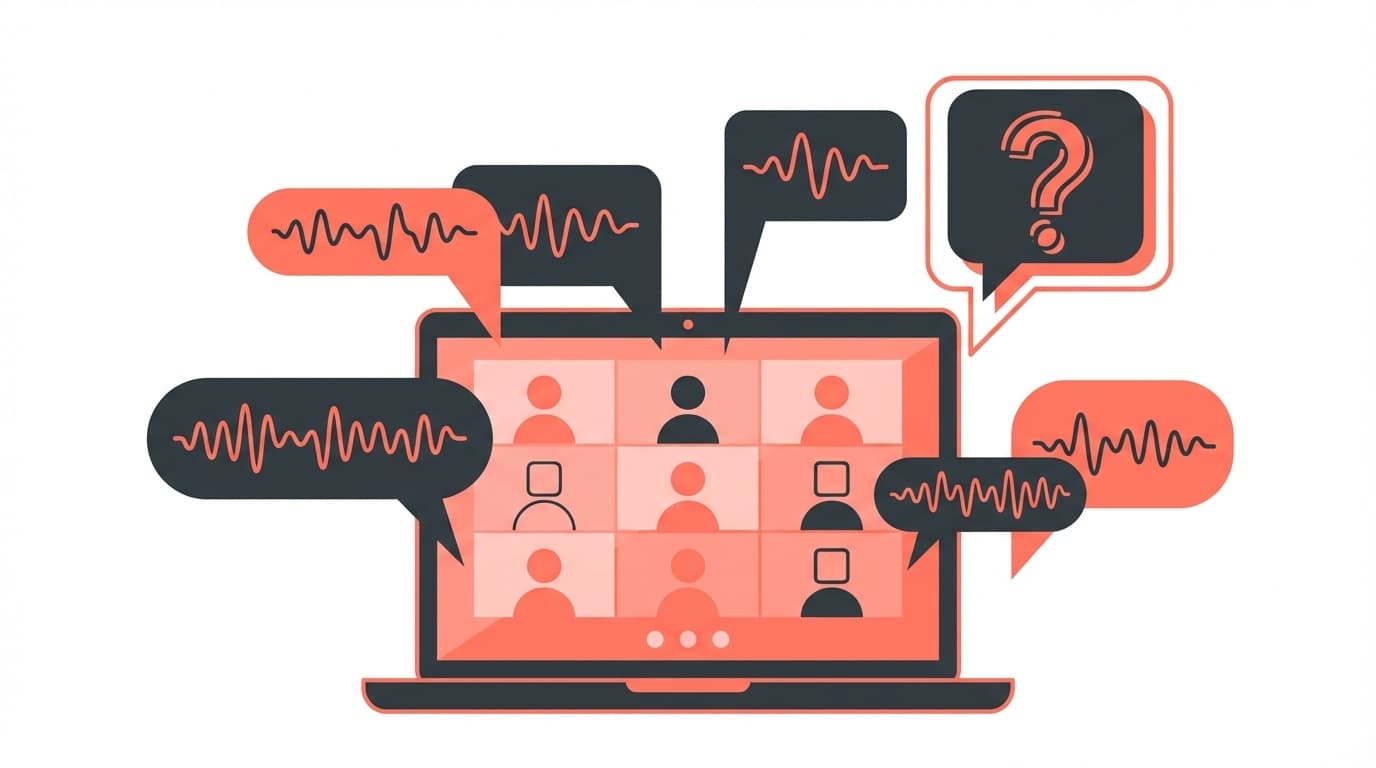
Have you ever tried to use transcription for a Teams meeting, but the names of the speakers changed to "Speaker 1" and "Speaker 2"?
Even though it is automatically transcribed, it is almost useless as minutes if you don't know who said what. As of February 2026, the transcription feature in Teams has evolved, but speaker identification may not work properly if not configured correctly.
In this article, we will explain in an easy-to-understand manner five reasons why the speaker is not displayed correctly in Teams transcription, how to register an audio profile, and what to do if you are participating from the conference room speaker.
What is speaker identification in Teams transcription?
Teams' transcription function is a function that converts what is said during a meeting into text in real time. As of February 2026, according to Microsoft official documentation, it is available with a Teams Premium or Microsoft 365 license.
This feature is equipped with Speaker Attribution, which automatically sorts messages by speaker, such as "Person A said this" and "Person B replied this."
However, there are some conditions for this to work correctly. If the conditions are not met, everyone's speech will be displayed as "Speaker 1", "Speaker 2", or a completely different person's name.
5 reasons why the speaker is not displayed correctly
Cause 1: Participants are not connected to Teams with separate accounts
This is the most common pattern. If several people are gathered in a conference room and one representative is connecting to Teams from their PC, only that one PC will be visible from Teams. The comments made by everyone in the meeting room will be recorded under the representative's account name.
In other words, if five people in a conference room are talking on "Mr. Tanaka's PC," all of the utterances will appear in the transcription as "Mr. Tanaka."
What to do: Even if you are in the conference room, each participant should sign in to Teams individually from their smartphone or PC to participate. You can mute your microphone and use the conference room's speakerphone for audio input.
Cause 2: Voice profile is not registered
Teams has a feature called Voice Profiles. This is a system that allows you to register the characteristics of your voice (pitch, tone, mannerisms of speaking) in Teams, and it will automatically identify that "this voice is from ____."
According to Microsoft's official voice and face recognition guide, if a voice profile is not registered, accurate speaker identification will not be possible, especially when participating from the conference room speakers.
Cause 3: The administrator has not enabled the transcription function
Teams transcription features must be enabled by your organization's IT administrator in the Teams admin center. Specifically, "Transcript" must be turned on in Teams Admin Center under "Meeting" → "Meeting Policy" → "Recording and Transcript".
If this is left off, the transcription itself may not be usable or speaker identification may be limited.
Cause 4: Speaker identification policy for BYOD conference room is not set
BYOD (Bring Your Own Device) style conference rooms require additional policy settings. Your IT administrator must enable speaker identification in the policy CsTeamsAIPolicy.
According to Microsoft Learn, it can take up to 48 hours for the policy to take effect after setting it, so don't rush into thinking "it still doesn't work!" right after setting it.
Cause 5: Using a device that is not compatible with intelligent speakers
Accurately identifying multiple voices in a conference room may require a specialized device called an intelligent speaker. Compatible devices include Yealink MSpeech and EPOS EXPAND Capture 5.
With normal speakerphones, it is technically difficult to distinguish between the voices of multiple people in a conference room, so "Speaker 1" and "Speaker 2" may be displayed.
How to register a voice profile [Individual settings]
The most effective measure you can take yourself without relying on the administrator is Registering a voice profile. The steps are very simple.
- Open the Teams desktop app (not available in web version)
- Click on your icon in the top right corner and select Settings
- Click "Recognition" from the left menu
- Select "Create voice profile"
- Read short phrases that appear on the screen (takes only a few minutes)
Teams will now record something like a "fingerprint" of your voice. Starting with your next meeting, your words will be correctly named in the transcription.
Note: If you don't see the Recognition menu, your organization's IT administrator may have disabled the voice profile feature. In that case, please ask your administrator to enable it.
3 ways to correctly identify speakers when joining from a conference room
If you are working from home, you can each join Teams individually, but the problem is when multiple people gather in a conference room. This is the point where you are most likely to have trouble.
Method 1: Have everyone sign in to Teams from individual devices too
This is the most reliable method. In addition to the conference room speakerphone, sign in to Teams from your smartphone or PC. You can also prevent feedback by muting your device's microphone and allowing audio to come through the speakerphone.
Method 2: Install intelligent speakers
If you have the budget: The smartest solution is to bring rel="noopener">intelligent speakers compatible with Microsoft Teams to your conference room. It automatically distinguishes the voices of multiple people, matches them with the voice profile, and accurately identifies the speaker.
However, before use, each participant must register an audio profile (see instructions above).
Method 3: Use external minutes AI tools together
If the standard Teams transcription alone has its limits, you can also use an external AI meeting minutes tool. Services like Notta and Otolio have their own speaker identification engines and can connect to Teams meetings for transcription.
If your organization's security policy restricts the use of external tools, consult your IT department before implementing them.
5 tips to improve transcription accuracy
In addition to speaker identification, if the transcription accuracy is low, it cannot be used as minutes. Here are some tips to improve accuracy.
- Speak close to the microphone: Speaking from a distance will make your voice quieter and reduce recognition accuracy
- Don't have multiple people talking at the same time: If you overlap each other, Teams won't be able to tell who's speaking
- Correct the meeting language settings: If the meeting is in Japanese but the language is set to English, the transcription will be a mess. Select Japanese in the meeting's "..." menu → "Language and audio" → "Live caption language"
- Reducing background noise: In a cafe or open office, setting Teams' Noise Suppression to High will help.
- Use a wired microphone: A wired microphone provides more stable sound quality and higher recognition accuracy than Bluetooth earphones
FAQ
If I register a voice profile, will my voice be recorded and saved without permission?
A voice profile is saved as data that quantifies the characteristics of the voice (voice print), and the content of the conversation is not recorded or saved. According to Microsoft official, profiles are encrypted and stored securely within Microsoft 365. You can delete it at any time if you no longer need it.
Can speaker identification for transcription be used in the free version of Teams?
As of February 2026, the transcription feature requires Microsoft 365 Business Basic or higher or a Teams Premium license. The transcription function itself is not available in the free version of Teams.
What should I do if I can't find the "Recognition" menu for voice profiles?
Your organization's IT administrator may have disabled voice recognition functionality. Ask your administrator to enable the "Allow voice profile registration" setting in the Teams admin center. These are organization settings that cannot be changed by individuals.
Will speaker identification for transcription be effective even during the middle of a meeting?
Yes, speaker identification will still work for participants who are signed in, even if you start transcription in the middle. However, since what you say before the meeting starts is not recorded, it is recommended that you turn it on from the beginning for important meetings.
References
- Administrator - manage transcriptions and captions for Teams meetings — Microsoft Learn, updated 2025
- Voice and face registration overview — Microsoft Learn, updated 2025
- Tenant management controls for voice recognition (voice profiles) in Teams Rooms — Microsoft Learn, updated 2025
- Use Microsoft Teams Intelligent Speakers to identify in-room participants — Microsoft Support