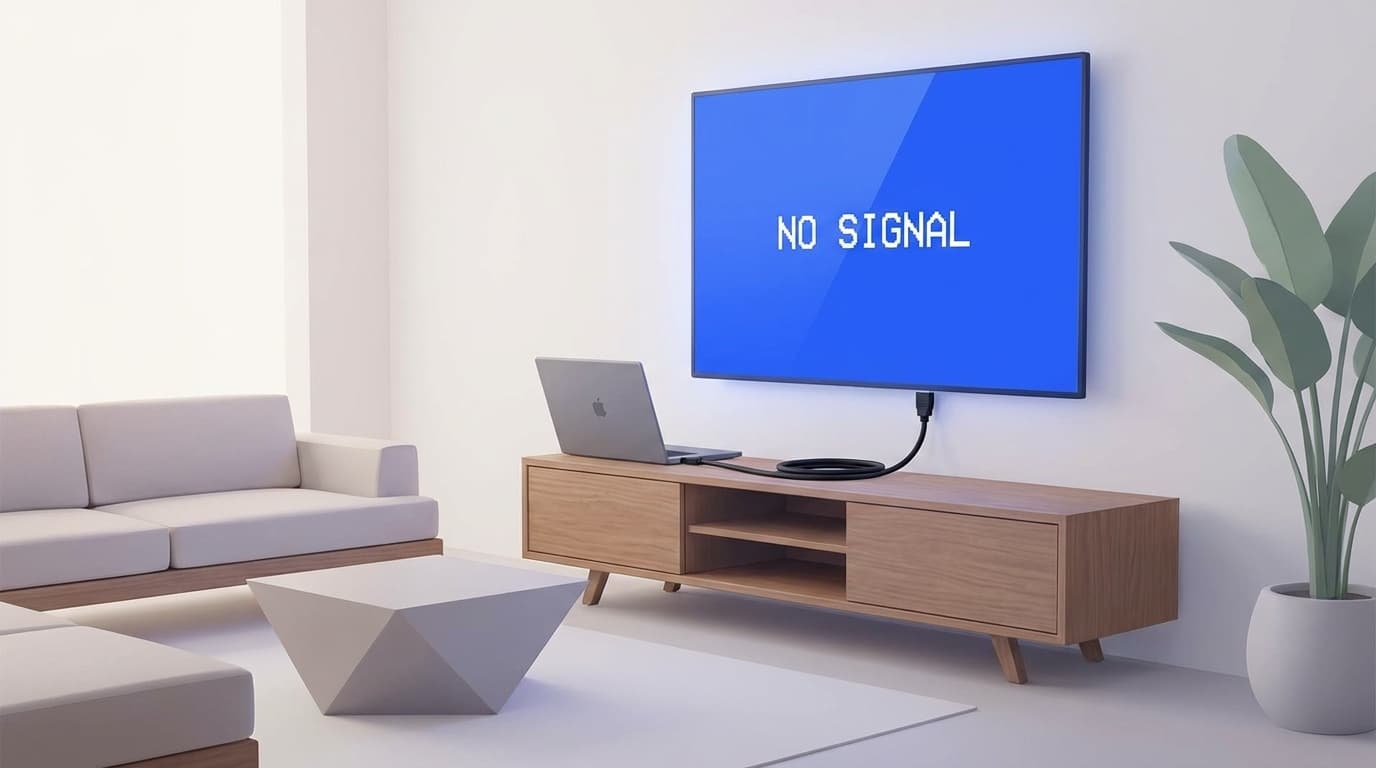
"I plugged in the monitor, but the screen stays black..." "The second display doesn't show up in Display settings..." If you're trying to set up dual monitors in Windows 11, running into an external monitor that won't be detected is a pretty common problem.
The cause can be anything from a loose cable to a driver issue. In this article, we'll walk through six common reasons an external monitor isn't detected or a second display won't show in Windows 11, based on Windows 11 environments as of March 2026. None of the steps are especially difficult, so try them from the top down.
Start Here: Check the Cable and Monitor
One surprisingly common cause is simple: the cable isn't fully plugged in. HDMI and DisplayPort cables can cause connection problems if they aren't pushed all the way in.
Check these three things first.
- Unplug both ends of the cable, then plug them back in firmly (this alone fixes the issue more often than you'd think)
- Check the input setting on the monitor (make sure HDMI1, HDMI2, DisplayPort, or whichever port you're using matches the selected input)
- Make sure the monitor is powered on (also check the power light; many models show orange when they're in standby)
If it still doesn't work, try swapping in a different cable. Older HDMI cables, especially HDMI 1.4 or earlier, may not support 4K output properly. The easiest way to narrow down whether the cable is the problem is to see if another cable works.
Force Windows to Detect the Display
If the cable looks fine, Windows may simply not be finding the monitor. In some cases, running Detect manually is enough to make it show up.
According to Microsoft Support, here's what to do.
- Right-click an empty area of the desktop, then select Display settings
- Scroll down and find the Multiple displays section
- Click the Detect button
Your PC will search for the external monitor again. Once it's detected, switch the display mode to Extend so you can use it as a dual-monitor setup.
You can also switch modes quickly with a keyboard shortcut. Press Windows key + P to open the menu for PC screen only, Duplicate, Extend, and Second screen only, then choose Extend.
Update or Reinstall the Graphics Driver
If your display driver, also called the graphics driver, is outdated or corrupted, Windows may not recognize a second monitor correctly. If the monitor stopped working after Windows Update, this is a very likely cause.
First, try updating the driver.
- Right-click the Start button, then select Device Manager
- Click the arrow next to Display adapters to expand it
- Right-click the listed graphics card name, such as Intel, NVIDIA, or AMD, then select Update driver
- Select Search automatically for drivers
If updating doesn't fix it, reinstalling the driver can help.
- In Device Manager, right-click your graphics card, then select Uninstall device
- Check Attempt to remove the driver for this device, then click Uninstall
- Restart your PC. Windows should automatically reinstall the driver during restart
If you're using an NVIDIA, AMD, or Intel graphics card, downloading the latest driver from the manufacturer's official site is usually the most reliable route. You can get them from NVIDIA Driver Downloads, AMD Support, or the Intel Driver & Support Assistant.
Reset the Graphics Driver with a Shortcut
Before updating or reinstalling the driver, there's an easier step worth trying. Press Windows key + Ctrl + Shift + B at the same time to instantly reset the graphics driver.
If the screen briefly goes black and you hear a beep, it worked. This only reloads the driver, so it won't erase any work you have open. It's also a method listed in Microsoft's official troubleshooting guide.
This is especially useful if the monitor stopped displaying right after Windows Update or after waking the PC from sleep. If the monitor comes back, the issue was probably a temporary driver glitch.
Watch Out for USB-C and Adapter Gotchas
On newer laptops, it's increasingly common to connect an external monitor through a USB-C port. This is where a big catch comes in.
Not every USB-C port supports video output. Some USB-C ports are for data transfer only, while others support video output through DisplayPort Alt Mode. You usually can't tell just by looking at the port. Check your PC's specs or the manufacturer's support page to confirm whether your USB-C port supports video output.
You'll also want to be careful when using conversion adapters, such as USB-C to HDMI or USB-C to DisplayPort.
- Some inexpensive adapters don't support 4K (for a 4K monitor, choose one that clearly says it supports 4K@60Hz)
- If you're going through a hub or docking station, the hub itself may be the limit. Try connecting the monitor directly instead
- Thunderbolt 3/4 ports are a safer bet. Thunderbolt always supports DisplayPort Alt Mode. If there's a lightning bolt mark (⚡) next to the port, it's Thunderbolt
Still Not Working? Check BIOS Settings and Hardware
If you've tried everything above and the monitor still won't display, the cause may be more fundamental.
Enable Onboard Graphics in BIOS (UEFI)
If you have a desktop PC with a dedicated graphics card, the video output ports on the motherboard may be disabled. If your second monitor is connected to a motherboard port, you may need to enable iGPU Multi-Monitor or Integrated Graphics in BIOS by setting it to Enabled.
The exact way to open BIOS varies by manufacturer, but on many PCs you repeatedly press F2 or Delete right after powering on the computer.
Monitor Failure or Compatibility Issues
The last thing to suspect is a faulty monitor. Connect the monitor to another PC or a game console and see whether it displays there. If it works, you may be dealing with a compatibility issue. If it doesn't, the monitor itself may have failed.
Also, with DisplayPort cables, the order in which you power on the monitor and PC can sometimes matter. Try turning the monitor on first and then starting the PC, or try the reverse.
FAQ
What should I check if I want to connect three or more monitors?
Check the maximum number of displays your graphics card supports. Integrated graphics, such as Intel UHD, commonly support up to three displays, but you may be able to add more with a USB display adapter. Just keep in mind that displays connected through USB adapters can feel slower.
Can I close my laptop and use only an external monitor?
Yes. This setup is often called clamshell mode. With an external monitor, keyboard, and mouse connected, you can close the laptop lid and use only the external monitor. In Power Options, set "When I close the lid" to "Do nothing" first.
Should I use HDMI or DisplayPort?
If you want to use 4K@60Hz or higher, DisplayPort is usually the better choice. HDMI 2.0 supports 4K@60Hz, but HDMI 1.4 is limited to 4K@30Hz. If you aren't sure what version your cable supports, DisplayPort is often the safer option.
What if the monitor stopped working after Windows Update?
A graphics driver compatibility issue is likely. First, reset the driver with Windows key + Ctrl + Shift + B. If that doesn't fix it, try rolling back the driver to the previous version from Device Manager.
References
- Troubleshoot external monitor connections in Windows — Microsoft Support
- What to do when an external display isn't detected in Windows 11 — NEC LAVIE Support
- Troubleshooting - External display connection issues — ASUS Support
- External display isn't detected (dual/multi-monitor) — I-O DATA