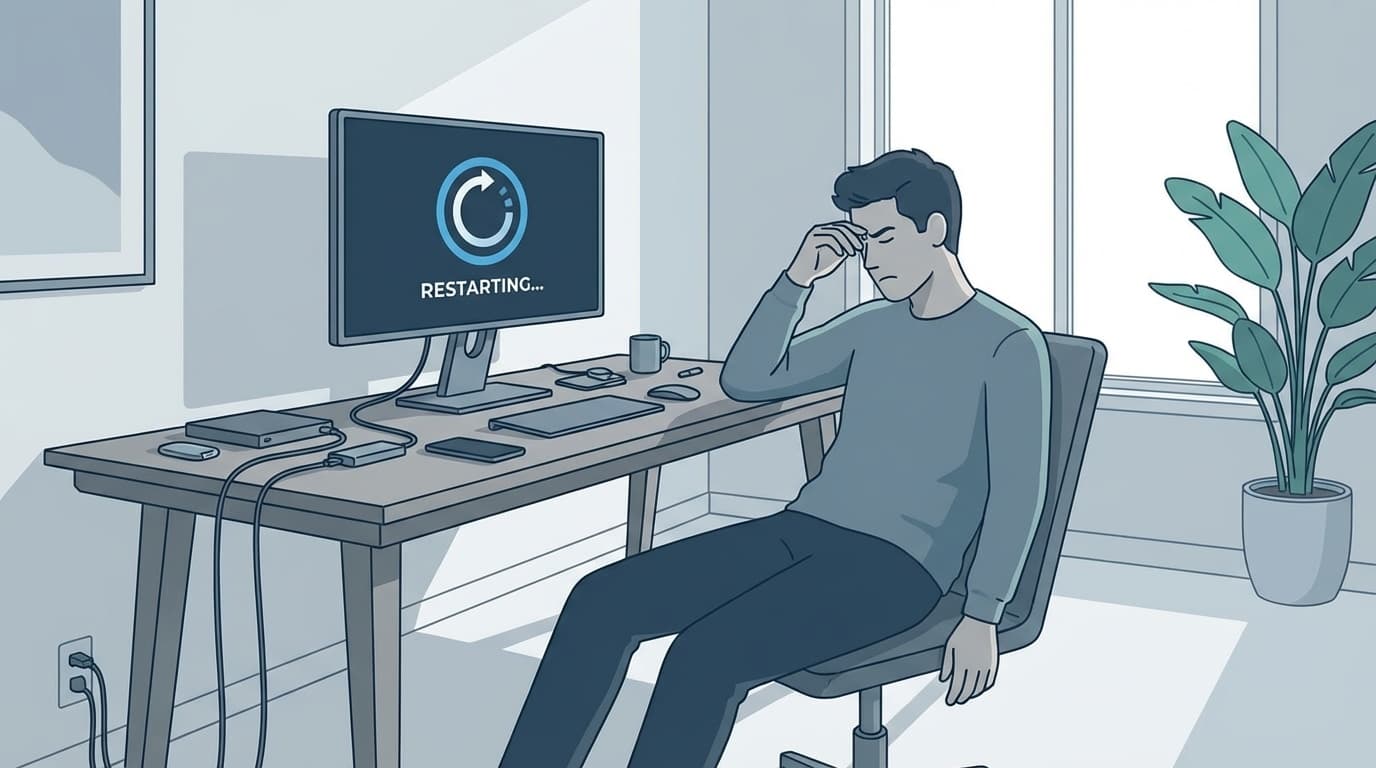
Have you ever tried to open a file in Windows 11 only for File Explorer to freeze, or right-clicked something and watched it turn into “Not responding”?
File Explorer is the center of Windows file management, so when it gets unstable, it can bring your work to a halt. As of March 2026, reports of freezes and crashes have become especially common after the Windows 11 24H2 update.
In this guide, we’ll explain six common reasons File Explorer keeps freezing or crashing, plus practical fixes you can try on your own.
What actually happens when File Explorer crashes?
File Explorer, also known as explorer.exe, isn’t just the app that shows your files. It also handles the taskbar, Start menu, and desktop icons.
That means when File Explorer crashes, you may also see symptoms like the taskbar disappearing or the desktop turning black. In January 2026, Microsoft officially acknowledged a bug where explorer.exe crashes could make the taskbar disappear, and a fix was rolled out in KB5074105.
First, check whether Windows Update is fully up to date. In many cases, that alone can fix the problem.
6 reasons File Explorer freezes or crashes
File Explorer usually becomes unstable for one of these six reasons.
Cause 1: A corrupted cache
File Explorer stores folder history and thumbnail images in a cache. If that cache gets corrupted, folders may freeze when you open them, or the display may look broken.
Cause 2: Third-party shell extensions in the right-click menu
The menu that appears when you right-click a file can include items added by apps you installed later. These shell extensions can conflict with each other or throw errors, making them one of the most common causes of File Explorer crashes.
Common examples include cloud storage apps like Dropbox, OneDrive, and Google Drive; compression tools like 7-Zip and WinRAR; and security software.
Cause 3: A Windows Update bug
Major Windows 11 updates can change how File Explorer works, and some users report instability right after updating. The KB5070311 update fixed File Explorer freezing and search issues.
Cause 4: A corrupted search index
If File Explorer freezes the moment you type in the search bar, the search index, which is the database Windows uses for searching, may be corrupted.
Cause 5: Damaged system files
If Windows system files are damaged, File Explorer and other apps can become unstable. This is more likely after a forced shutdown or blue screen.
Cause 6: Too many files in one folder
If a single folder contains thousands or tens of thousands of files, File Explorer may freeze while trying to load thumbnails. This is especially common in folders packed with images or videos.
Quick fixes to try first
Fix 1: Restart File Explorer from Task Manager
Start with the easiest fix. If File Explorer freezes, you can restart only File Explorer without rebooting the whole PC.
- Press Ctrl + Shift + Esc to open Task Manager
- In the “Processes” tab, find “File Explorer” or “Windows Explorer”
- Right-click it and choose “Restart”
Your screen may disappear for a moment, but it should come back in a few seconds. This often fixes the issue, so it’s worth trying first.
Fix 2: Clear File Explorer’s cache
Clearing built-up cache data can sometimes stop the freezing.
- Open File Explorer, then click “…” → “Options” in the top menu
- On the “General” tab, click the “Clear” button under “Clear File Explorer history”
- Click “OK” to close the window
If you want to clear it more thoroughly, open Command Prompt as administrator and enter the following command.
del /f /s /q %LocalAppData%\Microsoft\Windows\Explorer\thumbcache_*.db
Note: For best results, end File Explorer from Task Manager before running the command.
Fix 3: Update Windows
As of March 2026, Microsoft has released multiple patches related to File Explorer issues.
- Open Settings with Win + I, then go to “Windows Update”
- Click “Check for updates”
- Install any available updates, then restart your PC
It’s also worth checking “Optional updates,” since fixes are sometimes included there too.
Advanced fixes if the problem continues
Fix 4: Turn on “Launch folder windows in a separate process”
By default, File Explorer windows usually run under one process. In other words, if one window freezes, it can drag the others down with it. There’s a setting that separates them.
- Open File Explorer’s “…” → “Options”
- Select the “View” tab
- Check “Launch folder windows in a separate process”
- Click “OK” to close the window
This uses a little more memory, but if one folder freezes, your other windows are more likely to keep working. It’s a good setting for anyone dealing with frequent crashes.
Fix 5: Rebuild the search index
This is useful when File Explorer freezes while using the search bar.
- Open Settings with Win + I, then go to “Privacy & security” → “Searching Windows”
- Click “Advanced indexing options” near the bottom
- Go to the “Advanced” tab, then click “Rebuild”
Rebuilding the index can take several hours. Your PC may feel a bit slower while it runs, but once it’s done, search-related freezing should improve.
Fix 6: Repair system files with SFC and DISM
If Windows system files are damaged, run the built-in repair commands.
- Right-click the Start menu, then choose “Terminal (Admin)”
- Enter the following commands one at a time, waiting for each one to finish before running the next
DISM /Online /Cleanup-Image /RestoreHealth
sfc /scannow
DISM repairs Windows by downloading the correct files from Windows Update, while SFC checks the integrity of system files. The key is to run DISM first.
When you see a message saying the repair is complete, restart your PC and check whether File Explorer is working normally.
Fixes you should avoid
You may see advice online telling you to edit the registry or replace explorer.exe, but directly editing the registry is risky for beginners, so we don’t recommend starting there. Try fixes 1 through 6 in this guide first.
Also, resetting your PC should be a last resort. If none of the methods above help, contact Microsoft Support or your PC manufacturer’s support team.
FAQ
If File Explorer freezes, do I have to force shut down my PC?
No. You can press Ctrl + Shift + Esc to open Task Manager and restart only File Explorer. You don’t have to reboot the whole PC.
What should I do if File Explorer crashes and the taskbar disappears?
Press Ctrl + Shift + Esc to open Task Manager, then choose “File” → “Run new task,” type explorer.exe, and click OK. Your taskbar and desktop should return.
File Explorer became unstable after I updated to Windows 11. Can I downgrade?
If it’s been less than 10 days since the update, you can go back to the previous version from “Settings” → “System” → “Recovery” → “Go back.” After 10 days, that option disappears, so try installing the latest Windows Update fixes first.
What if File Explorer freezes only when I open one specific folder?
That folder may contain an unusually large number of files, or it may include a corrupted file. Switching File Explorer’s view to “Details” skips thumbnail loading, which can make freezing less likely.
References
- Microsoft says latest Windows 11 issue crashes explorer.exe, makes taskbar disappear, but a fix is rolling out — Windows Latest, January 2026
- Windows 11 KB5070311 update fixes File Explorer freezes, search issues — BleepingComputer, 2025
- Windows help and learning — Official Microsoft Support
- File Explorer keeps crashing — Microsoft Q&A