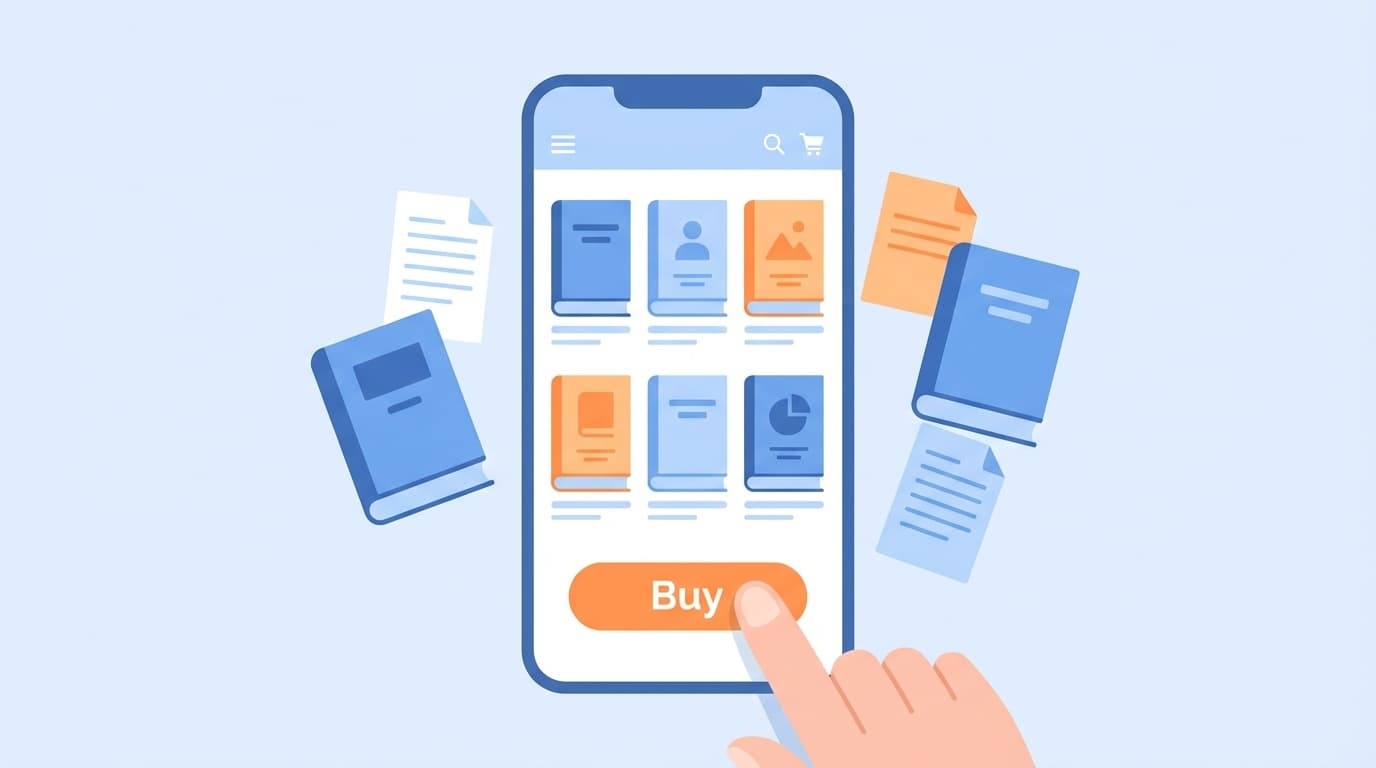
“I tried to buy a book on the Kindle app, but there was no purchase button!” — Have you ever been confused when trying to buy a Kindle book on your smartphone?
Actually, this is a common problem that has plagued smartphone users for many years. However, the situation has changed significantly with the Smartphone Software Competition Promotion Act (commonly known as the New Smartphone Act), which came into effect in December 2025.
In this article, we will explain how to purchase books from the Kindle app in an easy-to-understand manner for beginners, based on the latest information as of February 2026.
Why couldn't I buy books from the Kindle app in the first place?
The reason why I couldn't buy books using the Kindle app is due to Apple and Google's "in-app purchasing rules".
Roughly speaking, services that distribute apps on the App Store and Google Play have a system in which when you sell a product within the app, a fee of up to 30% of the sales is taken as a commission. Amazon intentionally removed the purchase button from the Kindle app to avoid this fee.
In other words, it is not a "bug" or "defect", but Amazon intentionally removed the purchase function.
As a result, in order to purchase a Kindle book, you had to open a browser such as Safari or Chrome, access Amazon.co.jp, and purchase it. Honestly, it was quite a hassle.
What has changed with the new smartphone law? [From December 2025]
On December 18, 2025, the Smartphone Software Competition Promotion Act was fully enforced. This law is a unique Japanese regulation administered by the Fair Trade Commission, and stipulates that Apple and Google "must not restrict external payment methods or links within their apps."
As a result, a purchase button called "Amazon.co.jp/getbook" has been added to the Kindle app on iPhone and iPad.
When you tap thebutton, a "disclosure sheet" (Apple's warning screen) will be displayed, and when you tap "Continue," you will be redirected to the book page on Amazon.co.jp, where you can make the payment. This eliminates the need to open a browser yourself.
By the way, similar functionality has been available in the United States since May 2025. This comes after Epic won in the Epic Games vs. Apple case, and the court ordered Apple not to interfere with external purchase links. In Japan, the new smartphone law came into effect.
How to buy Kindle books on iPhone [Latest February 2026]
As of February 2026, there are two ways to purchase Kindle books on your iPhone or iPad.
Method 1: Buy from the "getbook" button on the Kindle app (new method)
- Open Kindle app
- Search for the book you want to read and display the book details page
- Tap the "Amazon.co.jp/getbook" button
- Apple's disclosure sheet will be displayed, tap "Continue"
- Safari will open and you will be redirected to the Amazon.co.jp purchase page
- Log in to Amazon and purchase with "1-Click Buy Now"
- When you return to the Kindle app, your purchased books will be automatically synced
Note:This method only works on iPhone and iPad. As of February 2026, this button is not displayed in the Mac version of the Kindle app.
Method 2: Buy directly from Amazon.co.jp from your browser (traditional method)
- Open a browser app such as Safari or Chrome
- Visit Amazon.co.jp Kindle Store
- Search for the book you want to read and select "Kindle version"
- Purchase with "1-Click Buy Now"
- Purchased books sync when you open the Kindle app
When searching for Kindle books from the Amazon app (for shopping), the purchase button for the Kindle version may not be displayed. In that case, it is best to open Amazon.co.jp directly in your browser.
How to buy Kindle books on Android
For the Android version of the Kindle app, purchasing through the browser has long been the main method. As of February 2026, external link buttons are being added to the Android version, but the display may differ depending on the device and app version.
If you want to make sure of your purchase, we recommend the following steps.
- Access Amazon.co.jp with a browser such as Chrome
- Search for the book you want to read in the Kindle Store
- Select “Kindle version” and purchase
- Automatically syncs when you open the Kindle app
For Android, you may be able to access the purchase page from the Amazon Shopping app. However, there have been reports of problems where the Kindle version is not displayed, so it is more stable to use the browser.
Checklist for when you still can't buy Kindle books
If you are still unable to purchase after trying the above methods, please check the following points.
1. Is Amazon's country of residence set to "Japan"?
If your Amazon account's "Country/Region Settings" is set to a country other than Japan, you will not be able to purchase books from the Japanese Kindle Store. You can check and change them on the Manage content and devices page.
2. Is the 1-Click setting enabled
To purchase Kindle books, you need to set up "1-Click Order". Check the 1-Click settings from Amazon.co.jp's "Account Settings".
3. Is the payment method valid?
Please check whether the expiration date of the registered credit card has expired or there is insufficient balance. You can also purchase with your Amazon gift card balance.
4. Is the Kindle app the latest version
If the "getbook" button is not displayed, the Kindle app may not have been updated to the latest version. Please update from App Store or Google Play.
5. Are you using a VPN?
If you are connected to a server overseas using a VPN, you may not be able to access the Japanese Kindle Store. Try turning off your VPN and trying again.
FAQ
What is the difference between Kindle app and Amazon app?
The Kindle app is a "view only" app for e-books, and the Amazon app is for general shopping. The best way to purchase Kindle books is to use the "getbook" button on the Kindle app or open Amazon.co.jp in your browser. The purchase button for the "Kindle version" may not be displayed on the Amazon shopping app.
Can the “getbook” button under the new smartphone law be used on iPad?
Yes, as of February 2026, the "Amazon.co.jp/getbook" button is displayed on both iPhone and iPad. However, it is not displayed on the Mac version of the Kindle app. This is because the Smartphone Software Competition Promotion Act is limited to mobile operating systems for smartphones and tablets.
What if I bought a Kindle book but it doesn't appear in the app?
Try tapping the "Sync" button on the Kindle app. If it still does not appear, it may be reflected by signing out and signing in again. Details are explained in this article.
Are there any plans to be able to pay directly within the Kindle app?
As of February 2026, the "getbook" button on the Kindle app is only a transition button to an external browser (Amazon.co.jp). There is no mechanism for completing payments directly within the app. There is a possibility that in-app payments will become a reality in the future due to the implementation of the new smartphone law and policy changes by Apple and Google, but the specific timing has not been determined.
References
- Smartphone Software Competition Promotion Act (Smartphone Act) — Fair Trade Commission
- You can finally buy books with the iPhone Kindle app — GIZMODO Japan, May 2025
- E-book purchase link added to US Kindle app. Will it be realized in Japan with the new smartphone law? — Mobile Research Institute
- Effective in December 2025! An overview of the Smartphone Software Competition Promotion Act — BUSINESS LAWYERS
- Possible causes and solutions when Kindle books cannot be purchased — Appllio